Category: zoho analytics

  • Manage Data and Much More With Zoho Analytics (Video)

    If you’re considering the implementation of Zoho Analytics in your business but aren’t sure what this data analytics software can do for you, then you’re in the right place! The following video presents a short and precise presentation of Zoho Analytics’ features. However, if you’re in a public place and forgot your earphones (wild guess!), you can read some of the video’s highlights that we have compiled to satisfy your curiosity, which you can read after the video.

    Zoho Analytics’ Video Highlights

    • Zoho Analytics lets you import data, create visualizations of data, and share insights and collaborate with your colleagues. This enables you to make data-driven business decisions.
    • Because data comes from different sources and a variety of forms, Zoho Analytics lets you connect to a wide range of data sources like locally stored files, cloud drives, local or cloud data bases, popular business apps, and your own custom apps.
    • You can, for example, upload Excel sheets with data. Zoho Analytics identifies all types of data and columns, and imports the file. This is all placed in a spreadsheet style interface.
    • Zoho Analytics has an easy to use drag-and-drop interface. It also has different visualization options: customizable charts (40 types, to be exact), pivot tables, popular views, KPI widgets, and interactive and visually appealing dashboards.
    • Deep analytics capabilities that will enable you to extract powerful insights out of your data. Zoho Analytics can interpret your data and autogenerate reports and dashboards. This allows forecasting and predicting capabilities. You can also ask questions in natural language and get analytical answers instantly. Furthermore, you can set up data alerts to be notified of any changes to your key business performance indicators or targets.
    • You can privately communicate with colleagues and business associates in Zoho Analytics and control data access through fine-grained permissions.
    • Comment on reports and see the entire commenting history. You can also share your views in private groups or with a wider audience using various publishing options: generate URLs for standalone access to any report or dashboard; or generate reports in CSV, Excel, PDF, HTML, and image files, or as a Zoho Sheet, and send them via email.
    • Last but not least, you can see all the insights in your computer, tablet, or cell phone.

    Are you looking to implement Zoho Analytics in your company? Click here and sign up for a free trial of Zoho Analytics.
  • Connect to Many Data Sources With Zoho Analytics

    When looking for technology solutions for businesses, one of the main concerns is connectivity between applications. This is because business data is now distributed in online/offline applications, cloud storage services, databases, flat files, and web feeds. Therefore, it is a must to have a Business Intelligence and data analytics software that can connect seamlessly all your applications. A great option for this is Zoho Analytics, which goes beyond reporting and analysis and lets you automatically data sync with periodic schedules. Let’s look at all the integrations that Zoho Analytics can do for you.

    The Essential Integrations

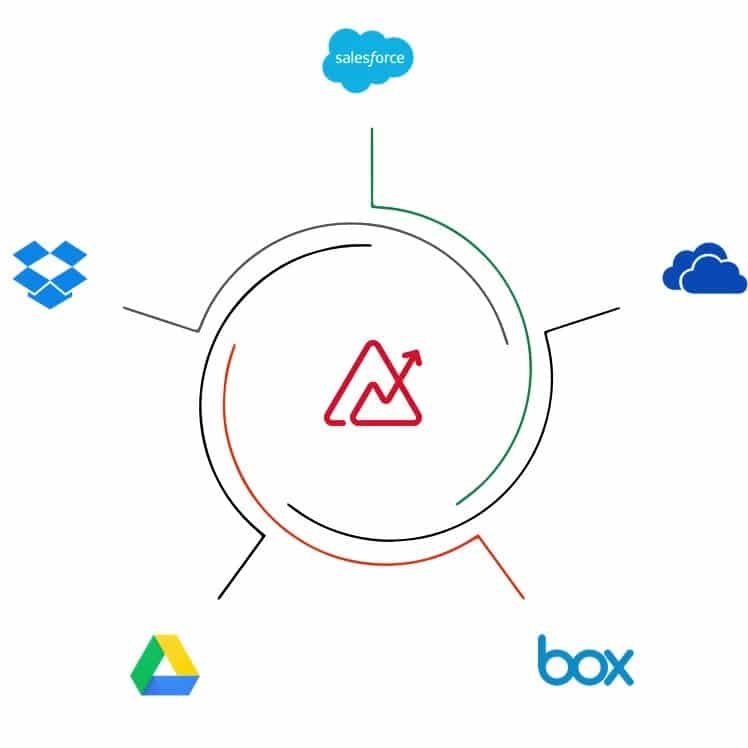
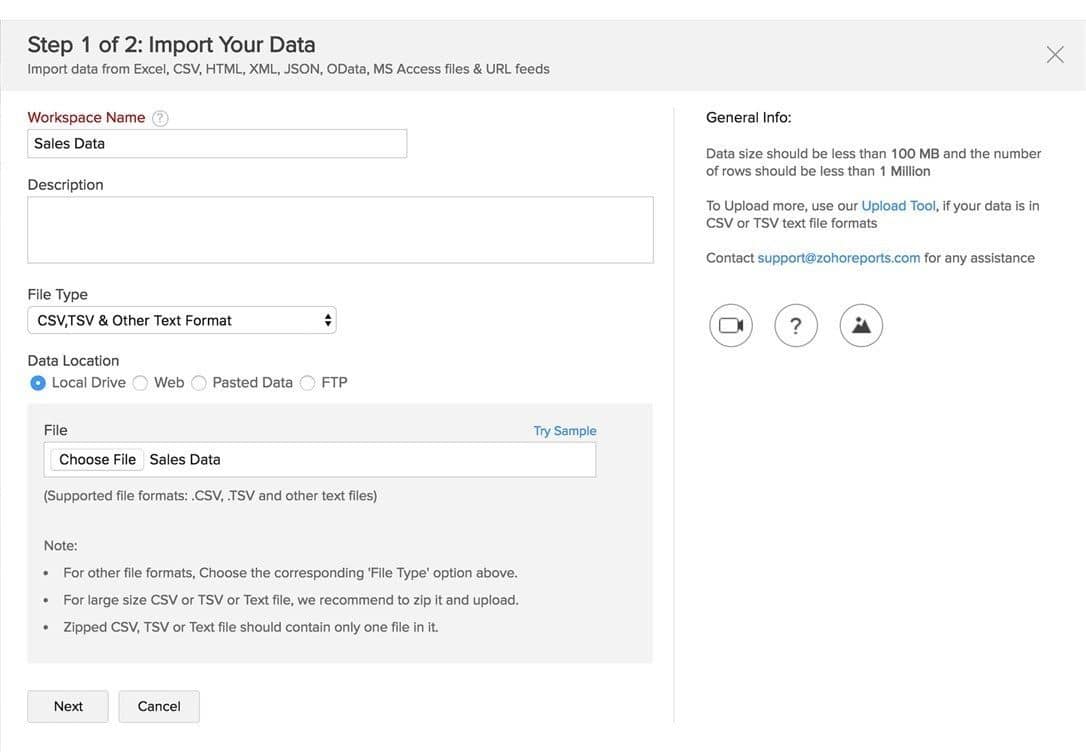
    Zoho Analytics allows you to import data from different file formats and web/URL feeds. CSV, XLS, XLSX, JSON, TSV, HTML, and XML are just some of the file formats. You can also easily upload data from major cloud storage vendors like Zoho Docs, Google Drive, Microsoft OneDrive, Dropbox, among others. All can be set up with automatic synchronization. When it comes to multiple databases, you can synchronize/upload data not only from popular relational databases, but also from NoSQL databases. Your databases can be setup either locally (behind a firewall) or hosted or in the cloud.

    Sales

    Zoho Analytics integrates with many sales analytics applications like Zoho CRM (which you can visually analyze its data right away using Zoho Analytics), Salesforce, Microsoft Dynamics CRM, and HubSpot CRM. You can also import data from CRM solutions like Pipedrive CRM, Insightly CRM, and Base CRM into Zoho Analytics using Flatly.

    Zoho Analytics allows you to import data from different file formats like CSV, XLS, XLSX, JSON, TSV, HTML, and XML.

    Marketing

    Emails, internet ads, social media, and surveys are now a standard when it comes to digital marketing campaigns, which is why Zoho Analytics can be integrated to many marketing analytics alternatives to make your campaign monitoring easier. Email marketing apps include Zoho Campaigns (which, connected with Zoho Analytics, lets you deeply analyze your data to improve your email marketing strategy for effective conversions) and MailChimp. Google’s marketing tools Google Analytics and Google Ads, as well as Bing Ads from Bing, can be connected to Zoho Analytics to track your email campaigns. In the survey field, you can connect Zoho Survey, SurveyMonkey, and SurveyGizmo; while in the social media field, Facebook, Twitter, and YouTube can be connected.

    Finance and eCommerce

    In the finance area, three Zoho products can be connected to Zoho Analytics: Zoho Books, Zoho Subscriptions, and Zoho Inventory. Other integrations include QuickBooks, Xero, and Stripe. Meanwhile, eCommerce platform Shopify can also be integrated.

    Project Management, Helpdesk, and Human Resources

    Integrate project management software Zoho Projects and Teamwork Projects. Track desk metrics by connecting helpdesk software Zoho Desk, ManageEngine ServiceDesk Plus, ManageEngine SupportCenter Plus, Zendesk, and Teamwork Desk. Improve your HR operations by connecting Zoho Analytics with Zoho Recruit and Zoho People.

    Wait, and There’s More?!

    Yes, there is! Last but not least, Zoho Analytics lets you connect with Zoho Creator, Zoho BugTracker, and APIs.

    As you can see, Zoho Analytics is flexible enough to have plenty integrations which, if you ask us, is very convenient to get the most insights for your business’ different processes. And when that takes place, success is bound to happen. Isn’t that exciting?

    To learn more about Zoho Analytics’ data connectors, click here.

    Are you looking to implement Zoho Analytics in your company? Then click here and sign up for a free trial of Zoho Analytics.
  • Zoho Analytics Case Study: 100% Customer Satisfaction

    Great products bring great results. The applications of our partner Zoho are a clear example of that. With that in mind, we present you a recently published case study by Zoho, which details the success story of the company Mitrefinch after using Zoho Analytics.

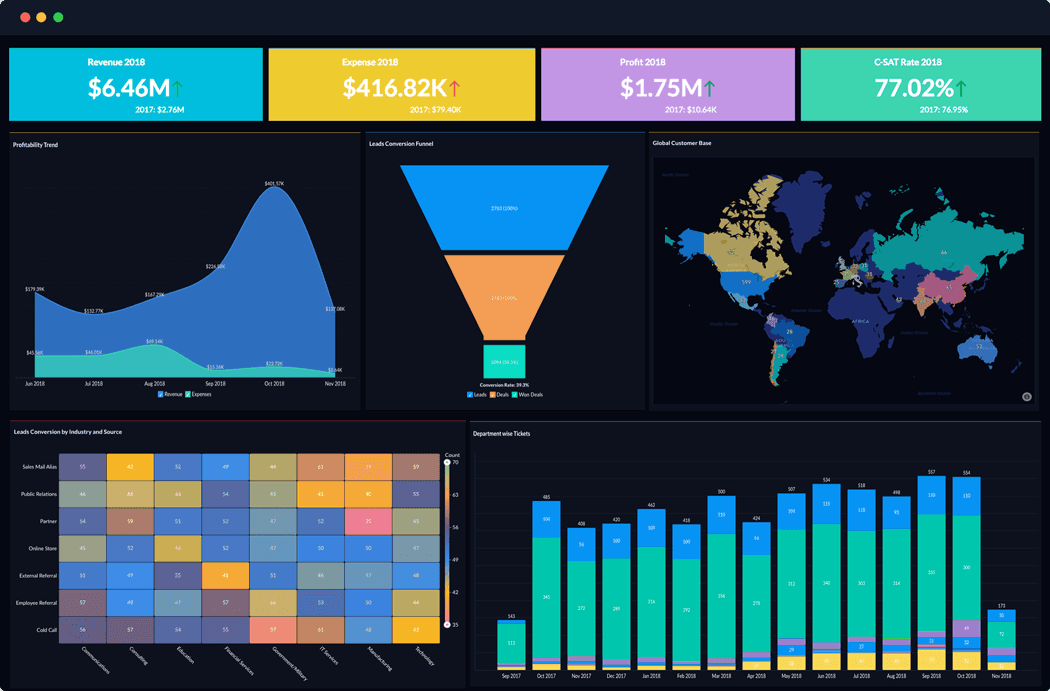
    A dashboard from Zoho Analytics. (Image via Zoho)

    The Challenge

    Mitrefinch, a company based in the United Kingdom, provides global Workforce Management solutions for public and private organizations that need to monitor and manage their workforce while controlling labor costs.

    The company needed to develop a customer program strategy, focused on improving customer experience. For this, deep insights into customer support metrics were needed. Because Mitrefinch has complex sets of data that are generated from their global customer support functions, its analysis was very challenging. That was something that Microsoft Excel, which was their BI tool, couldn’t handle. That lead them to try Microsoft Power BI, but the results weren’t convincing. Mitrefinch needed to find a solution that could integrate and merge colossal amounts of data. And this was not just from Zoho Desk, their support solution, but also from in-house databases and Salesforce.

    So, in summary, Mitrefinch needed a solution that could do the following:

    • Integration and blend of data from all data sources without manual intervention.
    • The analysis and creation of insightful and segmented customer support dashboards by country, region, and customers
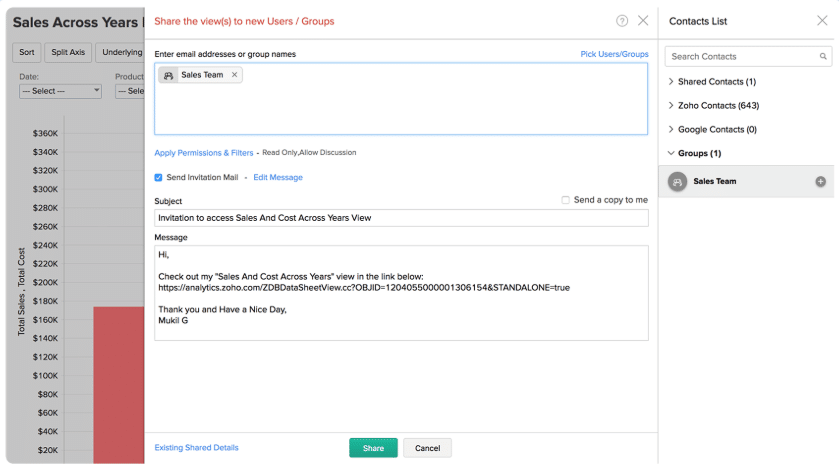
    • The enabling of global and secured report sharing with user-based permissions.

    Sharing reports option in Zoho Analytics. (Image via Zoho)

    Zoho Analytics’ Solution

    Mitrefinch was already a Zoho Desk customer when they discovered Zoho Analytics. The company thought that Zoho Analytics could be an ideal solution, since most of their support data was in Zoho Desk. Therefore, the integration between them would be quick to configure. And it was! According to Mitrefinch, the “integration between Zoho Desk and Zoho Analytics was seamless. Within minutes, customer support data was imported into Zoho Analytics and analysis got done.”

    Thanks to Zoho Analytics, the company can now pull data from Zoho Desk, Salesforce, and in-house databases. This allows Mitrefinch to analyze and create weekly support team reports, global KPI reports, and KPI dashboards. All of these are segmented by country.

    Regarding Zoho Analytics’ dashboard widgets, Mitrefinch found them helpful and appealing, with 33 widgets and 16 reports created for two key dashboards: internal and external.

    Because of all the benefits gained from using Zoho Analytics, Mitrefinch identified gaps in customer experience and was able to focus on them.

    Drumroll for the Results, Please!

    Thanks to Zoho Analytics, Mitrefinch achieved the following:

    • The scores for Mitrefinch’s customer satisfaction increased from 80% to 100%.
    • The first call resolution time decreased from 20 hours to just 7 hours.
    • The company leadership liked the 100% transparency in support metrics. These were not possible before the implementation of Zoho Analytics.
    • A powerful analytics platform for the analysis of all customer information and the derivation of insights in short notice.

    Without a doubt, Zoho Analytics was a huge success for Mitrefinch, and we love Zoho success stories like this one!

    To read the full Zoho Analytics case study, click here.

    Are you looking to implement Zoho Analytics in your company? Then click here and sign up for a free trial of Zoho Analytics.
This site is registered on wpml.org as a development site. Switch to a production site key to remove this banner.