Category: Resources

  • How to Integrate Zoho CRM and WhatsApp Business

    The WhatsApp messaging platform has gained huge popularity among businesses because of its quick and hassle-free messaging services. Because it allows customers to start the conversation with the business, customers have more control of their purchase decisions.

    With that in mind, Zoho CRM has made possible an integration with WhatsApp. Below you’ll see the required steps to activate it:

    Requirements

    1. Facebook Business Manager account.

    2. A verified business.

    3. WhatsApp Business account.

    4. A registered phone number to access the WhatsApp Business API. The phone number must meet the requirements mentioned in this page.

    Instructions for the WhatsApp and Zoho CRM Integration

    NOTE: Only an administrator can initiate this integration.

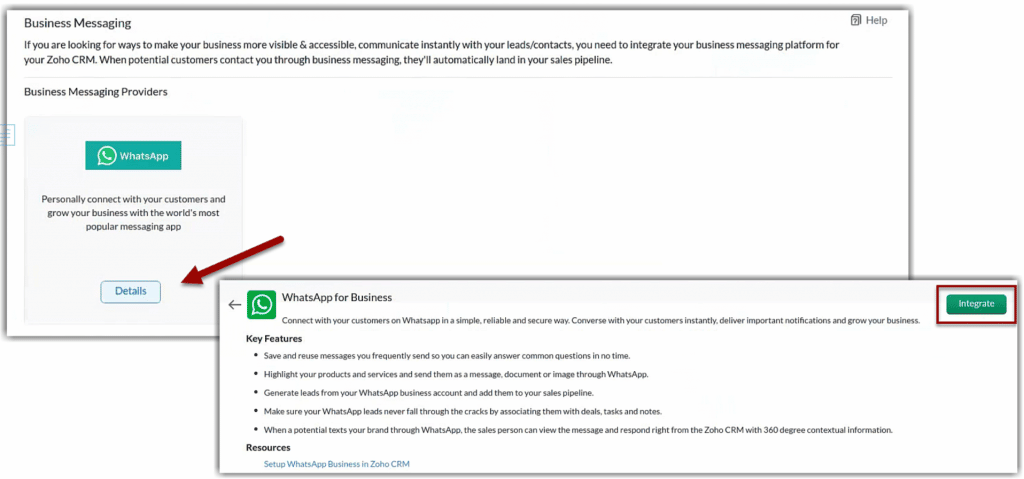
    1. Go to Setup > Channels > Business Messaging.

    2. Under WhatsApp, click Details > Integrate.
    (Image via Zoho)

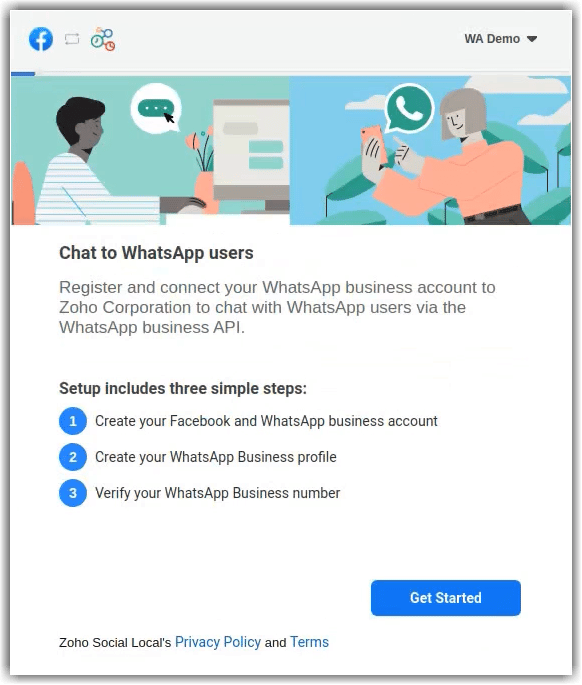
    3. In the WhatsApp access request page, log in with Facebook Business Manager’s credentials.

    4. Click Get Started.
    (Image via Zoho)

    5. Click Continue to give permission.
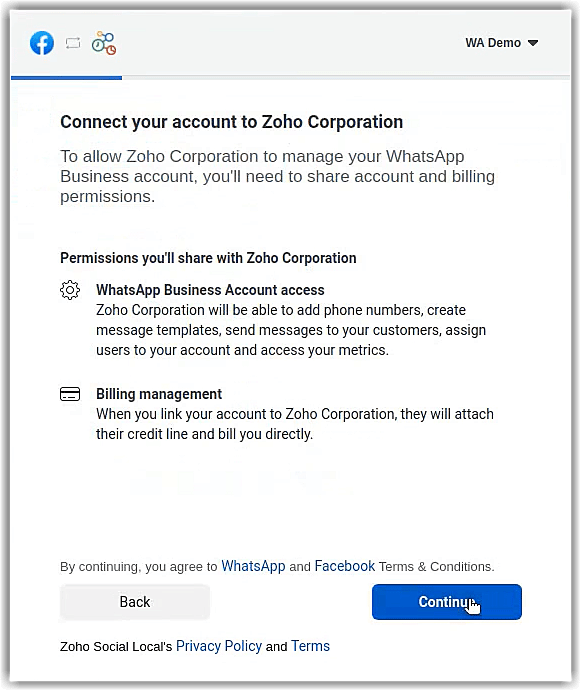
    (Image via Zoho)

    6. Create a new Facebook Business account or select existing account from the options.
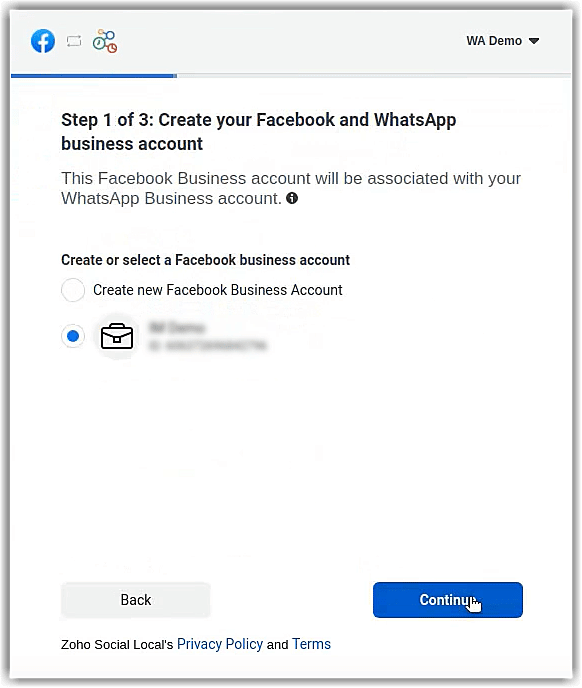
    (Image via Zoho)

    7. Create a new WhatsApp Business account or select existing accounts from the options. Then, click Continue.
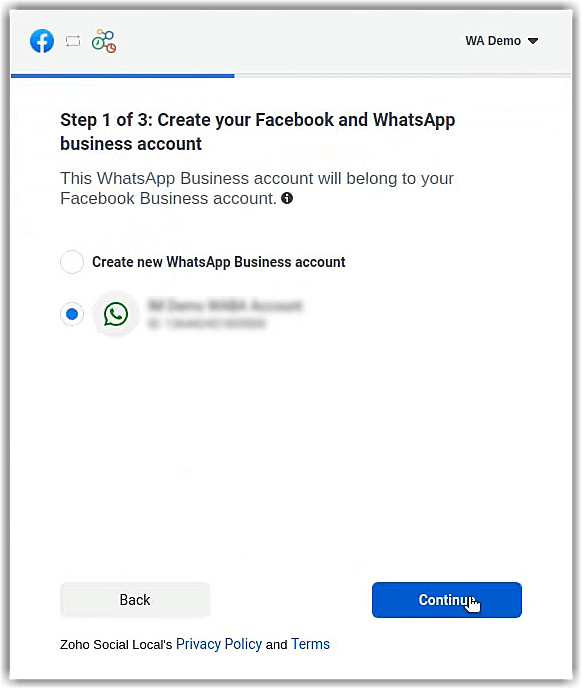
    (Image via Zoho)

    8. Create a new WhatsApp Business profile or select an existing profile from the options. Then, click Continue.
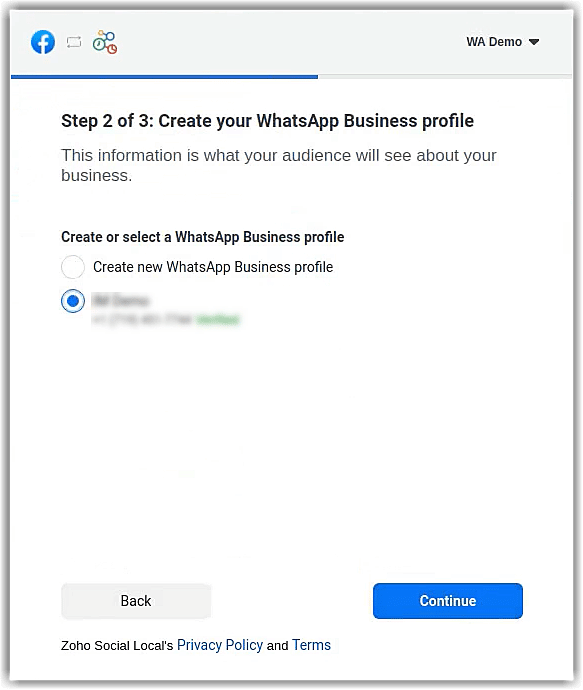
    (Image via Zoho)

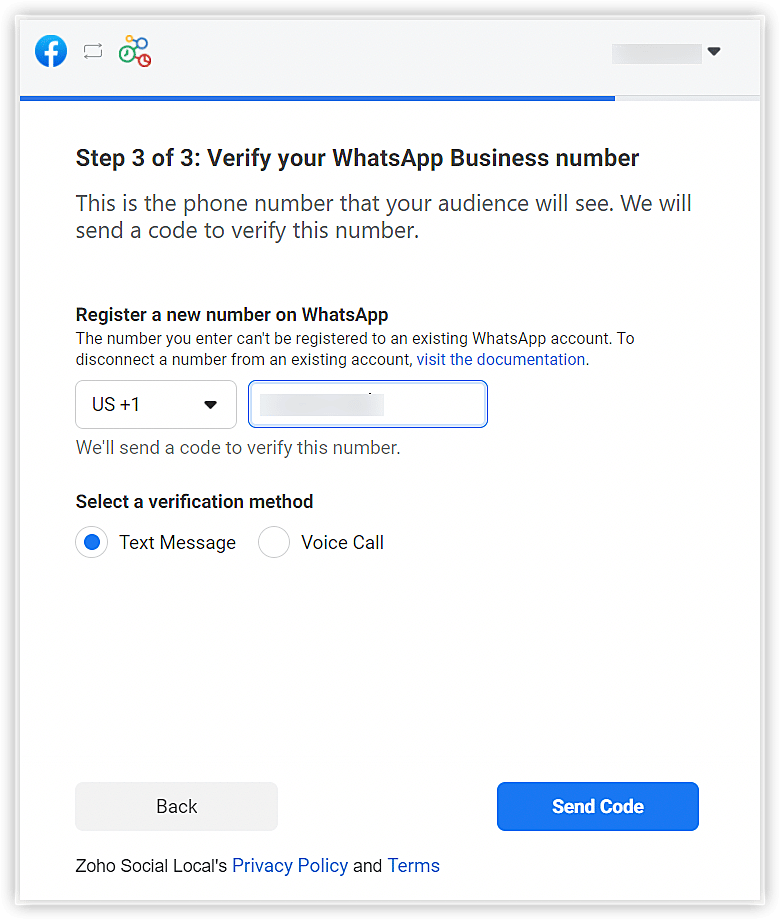
    9. Verify your WhatsApp Business number.
    (Image via Zoho)

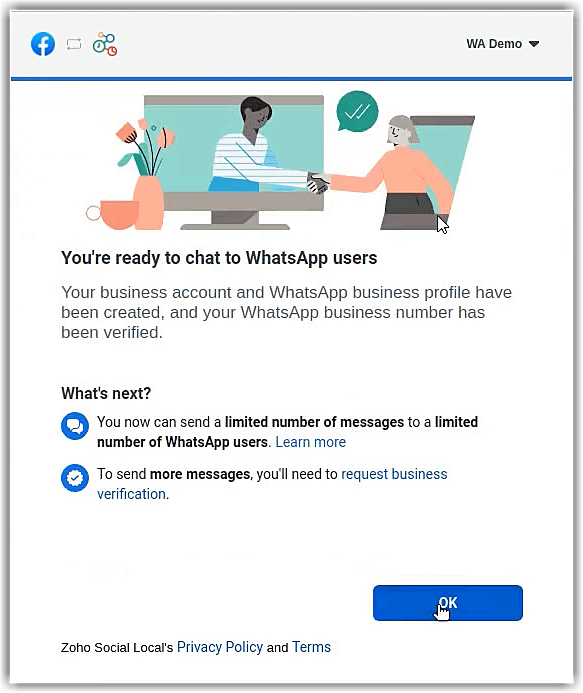
    10. Click OK on the next screen.

    (Image via Zoho)

    11. Provide a nickname for the WhatsApp business profile in CRM and click Next.

    • Provide the account preferences choosing from the dropdown options. In the Add as field, select Leads or Contacts.
    • In the Assign to field, select users, groups, or roles.
    • In the Choose Users field, select the users, groups, or roles.

    12. When finished, click Save. The WhatsApp Business messaging account will now be activated.

    NOTES:

    • Once your business is verified, it will be reviewed for compliance with the WhatsApp Terms of Service and WhatsApp Commerce Policy.
    • If you have rebranded your domain (domain-mapped accounts), you must enable third-party cookies in your browser before starting the integration.
    • You can’t use WhatsApp phone numbers being used on other products. Only unused phone numbers can be used for the integration.
    • Migration of existing phone numbers is not supported yet.

    Business Message Charges, Buying Credits, and Auto Recharge 

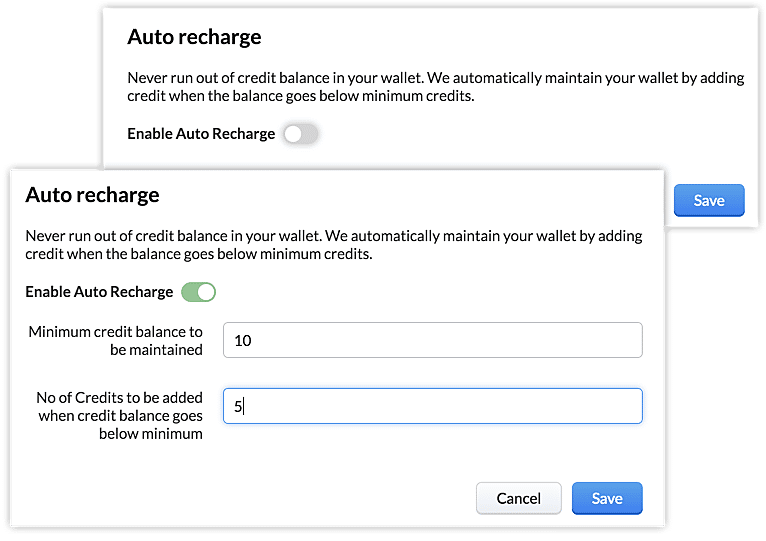
    Messages sent by the company are charged. You can purchase credits based on the frequency of your usage so that the charges are automatically deducted from it. After the initial purchase of credits, you can use the auto recharge option to avoid running out of balance by setting the minimum number of credits that must be maintained in your account at any time. Also, you can indicate the number of credits that must be purchased when the limit is spent.  

    To buy credits:

    1. Go to Setup > Channels > Business Messaging.

    2. Click Buy Credits. This option will be available only after the phone number is active.

    3. Enter the value. Then, click Next.

    4. Click Make a payment.

    To auto recharge:

    1. Go to Setup > Channels > Business Messaging.

    2. Click Auto Recharge.

    3. Toggle on Enable Auto Recharge.

    4. Complete the field Minimum credit balance to be maintained.

    5. Complete the field Number of credits to be added when the balance is minimum. When finished, click Save.  
    (Image via Zoho)

    How to Manage the Messages Tab

    1. Filtering and setting view for messages

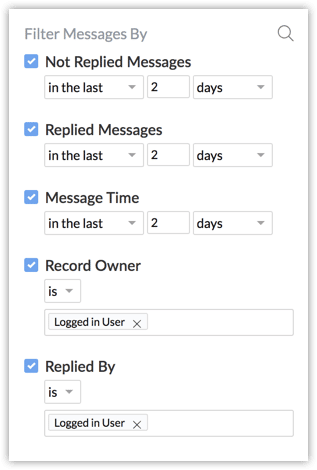
    In the Messages module, users can utilize the following filters and set criteria to find a message quickly:

    • Not replied in x days/weeks/months
    • Replied in x days/weeks/months
    • Message time in x days/weeks/months
    • Record owner is x user or logged in user
    • Replied by x user or logged in user 
    (Image via Zoho)

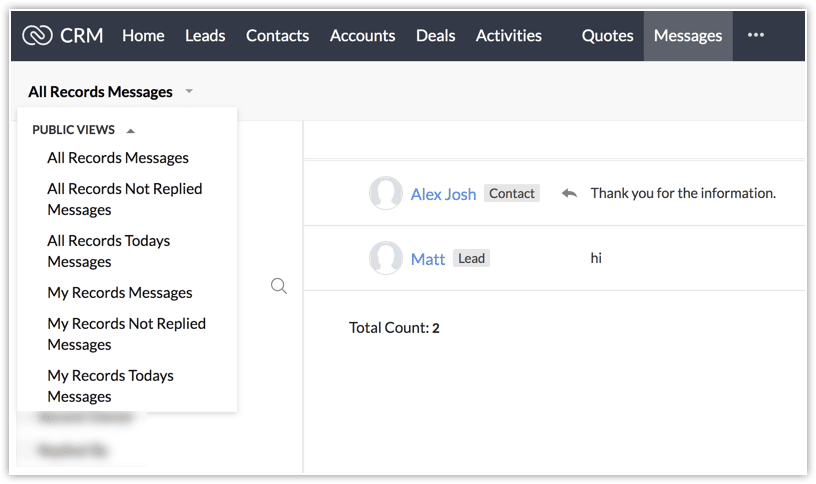
    Users can also set a view for the module to see the following: messages that are unreplied, all messages sent today, all unreplied messages, among other views.
    (Image via Zoho)

    2. Receiving notifications for business messages

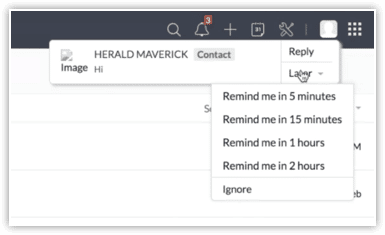
    When an interested customer or an existing lead/contact sends a business message to your business’ WhatsApp number, a notification is sent to the Zoho CRM user via SalesSignal and popup. The push notification will be shown to the record owner. 
    (Image via Zoho)

    Within the push notification, the user will receive an option to be notified again after a few minutes or an hour. If the user can’t respond immediately, they can click on Remind after 15 minutes. This is not a global setting, so the user has to choose when to be reminded for each push notification they receive. Once the user clicks Ignore, the notification will close.

    When multiple messages are received, the notification will display the total count of messages.

    (Image via Zoho)

    The user can also access the message notification from SalesSignal.
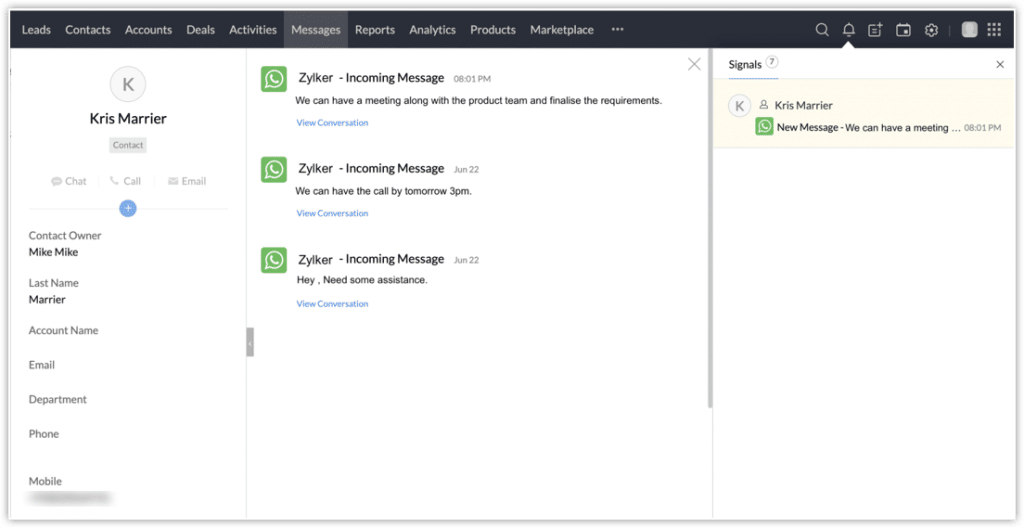
    (Image via Zoho)

    3. Replying to the business messages

    The Zoho CRM users can reply to the business messages by clicking on the notification or by clicking on a record from the Messages tab. Users can also click on the View conversation from SalesSignal notification to reply. They can respond to customers by typing a message or sending a predefined business message. Merge fields can be used to pull the related value. The user can preview the value before sending the message.

    NOTES:

    • CRM users can reply to a message within 24 hours of receiving it. After this, the WhatsApp messaging window will be closed.
    • Only the customer can start a conversation by sending a business message. A user is not allowed to send messages to leads or contacts via WhatsApp.

    How to reply to a business message

    a. Click on the notification to view the message. You can also go to the Messages tab and click on the record.

    b. Type your message or click Predefined text to select a text. When finished, click Send.

    4. Setting and managing predefined text 

    The Zoho CRM users have the option to create predefined texts that can be quickly sent to customers. For example:

    Answers to commonly asked questions: What is the cost of the service? My order is delayed, can you help me track it?

    Greetings: Hi, $[Leads.First Name]. How can I help you?

    Creation of predefined texts

    a. Go to the Messages tab and click on a message.

    b. Next to the typing bar, click New Predefined Text. You can also click Manage and + New Predefined Text.

    c. In the New Predefined Text popup, enter a name for the text (for example: Greetings).

    d. Enter the text message. You can use merge fields too. Once you’re finished, click Save.

    The predefined text messages can be edited or deleted by clicking the Manage button. All the texts are stored here. The users can filter them module-wise or search using the text name.

    NOTE: You can’t change the module while editing a predefined text. This is to avoid errors in case merge fields have been used in the predefined texts.

    To manage predefined texts:

    a. Go to the Messages tab and click Predefined Text from the text area.

    b. Click Manage from the drop-down list.

    c. In Manage Predefined Text, hover on a text and click the Edit or Delete icon

    5. Sending attachments via business messages

    Zoho CRM users can send attachments via text messages. They can attach up to 5 files through the following:

    • Upload a file from their computer.
    • Attach files from the Inventory (sales orders, quotes, purchase orders, invoices).
    • Attach files from supported cloud drives (Google drive, Sky Drive, Evernote, Dropbox).

    The user can either select a quote that is associated with the prospect, create a new quote, or send one of the available quotes depending on the business need and type.

    Each conversation view tab is divided into two tabs: Messages and Attachments where the corresponding information is stored. You can preview and download all the attachments from here or from the messages.
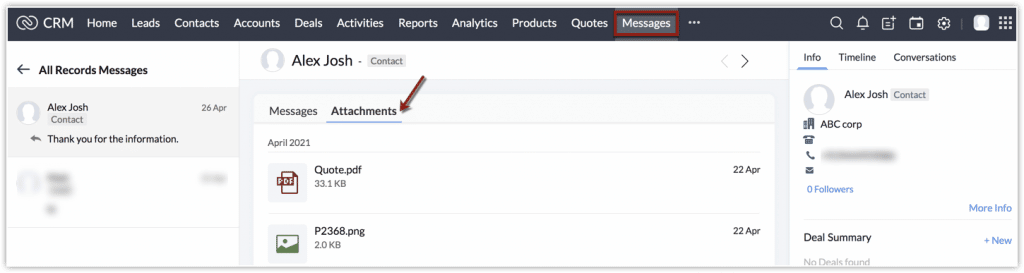
    (Image via Zoho)

    To read the full article, click here.

    Need help with your WhatsApp integration and/or any other third-party integrations for Zoho? Contact us now for a consultation.
  • Zoho Writer Introduces Workflows to Streamline Document Processes

    Zoho Writer has introduced an easier and quicker way to share and collaborate documents for review: the multi-stage document workflows. This new function lets you streamline and standardize business processes, as well as the processes of creating, reviewing, and approving documents across an organization.

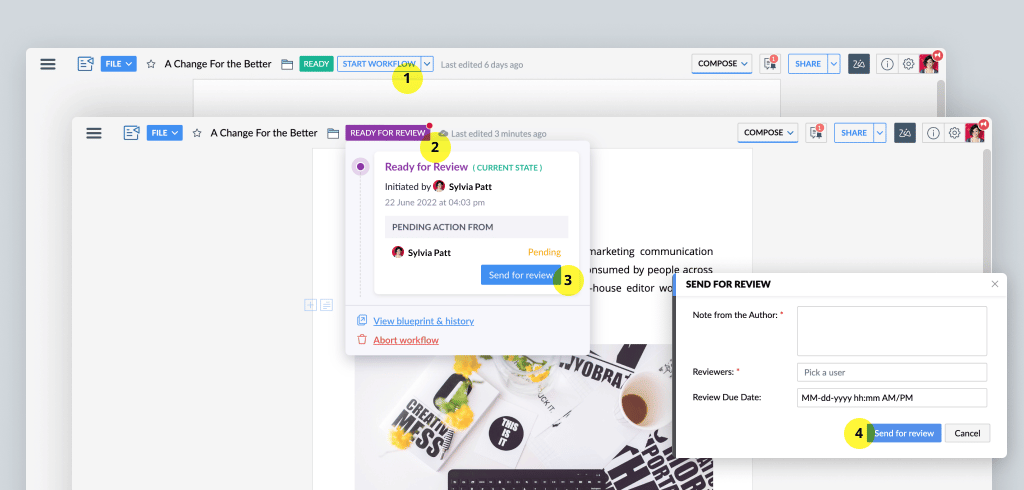
    To make it happen, just start the workflow to notify all designated actors (reviewers, assigners, and approvers) who can either suggest changes or approve the document.

    Zoho Writer’s approval workflows were created with many useful capabilities to streamline your organization’s document lifecycle management and approval processes. Let’s take a look at each workflow:

    Purpose-Built Workflows 

    (image via Zoho)

    Zoho Writer includes four workflows that are ready to use with the option to indicate a due date. Once in place, reviewers or approvers will receive email reminders to act on the documents before the deadline is up. This gets rid of the trouble of sending multiple reminders and follow-ups to have your documents reviewed or approved. Please note that you can use one or more of these four workflows for your document management needs.

    • Review Workflow: Get your team members, co-authors, peers, or subject experts to review your document and recommend suggestions. This will help achieve writer-expert synergy for white papers, case studies, and more.
    • Approval Workflow: Receive formal document approval from your manager or process owners. This workflow enables timely approvals for any document type.
    • Editorial Review Workflow: Send documents to the editorial team for review. Include a due date so they can prioritize and delegate it to the right editors, and complete the approval process on time.
    • Review and Approval Workflow: This one allows articles to be reviewed by your group of experts or collaborators, and then approved by your manager or assigned DRIs in a sequence.

    Custom Workflow Triggers and Post-Workflow Actions 

    (Image via Zoho)

    Workflows can be triggered automatically or manually, as required. For example, you can set the workflow to automatically begin when the document owner marks it as “Ready.”

    When the workflow is completed, you can use the prebuilt actions library to add a watermark to the final document, move it to a specific folder, rename it, publish it on a platform, among other options. Also, you can configure your own post-workflow action.

    Controlled Collaboration  

    (Image via Zoho)

    Control who can do what action and when. At every stage of the workflow, only authorized collaborators can work on the document. This means that, for example, once a document is submitted for review, only the reviewers are allowed to make changes, while others can only add comments.

    Real-Time Document Status and Email Notifications

    (Image via Zoho)

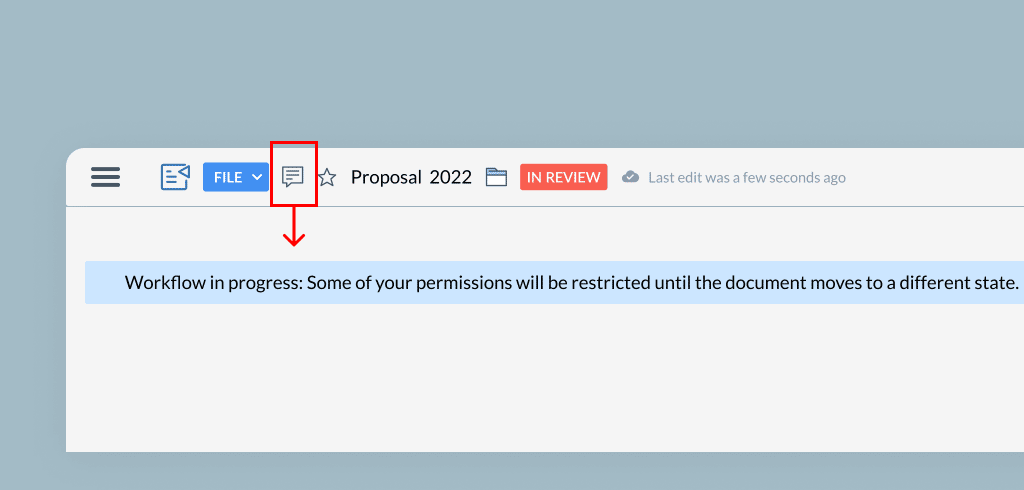
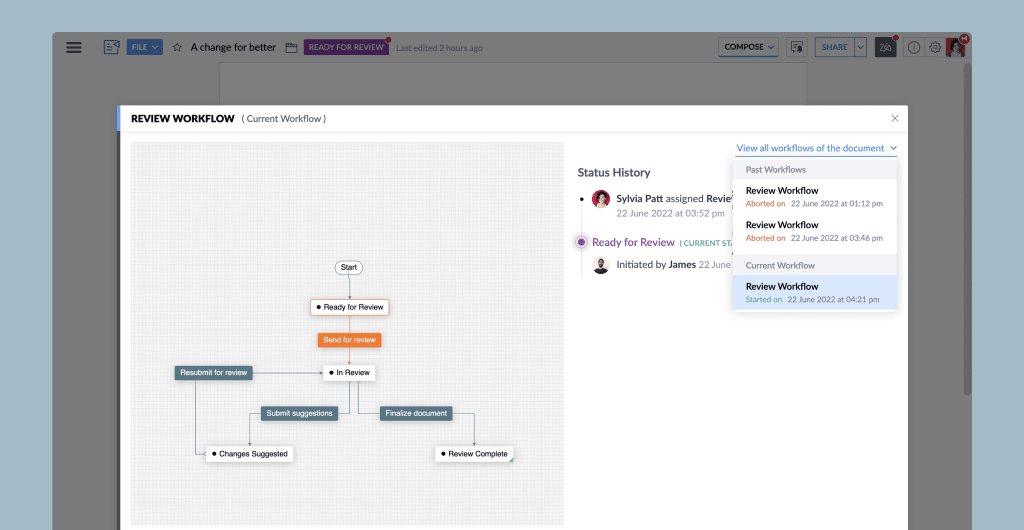
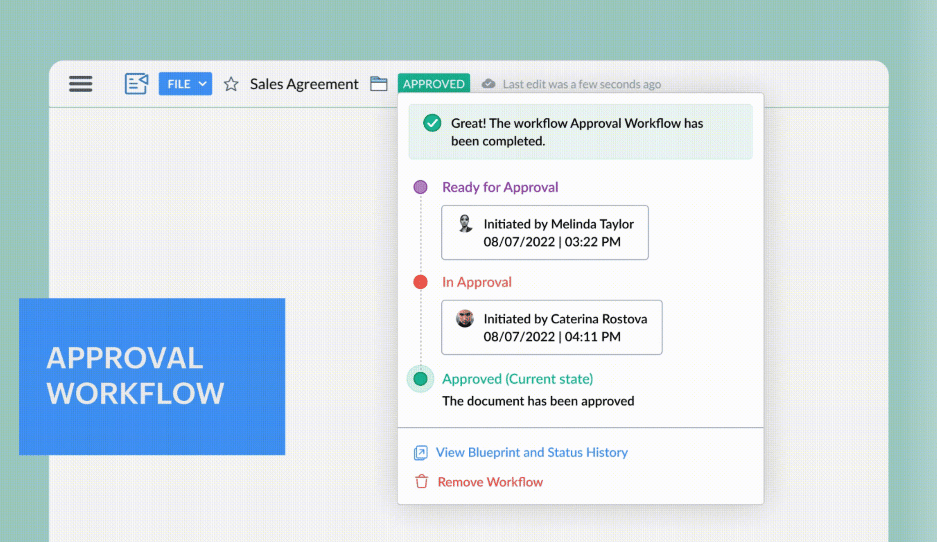
    The status and notifications allow you to easily identify your document’s stage in the process with the in-product status notifier. As your document progresses through the workflow, you can see its stage at the top of the document. The status are: Ready for Review, In Review, Changes Suggested, In Approval, and Approved. Zoho Writer also informs all stakeholders about the document’s status with real-time email notifications.

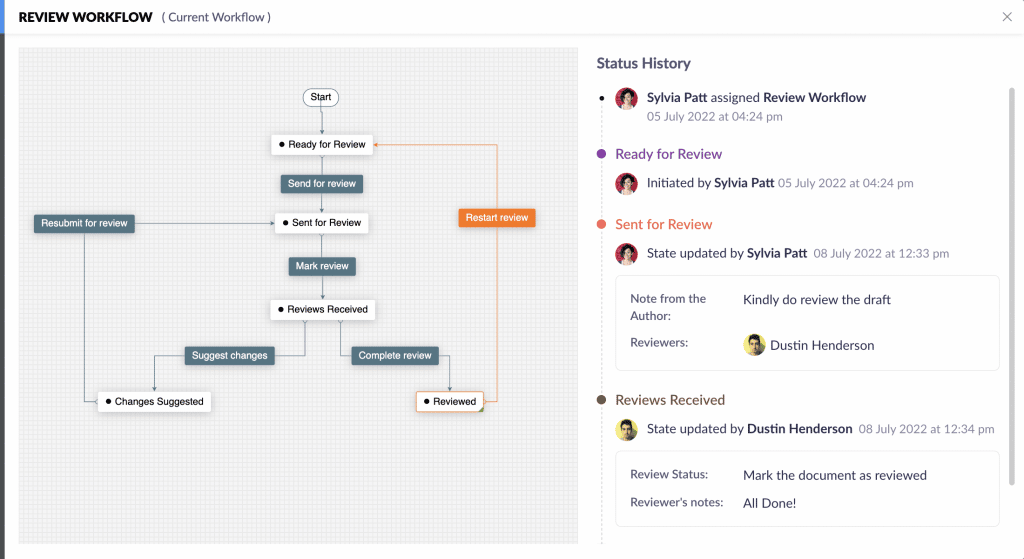
    Visual Workflow Status Tracker 

    (Image via Zoho)

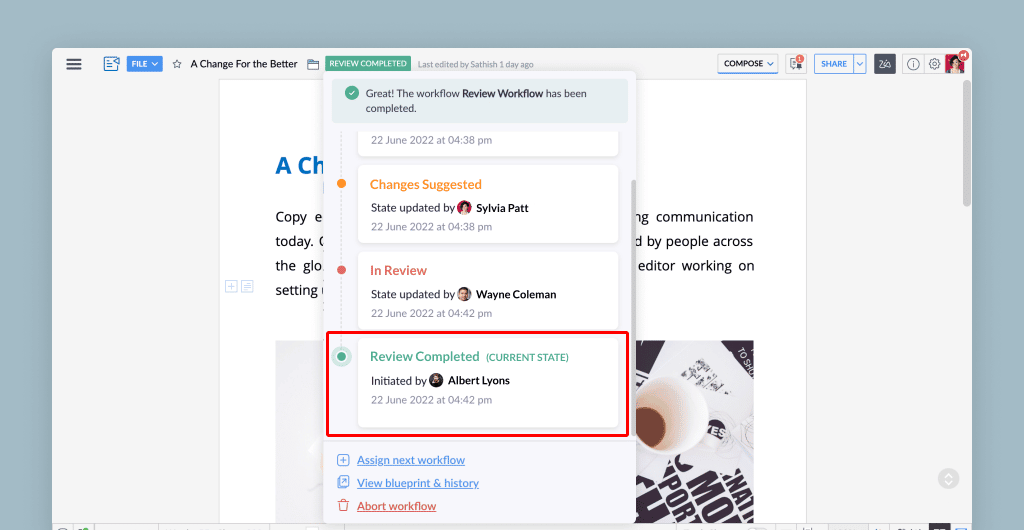
    See your document’s journey through the workflow to view its status and act accordingly.

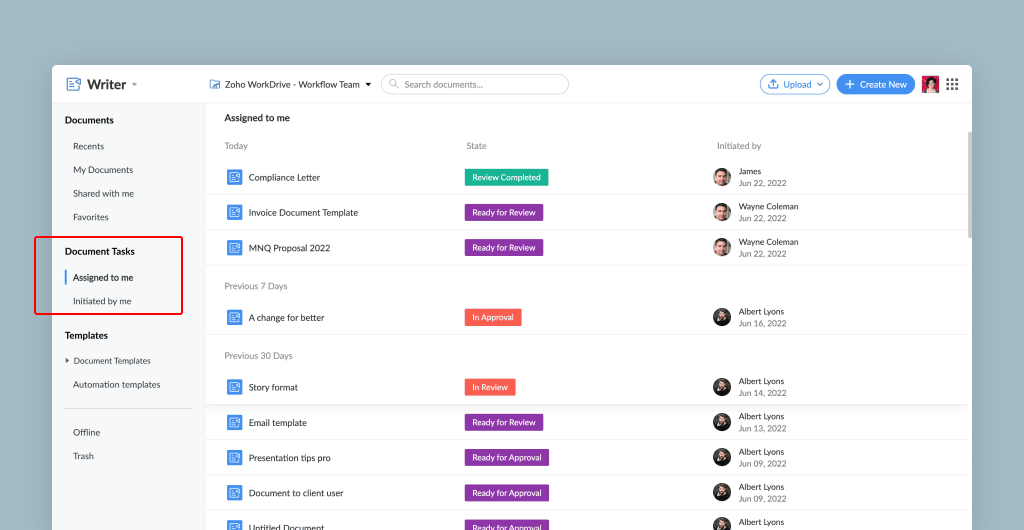
    Document Review Dashboard  

    (Image via Zoho)

    Quickly view in Zoho Writer’s dashboard the status of all documents that you’ve submitted for review, as well as the ones that are pending your action. Therefore, you won’t have to navigate through different documents or pages to check any status.

    Detailed Workflow History and Audit Trails

    (Image via Zoho)

    View a thorough history and audit trail for all workflows to fulfill compliance regulations with answers to these three important Ws: who performed what action and when. Click the Time link in the workflow history to see versions of the document at each stage.

    In addition, workflow history helps you learn which stage of the workflow is consuming the most time, so you can detect ways to improve your workflow or processes.

    How to Activate Document Workflows for Your Organization

    1. On the right-hand side, go to your Profile > Admin Panel > Configuration > Workflow Settings.

    2. Check if you have sufficient permission to access the workflow feature. If not, contact your super admin to enable this feature for your organization or team.

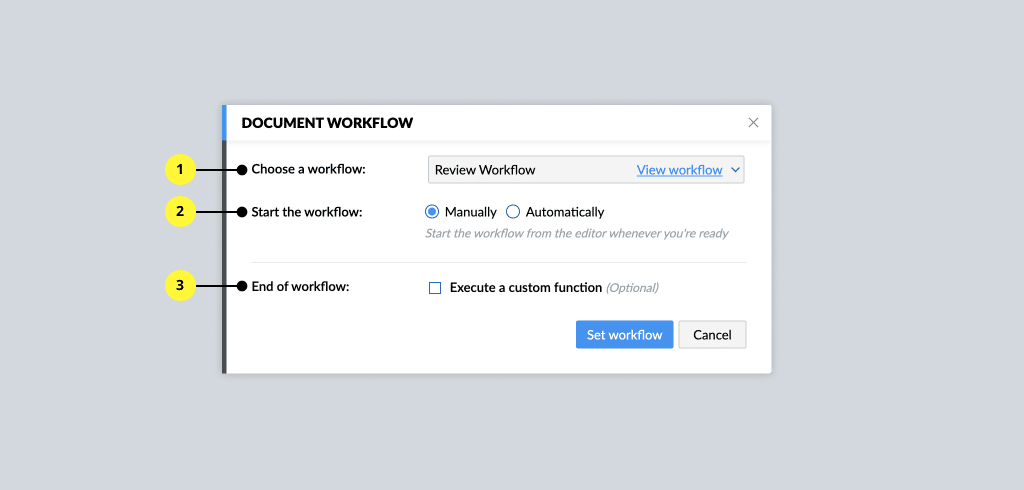
    How to Assign Workflows to Your Documents

    Assigning workflows can only be done to Zoho WorkDrive documents. To assign a workflow, follow these steps:

    1. Go to WorkDrive > Team or Organization’s Folder > Document.

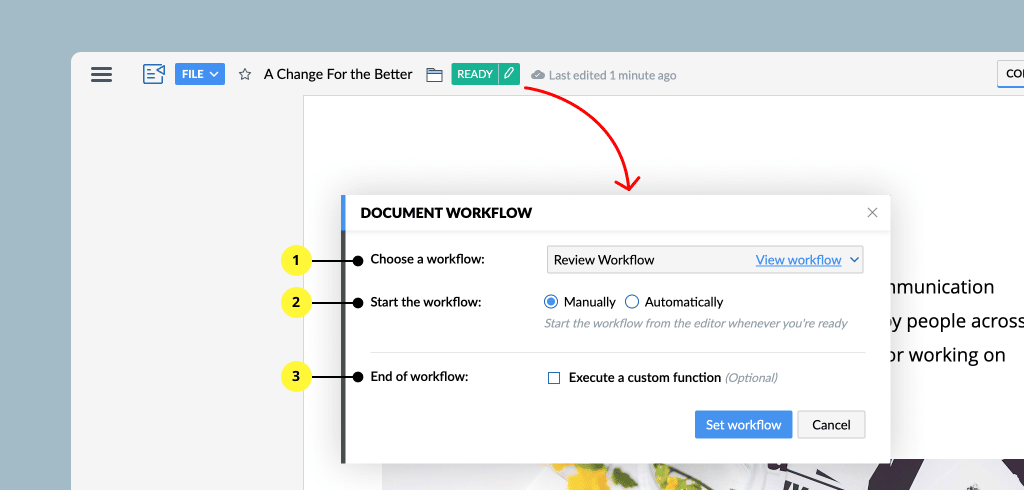
    2. Click File > Assign Workflow.

    3. Choose a workflow.

    4. Select when to start the Workflow (manually or automatically).

    5. Optionally, configure what action to perform after Workflow.

    (Image via Zoho)

    How to Start a Workflow?

    1. Assign a workflow with the help of the mentioned steps above.

    2. When the document is ready, click Start Workflow.

    3. Based on the workflow you have chosen, pick an assigner or a reviewer/approver to start the workflow.

    (Image via Zoho)

    To read the full article, click here.

    Need help with the implementation or optimization of Zoho Writer, or your other Zoho apps? Then you’re in the right place! Learn more about our Zoho Consulting Services and ask us for a free consultation.

  • Zoho CRM Revamps Forecasting Feature

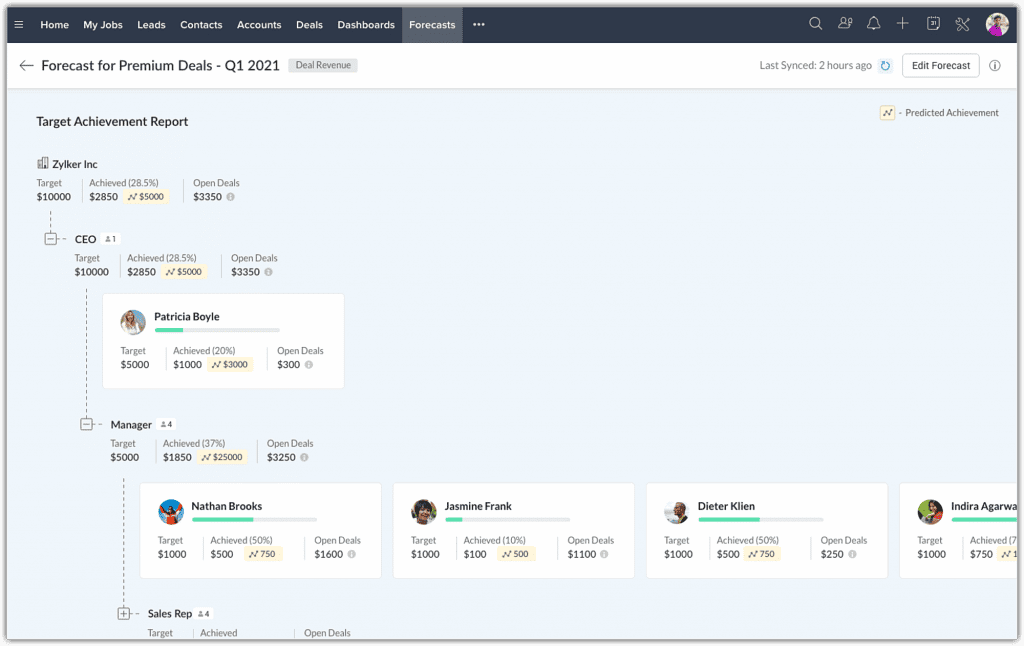
    Recently, forecasting in Zoho CRM —which is one of its main features— has been significantly updated. Its capabilities have been enhanced to help organizations understand their pipeline better, make accurate forecasts, and set realistic targets that can help sales teams achieve them. Here’s a walk throughout all the improvements that were made:

    Condition-Based and Multiple Forecasts Across Different Periods

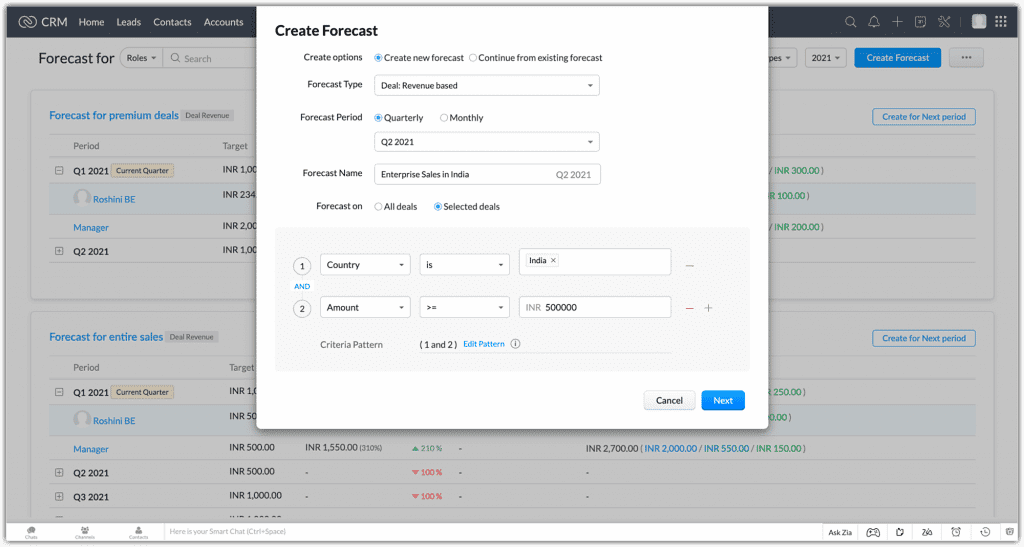
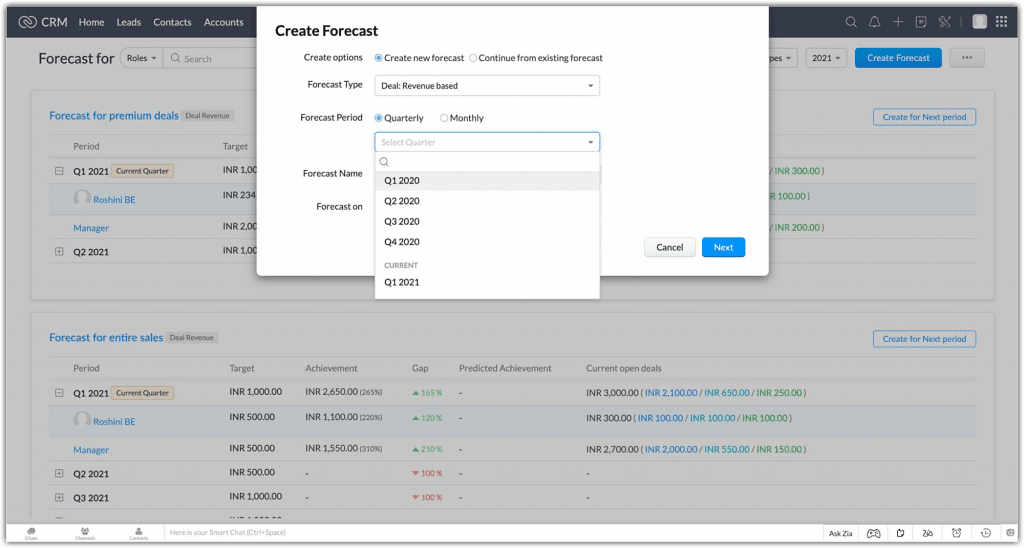
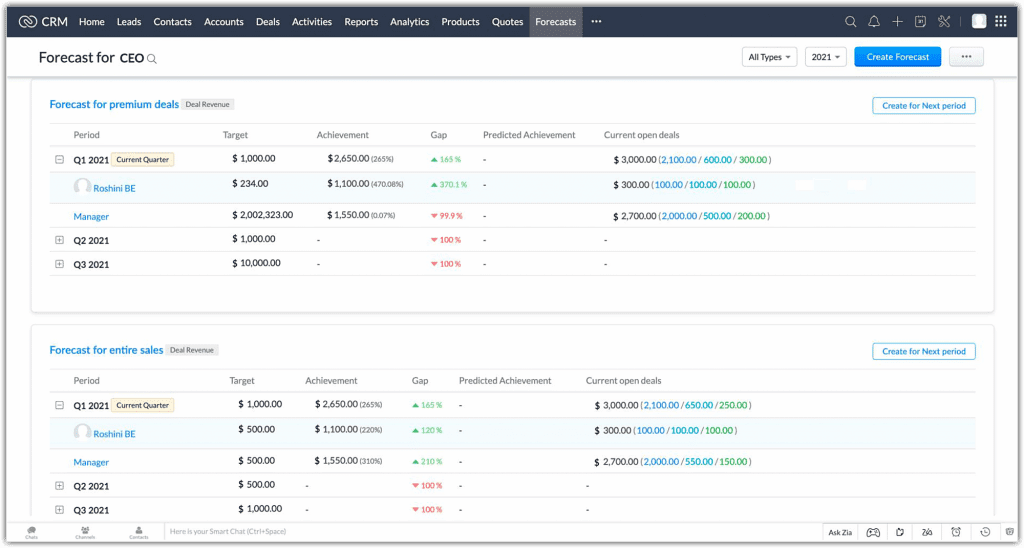
    Now you can create multiple forecasts, which can include all your deals or deals that match specified conditions, with a greater control of the forecast periods. Forecasts can be created for all the available hierarchy (Role/Reporting to and Territory). They can also be created monthly or quarterly for these forecast periods:

    • Current: 4 quarters/12 months of current fiscal year.
    • Future: 4 quarters/12 months of the next fiscal year.
    • Completed: The previous 2 fiscal years.
    Image via Zoho
    Image via Zoho
    Image via Zoho

    Forecast Types

    Two forecast types can be created based on the attribute that is used to set targets for your users:

    • Forecasts based on deal revenue: Targets are based on currency fields like Deal Amount, Expected Revenue, or other custom currency fields defined on the Deals module.
    • Forecasts based on deal quantity: Targets are based on system defined fields like Count of Deals and other custom number fields.
    Image via Zoho

    Best Case and Committed Deals Options Under Forecast Category

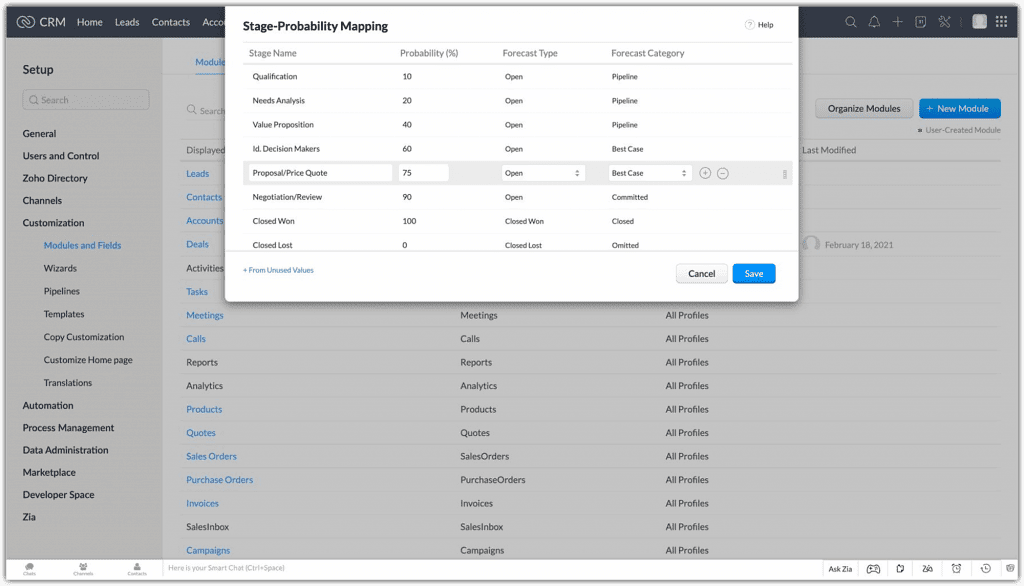
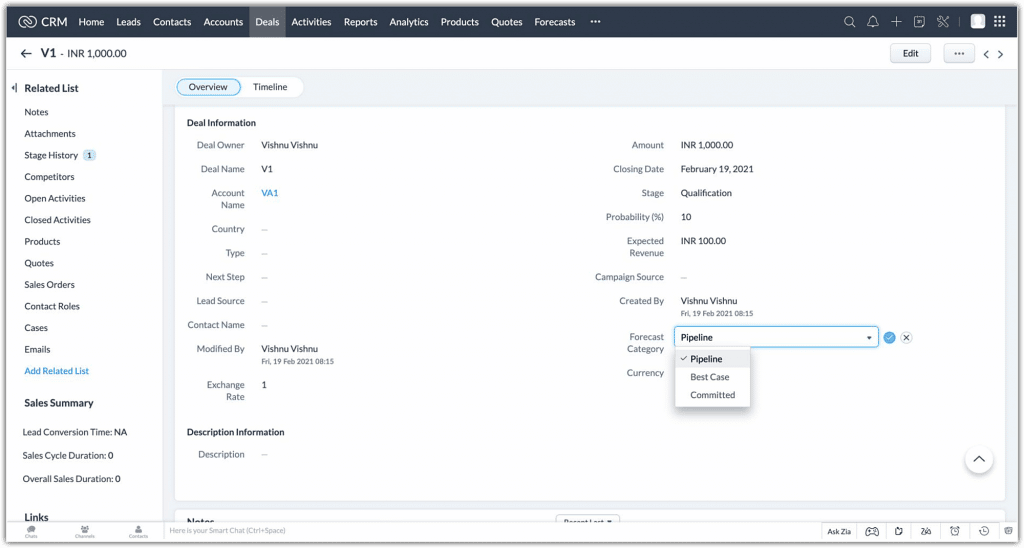
    In the past, deals only had three forecast categories that were associated with them: Closed Won (deal was marked as “Won”), Closed Lost (deal was marked “Omitted”), and Open (deal was marked as “Pipeline”). Now, open deals can be tagged with new options under the forecast category:

    • Best Case: Open deals that have a high chance of being won.
    • Committed: Open deals that sales reps commit to winning.

    Instead of generalizing all open deals as pipeline deals, this separation offers a better view as to where a particular sales rep stands in terms of the deals in their pipeline. This allows the administrator to make more informed decisions when setting targets for a particular user.

    Moreover, sales reps have the option to manually update the forecast category in a specific deal to the applicable option when needed. The deal amount will be updated in your forecast during its next sync.

    Image via Zoho
    Image via Zoho

    Transparent Split of Deals in Pipeline for Ideal Targets

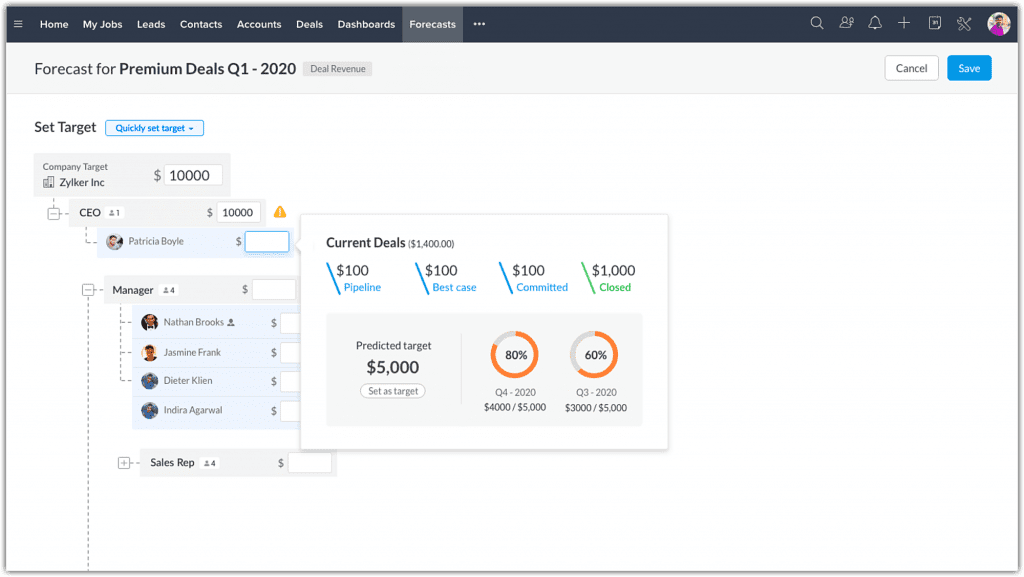
    While setting targets for your users, a popup with your pipeline data shows the split of deals to give you full visibility of where each user stands in-terms of sales numbers. The deals are divided into open and closed won deals. Open deals are being further split into Best Cases, Committed, and Pipeline deals.

    Image via Zoho

    Zia Proposes Target Suggestions and Target Achievement Predictions

    When creating a continuous forecast, Zia (Zoho CRM’s AI assistant) will calculate and suggest targets based on the historical data of your chosen forecasts. This will be available in the forecast creation page when setting targets.

    Also, the historical and current deal closure pattern of users will be analyzed to give you the predicted target achievement for the users. Achievement predictions will be available in the Target Achievement report.

    Image via Zoho

    Compare Your Performance Throughout Different Forecast Periods

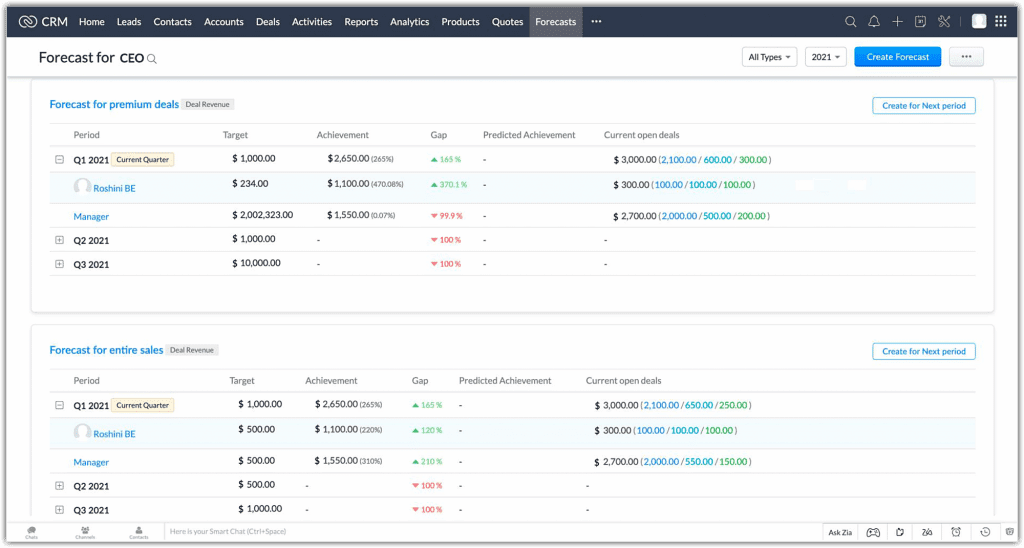
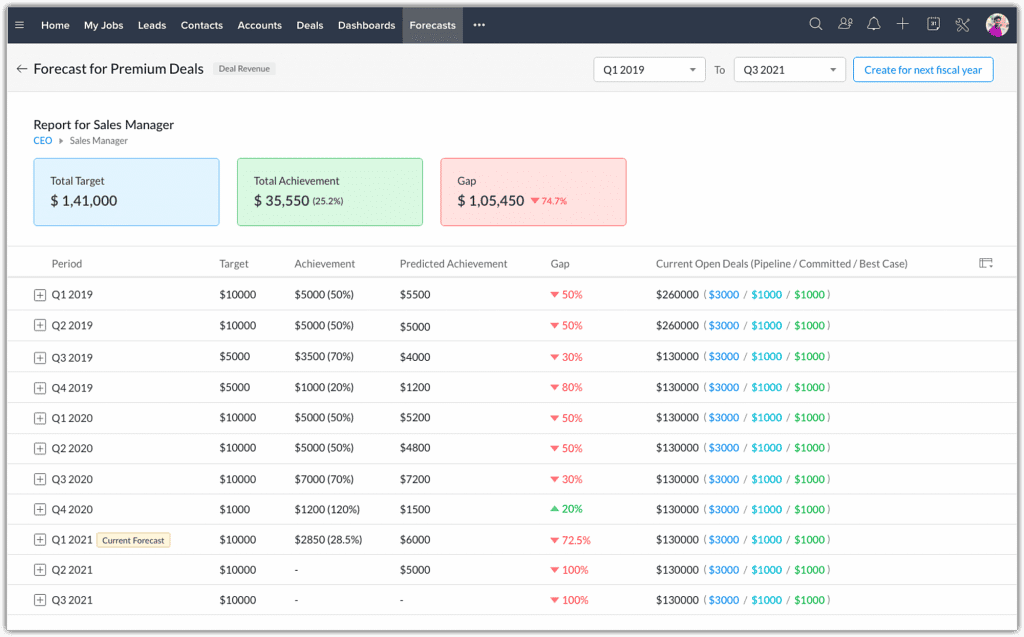
    All your created forecasts will be available in a list view under the Forecast module. You can now drill down into a particular forecast and compare how your organization’s performance has progressed through the years.

    Depending on the duration selected in the filter, the following data will be consolidated and shown at the top: Total Target, Achievement, and Gap.

    Below the consolidated data, the forecast data for each quarter/month for the selected duration will be listed for an all-encompassing analysis. If necessary, you can drill down further to analyze the performance of individual users or roles.

    Image via Zoho

    Archived Forecast

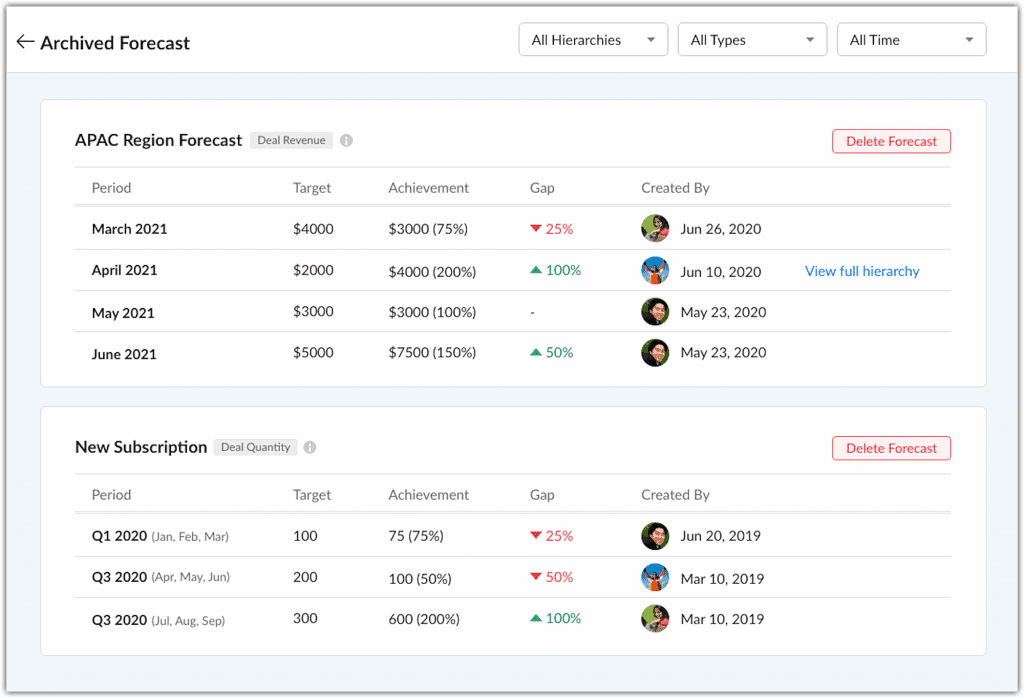
    In previous versions, forecast records beyond two previous years were lost. This defeats the purpose of having past forecasts available, since that data might still be very of grand importance. That’s why Zoho CRM now has the option of archived forecasts.

    Completed forecasts over two years from the current year will now be archived. For example, if the current year is 2022, forecasts of 2021 and 2020 will be available on the forecast list view page. Meanwhile, forecasts from 2019 or older will be archived.

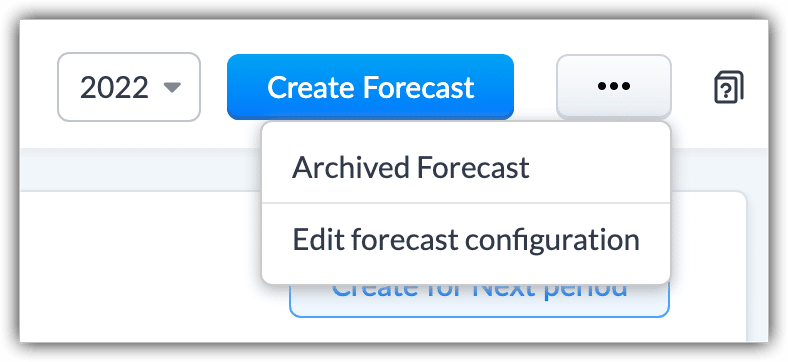
    Forecasts will be archived automatically upon editing forecast configuration (changing either the hierarchy or forecast type). For example, if the hierarchy is Reporting To and it’s changed to Territory or the forecast type is edited, the existing forecasts would be archived. Forecasts will be archived if the hierarchy preferences are modified in Company Details.

    In the archived forecast page, the forecasts are listed in chronological order. In addition, you can filter them based on Hierarchy, Forecast Type, and Time.

    Image via Zoho
    Image via Zoho

    Things to Keep in Mind:

    • The archived forecasts can’t be edited; they are just for viewing purposes. Users have to option to delete a forecast.
    • Up to 5 years of forecasts records will be available as archived.
    • Changing the start date of your organization’s Fiscal Year will delete all the existing forecasts, as well as the archived forecasts.

    Forecast Managers are Empowered

    In this update, forecast managers can build their own forecasts and assign targets to their role, their own target, their colleagues, sub roles, and users. Individual teams can have their own distinct forecasts and targets which can be focused on. These forecasts will be visible for the admin, CEO, and the forecast manager of a higher role who can monitor these forecasts and update them when necessary.

    If a forecast manager’s target has been changed by the CEO, admin, or a forecast manager from a higher role, the changed target is locked and can’t be modified by the forecast manager.

    Please note that all these major updates are already available in Zoho CRM.

    To read the full article, click here.

    Are you considering to implement or improve Zoho CRM Workflow Automation in your business? Then click here for more information.

  • Zoho SalesIQ Updates: Deprecation and 2.0 Version

    One year after launching the 2.0 version of Zoho SalesIQ, Zoho Corporation has announced that the old user interface will be deprecated on May 4, 2022.

    Image via Zoho.

    The redesign transformed the live chat software to become a customer engagement platform so business and customer communications could be easier. In a statement, Zoho said:

    “One year later, we’ve reached the point where it’s time to deprecate the old UI and make the SalesIQ 2.0 the default. As of May 4, 2022, you will no longer be able to access the old UI. This means that if you haven’t already switched to the new version, we encourage you to go ahead and make that change now so you can ease into it at your own pace.”

    We’ll share with you what’s new in Zoho SalesIQ 2.0, which includes 23 new features and 27 feature enhancements.

    Zoho Sales IQ 2.0 and its New Features

    The new 23 features include access to a simple drag-and-drop interface to build bots, while another feature gives the ability to create specific bots that automatically pull answers from resource libraries. Also, there are now more integrations, which include Facebook Messenger and Telegram. Other features from version 2.0 include:

    • Fork conversations in chats

    • Use of tags for organization

    • Translation to local languages

    • Built-in screensharing to help customers through complex queries

    • Profanity management to safeguard business ethics

    Besides new features, Zoho has created a faster and more user-friendly version of SalesIQ, while retaining the existing features that customers use and like. Beta-testing allowed to fix issues and improve features.

    To read the full article, click here.

    Please note that the new version will be made permanent by Zoho on May 4, 2022, and the old UI will be deprecated. If you need assistance with this change, feel free to contact us.

  • Zoho Social Announces Integration with Pinterest

    Zoho Social, the social media management tool from Zoho Corporation, has recently announced their latest third-party app integration: Pinterest, which has been long-awaited by Zoho users.

    According to Zoho Social, the purpose of this addition is to help their users to step up their visual marketing while integrating their efforts throughout social media platforms.

    This integration lets Zoho Social users to create and immediately publish Pins, in which a source link can also be added. The same can be done with the option of scheduling Pins for a later time or date. This also includes a custom schedule feature that helps you add your Pins to a content pipeline: pre-set a timetable for days of the week according to your preferences. Pins’ reposts can also be set every few weeks or months.

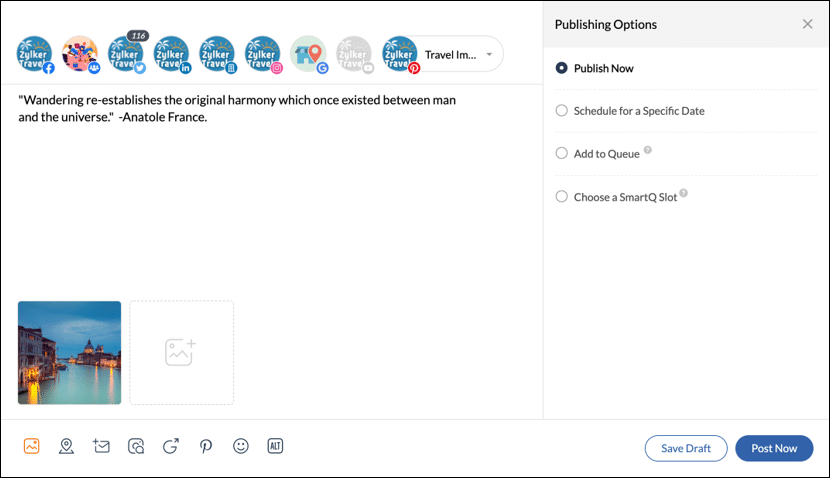
    The Zoho Social and Pinterest integration allows you to create, publish, and schedule Pins. (Image via Zoho)

    Another feature from the Pinterest integration is the Reports module, which includes various summaries for performance, engagement, and impressions; as well as custom reports. These can be sent to your inbox on a weekly or monthly basis, plus you can email or export reports to your teammates and clients.

    Finally, the Zoho Social’s Design on Canva button allows you to create and edit designs to post on Pinterest.

    To read the full article, click here.

    Are you considering to implement Zoho Social to manage your business’ social media channels and branding? Then click here for more information.

This site is registered on wpml.org as a development site. Switch to a production site key to remove this banner.