Category: News

  • Zoho News Catch-Up: Analytics’ Tutorials and New Features; Ulaa Browser; AI-Powered Transcriptions and Keynotes in Desk

    Welcome to our catch-up, where you’ll be in the know of all the latest Zoho updates in one place!

    Resources: Our Zoho Analytics + ChatGPT Tutorials

    As you may have seen in our blog, Zoho recently announced their integration with OpenAI’s ChatGPT, which extends to many Zoho apps, including Zoho Analytics. As part of our video resources library, we have created these videos to show you how the integration of Zoho Analytics with ChatGPT can help you get the most of your data:

    Discover and Import Public Datasets with ChatGPT for Zoho Analytics

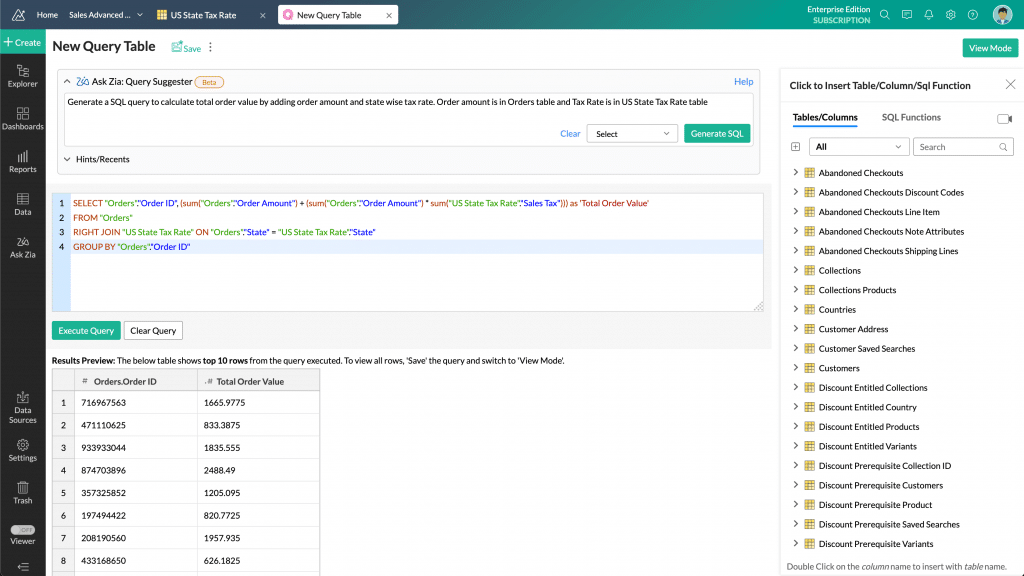
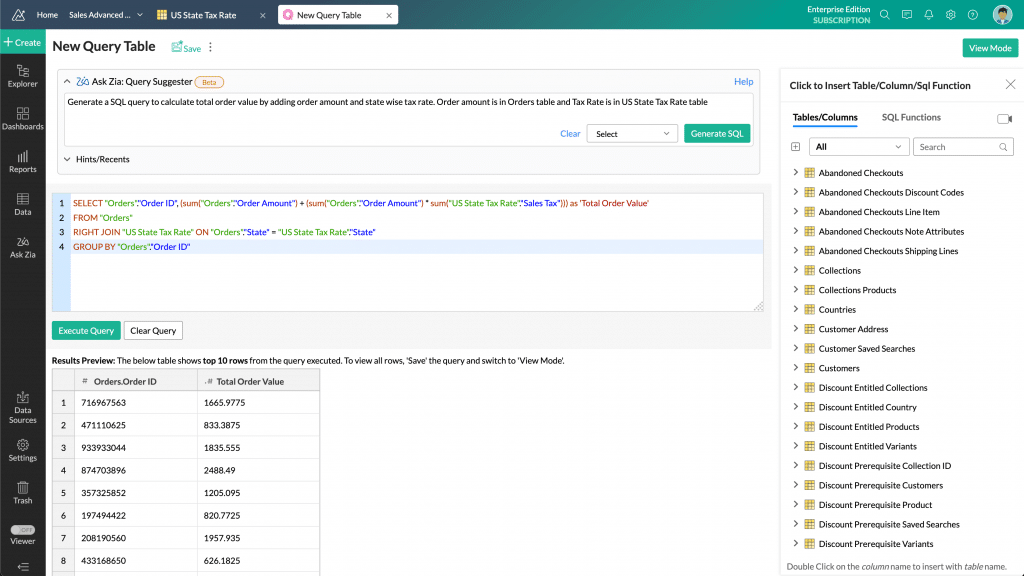
    Turn Your Questions into Complex SQL Queries with ChatGPT for Zoho Analytics

    Create Formulas with Natural Language in ChatGPT for Zoho Analytics

    To watch our latest tutorials and Zoho updates, subscribe to our YouTube channel

    Zoho Launches Ulaa

    Zoho Corporation has recently entered the internet browser category with the release of Ulaa: an internet browser centered on protecting user privacy and personal data, as well as upgrading the way people work online. Ulaa puts users in control of their data. It is built on Chromium, an open-source browser project from Google. However, Ulaa offers additional security features that Chromium doesn’t have. Let’s take a look at this and other features:

    Privacy Protection While Browsing the Web

    Ulaa protects you from privacy abuse and high-risk cybersecurity threats with blocked tracking, zero browser monitoring, and a multi-tier ad blocker. This is possible with the following features:

    • Anonymized Statistics: Data that enters Ulaa’s servers from your device cannot be mapped back to the user to identify individual users. According to Ulaa, they can never track down your device’s IP address, your location, or snoop on what you’re browsing.
    • Auto Reset Browser Ids: Ulaa adds an additional layer of protection to your data by resetting all unique identifiers like Browser Randomized ID and Profile UID each time you open your browser. By generating new randomized IDs, Ulaa grants greater anonymity, so it feels like using a new installation every time the browser is launched.
    • Geographical Data Isolation: Although users can access information from any place in the world, all that data is restricted to the legal geographical boundaries of the country they are located in. This ensures compliance with data protection regulations, such as the GDPR.
    • Zero Troublesome Ads, Social Media Annoyances, and Third-Party Sneaking: Ulaa provides an ad-free experience with its EasyList filter, blocking ads and unwanted content. It also uses Peter Lowe’s Ad and Tracking Server List to block spam, spyware, and malware. The Fanboy Annoyances List removes pop-ups and clutter for faster, cleaner webpages. With the EasyPrivacy filter, Ulaa protects personal data by blocking all forms of tracking and ensuring a secure browsing experience.
    • No Social Media Trackers and No Targeted Ads: Social media companies like Facebook, Twitter, and LinkedIn place trackers on other websites so they can follow what you do and see online. Ulaa offers enhanced tracking protection to block social media trackers from following your online activity. This ensures your private web activity remains private and prevents targeted ads. Also, Ulaa includes an adblocker; auto updates; a 24-hour security patch policy; and protection from adware, crypto miners, and malicious websites.

    Multiple Browser Modes

    • Personal Mode: This default browser mode allows users to enjoy complete privacy protection. They can view their browsing history, search records, favorite pages, and cookies data without having to sign in to Ulaa. This mode enables secure logins into user accounts, prevents ads, and maintains online privacy.
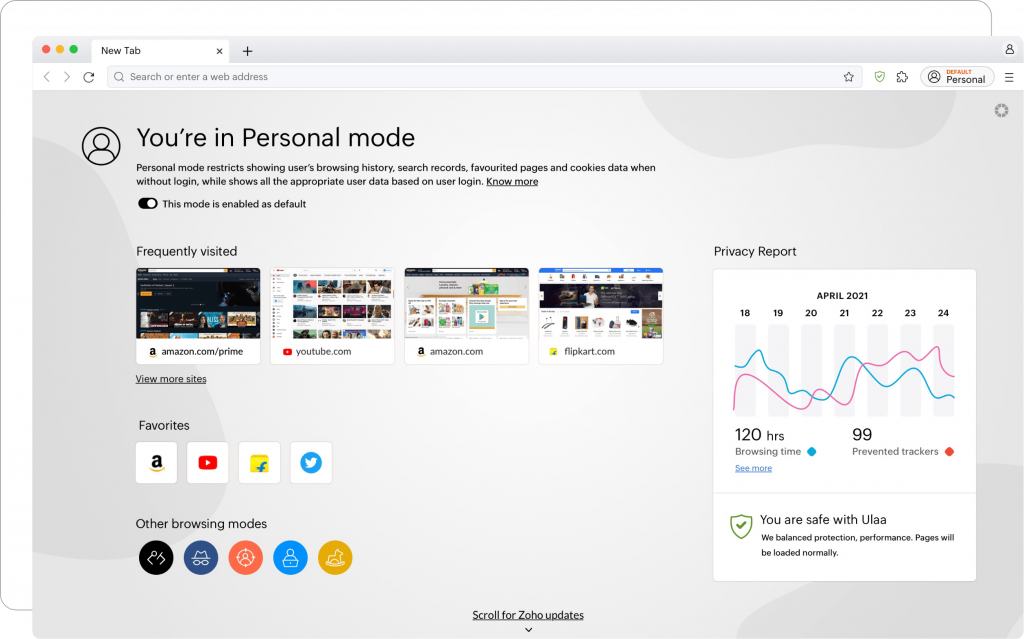
    (Image via Zoho)
    • Work Mode: Browsing with this mode boosts productivity and helps you stay focused on the work at hand by blocking distracting websites. A strict and enabled adblocker protects you from intrusive ads, possible phishing attacks, and more.
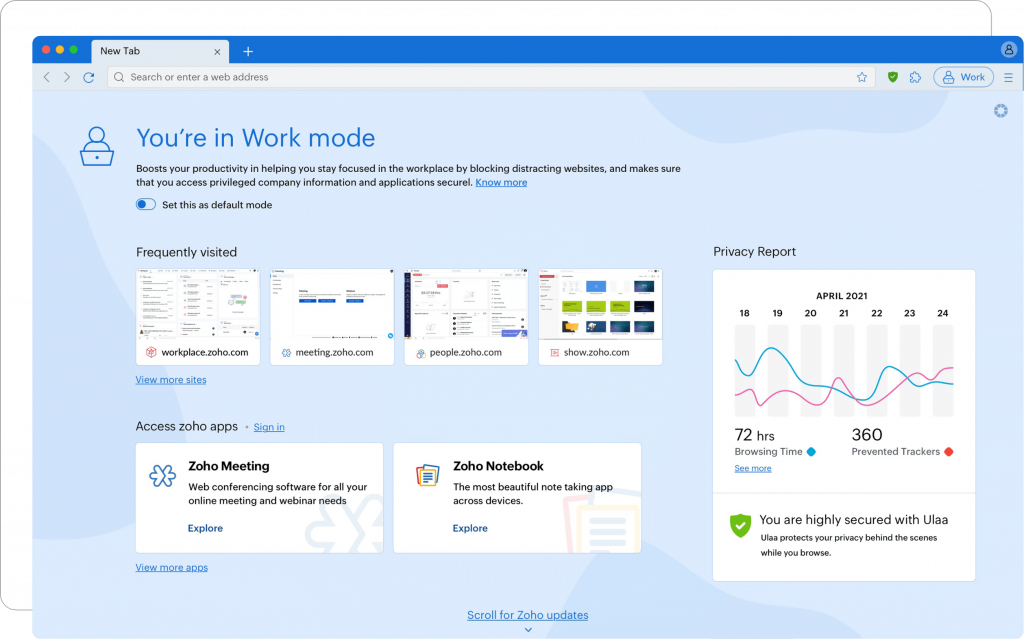
    (Image via Zoho)
    • Kids Mode: This family-friendly browser mode provides a safe online space for children to browse, learn, play games, and explore content. It includes a unique Learning On The Go feature to engage children into learning. The mode has content filtering to prevent access to inappropriate content, while Parental Control allows parents to block specific websites. The Child Lock requires a password to enter or exit the mode, ensuring a safe environment for the child at all times.
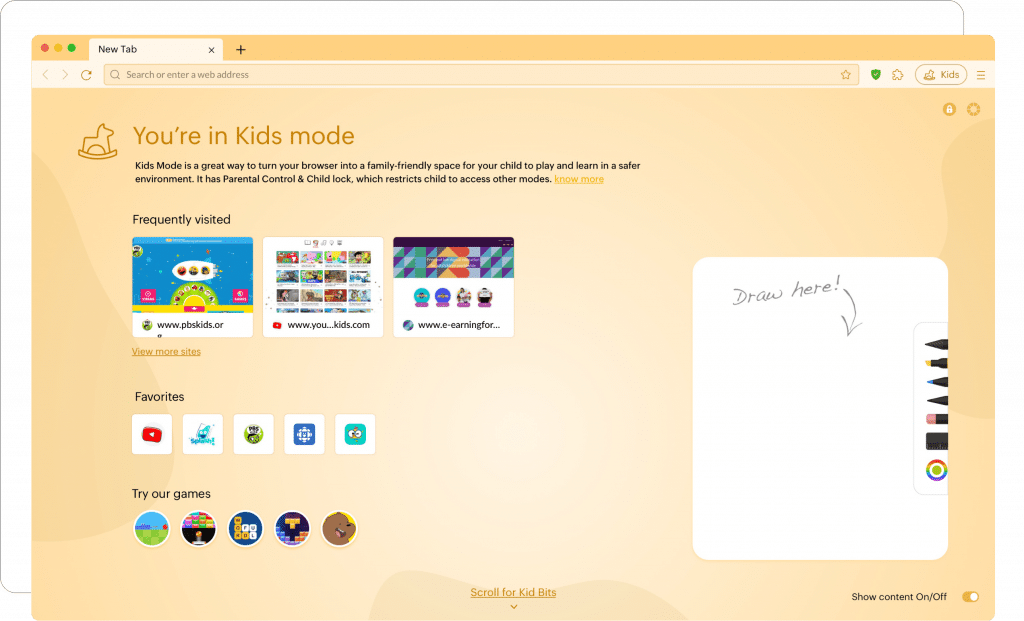
    (Image via Zoho)
    • Developer Mode: This mode is designed for web developers and testers. It allows inspection of HTML elements, CSS styles, and JavaScript, while also tracking requested assets and monitoring loading times.
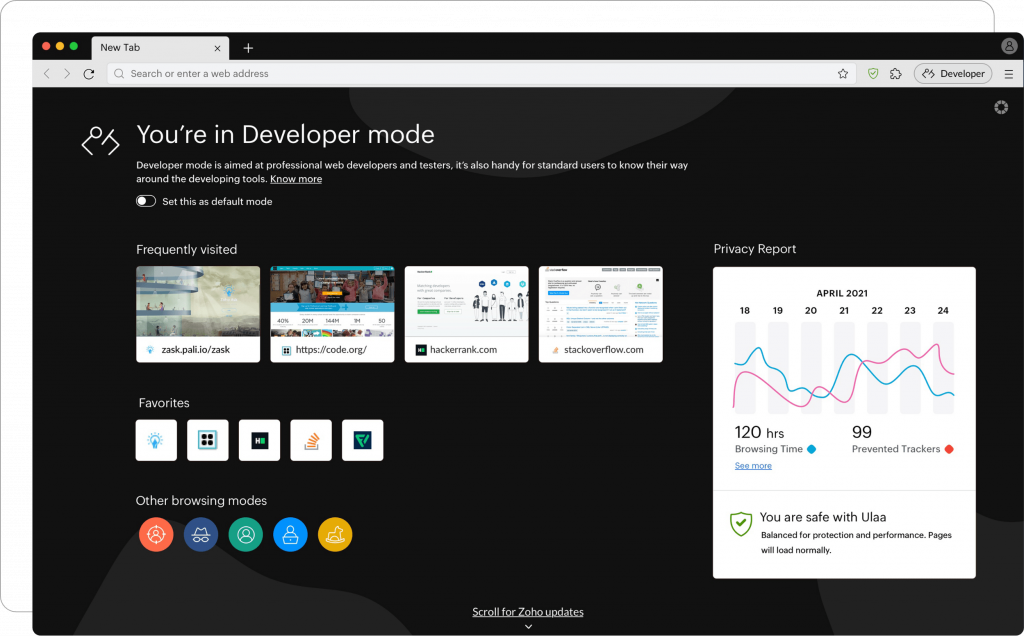
    (Image via Zoho)

    Built for Productivity

    For better organization and less distractions, Ulaa includes a tabs manager, smart tabs grouping, a note-taking space, password manager, smart dashboard, screen capture, and multi-device sync.

    Ulaa is now available for Mac, Windows, iOS, Android, and Linux.

    Zoho Analytics: Incremental Fetch for Databases

    With this feature, you can import only the newly added records in the databases to Zoho Analytics without fetching the whole dataset every time. This could be beneficial while working with large datasets, while saving time.

    To import data using incremental fetch, Zoho Analytics needs the following:

    • A column or field that helps in identifying the new records or rows in the table. This could be a sequential number column like ID, date, or a date and time column.
    • How to import the new records into the table. You can append the new records to the table, or add records and replace them if the records already exist.

    Note: Incremental fetch is available for all plans and is currently supported only for databases.

    How to Configure Incremental Fetch

    You can configure incremental fetch while scheduling an import. Follow these steps to configure it:

    1. Select the tables you wish to import.
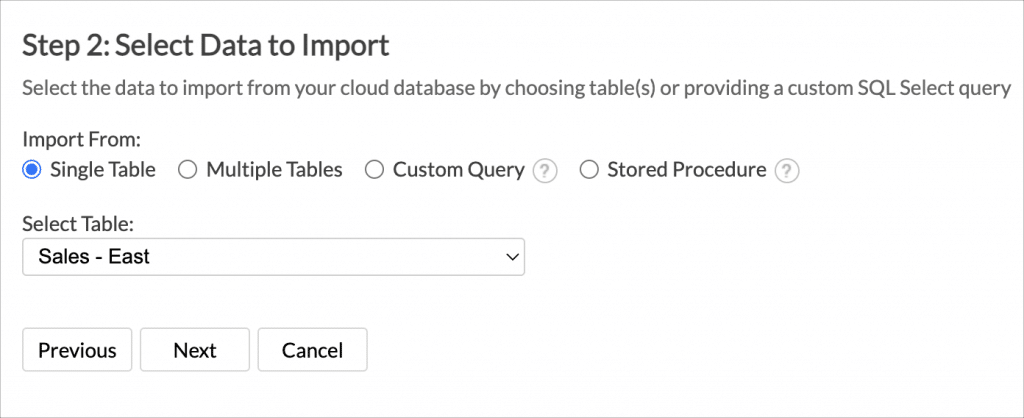
    (Image via Zoho)

    2. Configure the Import Settings. Click Schedule this Import.
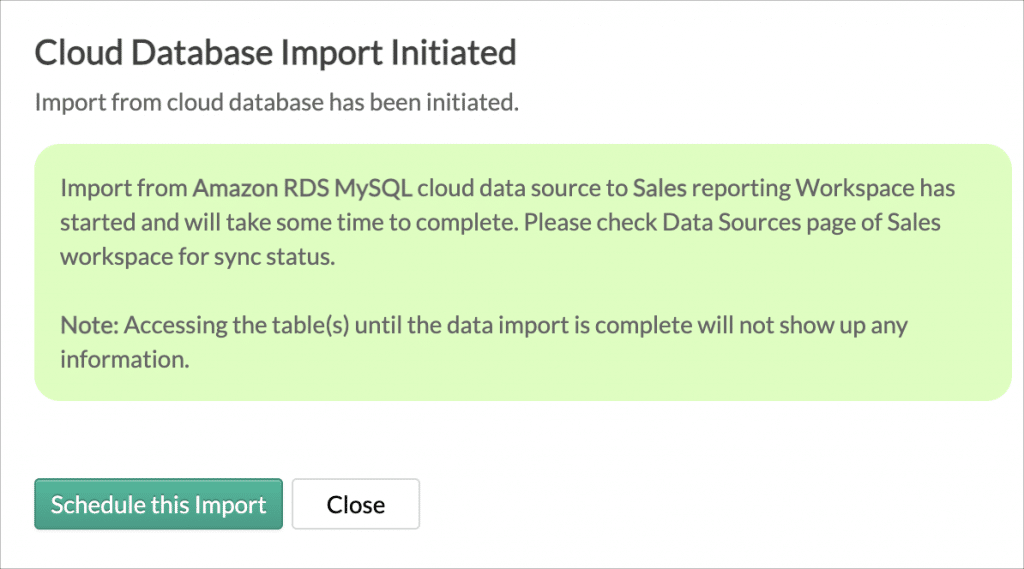
    (Image via Zoho)

    3. In the Import Synchronization Settings pane that opens, select Only new/modified records from the What Data to Fetch drop-down menu.

    4. All the numeric data type columns will be listed. Select the column that helps to identify the new records.

    5. Select How do you want to import the data.

    • Add Records at the End: Choosing this will append the new records to the end of the table.
    • Add Records and Replace if Already Exists: Updates the existing records in the table and appends the new records at the end of the table.

    6. Select a Column to match the existing records if you have chosen Add Records and replace if existing option from How do you want to import section. Click Next.
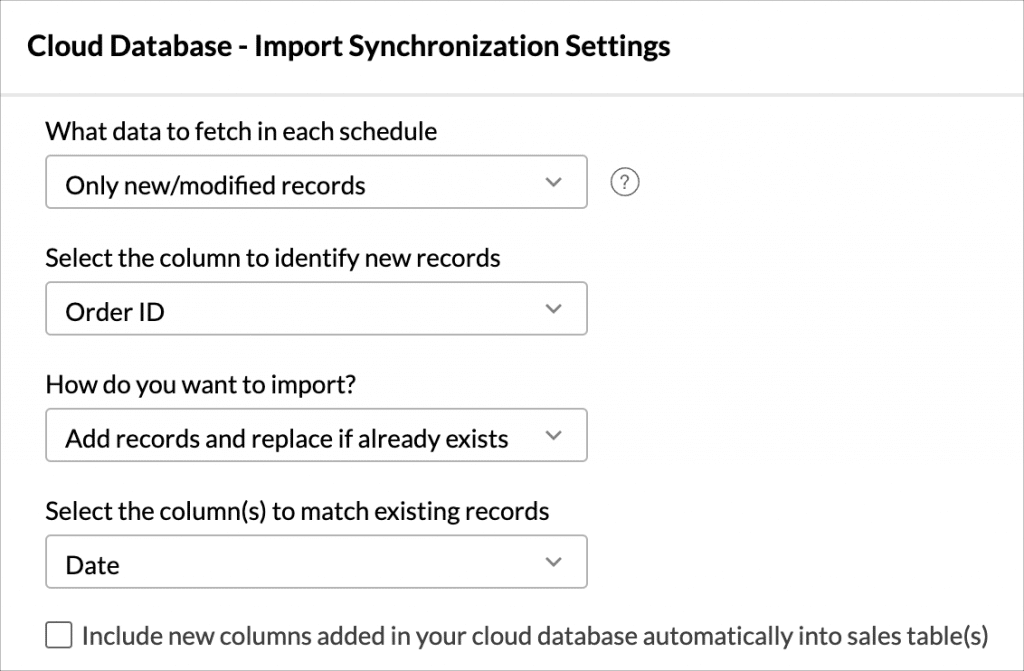
    (Image via Zoho)

    7. The Synchronization settings pane will open. Choose the interval in which you would like to synchronize your data. You can also schedule a periodic fetch (daily, weekly, or monthly) to import all the data.
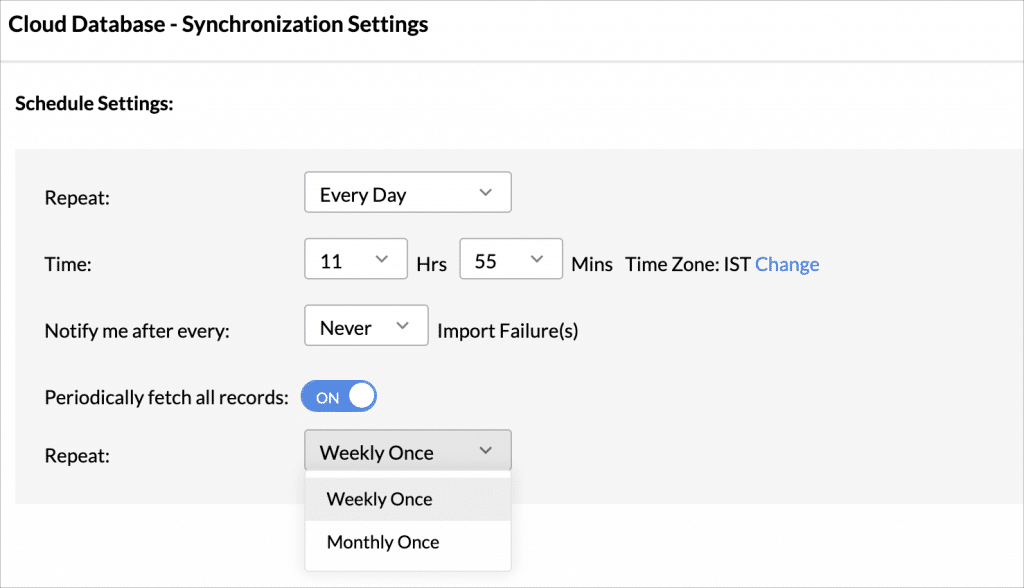
    (Image via Zoho)

    While configuring incremental fetch for multiple tables, select the column that helps in identifying the new records for each table, as shown in the image below.
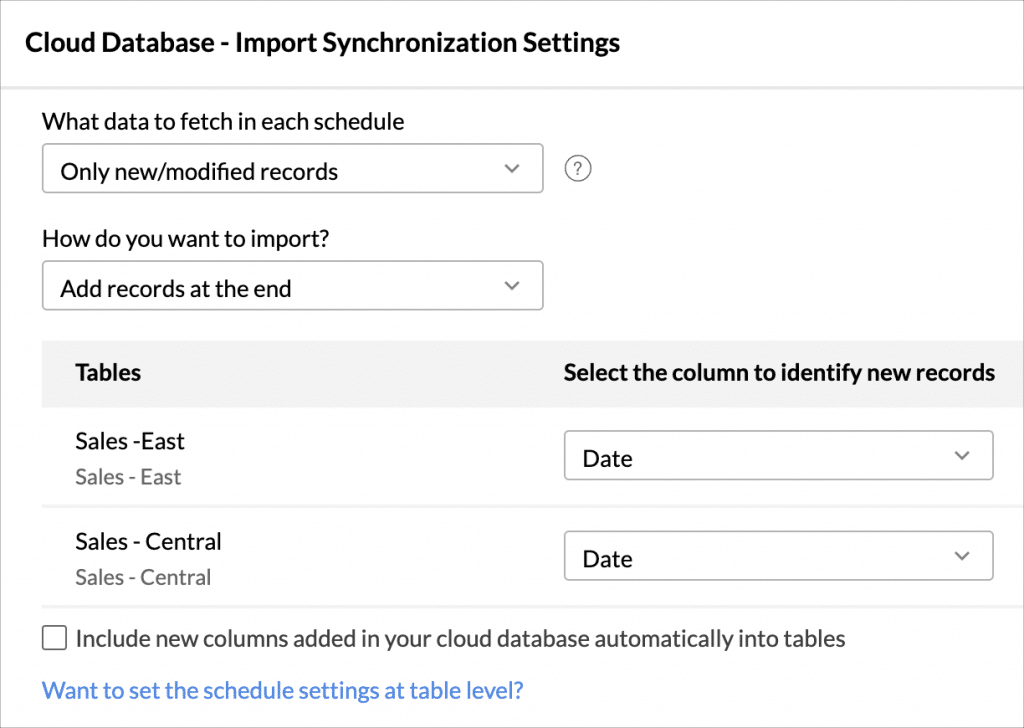
    (Image via Zoho)

    Zoho Meeting: AI-Powered Transcription and Keynote Generation

    Zoho Meeting has leveraged the power of generative AI to transform the way you connect and collaborate with your teams, thanks to the introduction of auto-generated transcripts and keynotes. The purpose is to have seamless online meetings in which AI will easily capture the essence of your discussions, thus smoothing information retrieval and post-session follow-ups.

    AI-Powered Transcripts

    All of your online meeting and webinar recordings can be converted with ease into thorough and accurate transcripts. ZLabs —Zoho’s in-house research and development unit— has worked on the transcript feature that automatically and quickly converts your sessions’ speeches to text.

    AI Powered Keynotes

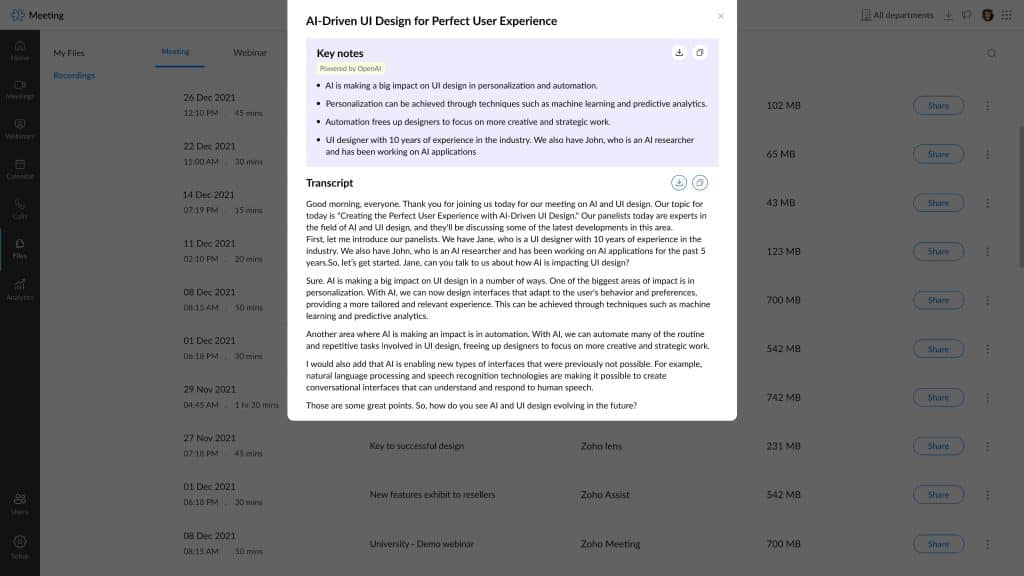
    Zoho Meeting uses Zia —powered by OpenAI— to auto-generate keynotes of your meeting and webinar sessions from session transcripts. Save time and get a quick recap of sessions by transforming hours of discussions into short key points.

    Also, the integration of Zoho Meeting with Zia analyzes the session transcript, identifies crucial information, and displays it in an organized way. This ensures that key insights will not be lost, while freeing you from having to sit through entire session recordings.

    Prerequisites for Auto-Generated Transcripts and Key Notes

    • Auto transcription for recordings is enabled under Recordings in the account settings.
    • Zia is installed on your Zoho Meeting account’s Integrations page.

    How it Works?

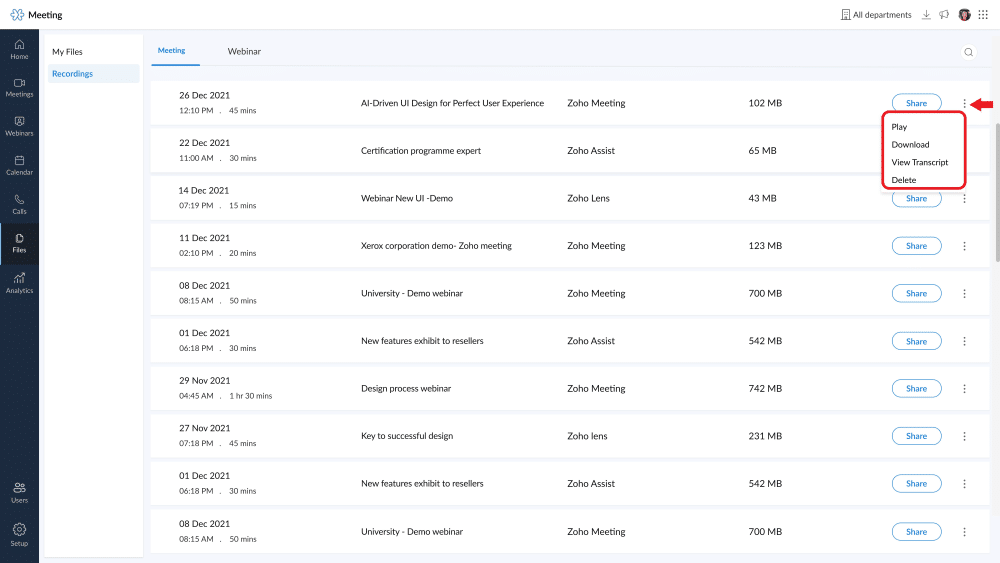
    Once the prerequisites above have been fulfilled, you can auto-generate AI-powered transcripts and keynotes by just clicking a button.

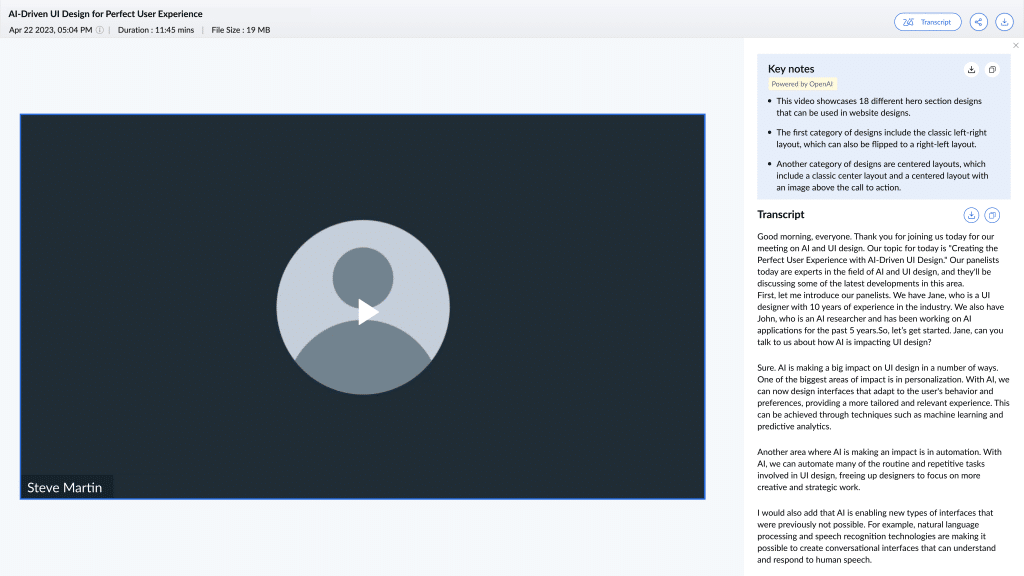
    Browse the Recordings tab in your Zoho Meeting account and choose a recorded session that you would like transcribed. Click View Transcript from the More (three vertical dots) option to view auto-generated transcripts and keynotes for the specific session. Then, quickly copy transcripts and keynotes, or download them for future reference.
    (Image via Zoho)

    Transcript view:

    (Image via Zoho)

    Transcript view with recording:

    (Image via Zoho)

    Benefits of Using Auto-Generated Transcripts and Keynotes

    • Time-saving and efficiency: Automatically generate keynotes of meetings and webinars.
    • Accessibility and reference: Share keynotes with other stakeholders who may have missed a meeting or webinar.
    • Decision-making and accountability: Quickly review key topics, decisions, action items, and any other significant details discussed during the meeting or webinar.

    Note: This Zia integration is currently only available in the US data center, but Zoho has announced they will set it up same in other data centers very soon.

    Zoho Unveils Zoho Directory
    (Image via Zoho)

    Zoho Directory is a secure platform for workforce identity and access management. It allows you to authenticate your employees, authorize them to access cloud apps and devices, and manage their interactions with Zoho Directory.

    Who Can Use Zoho Directory?

    • IT Admins: Enable without difficulty the right apps for the right employees.
    • Employees: Safely log in to office applications from anywhere.
    • Managers: Get the whole picture of your workplace identity.

    Zoho Directory’s Features

    • Single Sign-On: Access all apps from one secure login, and set free your employees from multiple passwords.
    • Multi-Factor Authentication: Protect your system from cyber-attacks through secure factors like QR codes, time-based OTPs, and passwordless biometric verification.
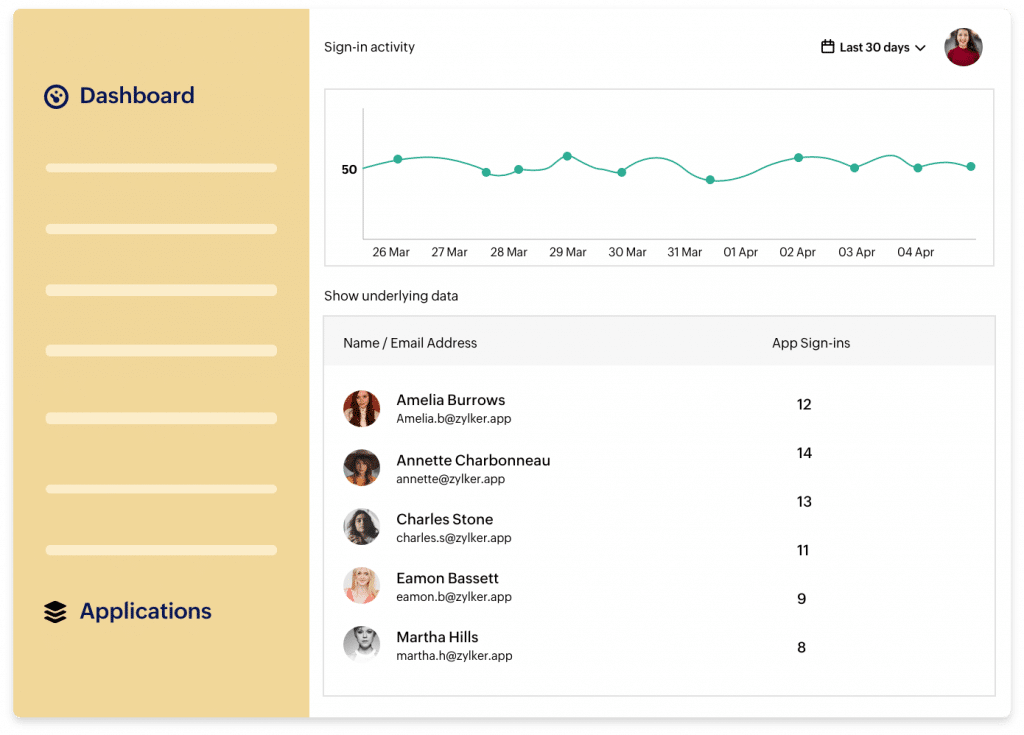
    • Reports and User Behavior Analytics: Track employee usage across applications, get clear insights, prepare reports, and identify security threats.
    (Image via Zoho)
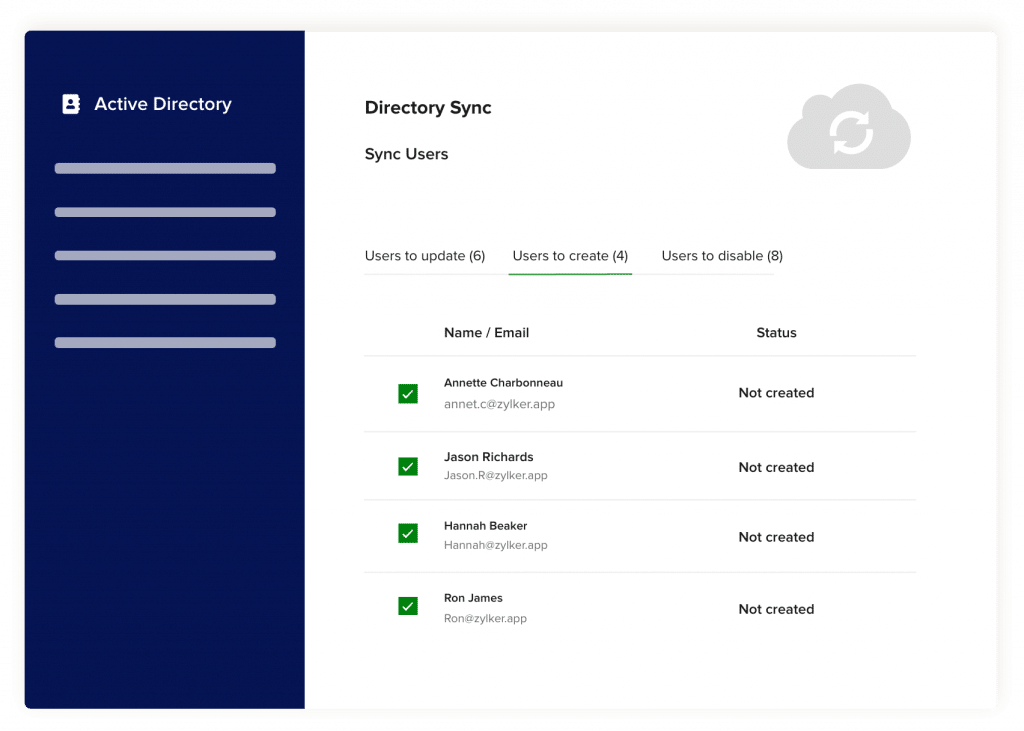
    • Active Directory Sync: Continue to use your Microsoft Active Directory identities and extend them to multiple cloud applications.
    (Image via Zoho)
    • 350+ Integrations: These will help you to connect your apps seamlessly. Amongst them are Slack, Dropbox, Evernote, GitHub, SurveyMonkey, Tableau, and Trello.

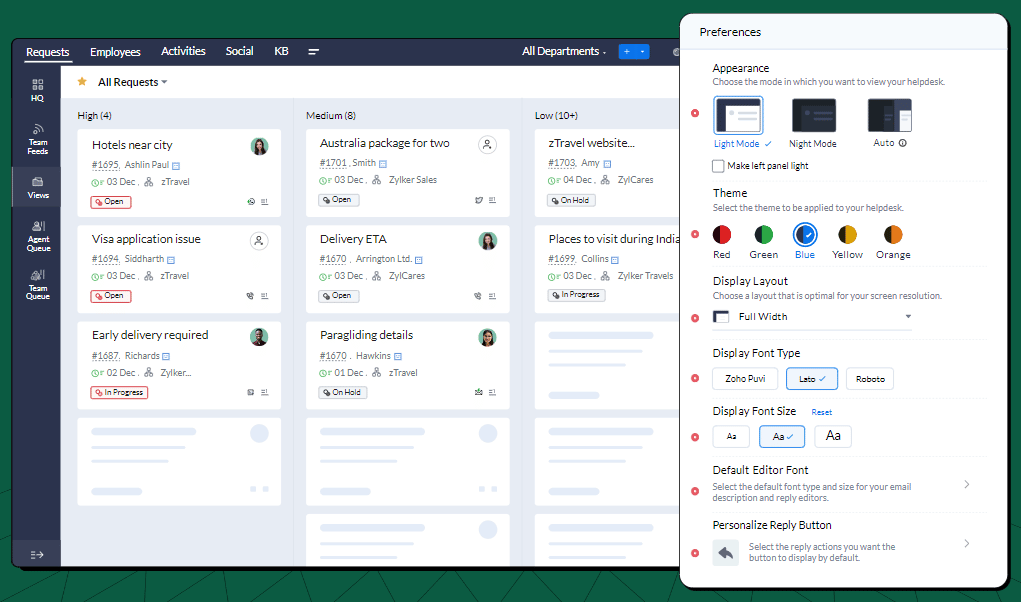
    Zoho Desk: New Accessibility Icon Simplifies Navigation and Makes it Easier

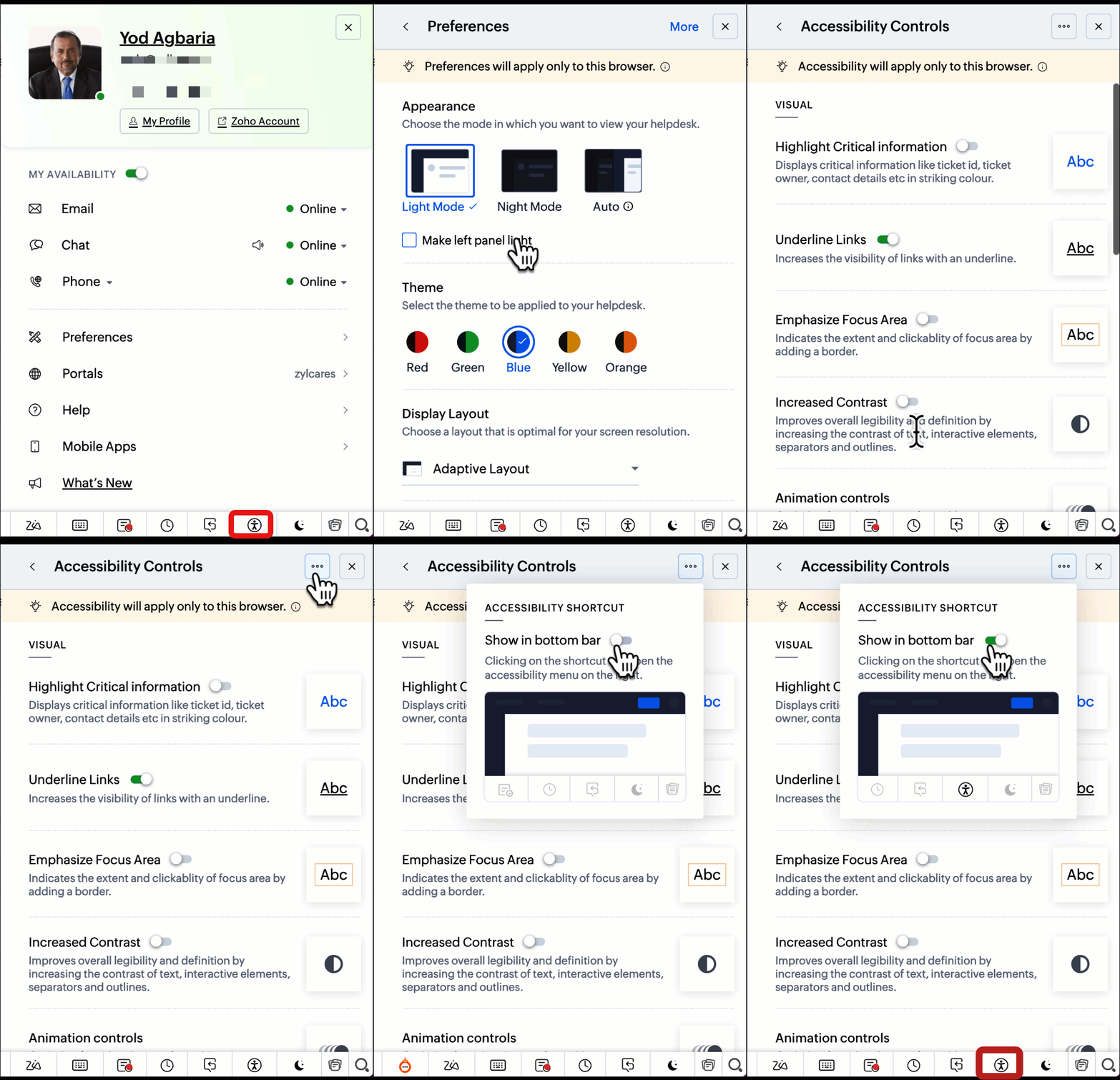
    For easier navigation to different visual and content control options for an optimized browsing experience, you can now use the Accessibility Control icon at the bottom bar in Zoho Desk. One click on the icon will allow users will be redirected to the control panel in which they can set their preferences.

    To Access the User Accessibility Controls:

    1. Go to your Zoho Desk homepage and click on your avatar in the top-right corner.

    2. From the user info panel, select Preferences.

    3. Scroll down and select Accessibility Controls.
    (Image via Zoho)

    That’s all for now, IC readers! See you soon for more Zoho updates from InterConnecta!

    Want to add these new features to your Zoho system? Let’s work together! Learn more about our Zoho Consulting Services and request a free consultation.
  • Zoho News Catch-Up: Zoho + OpenAI Integration, CRM Connector for DataPrep, Updates for Campaigns, Recognitions from Gartner and Nucleus Research

    Welcome to our catch-up, where you’ll be in the know of all the latest Zoho updates in one place!

    Zoho Integrates with OpenAI

    (Image via Zoho)

    Zoho Corporation just announced the integration of their apps with OpenAI technology, thus joining the latest wave of global companies that have embraced this game-changing trend. Zoho has combined Zia’s existing AI capabilities with ChatGPT to provide optimal support for businesses. ChatGPT is specifically designed to comprehend and generate more coherent and contextually suitable responses to user inquiries in natural language.

    The following are some examples of what the Zoho CRM and OpenAI integration provides:

    • Content generation based on provided keywords
    • Summaries of lengthy content
    • Identification of the content tone
    • Sentiment analysis
    • Rephrasing content with improved grammar
    • Enhancement of titles and headings
    • Creation of relevant responses to text inputs
    • Retrieval of contextually relevant content

    You can employ OpenAI throughout Zoho apps like CRM, Desk, Social, Mail, Assist, SalesIQ, Notebook, Meeting, DataPrep, Writer, Analytics, Cliq, LandingPage, and Site 24X7. For more details and to learn how to enable this integration, visit our comprehensive blog article.

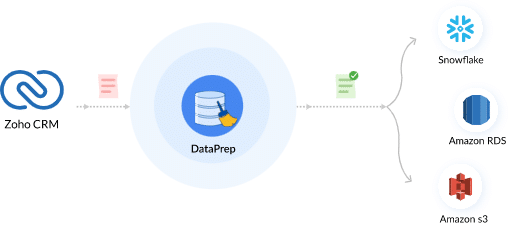
    Zoho CRM Connector for Zoho DataPrep

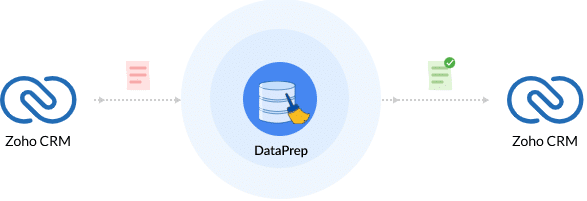
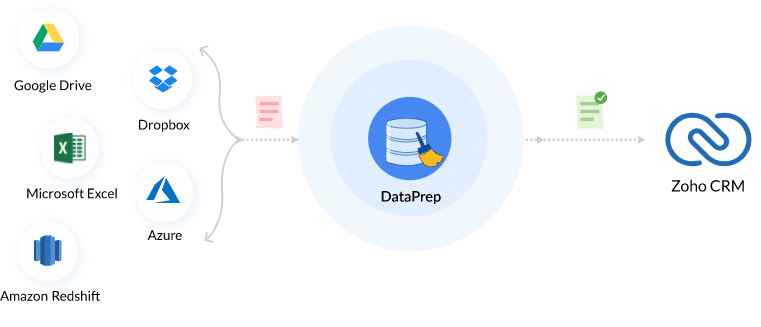
    The connector helps businesses manage sales data better. You can use it to create end-to-end data pipelines, schedule data cleanups/backups, and more. Take a look at its features:

    Data Sync

    (Image via Zoho)
    • Bring in data from 50+ sources: Google Drive, Dropbox, Microsoft Excel, Azure, Amazon Redshift, among others.
    • Apply 250+ transformations.
    • Export using Zoho CRM Connector.
    • Use schema validation and prevent data model mismatch.

    Data Clean-Up

    (Image via Zoho)
    • Maintain high integrity of Zoho CRM data and optimize sales processes.
    • Schedule bulk clean-up of CRM data.
    • Schedule data cleansing during non-business hours.
    • Normalize data in real time.

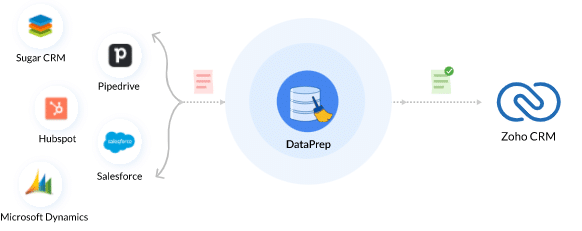
    Data Migration

    (Image via Zoho)
    • Migrate data from other CRM systems like Salesforce, Hubspot, Microsoft Dynamics, Sugar CRM, Pipedrive, among others.
    • Fix errors and standardize data before migrating to Zoho CRM.
    • Remove inconsistencies and duplicates during migration.

    Data Back-Up

    (Image via Zoho)
    • Schedule back-ups of your Zoho CRM data to data warehouses like Snowflake, Amazon RDS, and Amazon s3.
    • Enable disaster recovery of CX data in case of emergencies.
    • Use backed up data for analytics and downstream processes.

    Zoho Campaigns Updates: Merge Tag, Footer, and Autoresponder Migration

    Merge Tag

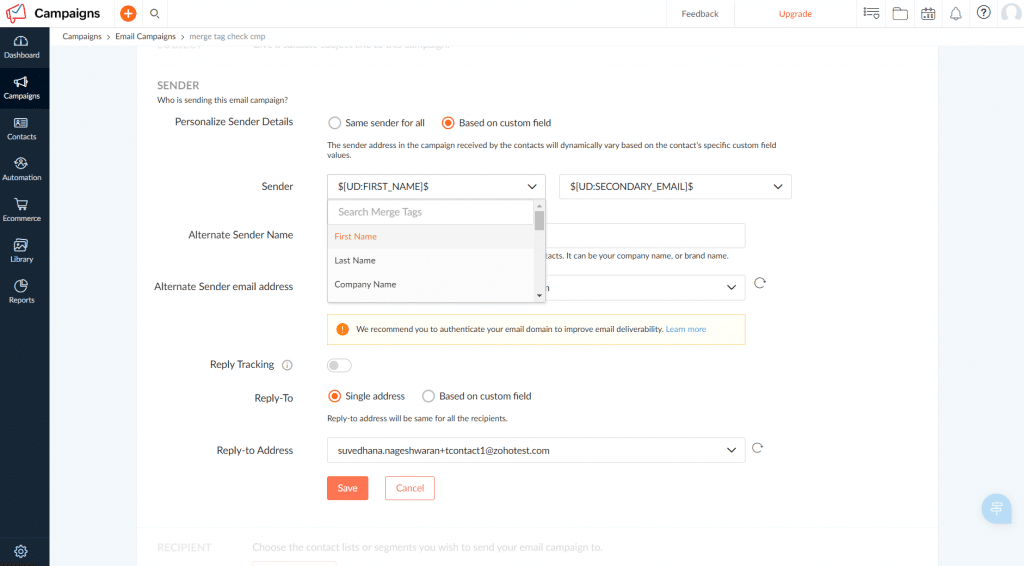
    Any custom field that you create within your organization will automatically be available as merge tags. This will make it easier for you to choose an appropriate tag from the available options instead of creating a new one from scratch each time. For example, when you add the sender’s name, you can choose a merge tag from the default available options in the drop-down list.

    (Image via Zoho)

    Consequently, Zoho Campaigns will no longer offer the capability to create new merge tags. However, any previously created merge tags will remain available for you to use.

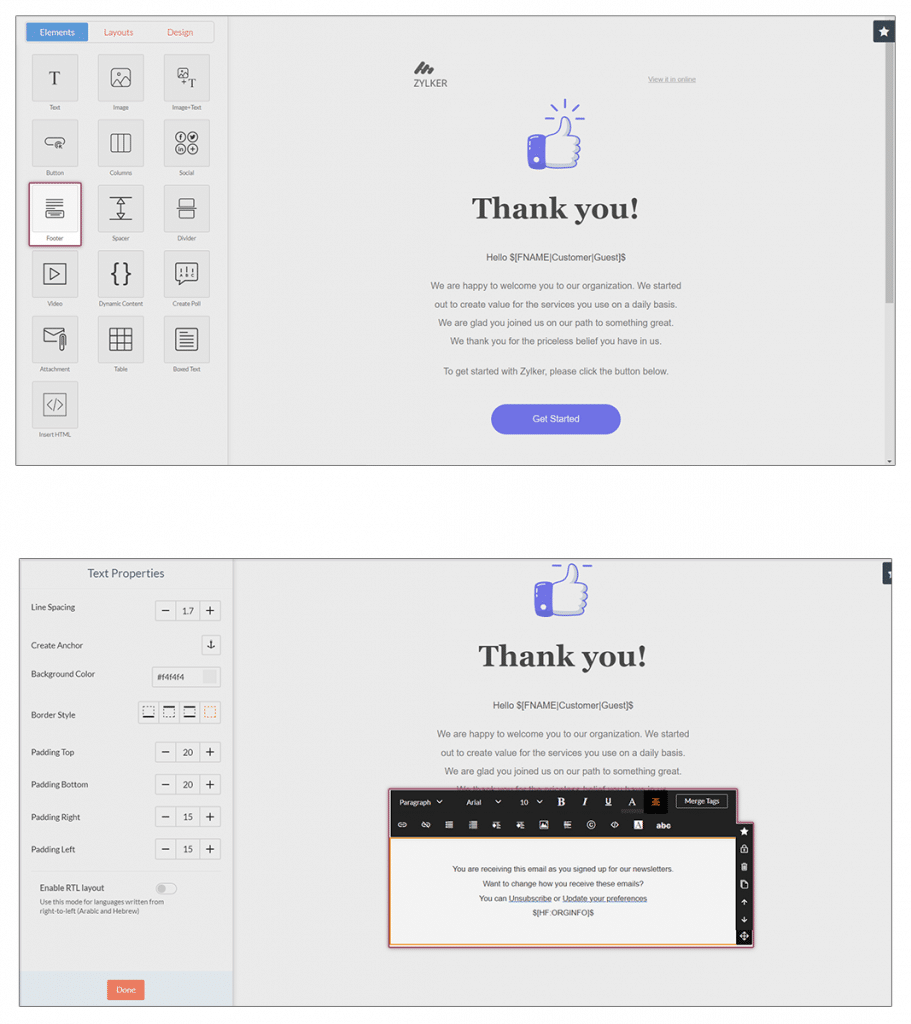
    Footer Migration

    Adding a footer to your email campaign is now easier: you can easily select the footer from the template editor without having to switch tabs.

    (Image via Zoho)

    Also, the Header and Footer update option in Settings will still be accessible from your account for a limited time. This lets you view your existing footers and incorporate them in your campaigns as needed. Nonetheless, editing them will not be possible.

    Autoresponder Migration

    The autoresponders feature has been discontinued to streamline the system. According to Zoho, they have made sure that every action/scenario that was achieved with autoresponders can also be accomplished through workflows. So, a migration option will be available in the near future, allowing you to convert your existing autoresponders to workflows. For now, you will be able to access the autoresponder feature as usual.

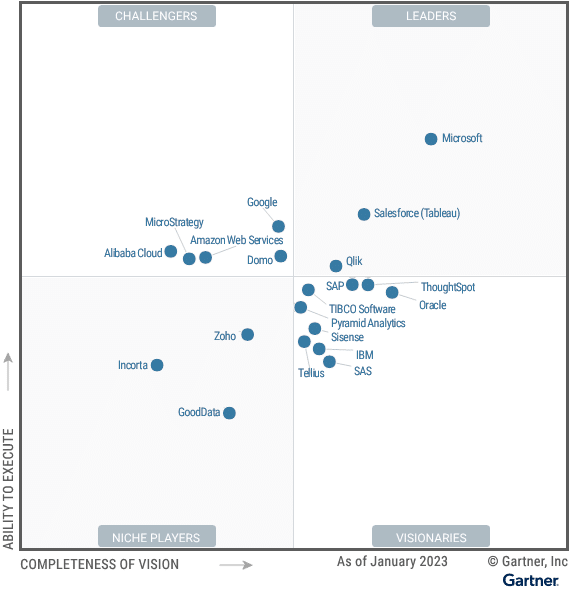
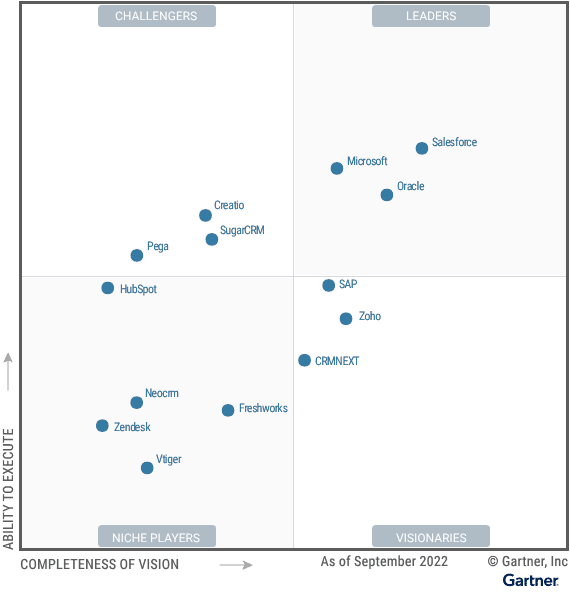
    Zoho Analytics Recognized as Niche Player in 2023 Gartner® Magic Quadrant™ for Analytics and Business Intelligence Platforms

    (Image via Gartner)

    Zoho Analytics has been awarded this recognition for the second year in a row thanks to the following, according to Gartner:

    • Unified business analytics: Users can integrate data from a broad range of LOB applications. Zoho Analytics comes with hundreds of domain-specific prebuilt reports and dashboards. The smart data blending capability allows users to automatically blend data across LOB applications to offer end-to-end business insights.
    • Composable analytics vision: Since 2022, Zoho Analytics has a pluggable microservices architecture that lets buyers use their own services when deploying in preferred cloud providers such as Microsoft, Google, and AWS. The marketplace approach facilitates users with low-code/no-code experience to gather the fundamental components from rich prebuilt contents, like e-commerce analytics using Shopify.
    • Zoho opportunities: Zoho has 80 million existing SaaS users, which speeds up Zoho Analytics’ adoption with the platform effect. Organizations can buy any Zoho apps and easily integrate them with Zoho Analytics. Nucleus Research notes that, specifically, Zoho is well-positioned to enable users to move beyond reporting and analysis towards true decision intelligence. This is because of the integration with business apps, as well as Zoho’s strength in collaboration: one of the three new significant capabilities added in 2023.

    Read the full Gartner report here.

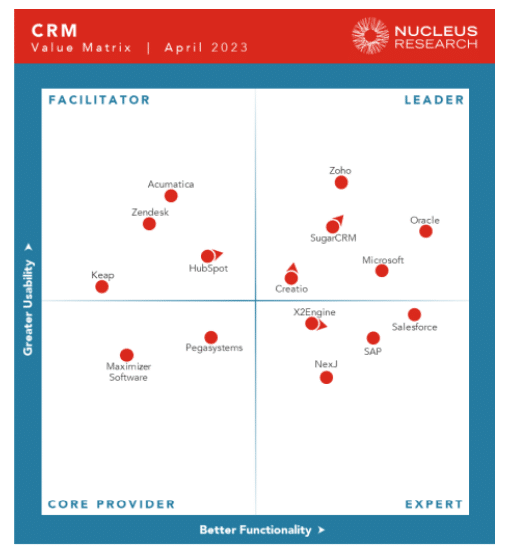
    Zoho CRM Named Leader in Nucleus Research for CRM Technology Value Matrix 2023

    (Image via Nucleus Research)

    For the third year in a row, Zoho CRM has received this distinction —which was also obtained in 2021 and 2022— that solidifies once more Zoho CRM’s position as one of the top choices by global companies when it comes to CRM software.

    Here are some of the capabilities from Zoho CRM that Nucleus Research highlighted:

    • Zoho manages its own private cloud infrastructure, which allows its solutions to be easily scalable while giving customers ownership of their data.
    • The Zoho CRM Analytics mobile app offers users access to analytics dashboards, KPIs, and progress toward different sales objectives. The app also supports multiple sales pipelines and workflow automation to streamline repetitive sales outreach processes and enable different strategies.
    • CommandCenter —Zoho’s advanced automation tool— enables users to map and capture the entire customer experience through connected apps.
    • Zoho’s ability to provide a comprehensive suite of solutions that can be tailored to meet the specific needs of different companies has helped to solidify its position as a leader in CRM software.
    • Zoho’s strong value proposition and commitment to improving Zoho CRM’s product offering have made it a preferred software for organizations that need to increase their CRM capabilities.

    Nucleus Research concludes their study with the following statement about Zoho CRM:

    “Zoho has been awarded the highest score for usability in the 2023 CRM Value Matrix, recognized for its extensive range of functionality, customizable features, and notably user friendly interface. In recent years, Zoho has shifted its focus to cater to larger organizations, and this shift has not gone unnoticed by Nucleus. Today, Zoho is a feasible option for organizations of all sizes. The platform’s unified data model, use of private cloud infrastructure, and quick deployment options make it an attractive choice for businesses seeking to partner with Zoho.”

    Read the full Nucleus Research report here.

    Zoho Webinars

    Zoho CRM: New Functionalities in Forecasts, Analytics, and Domain Mapping

    Zoho CRM Dashboard Components That You Can Leverage

    That’s all for now, IC readers! See you soon for more Zoho updates from InterConnecta!

    Want to add these new features to your Zoho system? Let’s work together! Learn more about our Zoho Consulting Services and request a free consultation.
  • Zoho Launches Integration with OpenAI

    It’s official: things are getting serious with OpenAI, which has taken all industries by storm. Zoho Corporation just announced the integration of their applications with OpenAI technology, thus joining the latest wave of global companies that have embraced this game-changing trend.

    According to Zoho, they have combined Zia’s existing AI capabilities with ChatGPT to provide optimal support for businesses. ChatGPT is specifically designed to comprehend and generate more coherent and contextually suitable responses to user inquiries in natural language.

    In this article, we will walk you through how this integration works and how it can benefit your Zoho apps usage.

    The following are some examples of what this integration offers:

    • Content generation based on provided keywords
    • Summaries of lengthy content
    • Identification of the content tone
    • Sentiment analysis
    • Rephrasing content with improved grammar
    • Enhancement of titles and headings
    • Creation of relevant responses to text inputs
    • Retrieval of contextually relevant content

    Note: To begin, all you need to do is bring your existing OpenAI API key into the Zoho ecosystem and start utilizing ChatGPT across various Zoho products. This integration is currently available only in Zoho’s US data centers.

    Let’s now explore how you can employ OpenAI throughout Zoho apps like CRM, Desk, Social, Mail, Assist, SalesIQ, Notebook, Meeting, DataPrep, Writer, Analytics, Cliq, LandingPage, and Site 24X7.

    Zoho CRM    

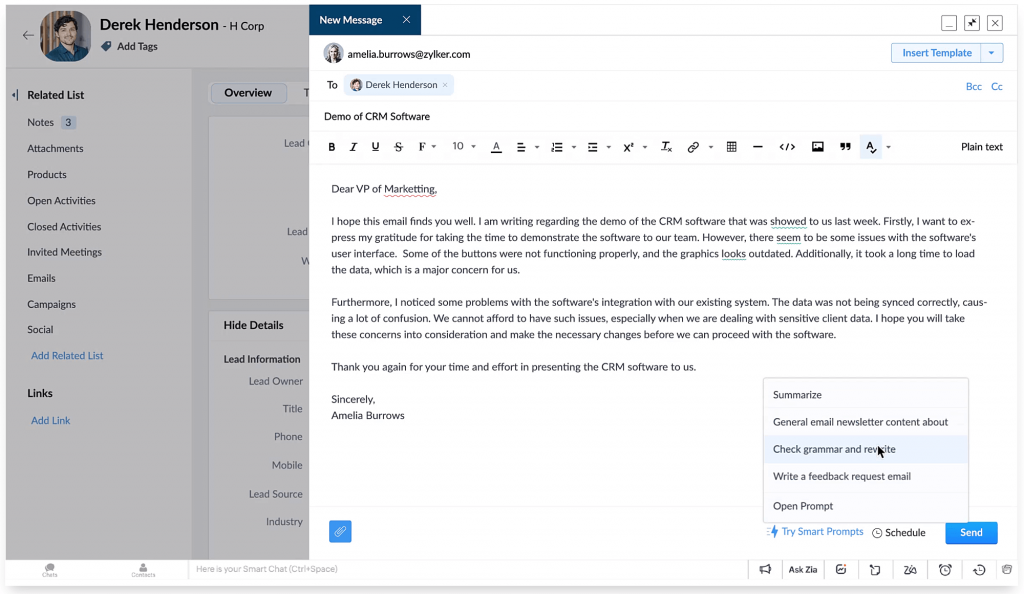
    Better Customer Emails

    Powered by ChatGPT, Zia can create complete emails from scratch or improve existing email content by removing grammatical errors, refining the language, and polishing the tone. You can also ask Zia to find relevant information and insert it directly into your email.

    (Image via Zoho)

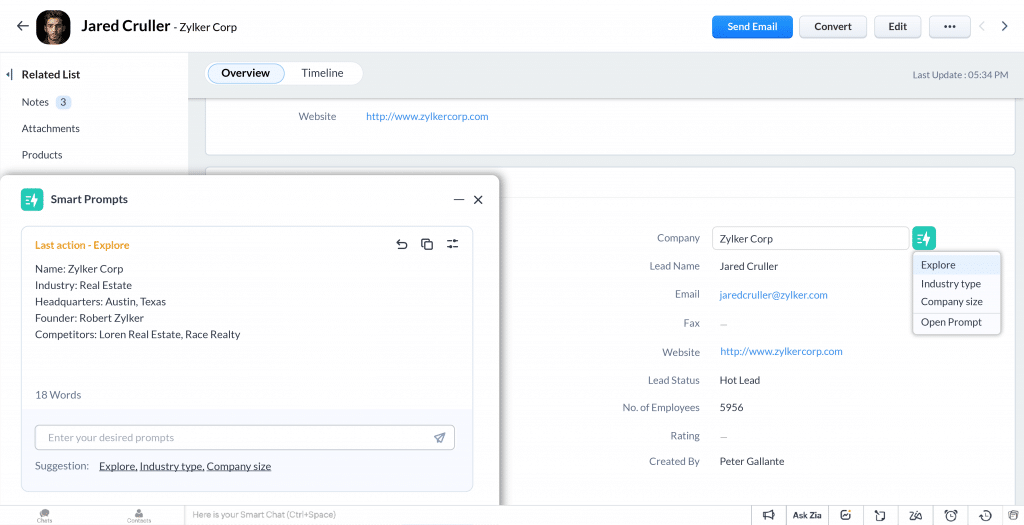
    Simplified Customer Information Management

    Extract and summarize important information from customer records. Leverage the information in your CRM, and through the internet to learn more about any customer data field by using the Explore function. Enhance the way you manage customer notes by asking Zia to summarize and update them as needed.

    (Image via Zoho)

    Zoho Desk 

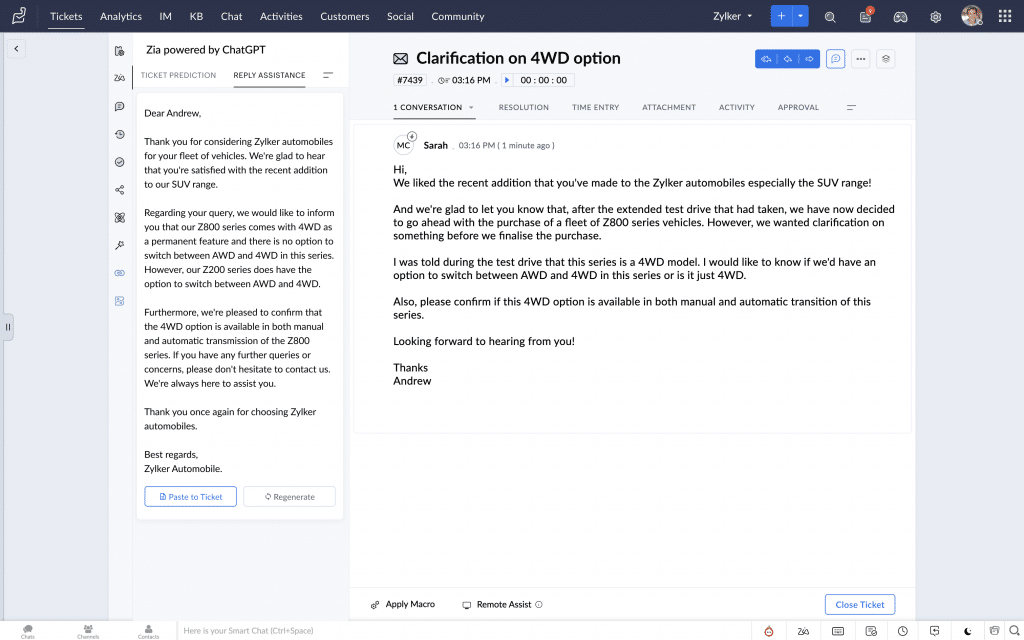
    Improved Resolution Times

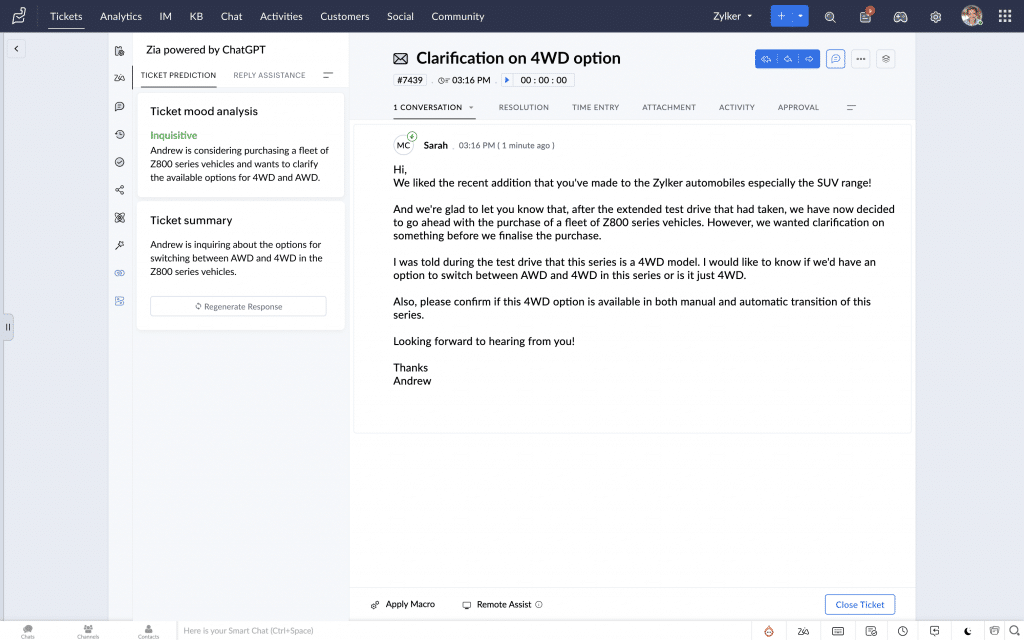
    Agents efficiently process lengthy incoming tickets by transforming them into concise and accurate summaries. This saves time, enables prompt responses, and boosts customer satisfaction. Additionally, relevant articles are automatically retrieved from the knowledge base, consolidated, and presented as helpful replies.

    (Image via Zoho)

    Tone Recognition for Incoming Tickets

    Agents encounter customers with diverse emotional states on a daily basis. Thanks to the capabilities of ChatGPT, Zia is able to recognize and convey the emotional tone of incoming tickets. This invaluable feature equips service teams with the ability to respond empathetically and proactively address the unique needs of customers, ultimately enhancing the overall customer experience.

    (Image via Zoho)

    Zoho Social

    Create Engaging Content Quickly

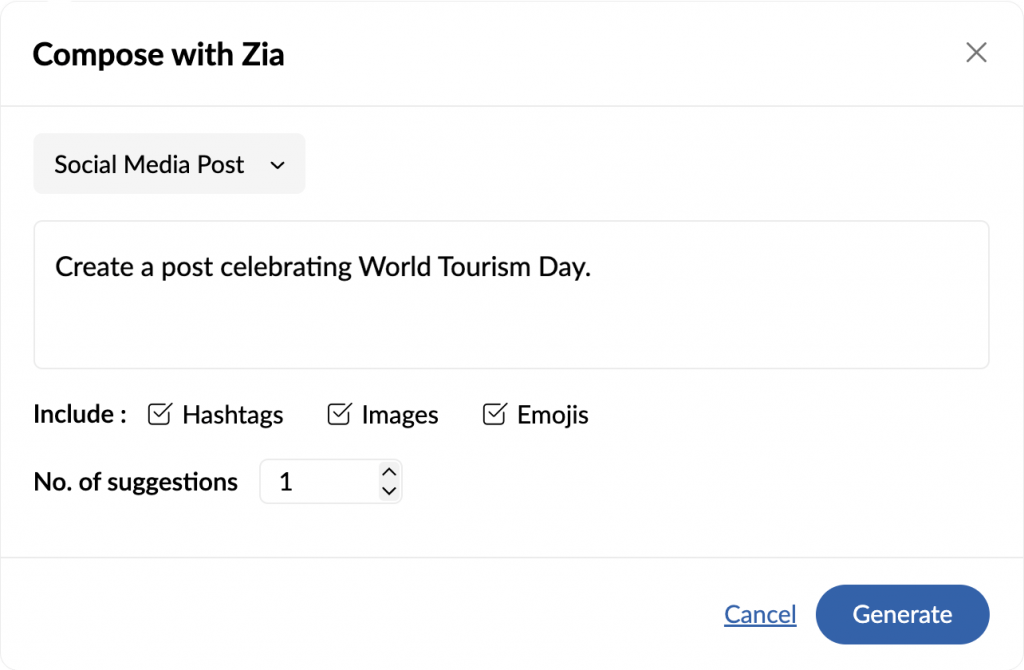
    Zia’s integration with OpenAI speeds up your social media processes by creating, editing, and structuring content —from Twitter threads to Instagram captions— based on the keywords and questions provided by you. Furthermore, Zia’s generative AI features help you add adequate images, emojis, and hashtags to your content to convey your message more effectively, expand your reach, and encourage engagement.

    (Image via Zoho)

    Refine and Revitalize Your Content

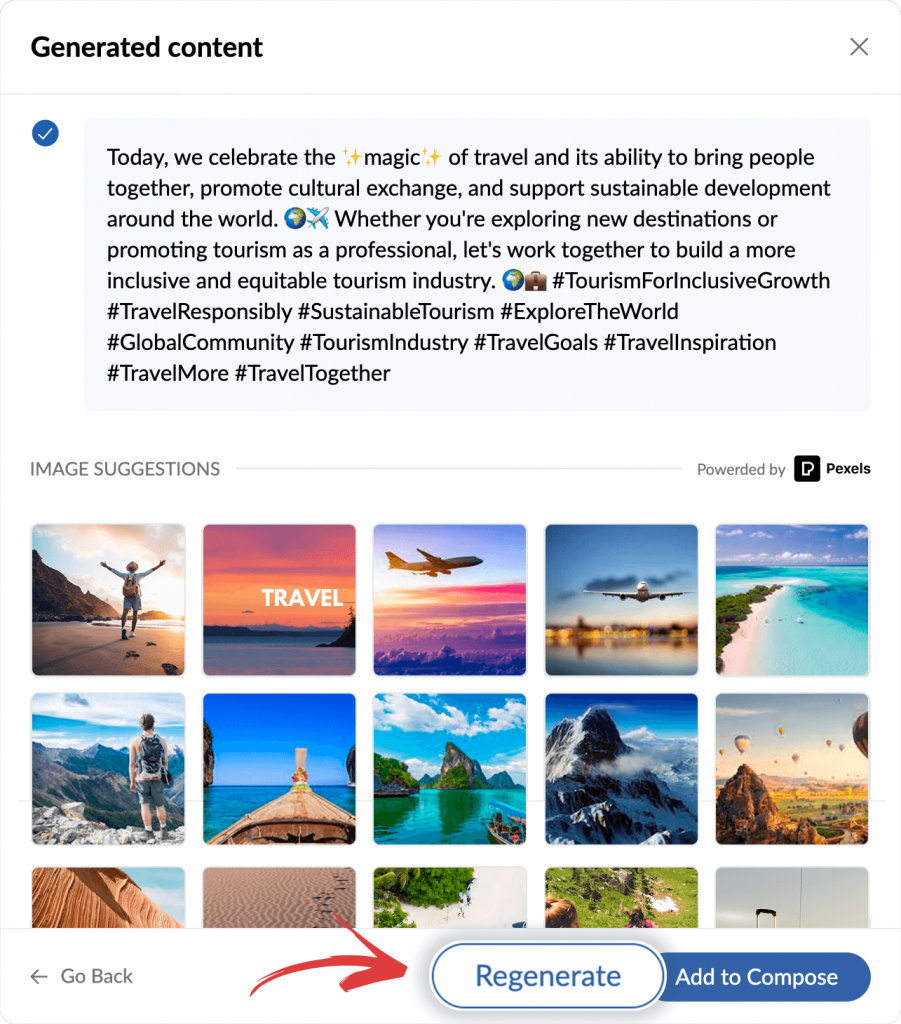
    With Zia’s dynamic content generation, you can achieve fresh perspectives by simply hitting the Regenerate button. Tailor and fine-tune your content until it aligns perfectly with your vision. By revisiting and seamlessly switching between each generated response, you can optimize your AI-generated content effortlessly. This powerful functionality allows you to swiftly create captivating content, giving you a competitive edge in the market.

    (Image via Zoho)

    Zoho Mail

    Effortless Email Content Generation

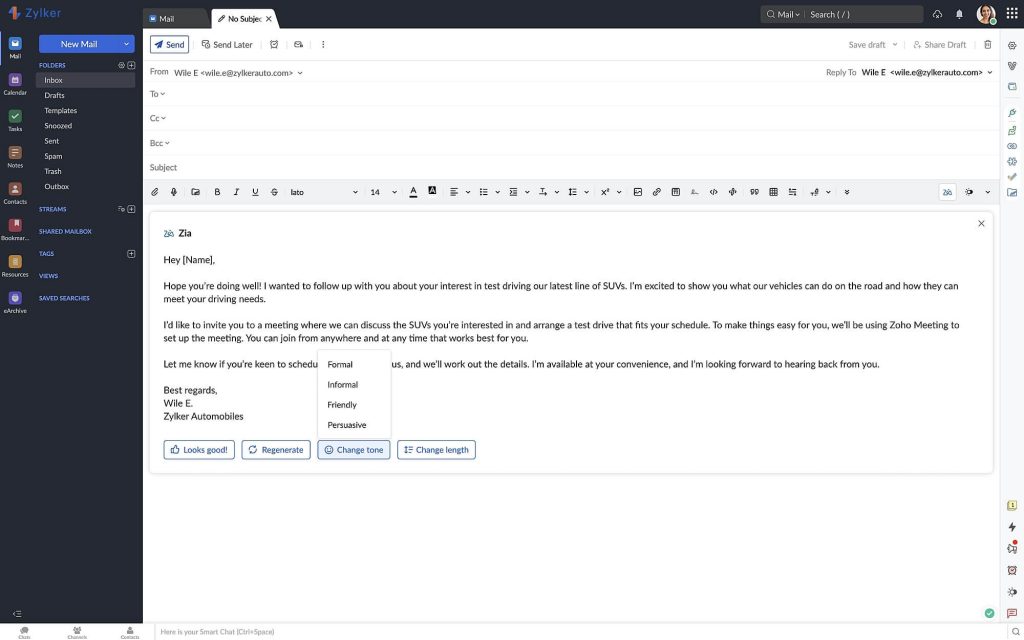
    In a matter of seconds, Zia can craft email messages or responses for you. Provide a summary of the email’s subject, and Zia will handle the rest. You can also generate multiple variations and customize the tone to suit your needs, whether it’s formal, informal, friendly, or persuasive. Moreover, you have the flexibility to shorten or expand the generated content to refine your message to perfection. Experience effortless email content creation with Zia’s assistance.

    (Image via Zoho)

    Instantly Grasp the Essence of Your Emails

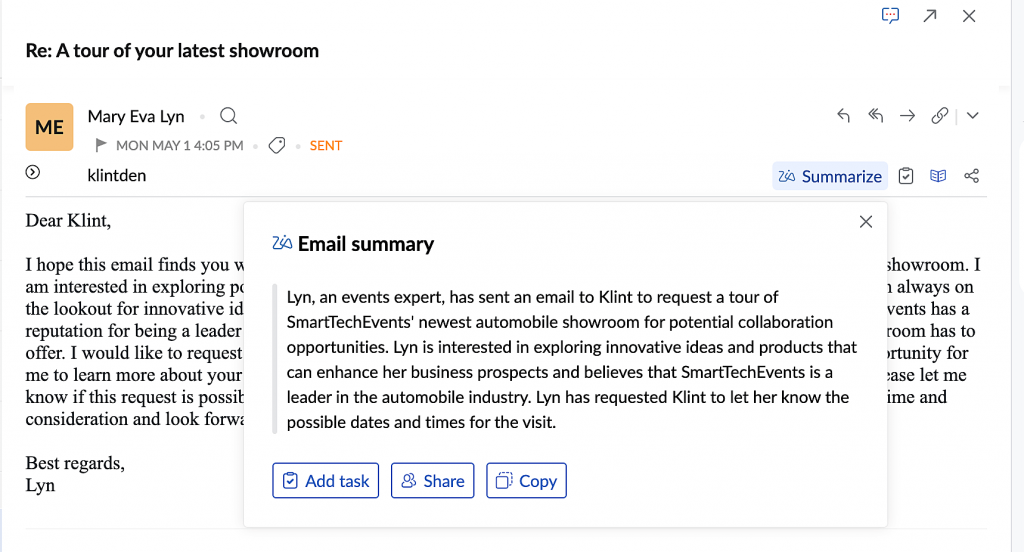
    When time is of the essence or lengthy emails are overwhelming, Zia can help you with email summarization. Zia swiftly provides you with a concise summary, highlighting the essential points and guiding you towards your next steps, if any.

    (Image via Zoho)

    Zoho Assist

    Auto-Generation of Chat Suggestions

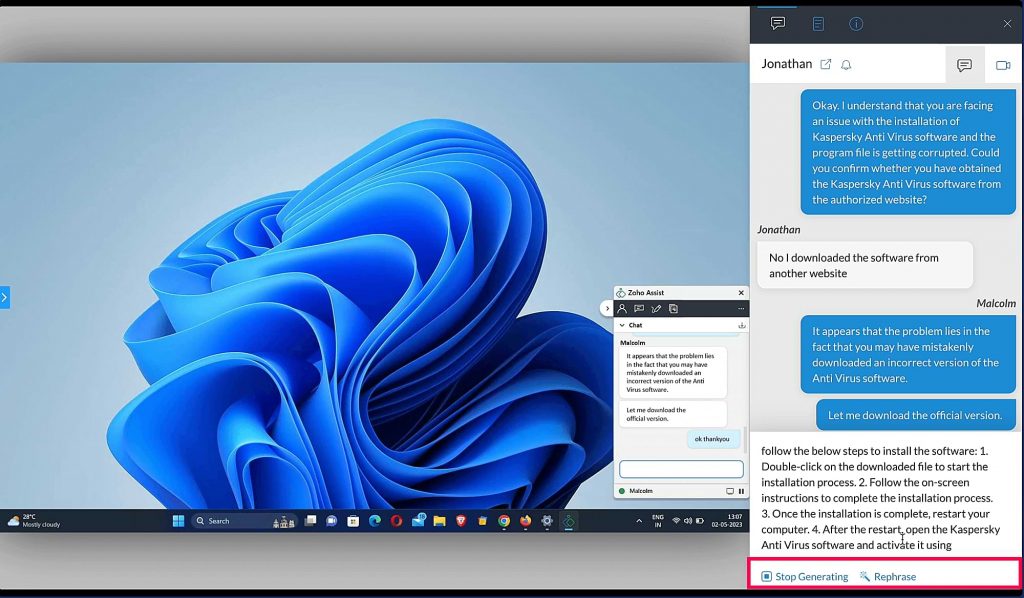
    Technicians can ask Zia —powered by OpenAI— to auto-generate chat suggestions based on the initial conversation they have with a customer. Also, they can obtain suggestions for analyzing or troubleshooting issues during remote sessions. Zia can help technicians as well with auto-completing their sentences and can regenerate responses to meet their needs.

    (Image via Zoho)

    Session Summaries

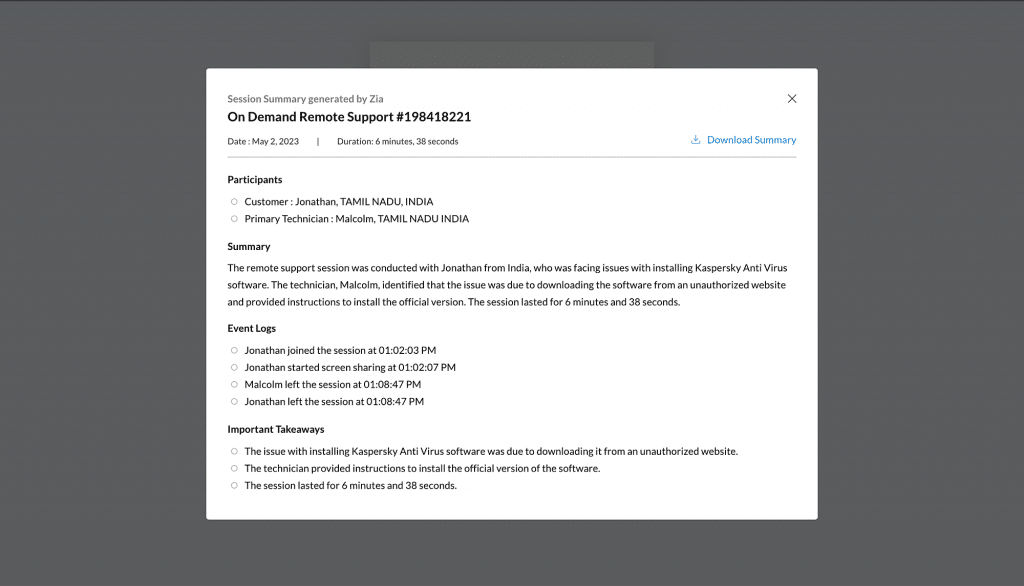
    Zia, powered by OpenAI, can analyze all the actions performed by a technician during a remote session and generate a summary of all the significant actions that were taken. All actions performed during a remote session are captured by the session audit logs in Zoho Assist. Zia analyzes the audit logs and generates a session summary that can be saved for future reference.

    (Image via Zoho)

    Zoho SalesIQ

    Conversation Summary

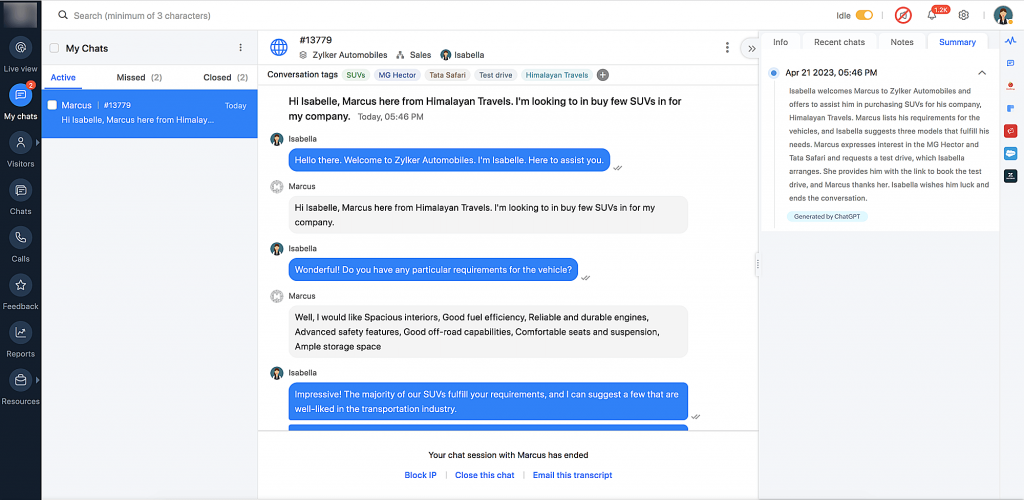
    To understand the context of a chat or a call, agents need to read the entire chat transcript or listen to the call recording, which can be time consuming. The integration between ChatGPT and Zia allows agents to get a quick summary of the entire chat transcript/call with brief bullet points. This helps save the agent’s time and makes it easier for them to understand the problem.

    (Image via Zoho)

    Zoho Notebook

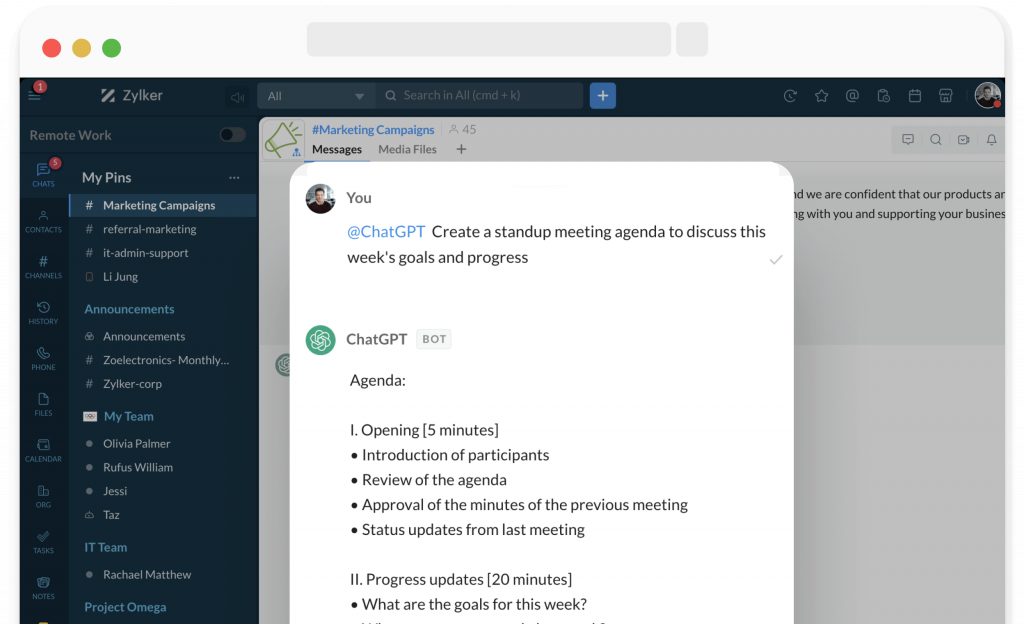
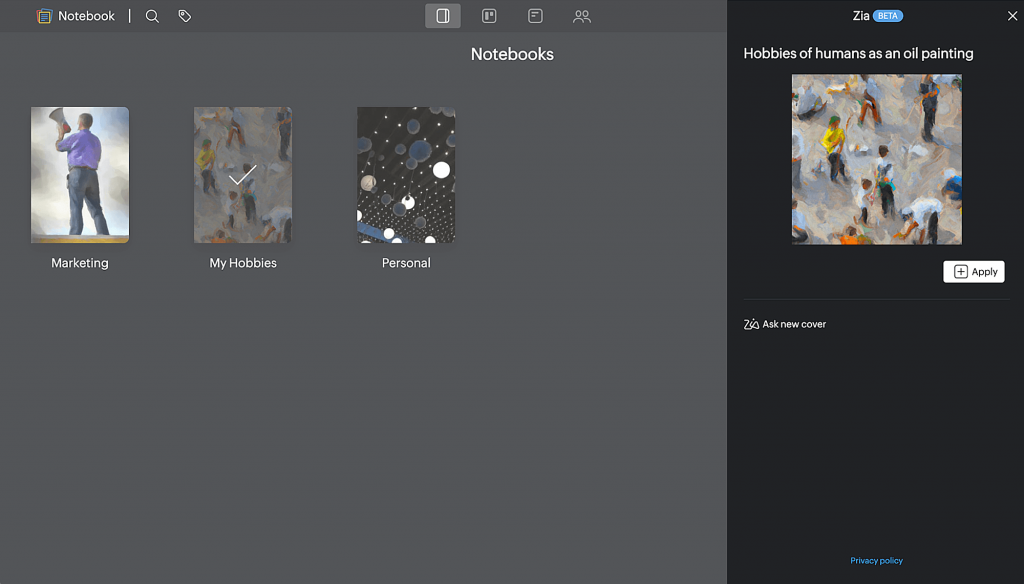
    Ask Zia to Generate Anything You Need

    Zia can help you pen down quick notes and create checklists for your ongoing project tasks. Let Zia write code snippets for your website and insert customized tables into your research papers. Create your own templates for tracking monthly expenses or calculating your daily productive work hours. You can even add make your notes creative by asking Zia to generate pictures for your write-ups and so forth!

    (Image via Zoho)

    Elevate Your Writing with Zia’s Note Assistance

    Summarize the content or make it more elaborate, improve your writing, and eliminate grammatical errors. Zia meticulously focusses on your word choice and the tone of your writing, and simplifies the language. If you get writer’s block part-way through your write-up, Zia can finish your work effortlessly, as well as suggest relevant tags for your content.

    (Image via Zoho)

    Zoho Meeting

    Get Key Meeting Insights

    Ensure that no important points are missed during your online meetings and webinars. Go through session transcripts, and generate and download effective keynotes by just clicking a button. Zia, powered by OpenAI, helps you save time and energy by offering key insights, without pushing you to go through entire meeting or webinar recordings.

    (Image via Zoho)

    Zoho DataPrep

    Transform by Example

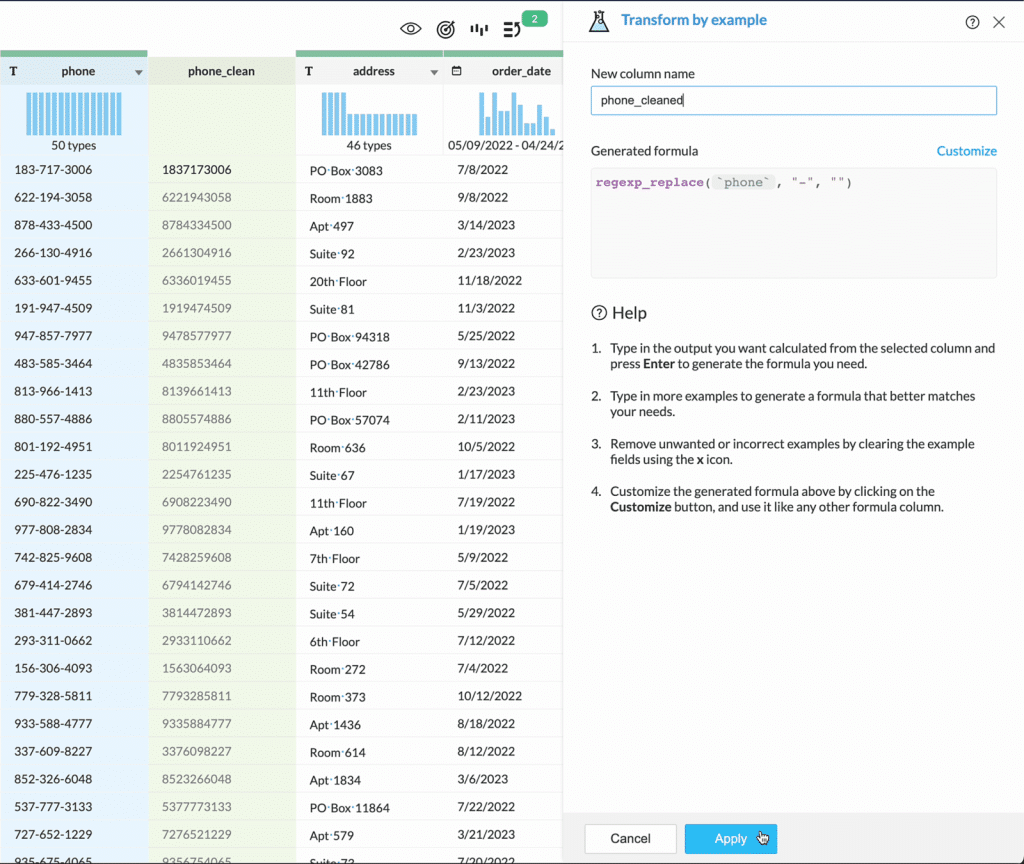
    This feature lets users transform data in a given column based on desired output examples. Basically, users can provide a few sample outputs, and Zia will automatically perform the necessary transformations on the data in the column to generate the wanted outputs. This includes operations like text extractions, date formatting, and math calculations, depending on the type of data being transformed. This makes easier the data transformation process so it is accessible to users without specialized technical skills.

    (Image via Zoho)

    Generate Formulas from Chat

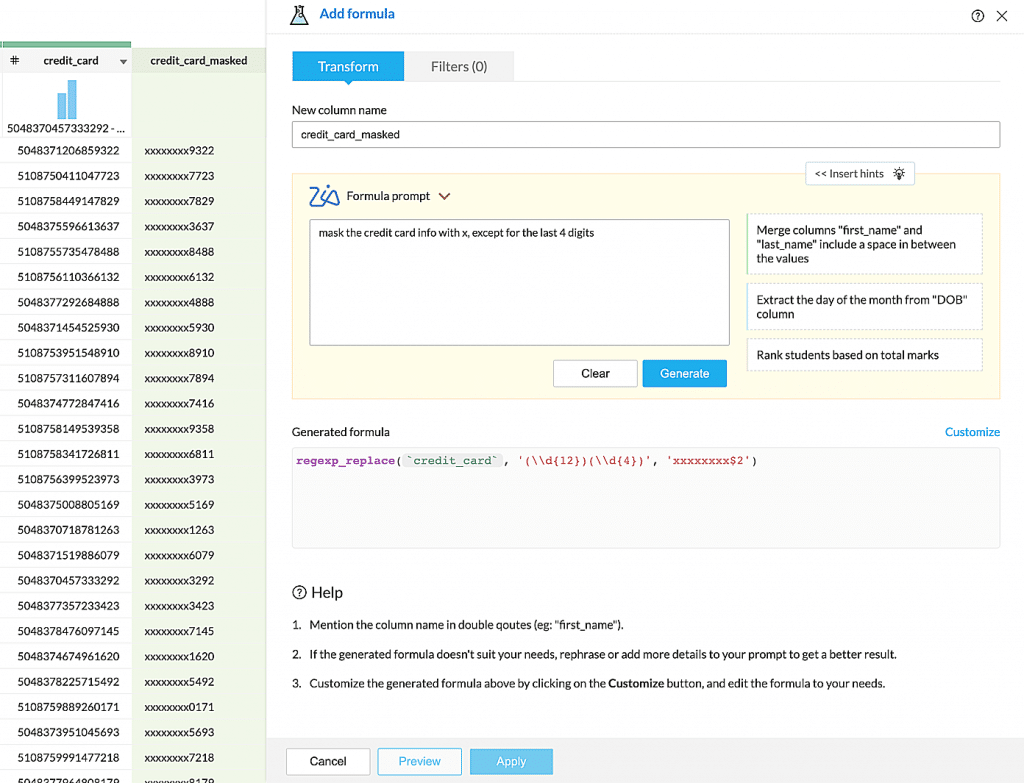
    The AI-enabled formula builder lets users generate complex formulas for data wrangling by narrating the logic of the transformation to be performed. For example, in a help desk data set, users can ask the builder to calculate the difference between the first response date and the ticket creation date to reveal the first response duration for each ticket. The formula generated can also be customized, which gives users maximum control over how data is transformed in their data sets.

    (Image via Zoho)

    Zoho Writer

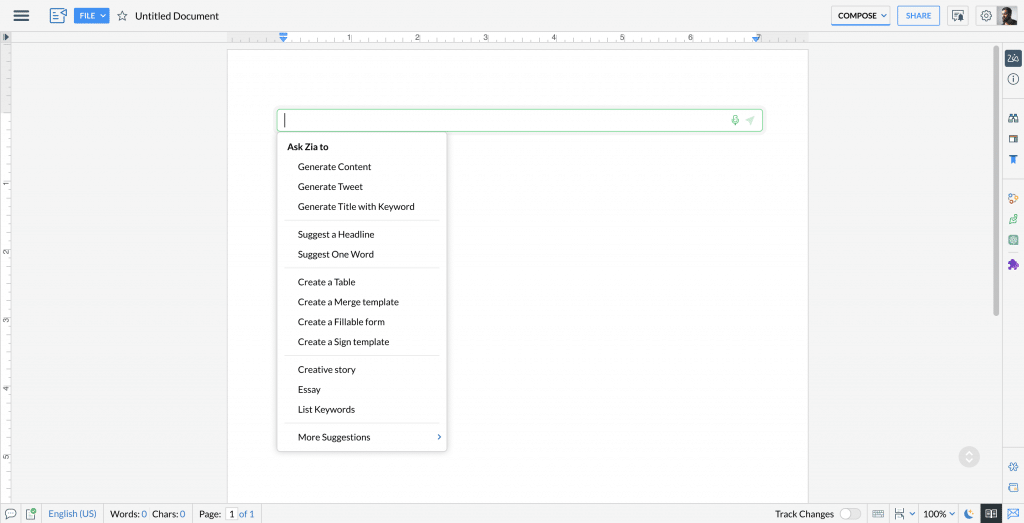
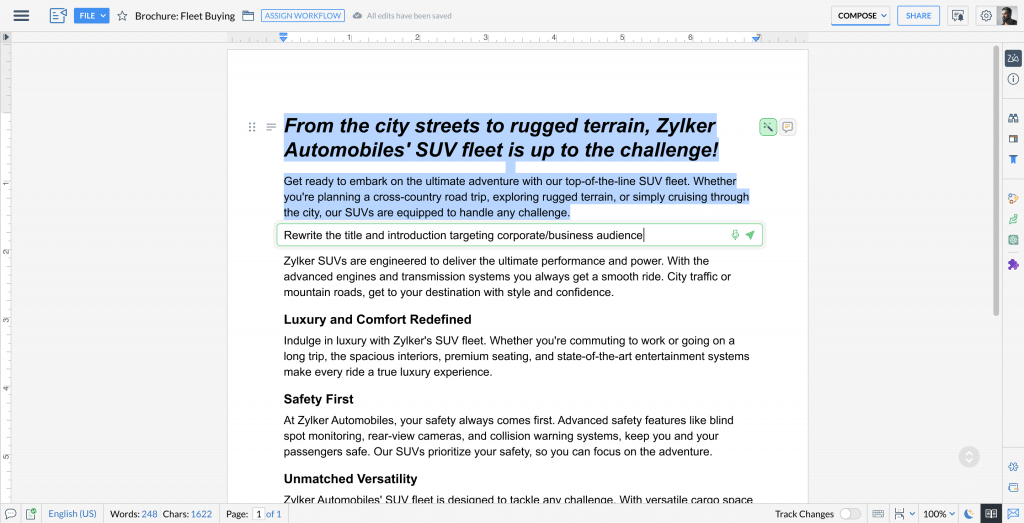
    Zia is built right into Zoho Writer’s editor, so you can summon and interact with her without switching tabs. Just type “//” and Zia’s chat window will appear. From there, you can request help for writing a blog post, generating a headline for your article, creating a meeting agenda, drafting an email, rewriting a paragraph, among others.

    (Image via Zoho)

    Prebuilt Contextual Prompts Library

    Zia’s predefined prompts make it simpler for you to interact with her and get assistance. Zia’s prompts are contextual, so you’ll see different sets of prompts for the following:

    Creating and modifying content: Generate content from scratch by selecting an appropriate prompt from the prebuilt list based on the type of content you’d like to generate (a story, to-do list, tweet, email, etc.).

    Modifying content: Modify any existing content, or edit Zia’s responses before adding them to your document. Zia offers ready-made prompt lists that change based on whether you want to modify a word (select a word and pick an appropriate prompt to see synonyms, related words, definitions, and more) or modify selected content (select a phrase, sentence/s, or paragraph/s, and prompt Zia to shorten, rephrase, and summarize your content, identify keywords, or suggest a title).

    (Image via Zoho)

    Zoho Analytics

    Import Public Data Sets

    On many occasions, you will need public data to compare, benchmark, or to complement your data analysis. Such cases are now easy: you can ask Zia —powered by ChatGPT— for those public datasets and bring that data into Zoho Analytics for extra analysis.

    (Image via Zoho)

    Create Formulas

    KPIs (key performance indicators) are generally metrics obtained by combining multiple columns through formulas. You can now create those formulas by typing out in natural language. Generative AI will do the rest.

    (Image via Zoho)

    Zoho Cliq

    Reveal the power of AI with the ChatGPT extension for Cliq. Increase productivity, acquire instant insights on anything, fast-track research and writing assistance, and get work done faster by doing the following:

    • Mention “@chatgpt” or type the slash command “/chatgpt” at any moment.
    • The message action Summarize will shorten anything into a short text.
    • You can also use the command /summarize instead and obtain a synopsis of the message.
    • The action Create Outline will quickly create a brief for any text.
    (Image via Zoho)

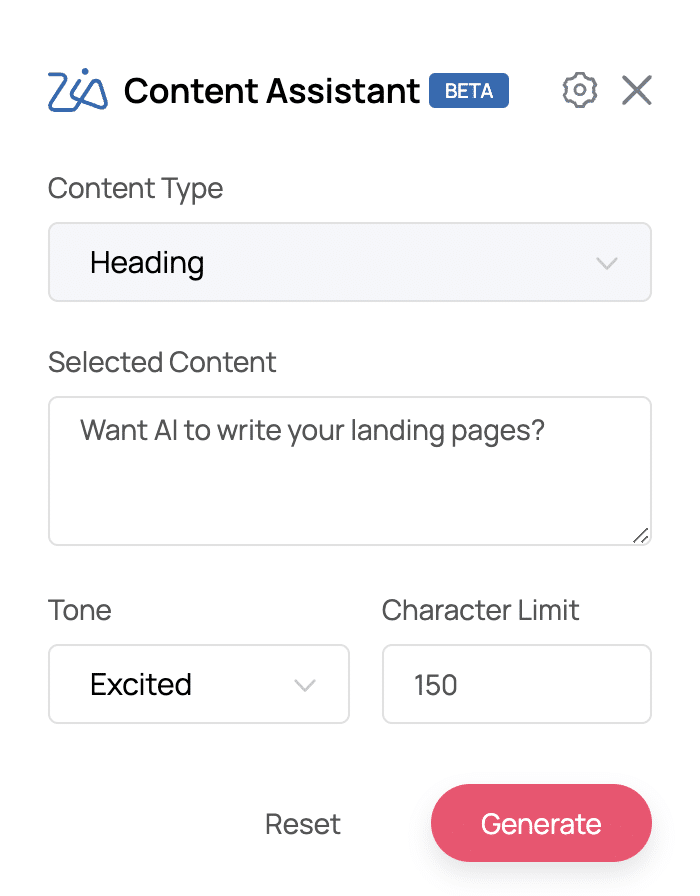
    Zoho LandingPage

    Accelerate and Streamline Content Creation

    Writing engaging, conversion-oriented landing pages for every campaign takes skill, professional expertise, and time. Now, Zia can write good content and save you lots of time. You just have to roughly type in what you want to write, and AI will produce a skillfully written copy for your landing page.

    (Image via Zoho)

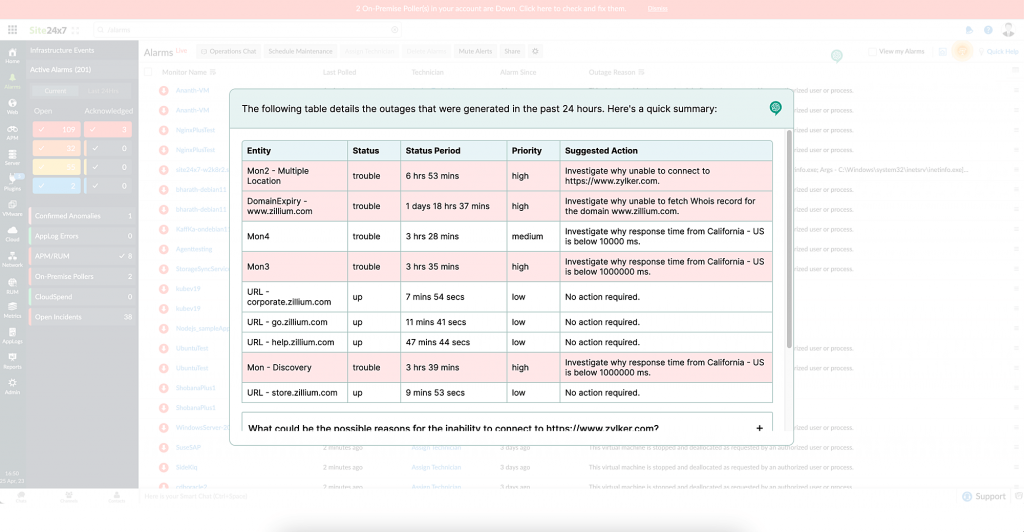
    Site 24X7

    Incident Analysis with One Click

    Zia summarizes outages and helps you prepare a prioritized list of work items to concentrate on. Drill down into issues faster with suggestions for corrective actions. By resolving issues faster, you will be able to decrease the probability of downtime or system failures.

    (Image via Zoho)

    Do you need help with your Zoho and OpenAI integration and/or other third-party integrations? Contact us now for a consultation.

  • Zoho News Catch-Up: Zoholics USA; CRM Call Transcription; Updates for Analytics and Inventory; New WorkDrive 4.0; Live Webinars

    Welcome to our catch-up, where you’ll be in the know of all the latest Zoho updates in one place!

    Zoholics Jersey City: Last Chance for Tickets! Get 50% Off with Our Code!

    Zoholics USA is just around the corner! Our InterConnecta Team we’ll attend the Jersey City event on April 26 and 27, and we’d love to see you there!

    Tickets are still on sale! Get 50% off on your tickets purchase: drop us a line to get our promo code and/or schedule an in-person meeting with us while we’re there. Learn more details about Zoholics here.

    See you very soon!

    Zoho WorkDrive 4.0: New Version Enhances Productivity with Advanced Data Administration

    In 2022, Zoho WorkDrive 3.0 was launched with improvements and features. Now, version 4.0 is here with even more! Here’s a summary of what you will find:

    Productivity Features

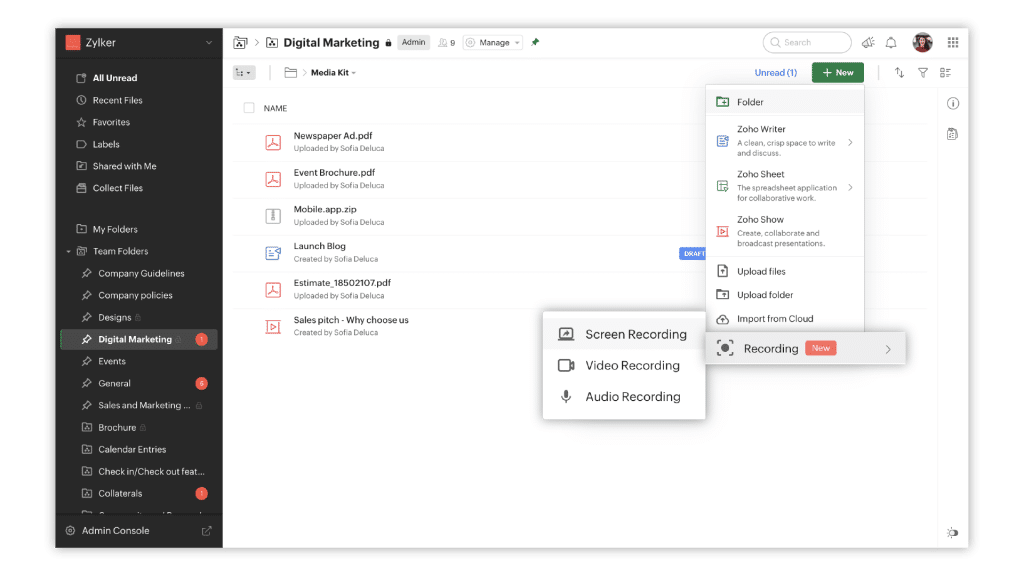
    WorkDrive Snap Reduces Long Meetings

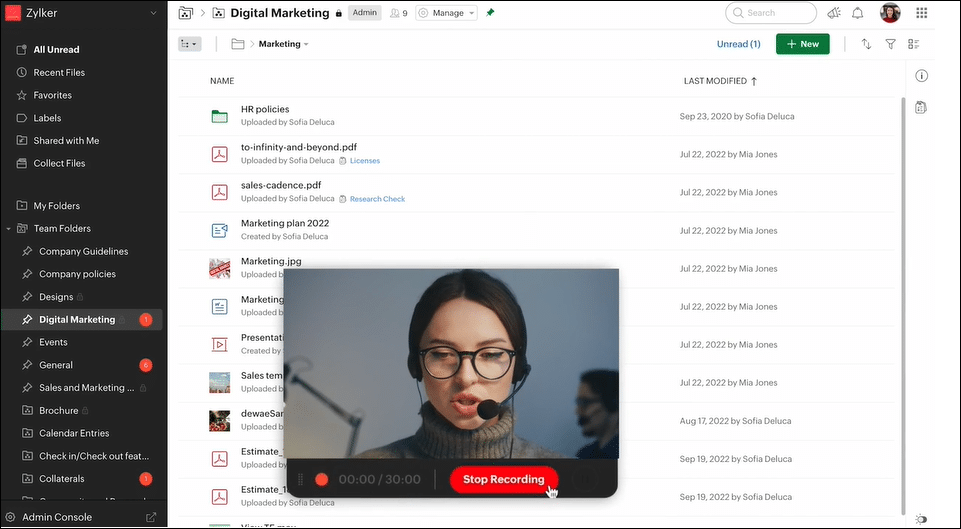
    WorkDrive Snap is a video-based asynchronous collaboration tool that combines the power of video calls with the flexibility of chat. It offers multiple recording options (screen, video, and audio) paired with the flexible sharing options feature of WorkDrive. Easily record, replay, and share information while working, without slowing down productivity.

    (Image via Zoho)

    If you want to brief your team on a new project, you can now record your screen along with video and audio. Use video and audio recordings alone if you want to share official or personal news with your team. You can even record audio to quickly annotate files and share feedback.

    (Image via Zoho)

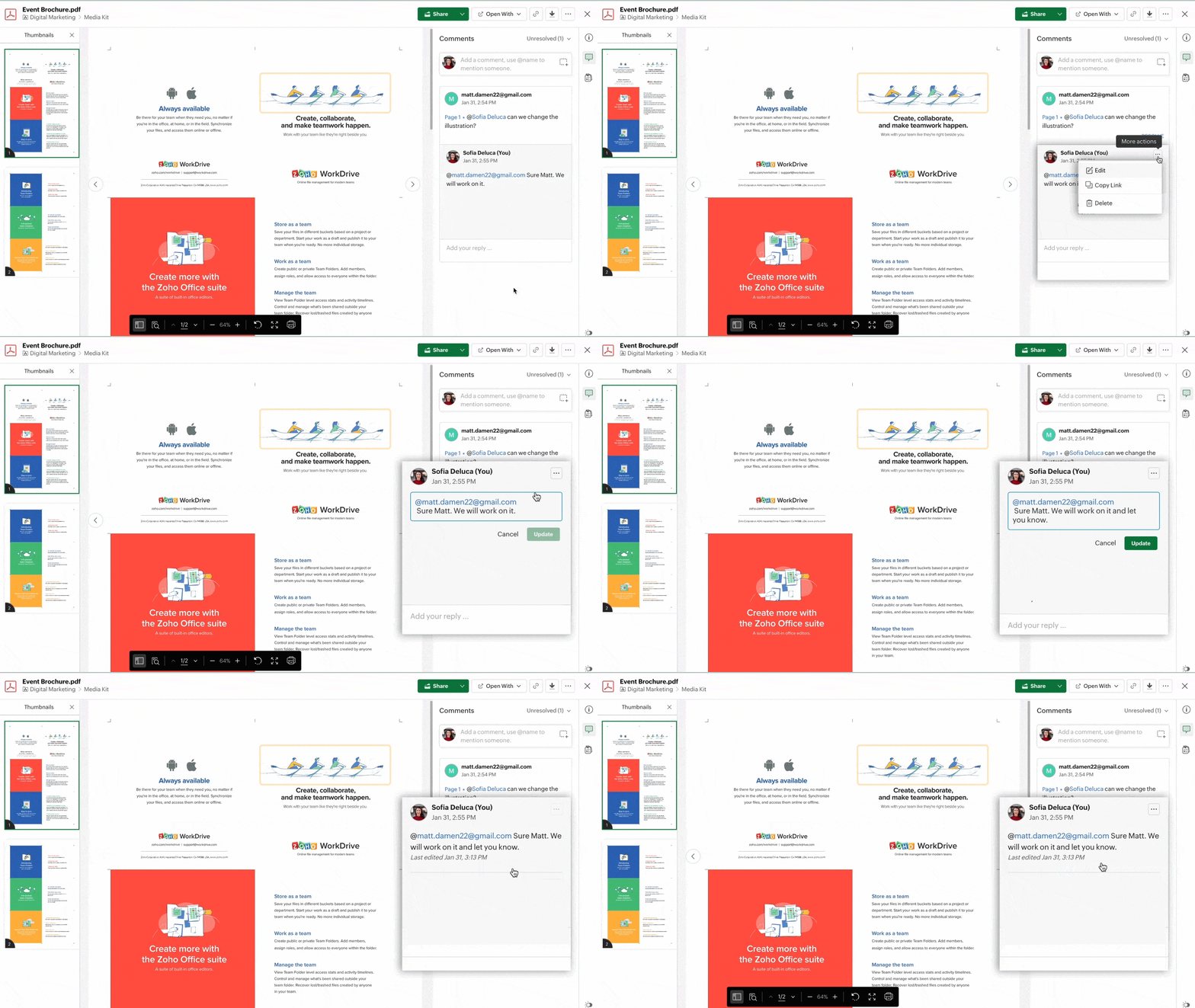
    Contextual Commenting

    Contextual commenting on a document helps you to collaborate and share your ideas with your team members. This also allows you to edit your comments, instead of deleting them, to correct mistakes.

    (Image via Zoho)

    Collaboration and Data Security

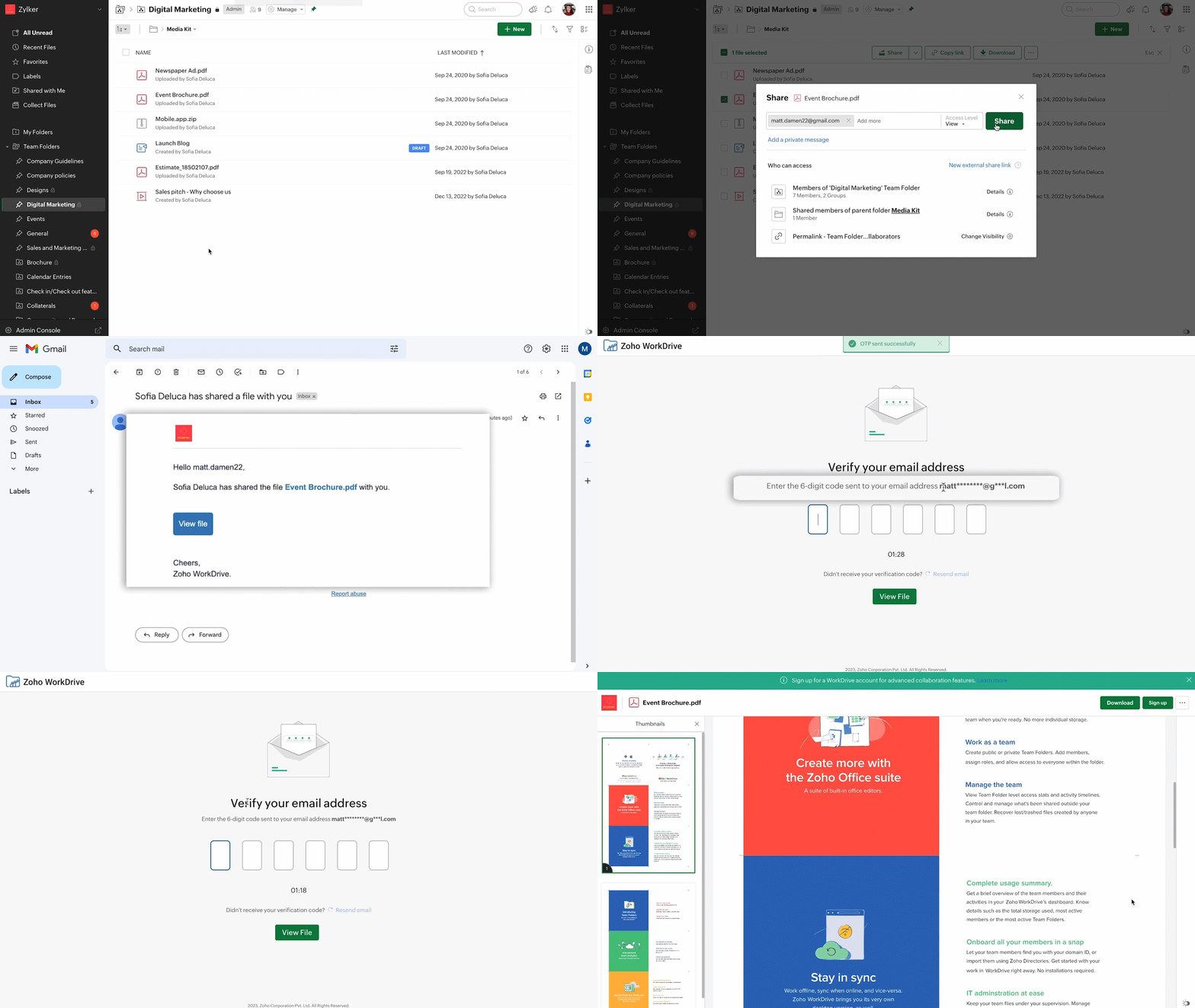
    OTP authentication for external share links

    When sending an invoice to a customer or an agreement to a partner, secure external sharing is essential. The data leaving an organization must be protected. With Zoho’s new update, you can now enable OTP authentication and add more security to your externally shared files.

    (Image via Zoho)

    Improved External Collaboration

    Now you can collaborate with your external clients, even if they don’t have a WorkDrive account. The new update enables them to securely access, comment, reply, @mention, and download your externally shared files. Furthermore, they can add and rename files in a shared folder and all the changes will be visible to both of you. You can respond to their comments and collaborate with them directly from your account.

    Data Administration

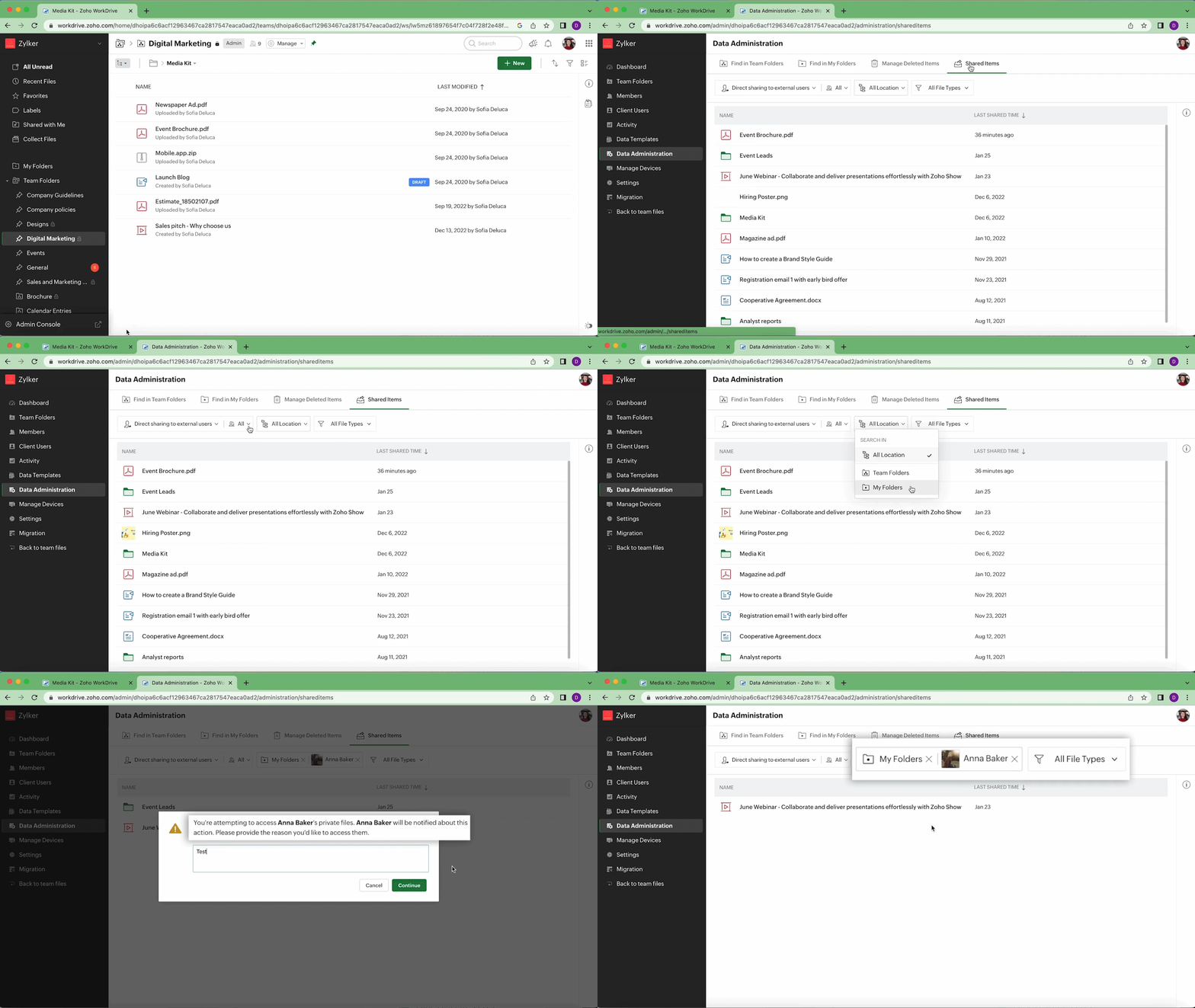
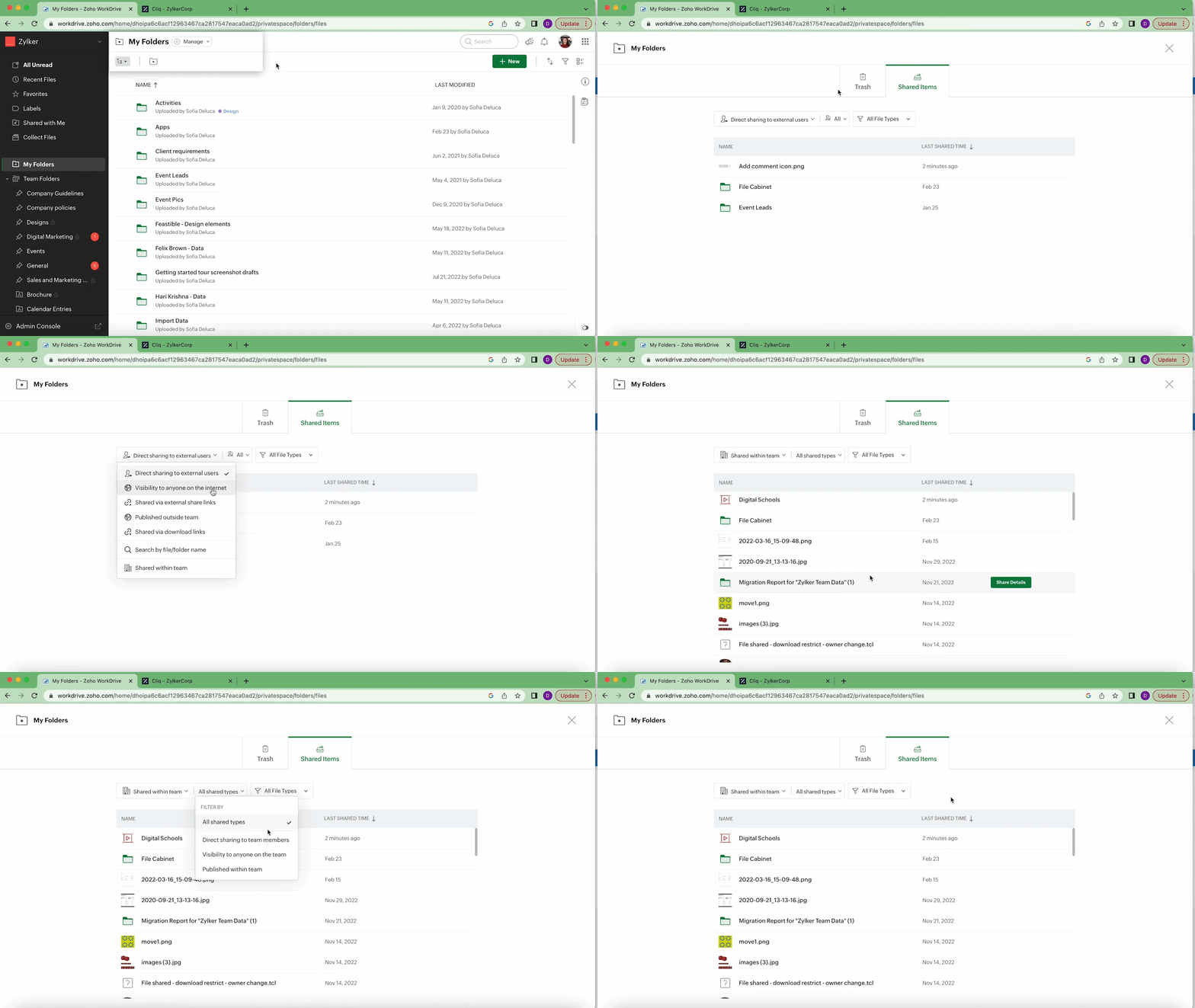
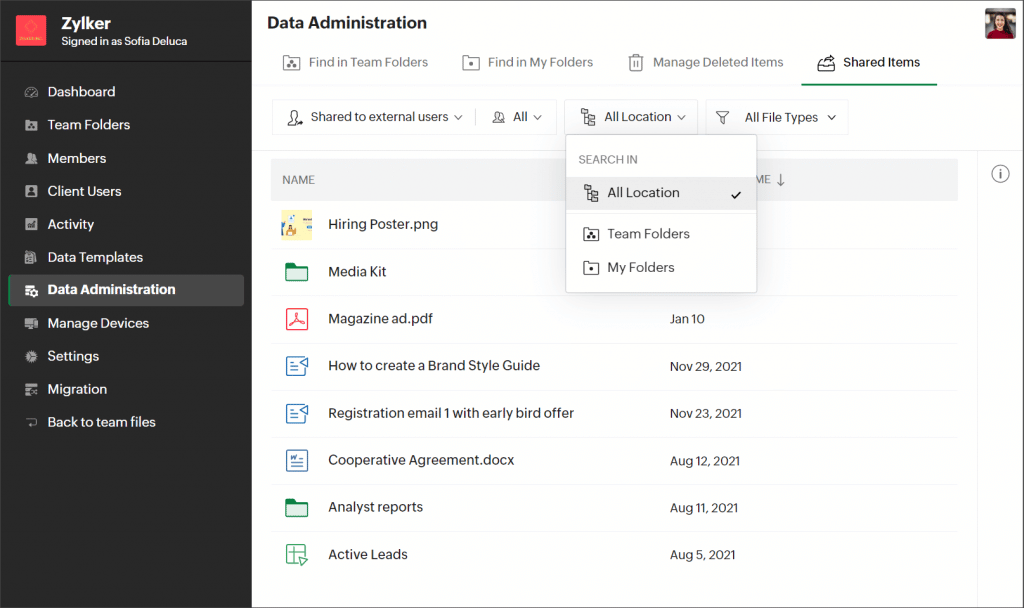
    Management of All Shared Items from a Central Location

    This allows admins to easily view, share, and manage all shared items from a single place. They can filter files based on the method of sharing, recipient, file location, and document type.

    (Image via Zoho)

    WorkDrive has enabled this functionality for individual Team Folders too, so you can easily view all shared items of a particular Team Folder. This way, Admins and Organizers can instantly find shared Team Folder documents. In addition, every user can view and manage their shared items in their My Folders and keep track of what they have shared and with whom.

    (Image via Zoho)

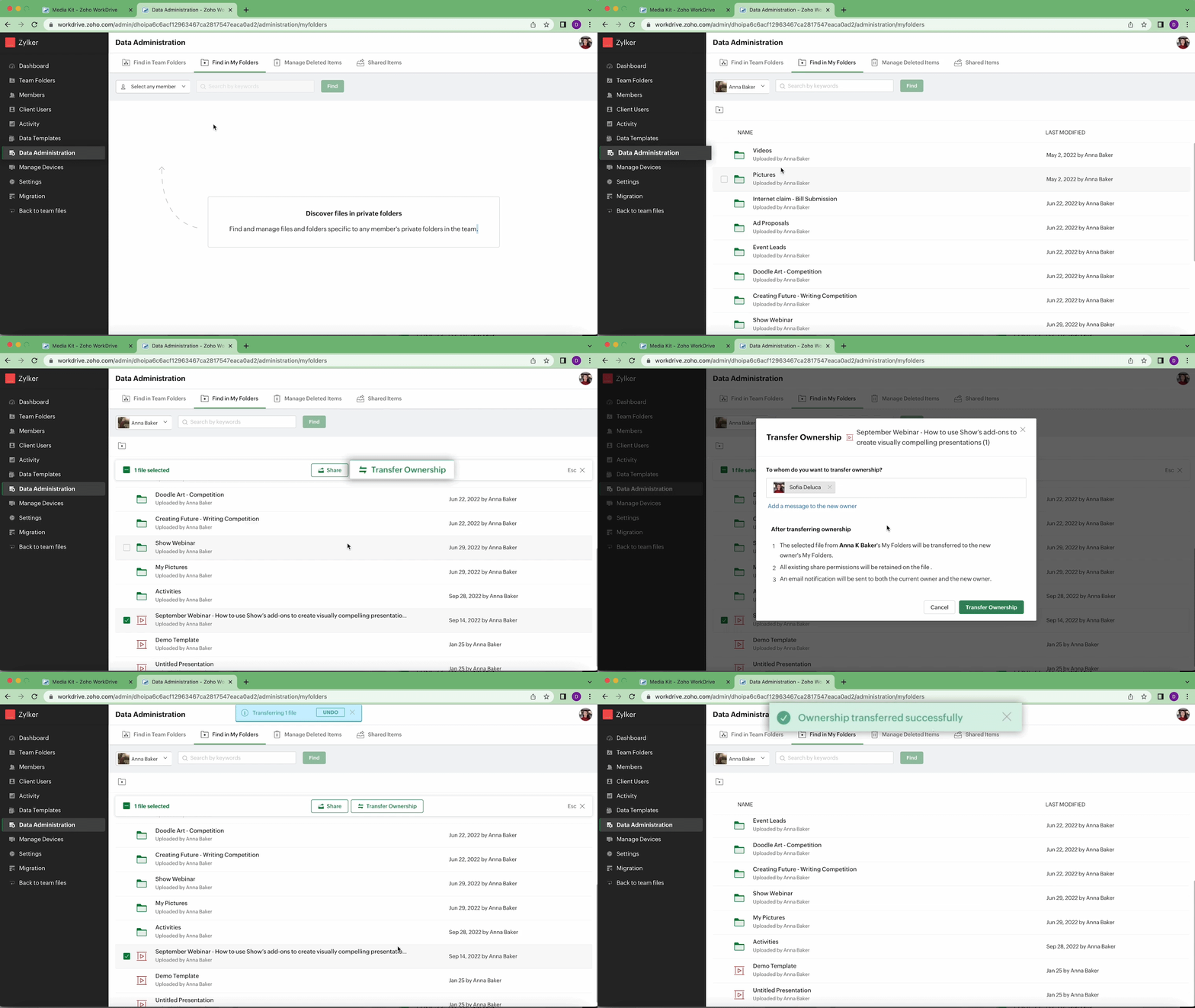
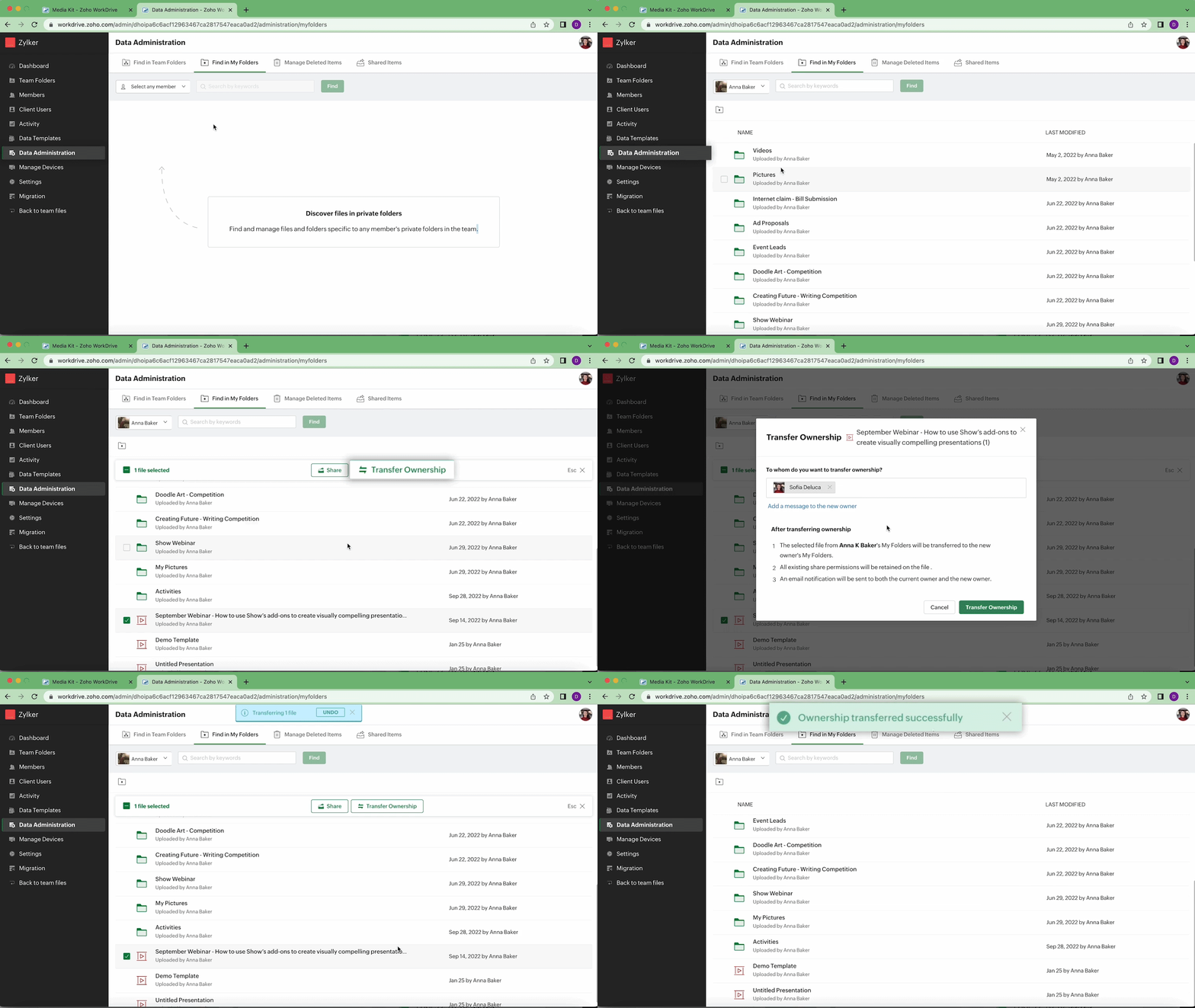
    Finally, whether it’s an active, inactive, or suspended user, you can now view all their My Folders documents, as well as transfer file ownership to yourself or any other active member of your team. This lets you make sure that crucial documents are retained and protected.

    (Image via Zoho)

    New Zoho WorkDrive Integrations

    The new integrations allow you to do the following:

    • Bigin’s File Cabinet lets you create File Cabinets for each customer and store all their files in a single place.
    • Bigin’s File Cabinet lets you create File Cabinets for each customer and store all their files in a single place.
    • Share your WorkDrive files directly from within Zoho Cliq and set the necessary access permissions, whether if it’s with an individual user or a channel.
    • Save important Zoho Mail emails to WorkDrive and maintain a copy in EML (Electronic Mail Format). Once you add an email to WorkDrive, you can preview it right from your account. The file contains the email content along with other details.
    (Image via Zoho)

    If you have integrated Zoho Projects or Zoho Marketing Plus with WorkDrive, you can now list the Team Folders created in Projects and Marketing Plus in the left panel of your WorkDrive account. This way, you can easily access the right files at the right time.

    User Experience

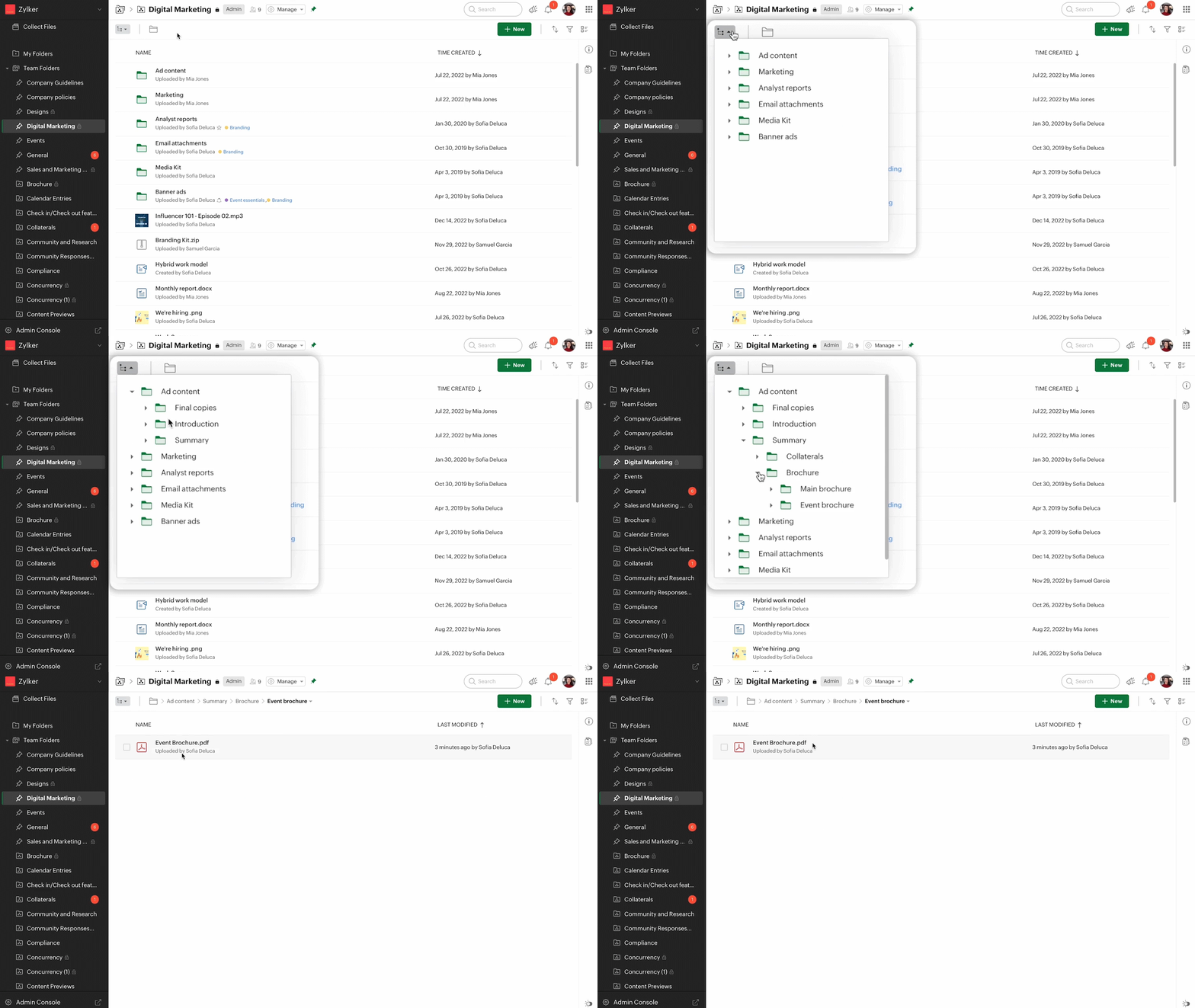
    Tree-Based Navigation

    This new option in WorkDrive makes it easier to access folders in Team Folders or My Folders based on hierarchy, which helps you quickly find what you’re looking for.

    (Image via Zoho)

    Easily Copy and Move Files

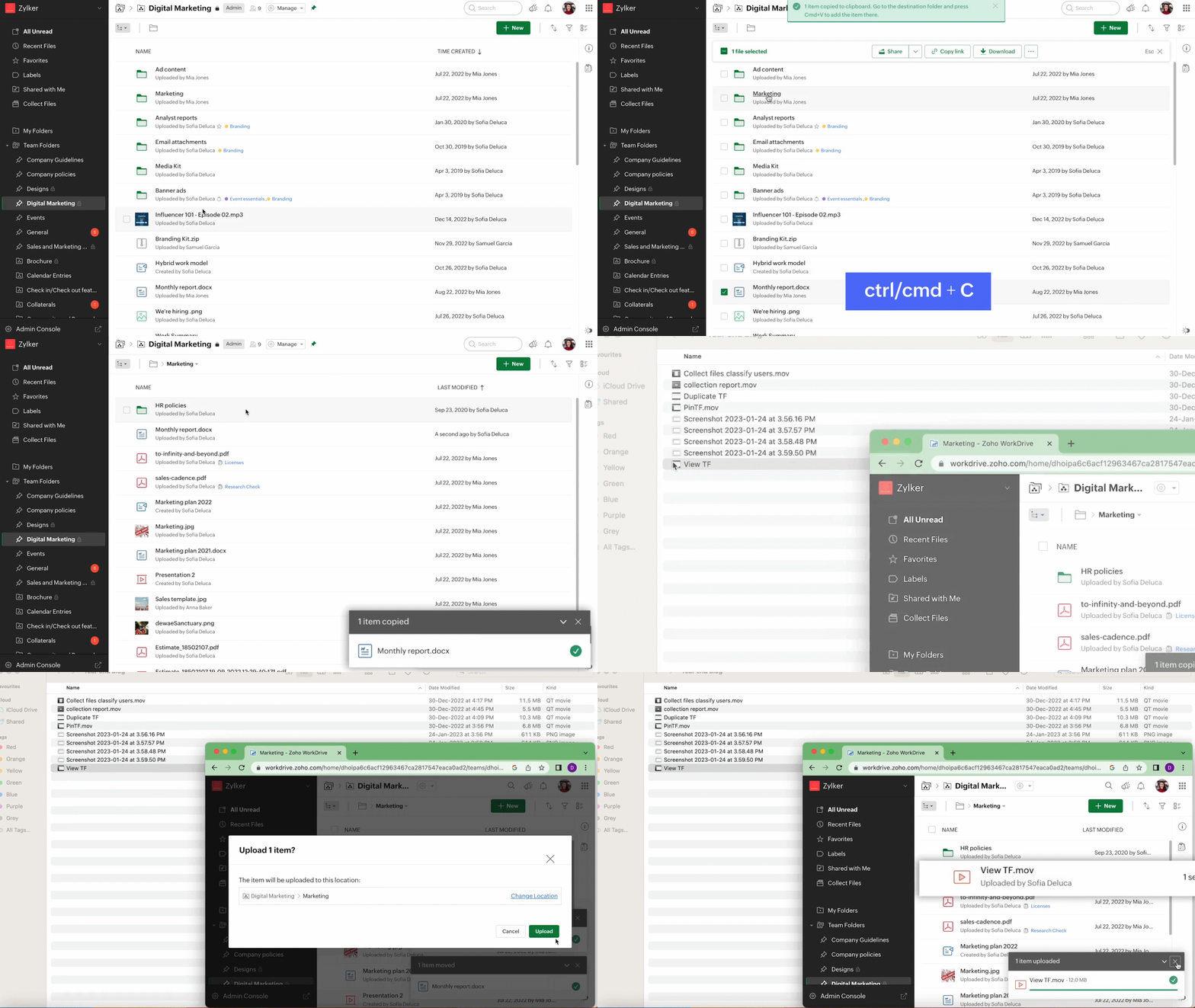
    Use keyboard shortcuts (changes based on the OS) and drag and drop to easily upload, move, and copy files to a folder of your choice. To do so, you only need the required permissions in the folder where you’ll be adding the file.

    (Image via Zoho)

    Zoho Analytics Updates

    Advanced Analytics for Instagram Ads

    (Image via Zoho)

    Instagram Ads Advanced Analytics Connector allows you to import your Instagram Ads data into Zoho Analytics for advanced reporting and analysis. This connector brings in all the capabilities of Zoho Analytics to Instagram Ads users:

    • A full-featured business intelligence (BI) and reporting tool that can analyze Instagram Ads data to create any reports/dashboards you need.
    • Create your own reports and dashboards based on not only your Instagram Ads data,  but also by blending data from other data sources.
    • Share reports and dashboards with your colleagues.
    • Set up Alerts to get notifications on key business metrics.
    • Schedule and email your reports whenever you want.
    • Export your reports as PDF, HTML, Excel, CSV, and image files.
    • Embed your reports on websites, blogs, etc.

    Import Data from Azure Data Lake and SharePoint

    (Image via Zoho)

    Zoho Analytics now supports data import from three types of storage in Azure Data Lake: containers, file shares, and tables. Meanwhile, Zoho Analytics lets you connect to the data stored in SharePoint. It enables you to comprehend raw data, identify underlying trends, and accelerates decision-making. Furthermore, you can schedule periodic data import to analyze the data.

    New Features for Zoho Inventory

    Record Locking

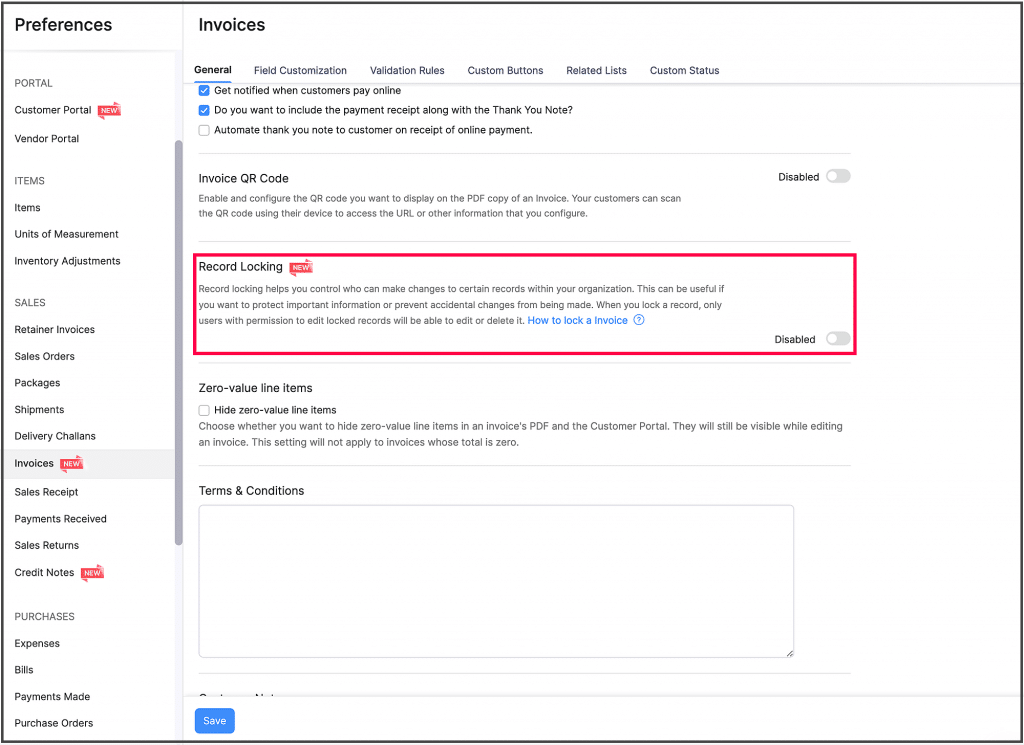
    This option lets you lock specific invoices and credit notes to restrict further edits to them. After a record is locked, only users with the required permissions can modify the record or unlock it.

    You can enable Record Locking in the respective module’s Preferences page.

    (Image via Zoho)

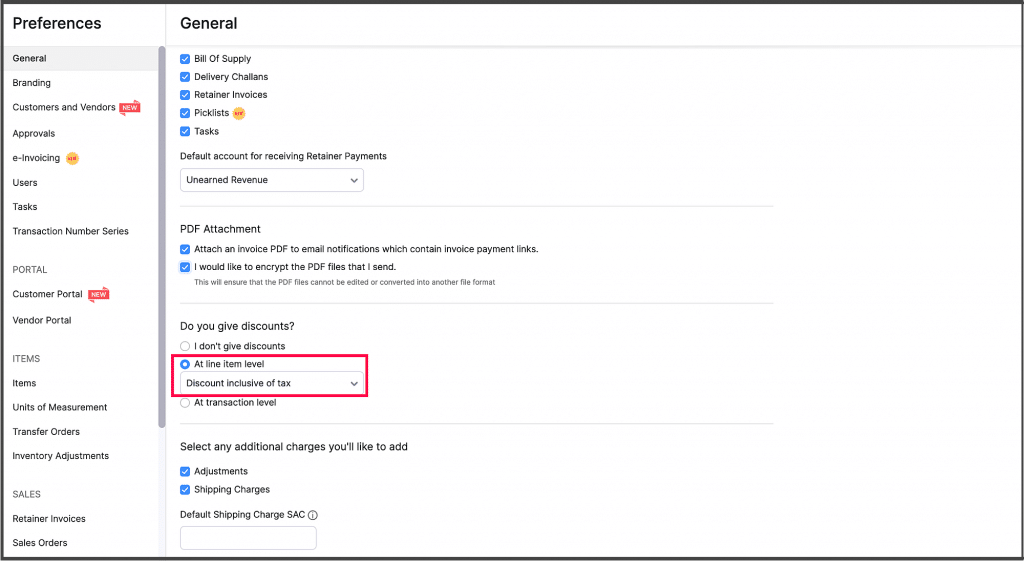
    Discounts at the Line-Item Level Inclusive of All Taxes

    Users of the Australia and Global editions of Zoho Inventory can now provide discounts at the line-item level even if tax is already applied to them.

    To configure this preference, go to Settings > Preferences > General.

    (Image via Zoho)

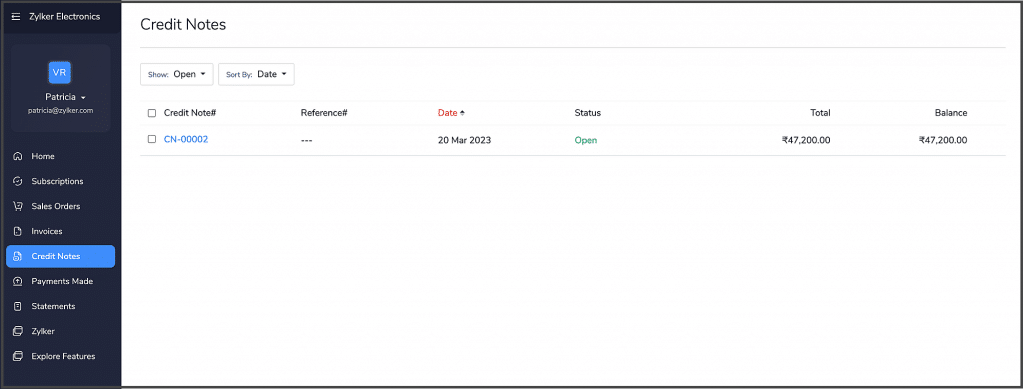
    Credit Notes in the Customer Portal

    Let your customers view their credit notes along with the associated invoice, refund details, and the attached documents from their portal. They can also add comments to credit notes and collaborate contextually with you.

    (Image via Zoho)

    Create Purchase Receives from the Purchase Receives Module

    Zoho has added an option to create purchase receives directly from the Purchase Receives module instead of having to create one from the associated purchase order.

    To create a purchase receive, go to the Purchase Receives module under Purchases.

    Design Changes

    The following design improvements are now available on the transaction details page for the following modules:

    • Packages
    • Shipments
    • Picklists
    • Sales Returns
    • Payments Made

    Zoho CRM: Call Transcription and Intelligence

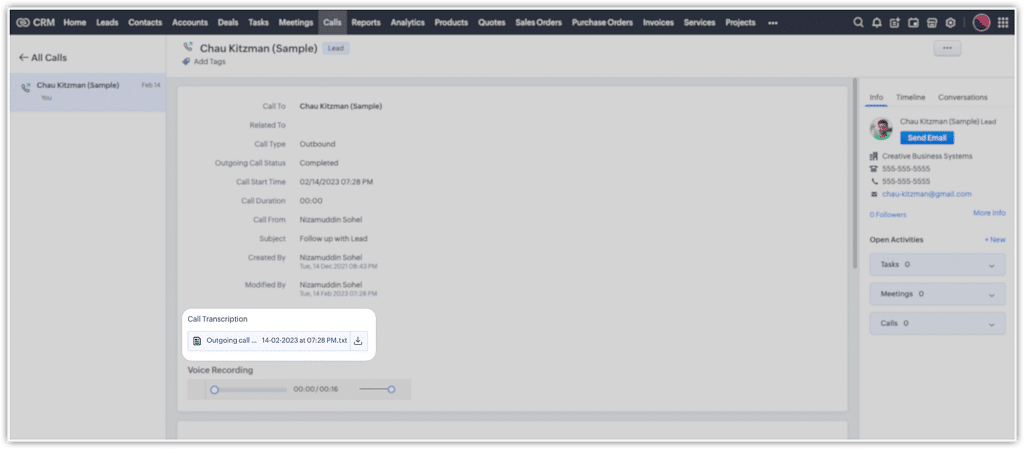
    These two new features are under Zia and allow you to get transcribed audio recordings of your phone conversations, and together with Zia’s intelligent analysis, you can derive call-related details and customer information from them as well.

    Call Transcription

    With the call transcription feature —currently powered by Google’s API— you can transcribe your recorded calls in the form of a conversational text document.

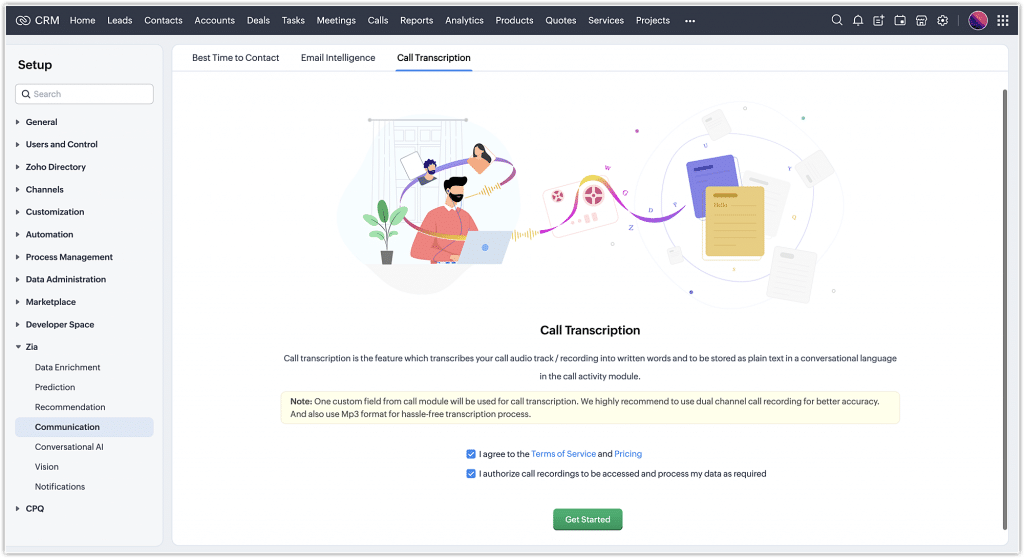
    How to Enable Call Transcription

    After agreeing to the terms of service and providing the required permissions to access your data, you can get started with call transcription.

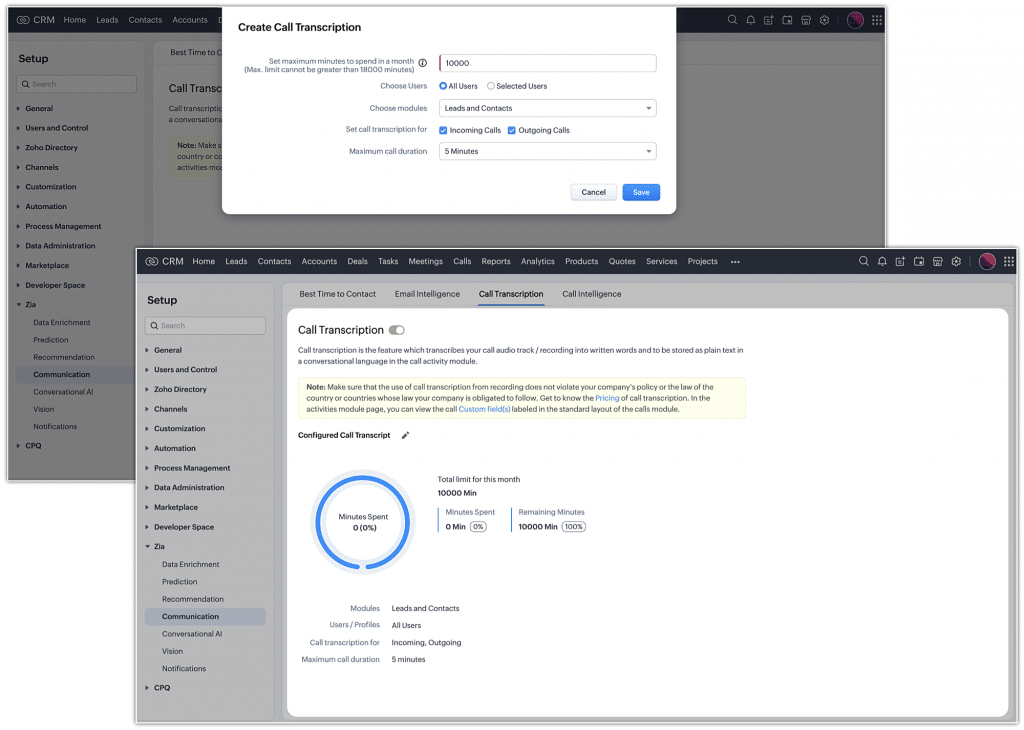
    (Image via Zoho)

    You can configure other details for call transcription, like:

    • Maximum number of minutes to spend per month
    • Which users to transcribe calls for
    • Enable transcription for incoming or outgoing calls, or both
    • Maximum duration of a call for which transcription should occur
    (Image via Zoho)

    Once configured, you’ll be redirected to the Call Transcription tab, where you’ll see all the configuration details, including the minutes spent and the minutes left for the month.

    In addition, you can toggle to enable or disable the call transcription feature.

    Call transcripts will be priced based on the amount of audio successfully processed, measured in increments rounded up to 30 seconds. For every 30 seconds of transcription, you’ll be charged $0.012 (or $0.024 per minute). All call transcription spending will be charged along with your normal monthly billing cycle.

    Call Intelligence

    Zia does more than just transcribe your conversations. With its intelligent analytical abilities, it can automatically retrieve information from calls.

    Without you having to go through the entire transcript, Zia can automatically determine the call’s overall tone by analyzing the sentiment, intention, and emotion. Furthermore, it will provide a summary of the call in a line or two.

    Zia for calls includes the following features:

    • Call Sentiment: Zia’s sentiment analysis categorizes the call activity as positive, negative, or neutral.
    • Call Intent: Zia analyzes call conversations and highlights the customer’s intent.
    • Call Emotion: Zia monitors call conversations and highlights the emotions of the incoming and outgoing call activities. It can capture the following customer emotions: happiness, enthusiasm, discontentment, frustration, gratitude, trust, confusion, or neutral.

    You can view Zia’s detailed analyses in the following places on your Zoho CRM:

    • The closed activities section of the record details page.
    • In the Call Intelligence section on an individual call’s detail page in the Calls module.

    Notes:

    • As prerequisites for enabling call transcription in your organization, you need to have access to a telephony provider and have call recording enabled in your organization.
    • Call transcriptions will only be available for upcoming calls. Calls made or received prior to enabling the feature will not be transcribed.
    • The Call Intelligence tab will only be available once call transcription is set up.
    • The maximum number of minutes an organization can transcribe per month is limited to 18,000 minutes or 300 hours.
    • Only English language is supported.
    • When an admin disables call intelligence, the data processing will stop, but fields will remain populated with previously processed data. For new records, the call intelligence field data will be empty.

    Live Zoho Webinars

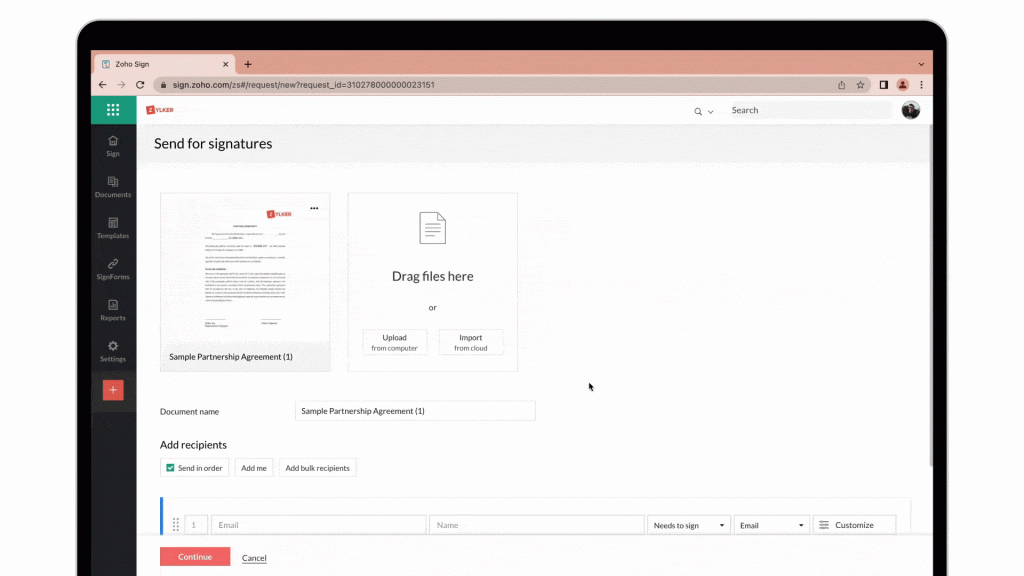
    Integrating Zoho Sign with Zoho Finance apps for effortless transactions

    Zoho Sign integrates with the Zoho Finance app bundle so you can efficiently manage getting documents signed by stakeholders.

    The Zoho Sign integration for Zoho Books, Zoho Invoice, Zoho Inventory, and Zoho Checkout allows you to digitally sign estimates, tax invoices, and credit notes before sending them out to customers; collect customer signatures on estimates; and collect customer payments at the time of signing, all in one flow! Join Zoho experts for a webinar to learn how you can leverage this to transform the way you do business transactions and make them more streamlined.

    Topics to be covered:

    • An overview of Zoho Sign
    • An introduction to Zoho Sign integrations with Zoho Finance apps
    • How to enable and use the Zoho Sign integration with Zoho Finance apps
    • Live Q&A with product experts

    Click here to register.

    The future of work with Zoho Workplace

    (Image via Zoho)

    If you’re new to Zoho Workplace or are already evaluating it, this webinar will provide you with valuable insights and tips for getting the most out of it.

    Zoho experts will showcase the key features of the suite, including Zoho Mail, Zoho WorkDrive, Zoho Office Suite, Zoho Cliq, Zoho Meeting, and more.

    Click here to register.

    That’s all for now, IC readers! See you soon for more Zoho updates from InterConnecta!

    Interested in adding these new features to your Zoho system? We can help! Learn more about our Zoho Consulting Services and ask us for a free consultation.
  • Zoho News Catch-Up: CRM’s Lookup Filter, Analytics’ New Multiple Features, Qualtrics for Zoho Desk Extension, Zoholics to Visit Three US Cities

    Welcome to our catch-up, where you’ll be in the know of all the latest Zoho updates in one place!

    Zoho CRM Introduces Lookup Filter

    Lookup fields help you to associate data from one module to another. That means that you can look up a record from module B and associate it with a record in module A. But, there could be scenarios in which you only want specific records to display while looking up. This is where the Lookup Filter comes in handy.

    The Lookup Filter Defined

    A Lookup Filter is a new property in the lookup field. It allows you to define criteria, so that only the eligible records from the lookup module are listed during the lookup activity. This makes easier the record association and assures that only eligible and correct information from the database is associated.
    How the Lookup Filter Works

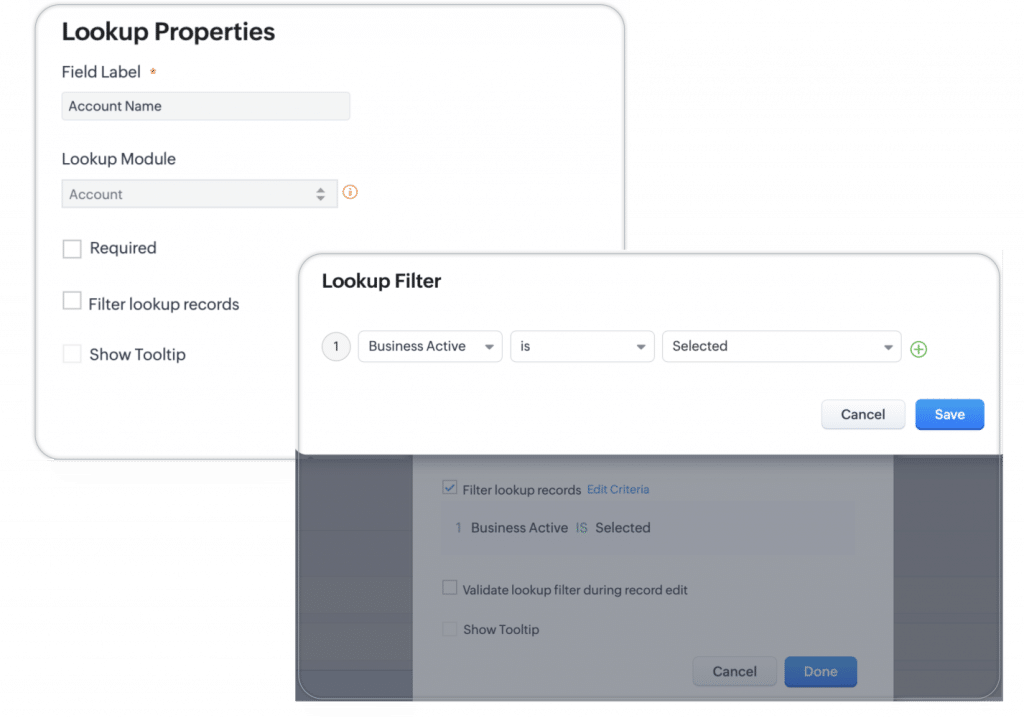
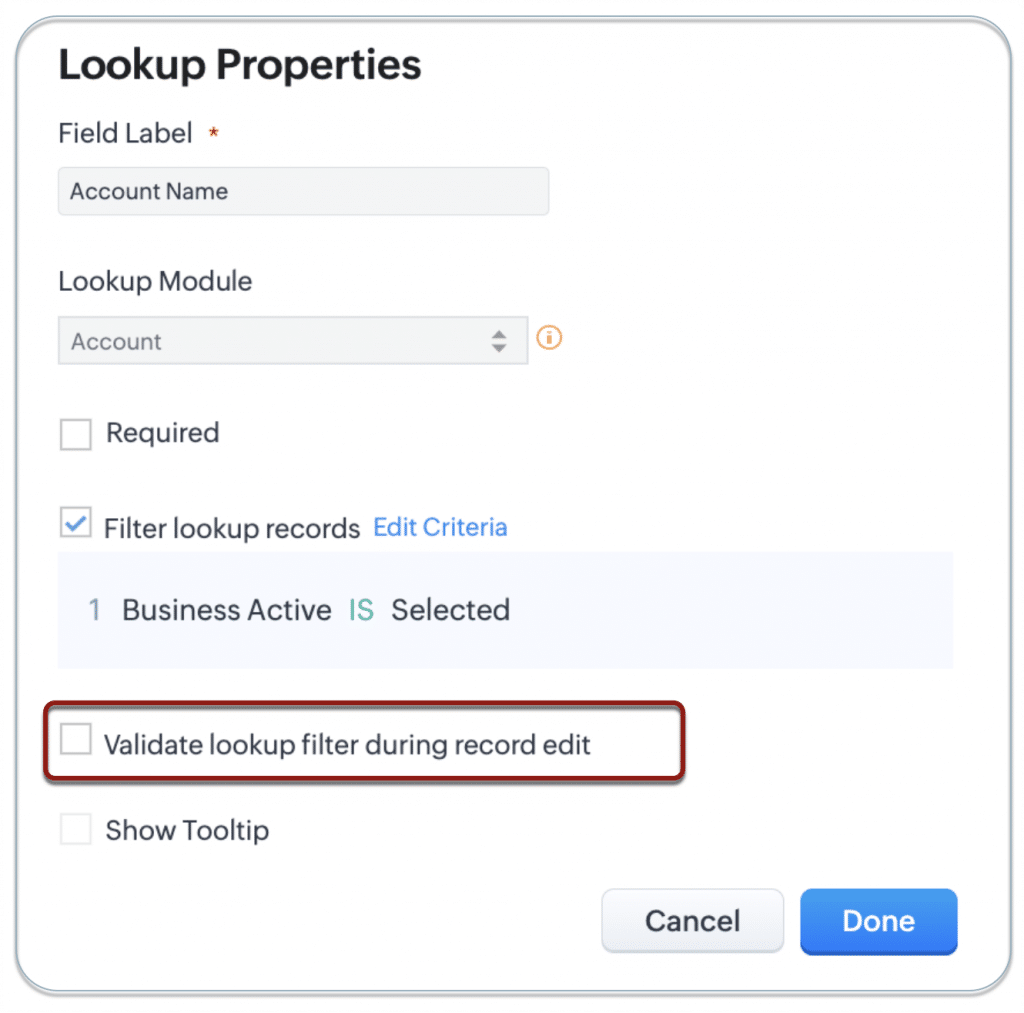
    To use the filter, go to the lookup field’s property in the Layout Editor, enable the Filter lookup records checkbox, and define the criteria.

    Here’s an example: You want only active accounts to be displayed for a lookup field present in the deal module. For this, you can create a filter criteria: Business active is selected.

    (Image via Zoho)

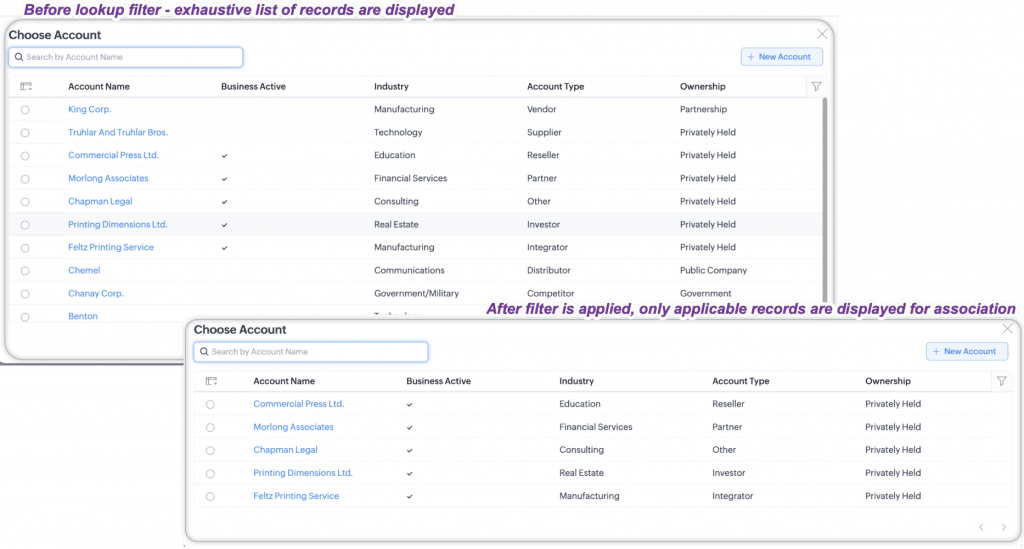
    Now, during deal creation, only the active accounts are displayed and associated when a sales rep looks up for accounts. This will help the sales rep to avoid searching throughout an extensive list of records in order to choose the active accounts.

    (Image via Zoho)

    Also, you can opt to validate the filter criteria during while editing the record. For instance, if you want to validate this criterion for an existing deal, you have to enable the validation. After editing every record, the filter will be validated and the record will be saved only if it suits the criteria.

    (Image via Zoho)

    Notes:

    • Lookup Filter is supported for the field types Lookup and User Lookup.
    • The filter is not currently available for the multi-select lookup field type.
    • The option will be available for Enterprise and Ultimate editions of Zoho CRM.
    • Lookup Filter is only available in the web version of Zoho CRM, but it will be available soon for mobile devices.

    Multiple Updates for Zoho Analytics

    Overview and Scroll Bar Effects for Charts

    To visualize reports with large data sets, Zoho Analytics has enhanced charts with new interactive options: the Overview and Scroll Bar effects. These allow you to map out large data on a chart to obtain a clear snapshot of the highs and lows in your data.

    Dynamic and other interactive scroll charts can now be used to replace filters, which are usually used in reports with large data sets. This allows you to effortlessly compare data by moving the slider or scroll bar.

    Benefits of using scroll charts:

    • Getting an in-depth analysis by focusing on a specific region.
    • Visually comparing data by moving the slider or scroll bar.
    • Creating interactive reports that can be used as filters.

    Note: To apply scroll effect, your data must be plotted across the axes (X- and Y-axis). You can’t apply it across charts like Map Chart, Pie Chart, etc., which has no axis.

    Overview Effect

    (Image via Zoho)

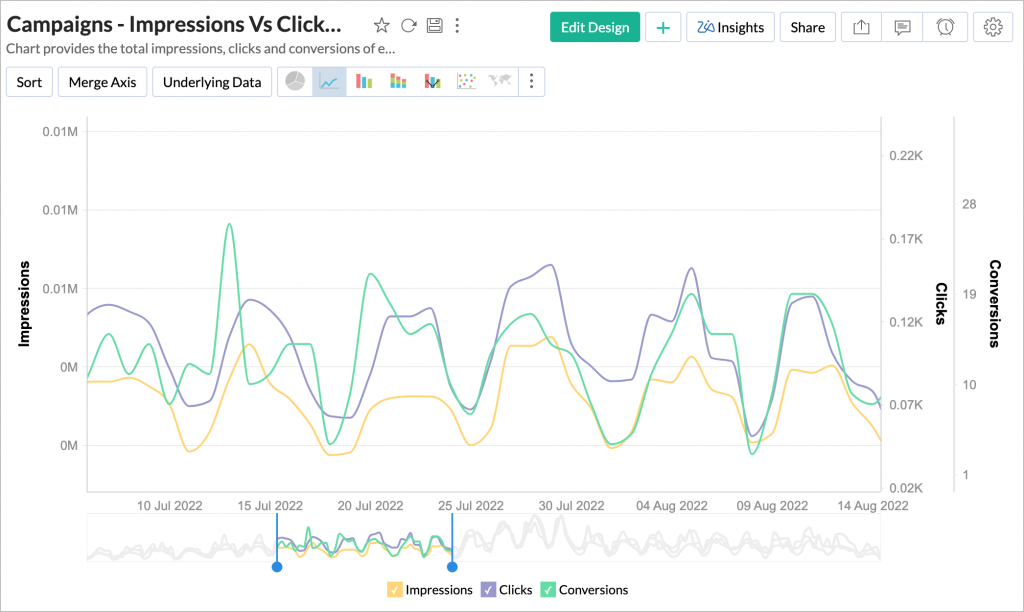
    The Overview Effect adds an overall preview chart (also known as an overview chart) to the bottom of the regular chart. You can adjust the slider in the overview chart to focus on a particular region of the chart for in-depth analysis.

    In addition, you can also use the Brush effect in Chart to select and focus on a specific area, which adjusts the slider bounds in the overview chart.

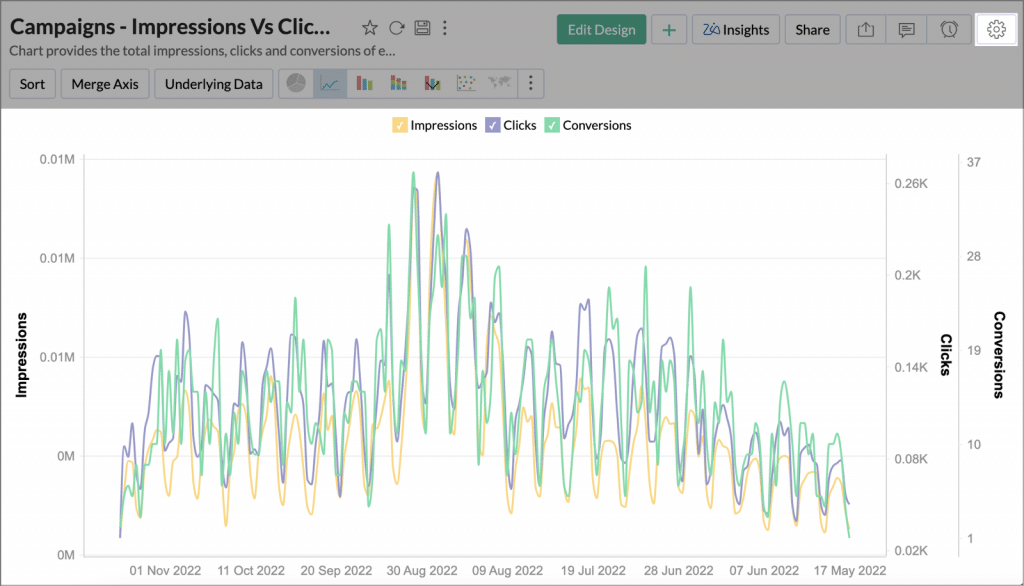
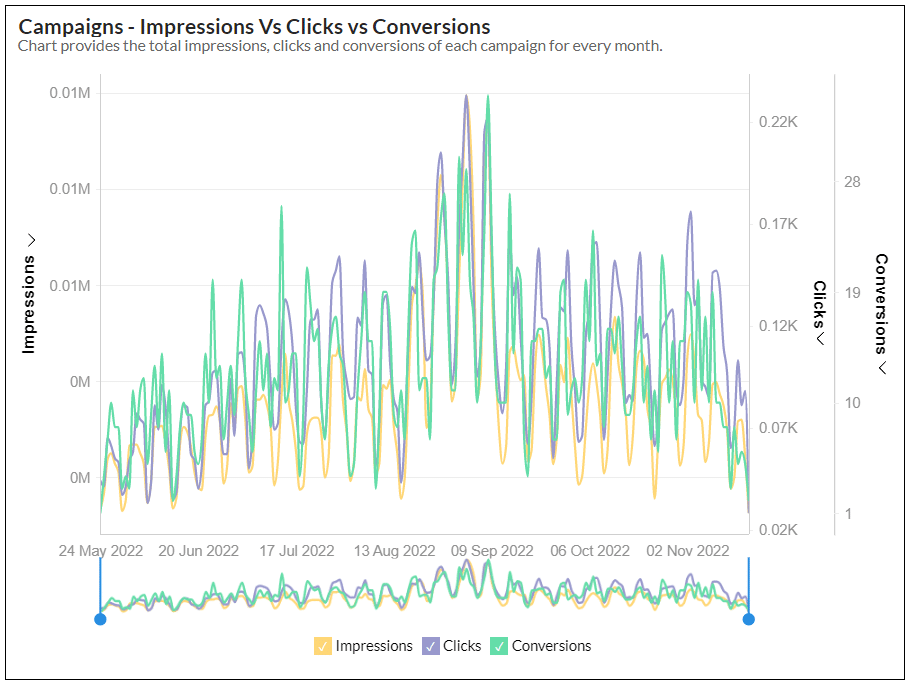
    Here’s an example: a report that analyzes the Campaigns data – Impressions vs Clicks vs Conversion. To enable the overview effect in the report:

    1. Create a new report or open an existing report to which you want to add the Overview Effect.

    2. Select the Settings icon on top right corner of the report.

    (Image via Zoho)

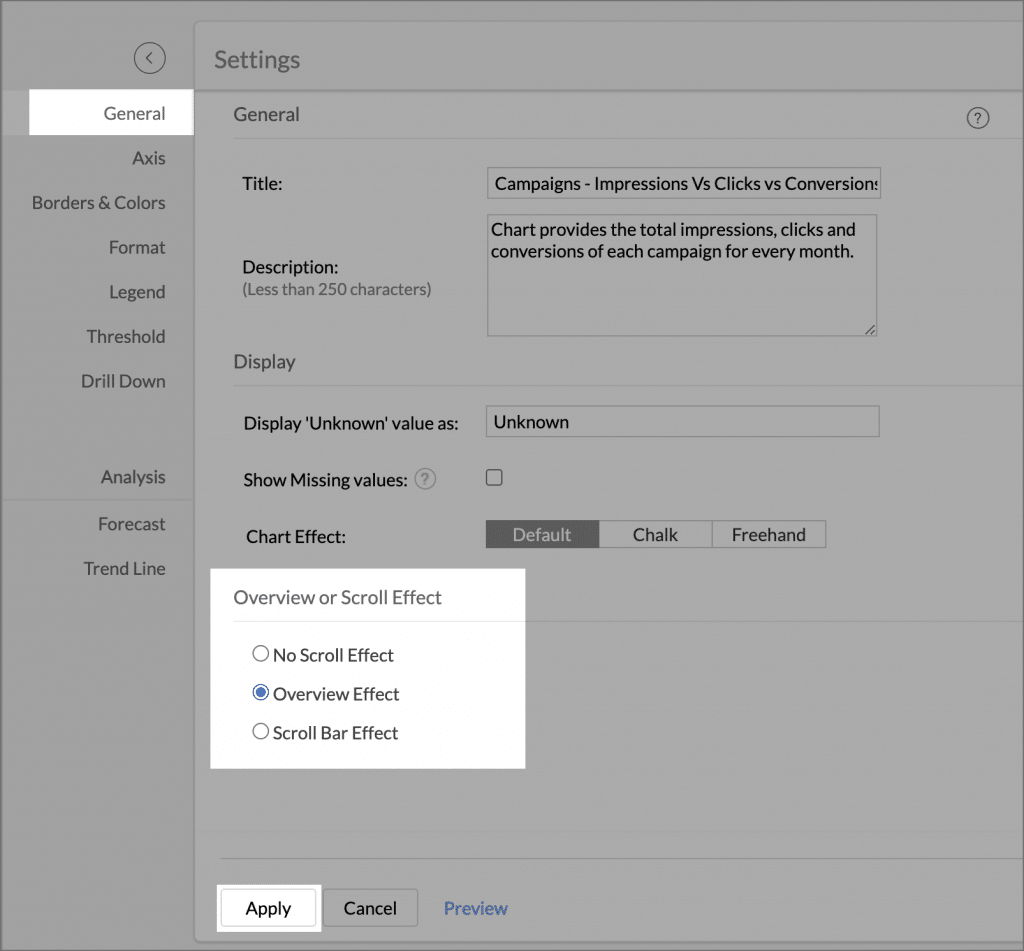
    3. Under General Settings, select the Overview Effect from the Overview or Scroll Effect section. Then, click Apply to add the Overview Effect.

    (Image via Zoho)
    (Image via Zoho)

    In the chart above, you have added the Overview Effect.

    • The overview chart is added at the bottom of the regular chart along with the slider.
    • Select an area on the chart to focus on that particular region.
    • The slider highlights the selected area on the overview chart. You can also adjust its bound to focus on a region.
    • You can move the slider on the overview chart to compare different regions of the chart visually.

    Scroll Bar Effect

    Zoho Analytics lets you scroll across reports by using the scroll bar. You can also adjust the thickness of the scroll bar based on the volume of your data. The Scroll Bar Effect is more appropriate for massive data sets comparatively.

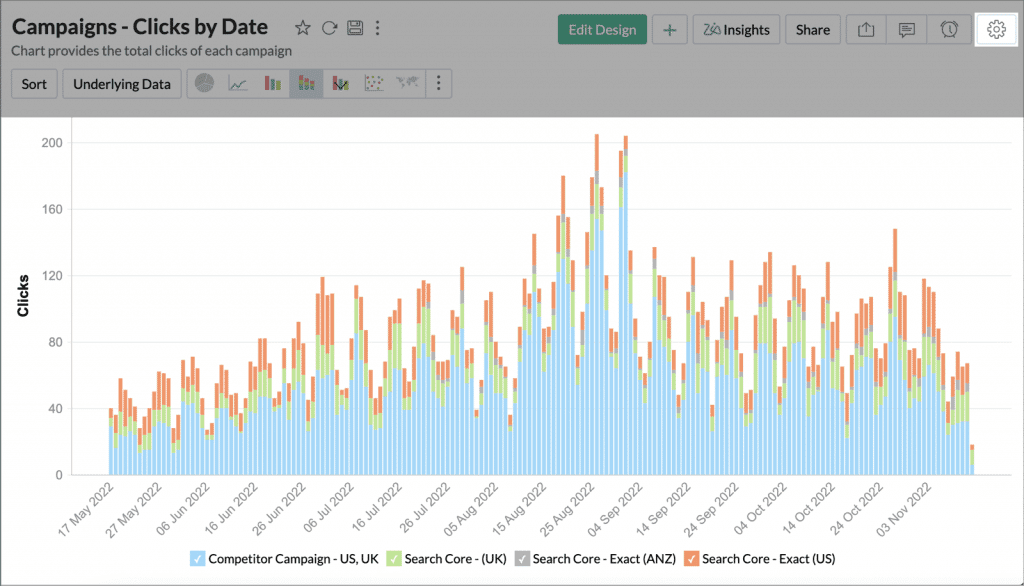
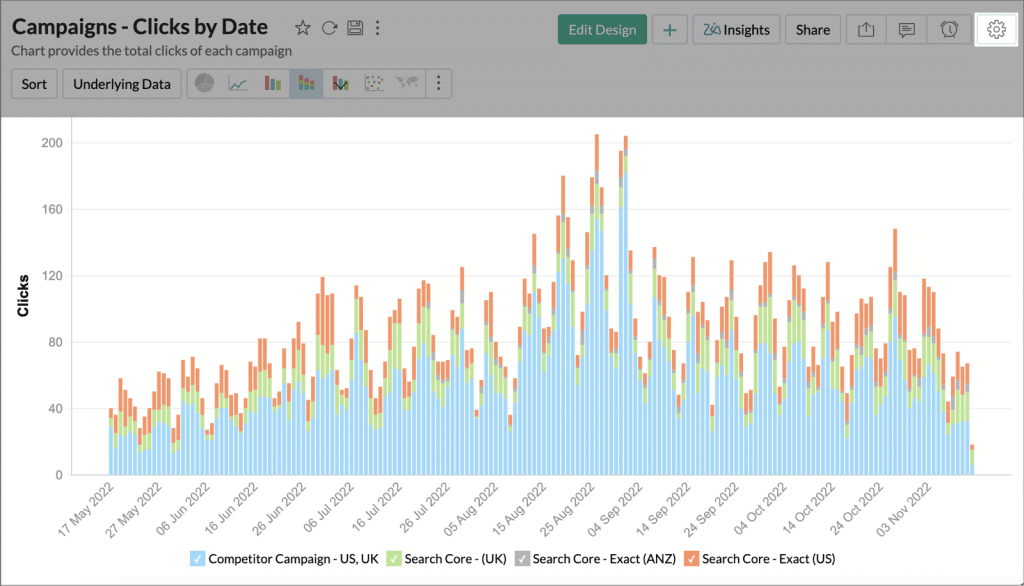
    For example, in a report to analyze Campaigns – Clicks by Date, enable the Scroll Bar Effect:

    1. Create a new report or open an existing one, to which you want to add the Scroll Bar Effect.

    2. Click the Settings icon on the report’s upper right corner.

    (Image via Zoho)

    3. Under General Settings, select the Scroll Bar Effect from the Overview or Scroll Effect section.

    4. You can adjust the thickness of the scroll bar by changing the Category Thickness bar based on your data volume.

    (Image via Zoho)

    5. Click Apply to continue.

    (Image via Zoho)

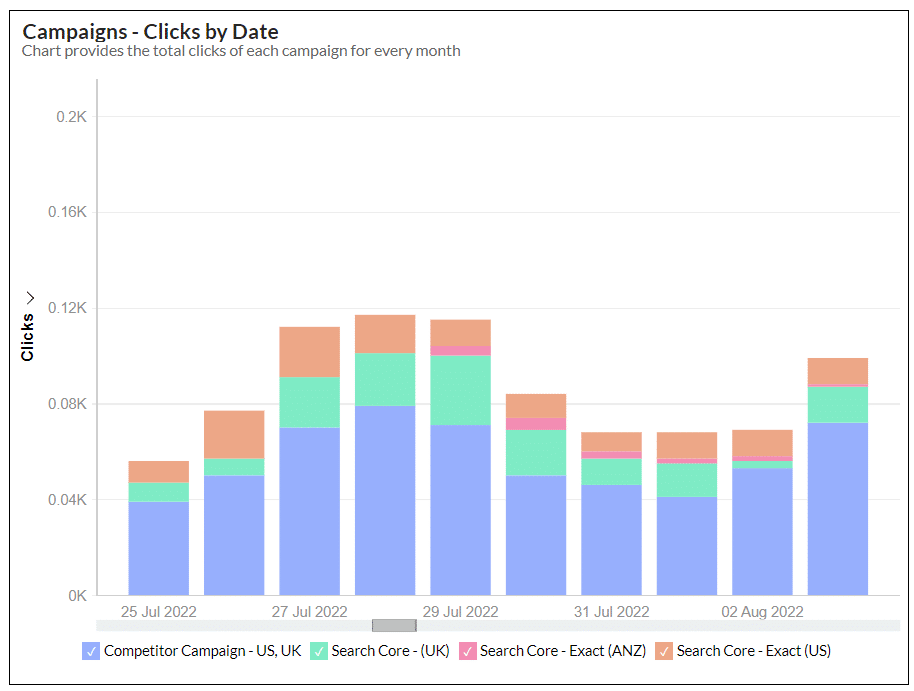
    In the chart above, you have added the Scroll Bar Effect.

    You can scroll across the report by using the Scroll Bar at the bottom. You can visually compare data throughout different regions by sliding the scroll bar and also get in-depth analysis by adjusting its thickness in Settings.

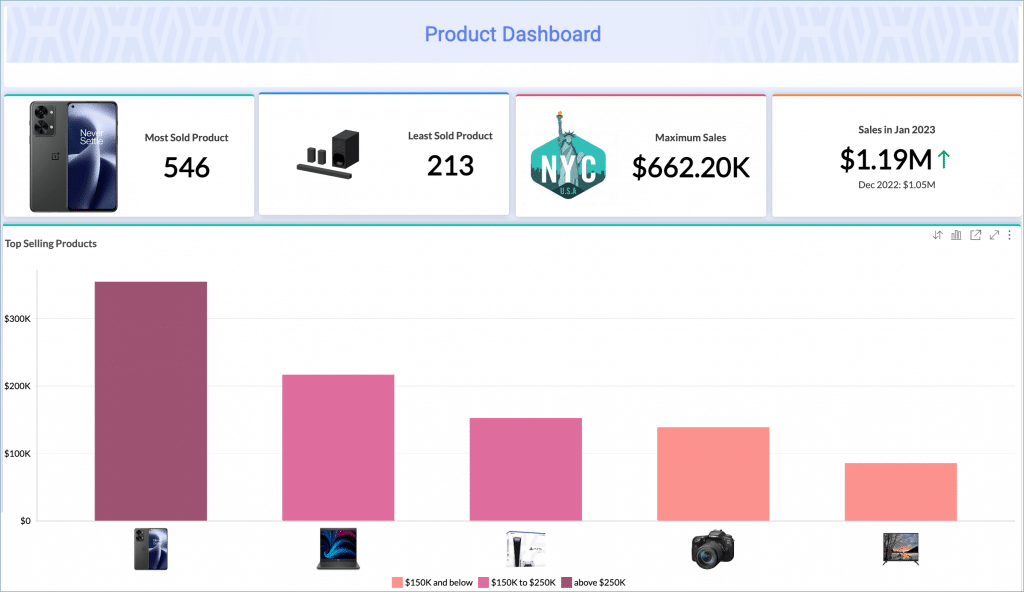
    Image Support for KPI Widgets

    (Image via Zoho)

    Now you have the option of creating widgets with images (widgets that have images as part of them). Utilizing images in the widgets can help viewers to understand information instantly, as well as distinguish between types.

    Zoho Analytics auto adjusts the position of the image based on the text length. In addition, you can customize the position of the images as needed.

    How to Create Widgets with Images

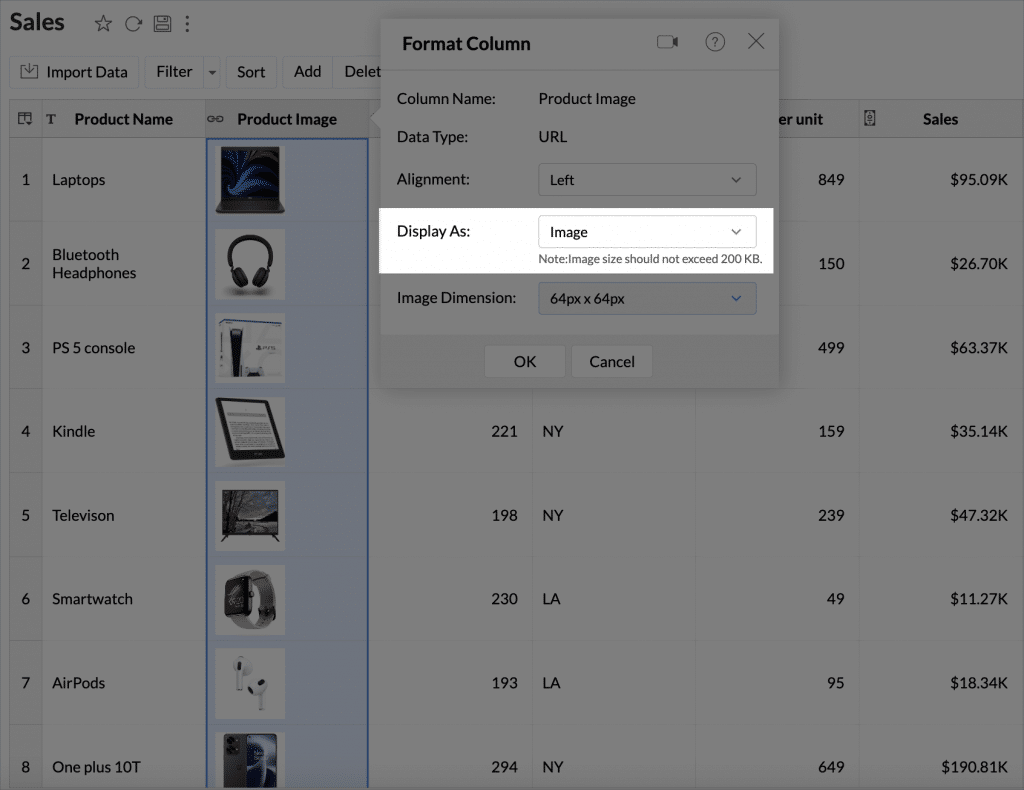
    • You need a column that has the images (URLs of image addresses).
    • Each image’s size should not exceed 200 KB.
    • The Display as option under the Format Column menu must be set to Image.
    (Image via Zoho)

    Improvements in DataPrep

    DataPrep During Import

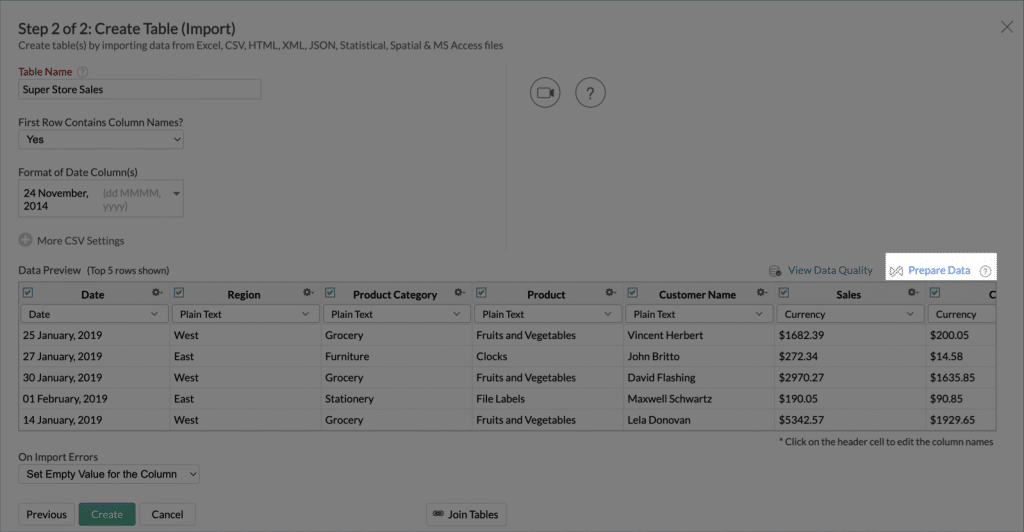
    If you have the Zoho DataPrep add-on, you can import your data and use the Prepare Data option to cleanse and prepare your data during import. To do so, follow these steps:

    1. Choose the file to be imported.

    2. In the Create Table (Import) pane, click Prepare Data.

    (Image via Zoho)

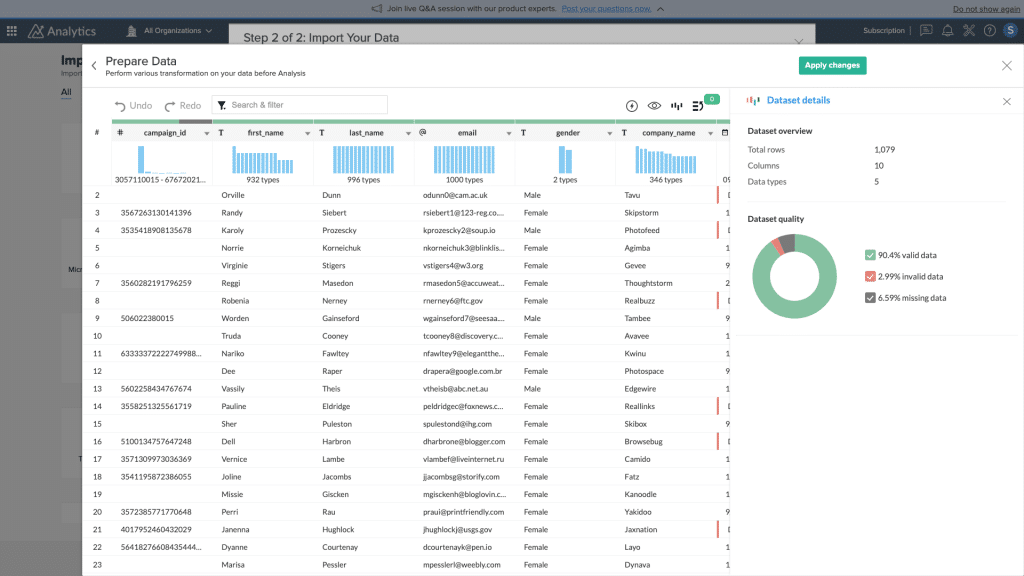
    3. The Prepare Data panel will open. You can apply many transformations, like changing number format, Find and Replace, and define rulesets to enrich the data quality.

    4. Click Apply Changes.

    (Image via Zoho)

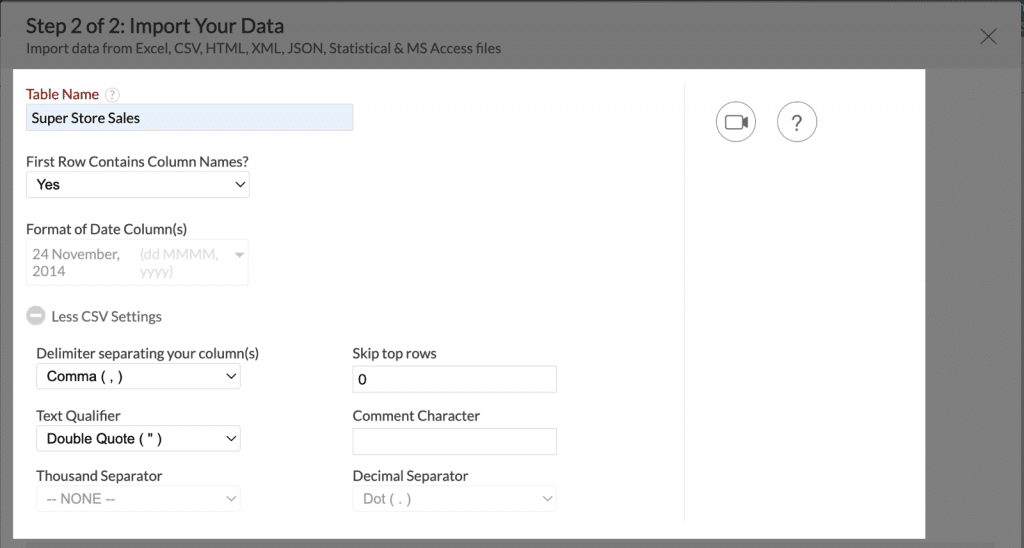
    5. The Create Table (Import) pane will open. You can review the Table settings (such as Table Name and First Row Contains Column Name?) and make changes if needed.

    (Image via Zoho)

    Note: The Format of Date column and the CSV Settings (thousand separator and Decimal separator) cannot be changed after using the Prepare Data option.

    New Extension: Qualtrics for Zoho Desk

    (Image via Zoho)

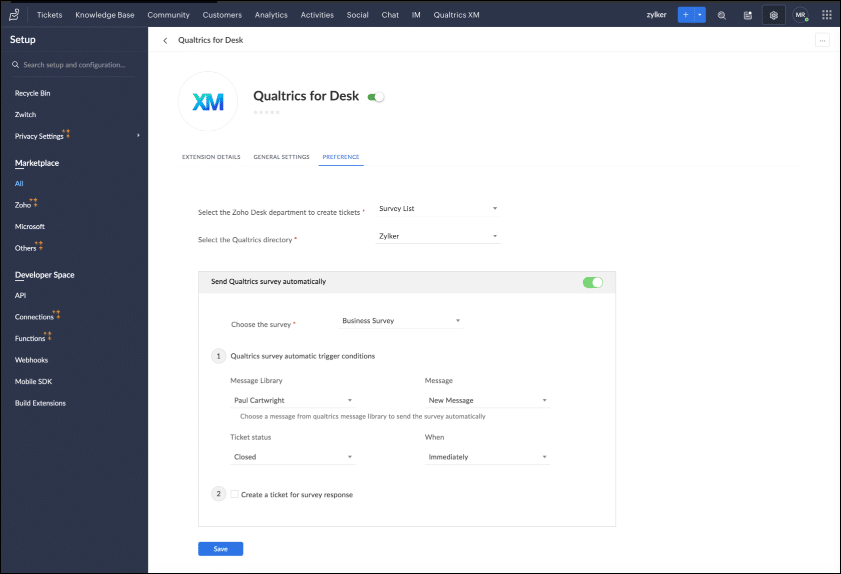
    With this extension, you can prepare your agents to provide better customer support by adding templates and sending feedback/survey mails automatically. By sending those surveys, you can get feedback from the customers, which is made available to your agents in Zoho Desk. Also, you can create contacts and multiple email templates in your Qualtrics account, as well as define conditions for emails to be triggered automatically based on user response.

    Key Features:

    • Add new customers to Qualtrics database from within Zoho Desk.
    • Send Qualtrics feedback/survey mails for every support ticket in Zoho Desk.
    • Make as a requirement to get survey response as tickets for every feedback/survey mail sent.
    • Measure the agents’ activity in terms of the support provided.

    Please note that the compatible editions for the Qualtrics for Zoho Desk Extension are Standard, Professional, Enterprise, CRM Plus, and Zoho One.

    SMS Surveys Now Available in Zoho Survey

    (Image via Zoho)

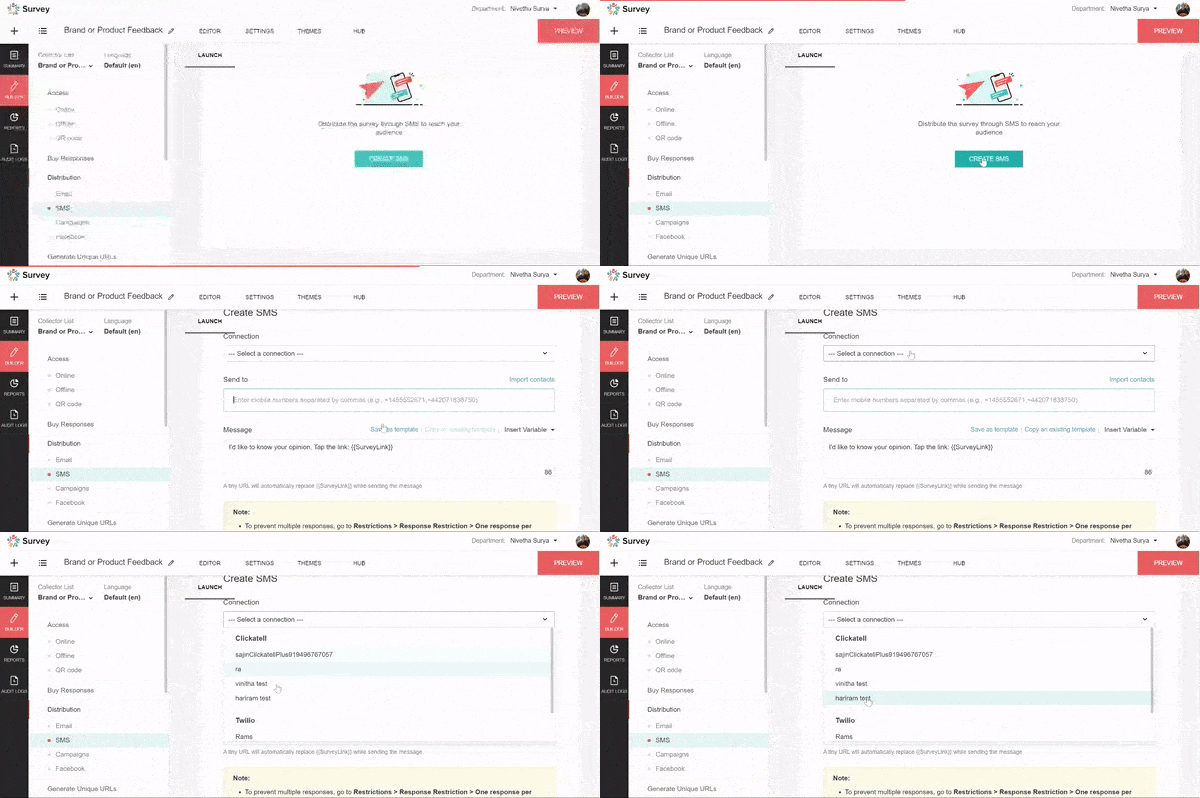
    Sending surveys via automated SMS allows you to get actionable, real-time feedback from respondents. It’s one of the most cost-effective ways to reach out to them, since it doesn’t require additional hardware or software to set up and manage.

    Zoho Survey is currently integrated with Twilio, SMS Magic, and Clickatell SMS channels. You need an account with at least one of these platforms to share your surveys through SMS.

    Zoholics to Take Place in Three Cities Across United States

    As part of Zoho’s customer-focused approach, the United States’ edition of Zoholics 2023 will happen in not just one, but three cities: Pleasanton, California; Jersey City, New Jersey; and Austin, Texas.

    According to Zoho, their flagship user conference returns with their “most customer-focused experience to date.” Each Zoholics event will last two days. Attendees will learn how to work smarter from Zoho experts while connecting with fellow customers in an intimate and friendly environment. Their goal is “to make Zoholics the most informative and down-to-earth software conference you’ve ever been to.”

    Zoholics USA 2023 will take place during the following dates:

    • April 20-21, 2023: Zoholics Pleasanton (California)
    • April 26-27, 2023: Zoholics Jersey City (New Jersey)
    • May 3-4, 2023: Zoholics Austin (Texas)

    For more details, agendas, and registration, click here.

    Zoho’s Live Webinars and Tutorials

    Live Webinar: Zoho Books Integration with Zoho Projects

    Join Zoho experts to learn more about creating and sending invoices, estimates, and expenses from Zoho Books to Projects. Learn how to retrieve tasks, timesheets, users, bugs, and contacts associated with your projects from Books. Register here.

    Live Webinar: Zoho Expense Integration with Zoho Projects

    Talk to Zoho experts and discover how you can read Expenses reports to track your project expenses. Get to know how you can view expenses along with the actual cost and compare it with the project budget. You’ll also learn how to upload receipts associated with projects and submit them for approval. Register here.

    Tutorial: Import Data to Zoho Analytics from Cloud Drives

    https://www.youtube.com/watch?v=WnICB8o3eR4

    That’s all for now, IC readers! See you soon for more Zoho updates from InterConnecta!

    Interested in adding these new features to your Zoho system? We can help! Learn more about our Zoho Consulting Services and ask us for a free consultation.
  • Zoho News Catch-Up: Bookings and SalesIQ Integration, Invoice’s Template Customization, SalesIQ Adds Click-to-Call

    Zoho SalesIQ and Zoho Bookings Integration

    (Image via Zoho)

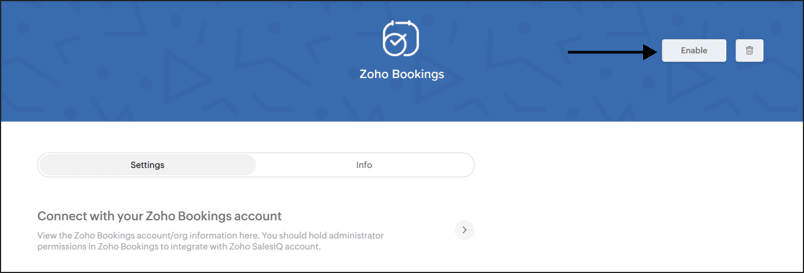
    This integration helps visitors schedule appointments quickly and efficiently while having  conversations with your chatbot or operator inside the SalesIQ chat window. It’s useful for all business cases with a need for customers to make appointments with the service professionals for their services and facilities (for example: appointments for online training classes, medical appointments, product demo appointments, among others).

    Here are the benefits of this integration:

    • Your website visitors will be able to schedule their appointments with the required Expert or Specialist in real time, right from the Zoho SalesIQ chat window.
    • This integration will remove the need for the customer to go to a different webpage, search for the necessary service or service provider, and then book the appointment manually. This will save a lot of time in the process.
    • This integration will cover the Click-to-Book appointment feature in any bot-customer interaction or customer-operator interaction.
    • When the appointment is being booked, only the available slots will be listed for booking. This will avoid any confusions.
    • Admins can map the required workspace with a brand or brands, according to their requirements.
    • Rescheduling or cancelling the appointments is also made easy and can be done from within the chat window.
    • When the appointments are booked, cancelled or rescheduled, customers will receive mail confirmations for their reference.

    Zoho Invoice: New Advanced Customization Options in Templates

    New Templates

    Choose from a total of 18 templates available across different categories. For example, the Spreadsheet – Compact template under the Spreadsheet category can be used when sending invoices with more line items like, for example, a grocery list.

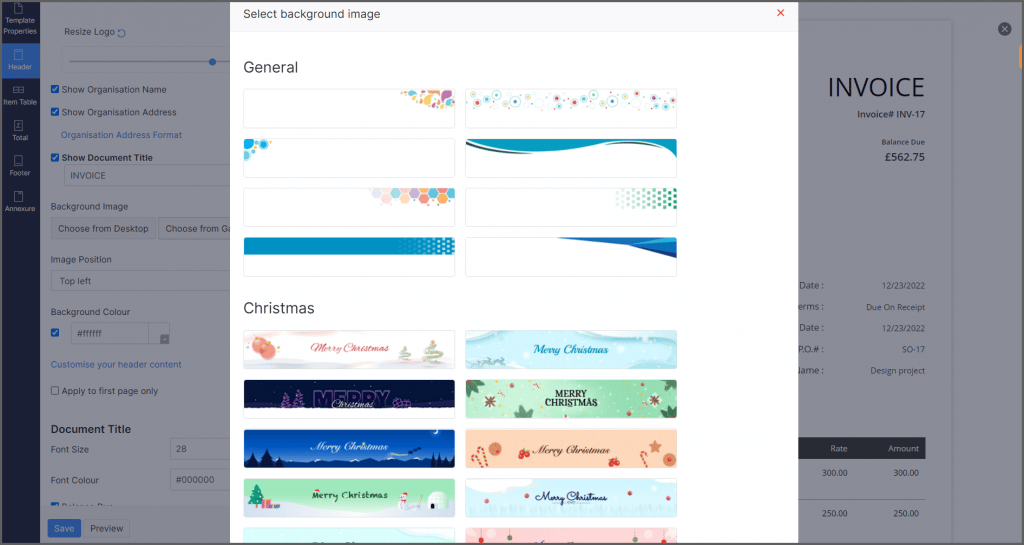
    Background Images

    (Image via Zoho)

    Display an image of your company’s logo or any other relevant images in the background of your invoice PDFs. You can upload a background image or select an image from Zoho Invoice’s gallery of holiday-themed images.

    Note: The gallery option is available only in the Header and Footer sections of the invoice. 

    The gallery consists of ready-to-use header and footer images, as well as special festive- and holiday-themed images that are constantly updated based on occasions.

    Use the Image Position dropdown to determine the placement of your image. This option is available in the Header, Body, and Footer sections of your invoices.

    Background Color

    Add different colors in the Header, Body, and Footer sections of your invoice PDFs.

    Note: The two features mentioned above can’t be used simultaneously. You can only add either a background image or a background color to a section of your invoice.

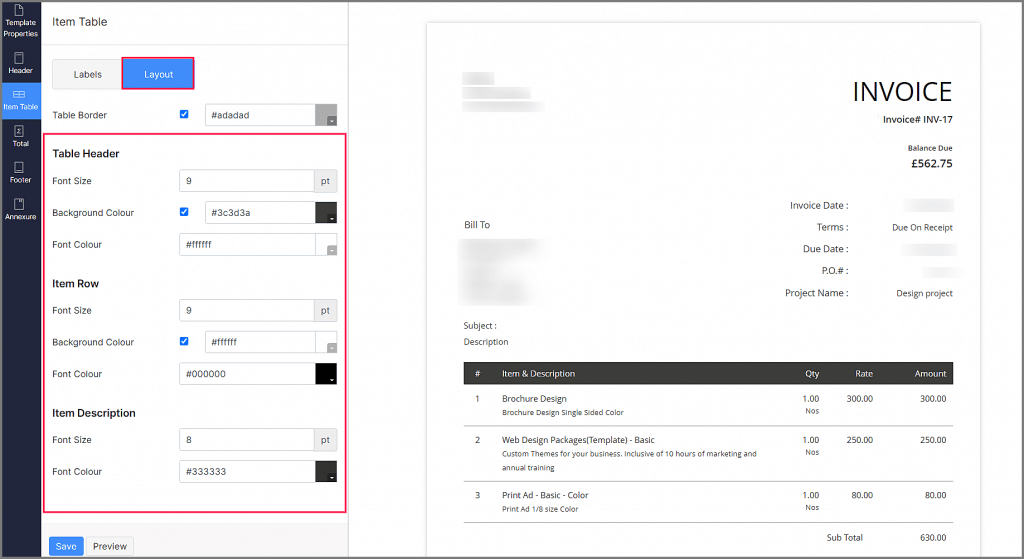
    Styling Enhancements

    (Image via Zoho)

    Now you can customize all the text fields displayed and the spaces between them in your invoice PDFs. Use the Layout button to change the font size, font color, and background color of all the text fields displayed on your invoices such as the Billing or Shipping Addresses, Organization Information, Item Table, and more. Additionally, you can adjust the width of each field in the Item Table using the Labels button.

    Capture Additional Information

    The invoice template settings are now split into subsections to give you greater flexibility over the information displayed on your invoices. Here are some of the improvements:

    • Template Properties: Use the Add Attention Content feature to show any important information or a word of warning to your customers.
    • Header: Use the Customize your header content option to personalize the content of your header. You can apply these changes to only the first page or all the additional pages of your invoice.
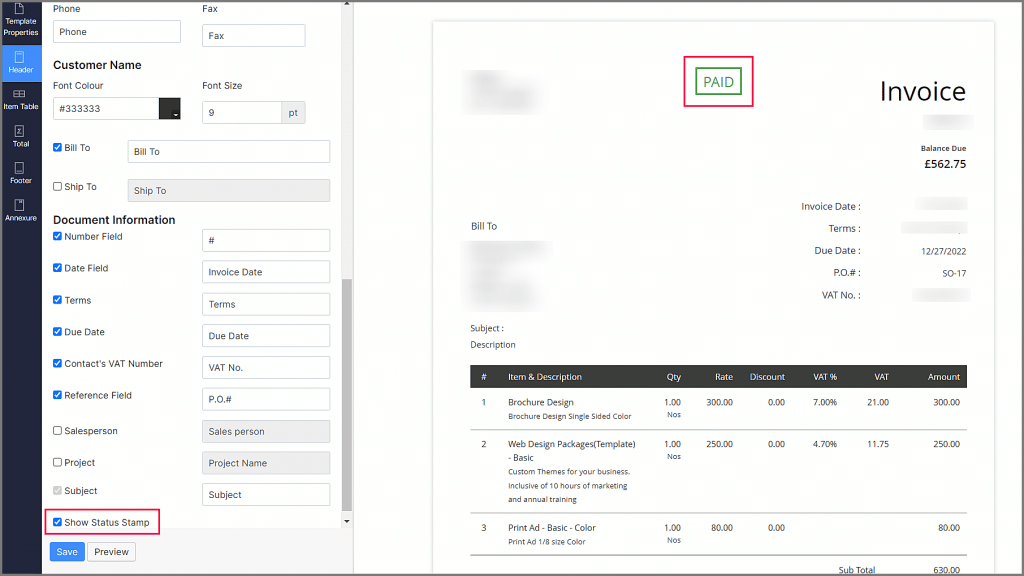
    • Mark the Show Status Stamp checkbox to display the status of the invoice on your invoice PDFs. You can display the following statuses: Paid, Draft, Written-Off, Partially Paid, and Void.
    (Image via Zoho)
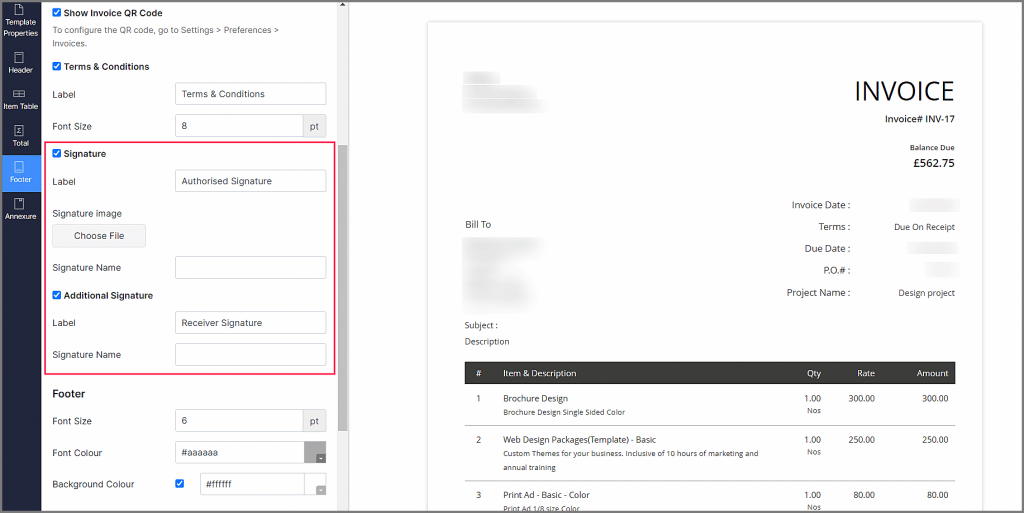
    • Footer: You can display a QR code on your invoices that customers can use to scan and pay or view any other information that you configure.With the Customize your footer content option to personalize the content of your footer. You can add your organization’s address or helpline details here. Also, you can use the option Add an additional signature to enable your customers to sign their invoice.
    (Image via Zoho)
    • Annex: You can now display additional information apart from Terms & Conditions. This can include by-laws or any other details about your organization. 

    Zoho SalesIQ Introduces Click-to-Call

    Click-to-Call customer support is a service that allows customers to connect with a support representative by clicking a button on a website. When the button is clicked, a call is initiated between the customer and a representative. This lets customers receive immediate assistance without having to dial a phone number or wait for a response via email or chat. It can also be a handy option for customers who prefer to communicate over the phone or have a more complex issue that may be easier to explain on a call. This feature doesn’t require extensions, hardware set-ups, or phone numbers.

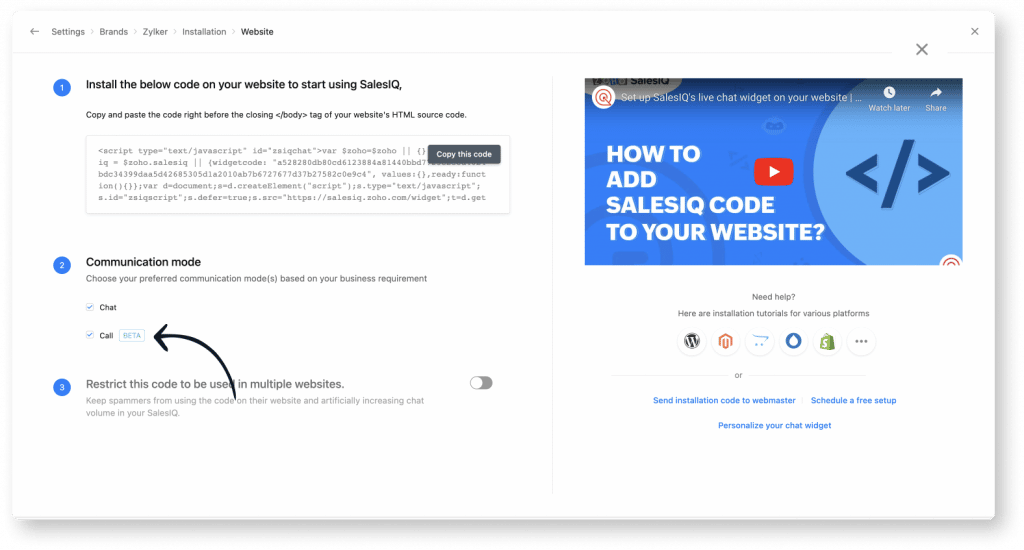
    How to Enable Click-to-Call in Zoho SalesIQ

    1. On the SalesIQ dashboard, go to Settings > Brands > [Your brand] > Installation > Website.

    2. Under Communication Mode, enable the Call option.

    (Image via Zoho)

    Note: Click-to-Calls and audio calls are supported only for website channel at the moment.

    Click-to-Call also gives you the following options:

    • Call-Only System
    • Call Routing
    • Call Queue
    • Transferring Calls to Operators

    Zoho Social: Media Library and Added Option to Export Posts

    Media Library for Zoho Social

    (Image via Zoho)

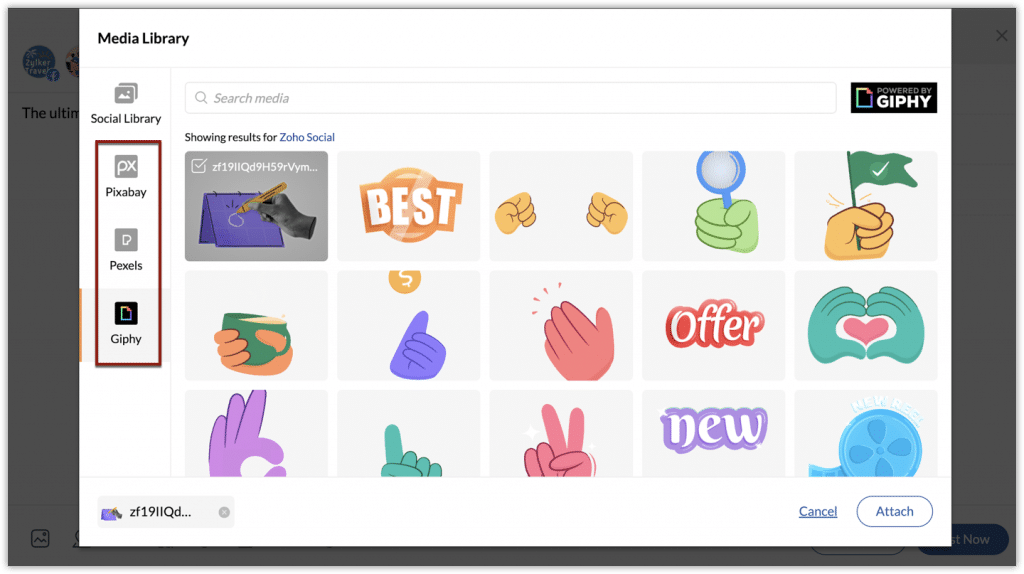
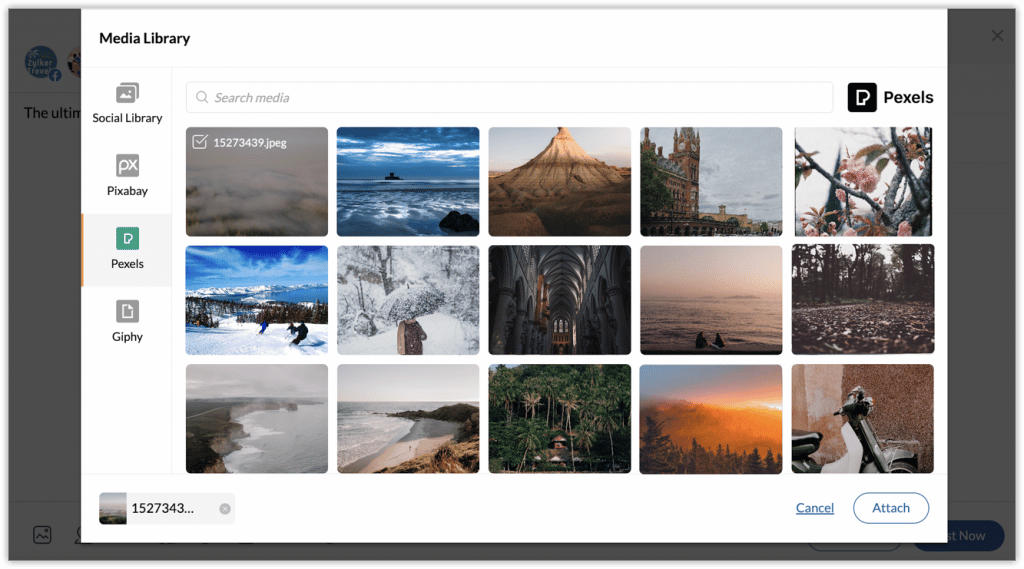
    Media Library is a repository of images and GIFs that can be added to your social posts in Zoho Social. Its organization and accessibility make it easy to search for media and upload it. Media Library provides access to platforms such as Pexels, Pixabay, and Giphy. This allows you to search for media using relevant keywords from a vast library in a cloud-based environment.

    Social Library, the local file repository on Zoho Social, lets you upload media files to the application and add them to posts easily, as well as for frequent use. Users can upload media files from their local desktop, Media Library, Canva, Zoho WorkDrive, Google Drive, OneDrive, Dropbox, Evernote, and Box.

    Note: Media Library for Zoho Social is available to users on Professional, Premium, and Agency plans.

    How to Access the Media Library

    It can be accessed from different places in Zoho Social like the Posts tab, Messages, and the Monitor tabs.

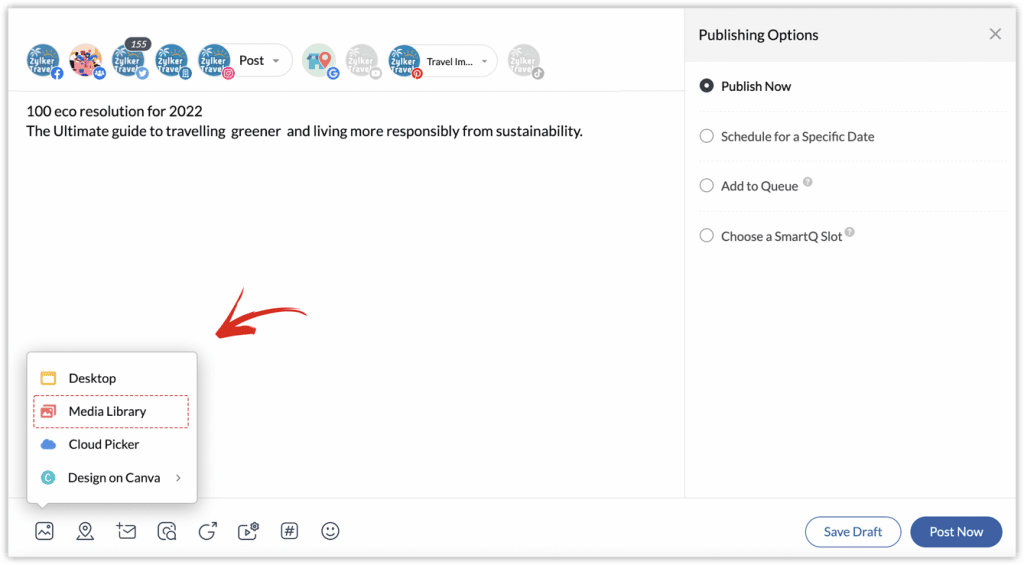
    1. Click on the images icon to attach an image or GIF from Media Library.

    (Image via Zoho)

    2. Search for and select the required media items.

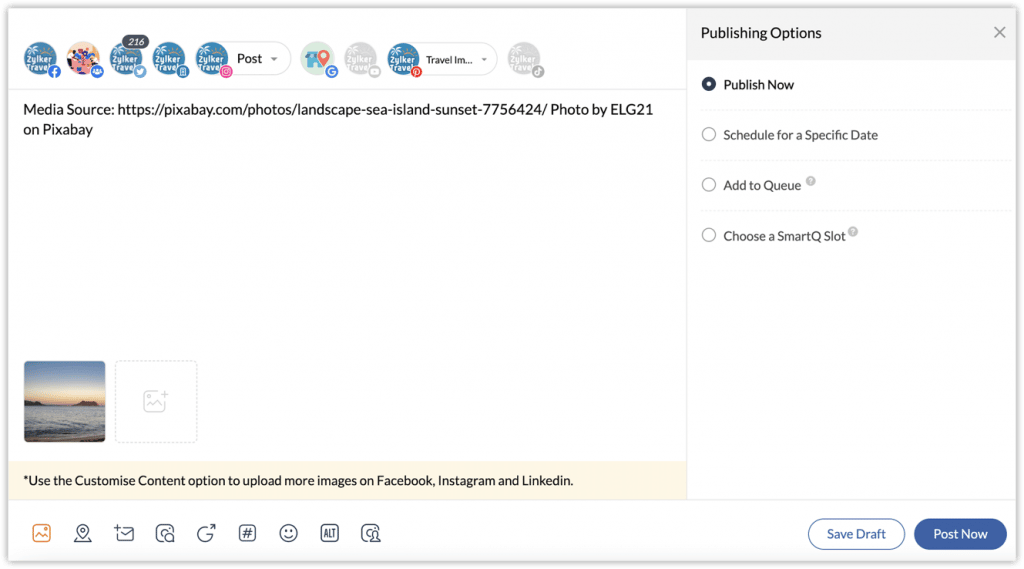
    3. Click Attach to add them to the post, post comments, or messages.

    (Image via Zoho)

    Notes:

    • The image source credit is automatically added to the caption of your post in the compose window. This can be edited as required.
    • Only one media item can be added to a post comment or message reply. 

    How to Search Using Media Library

    1. Click on the images icon.

    2. Click Media Library.

    3. Click on the library icons for Pexels, Pixabay, and/or Giphy on the left side of the window to access the particular library.

    4. Search using a keyword in the search bar to view the media results.

    5. Select the required media items you want to attach to the post or comment by clicking on the check box.

    (Image via Zoho)

    6. Click Attach to add. 

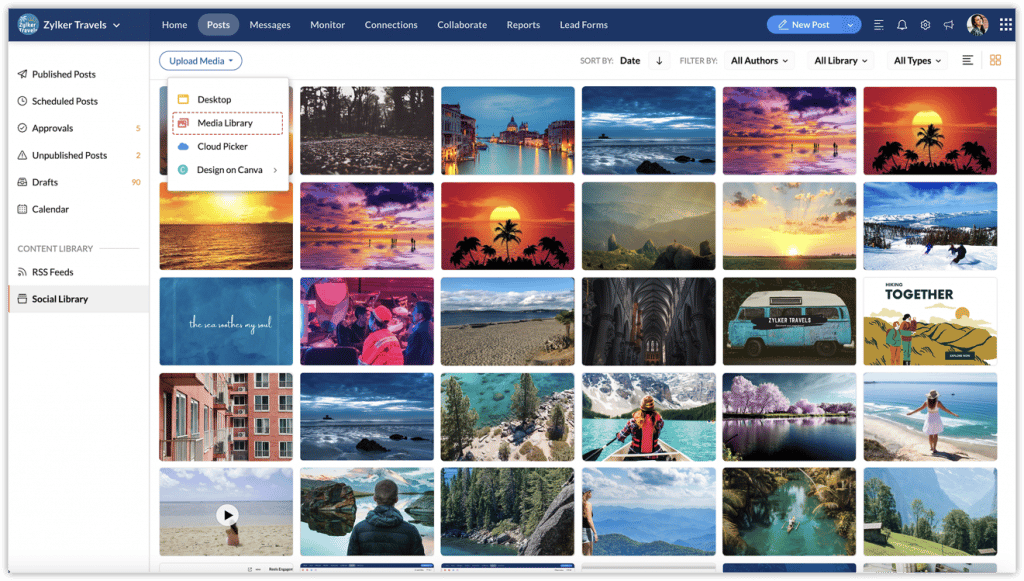
    How to Upload Media to Social Library

    1. Go to the Posts tab.

    2. Click Social Library on the left.

    3. Click the Upload Media button at the top.

    4. Choose Media Library from the drop-down list.

    (Image via Zoho)

    5. Search and select the required media items by clicking on the check box.

    6. Click Attach to add them to the Social Library.

    Note: Media Library on Zoho Social only supports images and GIFs.

    Exporting Posts from Zoho Social

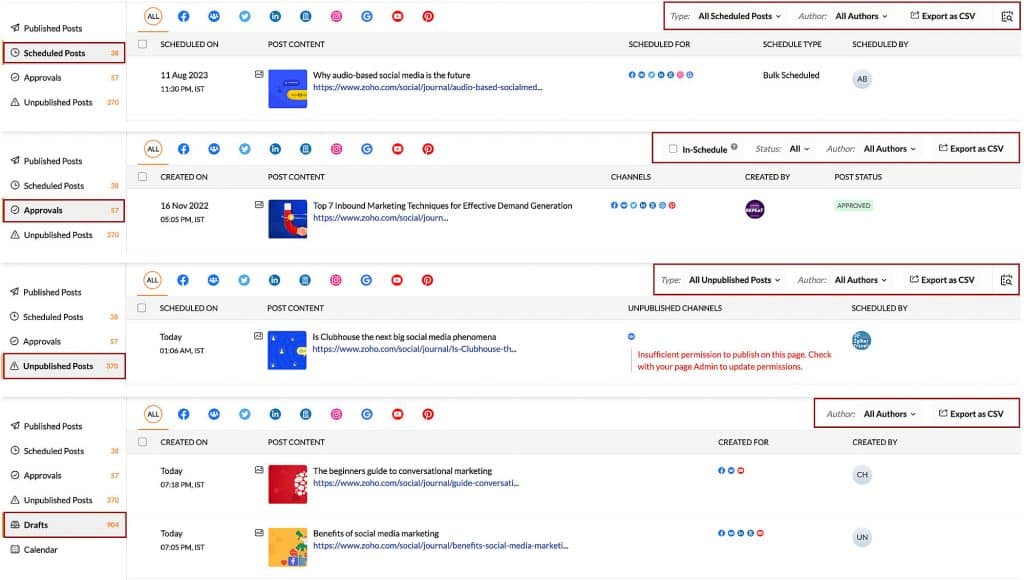
    All the scheduled, drafts, unpublished, and posts waiting for approval in Zoho Social can be exported as a CSV file. This helps you share the content calendar with your clients, partners, or stakeholders to provide them the whole picture of the next set of engagements planned for the brand’s social media channels.

    You can opt to export all the posts at once or apply different filters based on the channel, type of post, status, author, or scheduled date.

    (Image via Zoho)

    The exported file will contain information such as the scheduled date and time, caption, Google My Business button along with the URL, and media files. This exported file will come in handy when you would like to publish similar post at a different date and time, or for a different brand using Bulk Scheduler.

    How to Export Posts

    1. Go to the Posts tab.

    2. Select the type of post from the left panel.

    3. Apply filters such as Channel, Type, Author, and Date, if required.

    4. Click Export as CSV.

    Resource: Zoho CRM’s RouteIQ for Automatic Sales Route Plans

    (Image via Zoho)

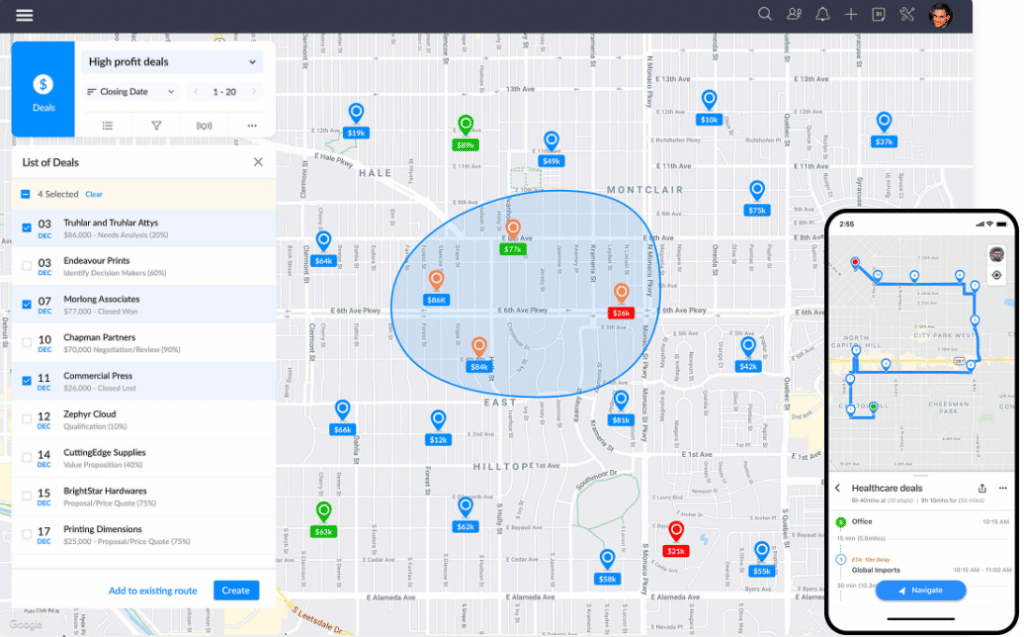
    A very handy feature that you can add to your Zoho CRM is RouteIQ. Whether you use it from your smartphone or desktop, it can help you save time and money in your sales routes with the following functions:

    • Route: RouteIQ lets you plan a route that is automatically optimized based on the distance, appointments, and drop-ins. If there are any cancellations or new customers to add, you have the option of adjusting the route as you go. Plus, single-click navigation to any customers or any planned routes.
    • Map Visualization: Visualize your Zoho CRM leads, deals, contacts, accounts, and events on an interactive map and filter prospects that match your specific criteria. Also, explore your CRM leads, contacts, accounts, deals, and events nearby.
    • Map Reports: View a heat map or cluster map of your CRM leads, contacts, accounts, deals, and events.
    • Interactive Map Views: A visual alternative to List Views that provides you interactive map views of all your CRM custom list views. As you work in your CRM, you can see where locations in your lists are relative to each other for better planning.

    The Zoho RouteIQ app is available for Android and iOS.

    Zoho Analytics Webinars

    Advanced Analytics for Shopify

    Advanced Analytics for Instagram

    Advanced Analytics for YouTube

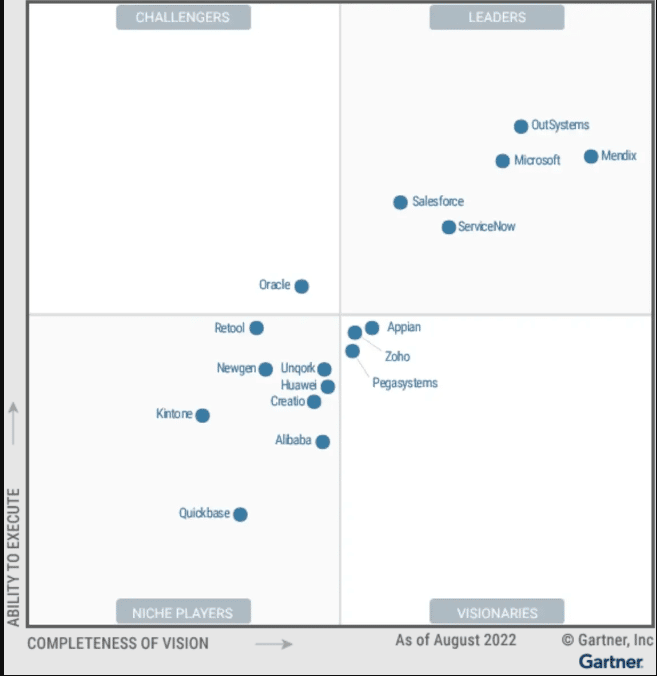
    Zoho Named Visionary in the 2023 Gartner® Magic Quadrant™ for Enterprise Low-Code Application Platforms

    (Image via Gartner)

    Once again, a Zoho app is recognized by Gartner. This time, Zoho Creator is the recipient for such recognition.

    According to Gartner, at its core, the Zoho Creator platform has the goal of democratizing application development by empowering different personas within organizations to build end-to-end business solutions that combine hyper-customized applications with deep contextual integrations and a full-fledged analytics engine.

    Zoho Creator is equipped with several enterprise-grade features accessible across the no-code, low-code, and pro-code spectrum. That, along with critical enablers around security, multi-environment development, and AI, encourages greater collaboration between business and IT teams, helps eliminate shadow IT, and allows teams to build scalable and future-proof organizations.

    That’s all for now, IC readers! See you soon for more Zoho updates from InterConnecta!

    Interested in adding these new features to your Zoho system? We can help! Learn more about our Zoho Consulting Services and ask us for a free consultation.
  • CRM in 2023: Trends and Predictions

    As many are still processing that 2023 has begun, we can’t help but wonder what will CRM software might bring to the table this year. That said, here are the trends and predictions for CRM this year:

    A Richer Understanding of Customers by Using CRM

    CRM trends have evidenced that this type of softwares has evolved to do way more than lead nurturing and contact management. These tools now work to provide businesses with a greater detailed view of customers. This is due to the data amount they’re now able to gather. Comprehensive profiles of each customer that Sales and Support teams interact with can be built by them in the CRM.

    Specifically, Sales teams earn lots of benefits from this in-depth view of customers. A sales industry report says that 70% of salespeople think about CRM as “very important” for closing deals (Chang, 2021). Undoubtedly, comprehensive and up-to-date CRM data is vital for Sales teams to achieve huge success.

    Connecting All Business Aspects to CRM

    Integrating CRM with other business software and tools allows companies to build a single and centralized view of each customer, as well as remove data silos in the organization. (Image via Pixabay)

    To take maximum advantage of CRM’s benefits, companies and organizations must integrate the software into all business processes.

    Integrating CRM with other business software and tools allows companies to build a single and centralized view of each customer, as well as remove data silos in the organization. Therefore, marketing systems can use this information to build very personalized customer journeys, which help increase brand loyalty.

    All Teams Within the Organization Will Rely on CRM Tools

    Back in the day, CRM technology was only thought to be for customer-facing teams in Sales and Customer Support. Nonetheless, this may shift in upcoming years as CRM becomes part of the tech stack used by the whole organization. This company-wide use of CRM may arrive quicker as organizations recognize how underutilized CRM systems are.

    For example, finance and accounting teams can already benefit from CRM tools, especially those that come with features such as invoicing and tracking expenses. When sales teams close deals, accounting teams can use the CRM systems to instantly send an invoice to customers. These systems also make it easier to track revenue.

    CRM’s Role in Customer Experience Will Continue Increasing

    CRM systems are now playing a more substantial role in improving customer experience, thanks to its capability of serving as a centralized location for all customer data. CRM tools delivers all the data businesses need to create positive customer experiences that foster brand loyalty and increase the bottom line.

    CRM tools allow teams to manage an increasing volume of customer interactions while making sure that each message is targeted and personalized. These efforts can improve customer experience in a greater way. Proof of this is that, according to a 2020 study, over 60% of customers will talk to their family and friends about a negative experience with a company (Smart Insights, 2020).

    Social CRM Continues to Grow

    Social CRM lets companies obtain insights into a great amount of customer data that includes information such as product feedback and buying habits. (Image via Pixabay)

    Social CRM was one of CRM’s best practices in 2020, while businesses today keep using social media to develop better relationships with customers. That is why many CRM tools seamlessly integrate with social media channels like Facebook, LinkedIn, and Twitter.

    Besides CRM systems that provide integrations with social media channels, businesses now have the option of diverse social CRM solutions. These tools let companies obtain insights into a great amount of customer data that includes information such as product feedback and buying habits. This data can help businesses to have a more precise scenario of their customers. As of 2021, 92% of companies were using social media, at least for marketing (Wutzke, 2021).

    Companies Will Opt for More Advanced CRM to Avoid Tech Stack Fatigue

    Lots of CRM tools nowadays provide advanced features not just for customer relationship management, but for sales and marketing as well. As these tools become widely adopted, more businesses will cut down their tech stack. This can help companies increase productivity while reducing tech expenditures.

    Also, this is one of the multiple CRM trends that shows the broader integration of CRM throughout a company’s tech use. It’s best for companies to set up data syncs between the tools teams use to maximize their advanced CRM. This assures that customer data is always up-to-date, no matter when it’s viewed.

    CRM Automations for More Business Workflows

    Business experts anticipate expanding automation capabilities from CRM systems. Many CRMs now have also started offering features to help teams automate routine tasks, like manually sending emails, sharing documents, and customer data updates. These “work about work” tasks utilize up to 60% of skilled professionals’ time (Koetsier, 2020). By automating tasks, CRM professionals can concentrate on more significant tasks (for example: analyzing customer data, mapping out customer journeys, etc.).

    CRM Gets Smarter Through AI

    The AI and CRM integration is not really new, but it is expected to considerably affect how businesses carry out CRM in the future. In 2023, the AI-enabled CRM market is projected to be worth $73 billion (Infoholic Research LLP).

    One of the most crucial advantages of integrating AI into CRM has to do with AI’s capability to quickly examine and make sense of high levels of data that is unstructured. This can detect patterns and trends in buying behavior, which segments customers in innovative ways. Furthermore, AI can make recommendations at different stages of the sales funnel, which in consequence helps businesses to make data-driven decisions. Some advanced CRM systems use AI to analyze customer data and make predictions on lead sources, while other use AI for chatbots.

    Voice Recognition and Conversational UI in CRM

    Voice technology makes the software more accessible and easier to use. (Image via Pixabay)

    Voice technology has the potential to enhance the abilities of CRM tools, and it makes the software more accessible and easier to use. Teams can use speech-to-text features to drastically speed up data entry and easily record meetings for documentation purposes.

    It is expected that conversational UI will continue to be adopted by CRM tools. This will allow teams to interact with CRM systems through a broad array of verbal and written phrases. With these effortless interactions, teams will instantly access or input customer data, prioritize tasks, and create reports (Blank, 2020).

    CRM Will Experience Improved Mobility

    Numerous business experts predict a wider adoption of mobile CRM in the coming years, as more CRM users access these systems from multiple devices and locations.

    Mobility and flexibility became particularly crucial when companies adopted remote work during the COVID-19 pandemic. For full efficiency, nearly all mobile CRM tools come with a user-friendly interface, offline functionality, and multiple integrations. Safety and privacy of customer data are assured by strong security features.

    Self-Service CRM is Here to Stay

    Customers are becoming more empowered, so now they look on their own for ways to resolve issues with products and services. So, most consumers now expect companies to have a self-service portal on their websites. This portal lets customers to gain access to resources like user forums and knowledge bases.

    Current CRM trends show that more of these self-service portals are being integrated into CRM software. These integrations help businesses gain insights into common customer issues and foresee needs.

    To read the full article, click here.

    Are you interested in optimizing your current CRM system with these trends or other solutions for your business needs? Then click here to learn more about our Zoho CRM implementations.

  • Zoho News Catch-Up: Desk’s New Version, New Feature for Sign, and WorkDrive’s Added Feature for Admins

    Welcome to our catch-up, where you’ll be in the know of all the latest Zoho updates in one place!

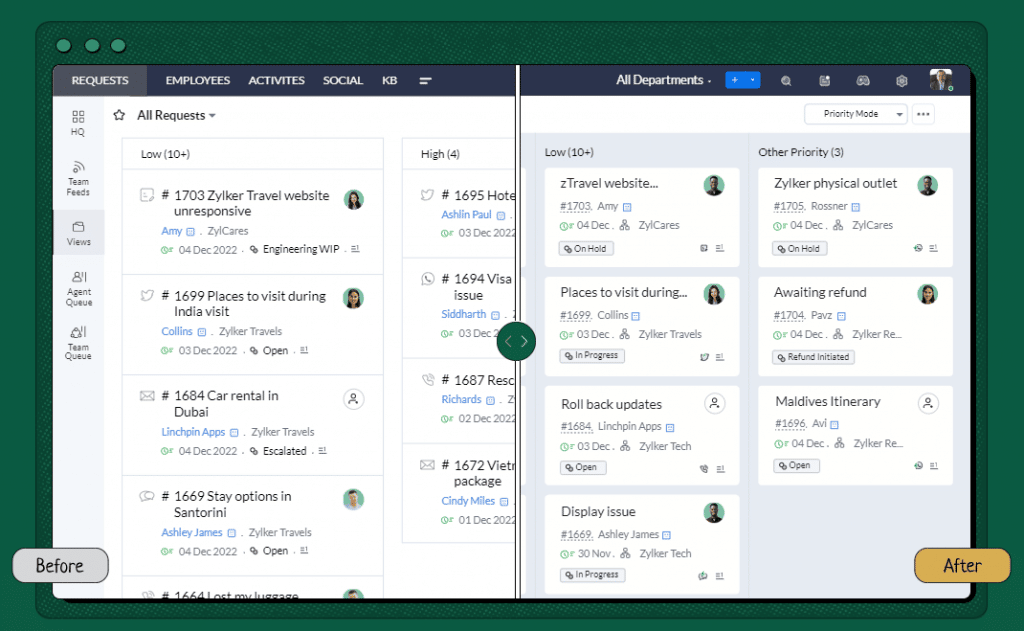
    Zoho Desk New Release Enhances UX

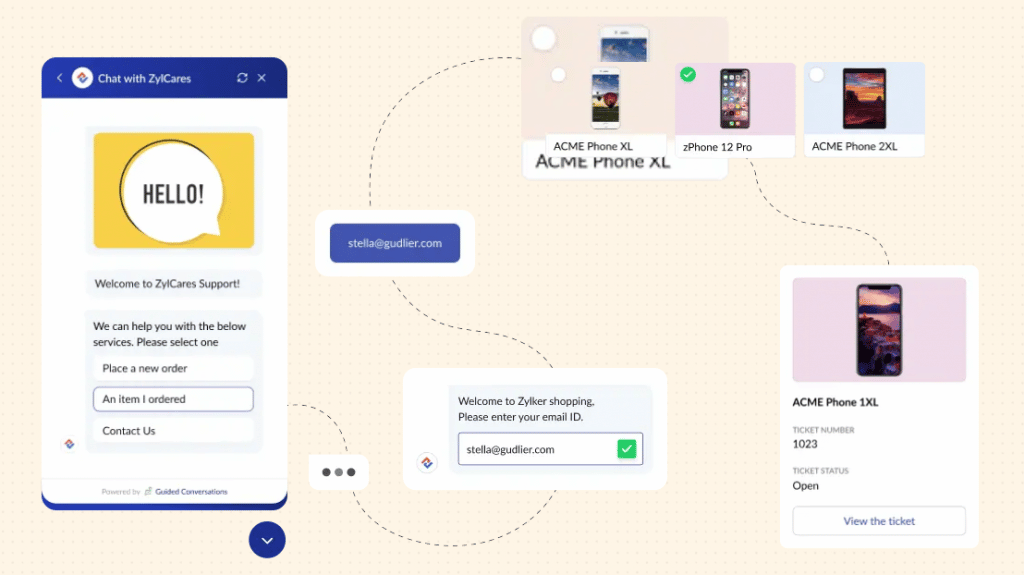
    This upgrade amplifies the user experience by accelerating ticket resolutions through IM, enabling efficient self-service with guided conversations, offering new accessibility controls, and more.

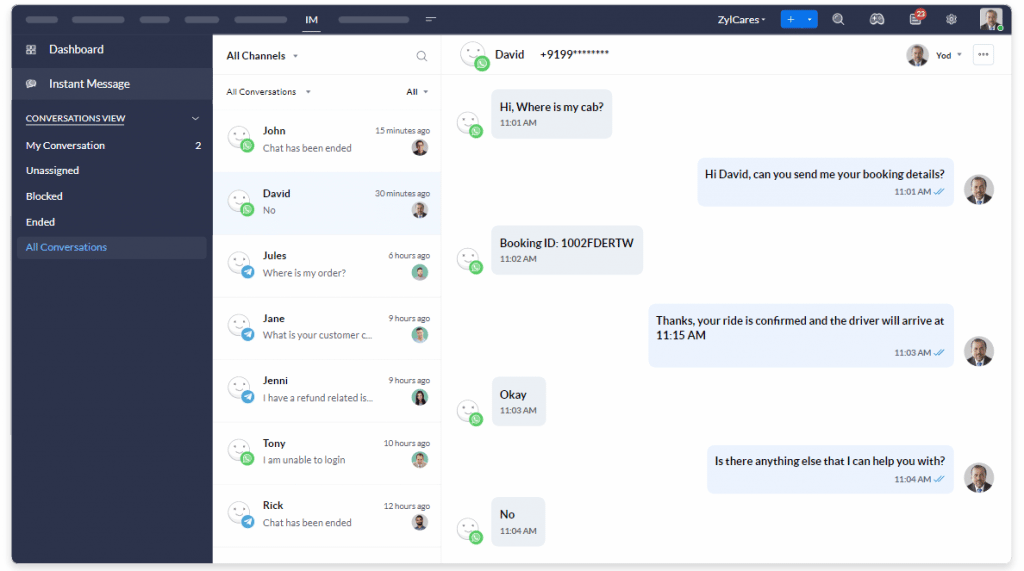
    Instant Messaging for More Human Conversations

    Manage the most popular IM channels from a single, omnichannel platform. This allows you to provide flexible, consistent, and contextual support, no matter where your customers are, and how they reach out to your business.

    Unified Console

    (Image via Zoho)

    Your service teams can effortlessly communicate and keep track of all the customer conversations through a unified window in Zoho Desk.

    Canned Responses

    Canned messages can save plenty of time for service teams by decreasing their time to reply. Service teams can stay focused on resolving the primary challenges while the Instant Messaging tool can take care of timely responses.

    Contextual Reports

    Well-timed and insightful reports on incoming and outgoing messages, plus the option to personalize customer communication based on data. Filter data from available channels to obtain visual reports.

    IM Wherever and Whenever

    Customers can easily reach out to your business through the channels with simple QR scanning, clickable link, clickable button, or just by typing the business names on any given IM app.

    Interactive UI for Agents

    The distinct communication widgets in the IM console can create engaging experiences for your service agents and can help improve efficiency multi folds.

    Guided Conversations

    (Video via Zoho)

    Guided Conversations are a proactive, low-code, self-service platform. Instead of relying on an agent to ask specific questions, Guided Conversations allows customers choose their own course and intuitively guides them to appropriate solutions.

    Automated Conversations That Are Personal

    Clear call queues and minimize back-and-forth emails. Guided Conversations pushes conversations with relevant questions through a predefined chat and systematically leads your customers to the best solution.

    Custom Flows

    (Image via Zoho)

    Build flows that suit the way you work with flexible blocks, paths, and variables. Bring in elements that your customers prefer, like questions, text replies, or others to shape conversations that flow.

    Predefined Templates

    (Video via Zoho)

    Zoho Desk’s effortless GUI builder and a library of pre-defined templates make it easy for you.

    Quick Responses for “ASAP” Demands

    (Video via Zoho)

    Create customized responses for common customer roadblocks by using various response blocks.

    Enhanced Experiences

    Refined New Look for Redefined Experiences

    (Image via Zoho)

    Improvements have been made to the overall look and feel of Zoho Desk to make navigating, communicating, and collaborating smoother.

    User Personalization

    (Image via Zoho)

    A collection of new features has been added so you can personalize Zoho Desk as you like.

    Accessibility Controls

    Zoho Desk now includes new accessibility features for users of all abilities. Because a disability can be temporary or permanent, Desk has added the ability to control multiple settings.

    Effortless Detection of Essential Information

    Identify essential information like ticket IDs, contact details, and hyperlinks to execute actions seamlessly.

    Screen Reader

    (Image via Zoho)

    This allows to work independently by knowing exactly what’s happening on screen with a screen reader that renders speech and Braille outputs.

    Focus Navigation

    Perform tasks, browse the screen, and switch between tabs and pages using your keyboard with Focus Navigation.

    Display Layout

    Adjust the content display based on screen resolution. Change the focus on content with Focused Layout, fit content to the screen size with Full Width Layout, or adapt the layout to the content with Adaptive Layout.

    Reading Mask

    (Video via Zoho)

    This lets the user to focus on sections that need attention with the reading mask. Keep the read sections in the spotlight while masking the rest.

    Zoom Controls and Font Size

    (Video via Zoho)

    Make font size adjustments for clarity and improve overall visibility.

    Animation Controls

    (Video via Zoho)

    Manage the motion of transitions by minimizing non-essential transitions or adjusting them according to the system’s default settings.

    New Privacy Controls

    To give you more control over your data, Zoho has added new privacy controls and is constantly adding more.

    • Data Subject Requests: This provides a robust and scalable structure for safely processing your clients’ data in line with GDPR.
    • Read Receipts: Indicates if the customer has read your replies.
    • Data Backup: Saves a copy of your help desk data to access at any time.

    New Extensions

    Zoho Desk has introduced 48 new extensions in Zoho Marketplace, which include MS Teams 2.0, four native apps, 21 telephony apps, among others.

    Zoho Sign: Enhanced Recipient Customization Settings

    Enhancements have been made to the Send for Signature option in Zoho Sign to enable an improved signing experience. These enhancements are now available in all editions.

    Key Benefits:

    • Users can add recipient details and send a document for signature in a few clicks.
    • By clicking the Customize button, users can configure other settings:
      • Add a private note
      • Request recipient authentication (through SMS, email, offline, or EU eID
      • Signing experience in multiple languages
      • Choose from a variety of digital signature providers:
        • Zoho Sign (default)
        • Singpass for Singapore
        • Aadhaar eSign and eMudhra eKYC services for India
        • Qualified Electronic Signatures for the European Union
        • Advanced Electronic Signatures for South Africa
        • USB and PFX-based document signing
    • Users can now select the digital signing method of their choice for highest legal compliance.
    (Image via Zoho)

    Zoho WorkDrive: Admin Management for All Shared Items in Your Team

    WorkDrive now lets Admins view and manage all shared files and folders in a team folder or a member’s My Folders file from the Data Administration tab in the Admin Console.

    Admins can also view the list of all shared items and track which items are shared with whom, which are shared externally, which are shared across the team, and more. You can also update or remove share permissions, if required.

    Notes:

    • Only Admins and the team’s Super Admin can view and manage all the shared items from the Data Administration tab.
    • Support for Data Administration is only available in Zoho WorkDrive’s Business plan.
    (Image via Zoho)

    To manage shared items:

    1. Click Admin Console in the bottom-left corner of your Zoho WorkDrive account. The Admin Console page will open in a new tab. Dashboard will be selected by default.

    2. On the left panel, click Data Administration.

    3. Click the Shared Items tab under Data Administration.

    4. Choose the required share type from the following:

    • Direct sharing to external users (via email address)
    • Visibility to anyone on the internet
    • Shared via external share links
    • Shared via download links
    • Published outside team (via Zoho Writer app or embed code)
    • Search by file/folder name
    • Shared within team: All shared types, Direct sharing to team members (via email address), Visibility to anyone on the team, Published within team (via Zoho Writer app).

    5. Select a location from the following:

    • All Locations
    • My Folders
    • Team Folders – Select a Team Folder


    When you select a team member’s My Folders, you must enter a reason to continue with the search. The selected team member will be notified of the admin’s action via email.

    6. Choose a file type to narrow down your results further. Available file type filters:

    • All File Types
    • Folders
    • Documents
    • Spreadsheets
    • Presentations
    • PDF
    • Images
    • Videos
    • Audio

    7. Hover over a file and select Share Details to open its share dialog.

    8. Add or remove members and change or remove permissions as required.

    Note: When you search by file/folder name, any matching files and folders that have been shared with other users (via any share method) will be listed.

    Zoho Desk Webinars

    Getting Started with Instant Messaging

    How to Configure Guided Conversations

    Experience Night Mode on Zoho Desk

    That’s all for now, IC readers! See you soon for more Zoho updates from InterConnecta!

    Need help with the implementation or optimization of any of your Zoho apps? Then you’re in the right place! Learn more about our Zoho Consulting Services and ask us for a free consultation.
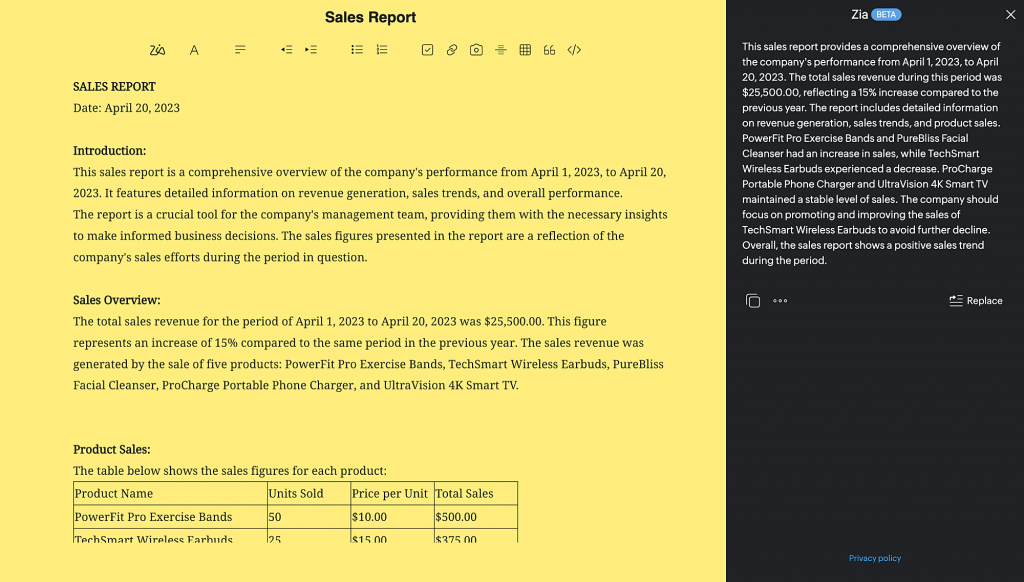
  • Zoho Named Visionary in Gartner’s Magic Quadrant for Sales Force Automation Platforms

    Zoho has made it once again in Gartner’s Magic Quadrant, this time as a Visionary in the category of Sales Force Automation Platforms with Zoho CRM. According to Gartner, Visionaries “are ahead of most potential competitors in delivering innovative products and/or delivery models. They anticipate emerging and changing sales needs, and move the market into fresh areas with solutions that improve sales execution. Visionaries have strong potential to influence the direction of the SFA market.”

    (Image via Gartner)

    The following are the reasons why Zoho made it into the Magic Quadrant as a Visionary:

    • Zoho CRM is well-suited to the support of sales organizations of all sizes and segments, mostly in the industries of technology, financial services, professional services, and healthcare.
    • Last year, Zoho released significant products and capabilities, which include Canvas (a UI/UX builder), Zone analytics (to measure sales performance against ideal areas of achievement), and a built-in telephony solution.
    • Planned innovations include buyer and customer journey orchestration, to mine customer signals and create dynamic customer journeys and analytics, as well as mood analysis to predict emotions from textual data.

    Zoho’s Strengths, According to Gartner

    The global research company identifies innovation, vertical presence, and digital optimization as the strengths that Zoho possesses and which also make it worthy of the Visionary title. These are summarized below:

    Innovation

    According to Gartner, Zoho continues to innovate and lead the market in distinguishing feature capabilities, such as its planned innovations for mood analysis and customer journey building through capture of signals. The India-based company is also planning to launch prescriptive analytics that can extrapolate outcomes, based on data attributes. As a result, Zoho will support sales organizations that want to be more proactive and driven by data.

    Vertical Presence

    Gartner points out that Zoho is one of the few vendors that —outside of the Leaders and large SFA vendors— has a broad vertical presence. Therefore, customers who are searching for other vendors should feel comfortable when considering Zoho during their preselection buying process.

    Digital Optimization

    Last but not least, Gartner mentions that “Zoho has a strong vision and support for digital optimization. Its blueprint process modeler, journey orchestration builder and workflow automation tools, along with real-time alert and signal listening, may sit well with sales organizations.” This is particularly certain for customers who want to enhance and modernize their sales organization with the automation of manual processes and the capture of buying signals throughout external sources and systems.

    To read the full article, click here.

    Are you considering to implement or improve Zoho CRM Workflow Automation in your business? Then click here for more information.

  • Zoho Apps: Updates for iOS 16

    Throughout the years, Zoho applications have tightly integrated with Apple technologies and adapted to them in iPhones and iPads to offer a great user experience. Recently, iOS 16 launched, so a group of updated Zoho apps that adopt iOS 16 and iPadOS 16 are now available in the App Store.

    Some of the new technologies that the Zoho apps support are Lock Screen widgets, SharePlay, Live Text, and Focus Filters. Below, we have summarized for you the most important Zoho for iOS updates:

    Passkeys, Focus Filters, Live Text, and more for Zoho OneAuth

    (Image via Zoho)

    Zoho OneAuth’s updates for iOS16 make simpler to manually add new OTP accounts and edit existing ones, to access your OTPs, as well to manage multiple accounts on your Apple devices. The features include:

    • Passkeys: Increases your login experience across all Zoho apps.
    • Watch Face widgets: Gets you the right OTPs directly from your Apple watch.
    • Focus Filters: Lets you associate the appropriate Zoho account for each Focus Mode.
    • Live Text: Enables you to effortlessly add 2FA accounts by reading information from web pages and documents.
    • Lock Screen widget: Gets you the OTPs quickly to help you log in to your accounts.
    • Quick Notes: Allows you to intuitively edit 2FA accounts with seamless deep linking.

    Zoho Sign with Quick Notes, Lock Screen Widgets, Document Scanner, and More 

    Users can now add pending documents that require a signature to Quick Notes and access them directly from there. The new multi-layered customization options let users personalize their Lock Screen widgets for starting the document-signing process, viewing documents that need their signature, among other functions.

    Moreover, you can customize Zoho Sign’s app behavior based on Focus Mode by providing filters for each focus with dark or light mode. Another update is that you can configure new conversational Siri shortcuts in your iOS 16 and iPadOS 16 to execute different actions.

    For users who might not have documents readily accessible on their device, Zoho has included an enhanced Document Scanner update.

    Zoho Bigin: Intelligence, Focus Filters, Room Plan, and More

    (Image via Zoho)

    New tools and features for Bigin on iOS 16 now make the iPhone more suitable for business use. Display critical information on the very first screen with Lock Screen like, for example, widgets regarding schedules and the status of deals.

    While Focus is on, you can use Filters to customize Bigin to open with your favorite theme, notification settings, and list view to start working at once.

    Also, real estate users can send a 3D room plan to potential buyers, which gives them advantage over realtors who show 2D photos and videos instead.

    Zoho Campaigns: Lock Screen Widgets and Live Text

    Draft email templates faster: edit email contents by copying and pasting text from your camera or your pictures/videos. Once the campaign is scheduled, keep track of the emails and view their opens, clicks, and other metrics by adding widgets to your Lock Screen.

    Zoho Books and Zoho Invoice: Lock Screen Widgets, Live Activities, Live Text, and Quick Notes

    Now you can now set up Lock Screen widgets on your iPhone to create timesheets and invoices, or record your project hours.

    Also, the new Live Activities feature will be launched by Zoho later in 2022 so you can view your project timer just by looking at your iPhone. Apple Watch complications have been introduced so you can start and stop a project timer from the Watch app. This feature also syncs the time log with your iOS app automatically. Besides that, with the App Shortcuts feature you can have Siri perform a few functions for you.

    The improved Live Text feature allows you to copy details from your uploaded receipts. You can then paste them into the expense creation forms to immediately create expense reports. Meanwhile, Quick Notes lets you write down your ideas while using the app so you can later revisit them.

    Weather Kit and Lock Screen Widgets for Zoho Expense

    Stay informed on the weather for your travel days. Track mileage directly from your Lock Screen by adding the mileage tracker widget and activating it when you need it. When creating a mileage expense, the tracked mileage will be auto-filled. Likewise, you can use the new Apple Watch complications feature to track mileage directly from your Apple Watch.

    With App Shortcuts, ask Siri to perform specific actions (for example, upload a receipt or open a new report). Another interesting update is that Quick Notes, which was only available in iPads is now available for iPhone, so you can take notes while using the app.

    Zoho One: Lock Screen Widgets, Live Text Feature, New Focus Filters, and Quick Notes

    The new and improved Zoho One mobile app is loaded with the capability to manage multiple users and profiles right from your mobile screen. It keeps you updated with key data on your iPhone, boosting its viability for better business use. With the new Lock Screen widgets, users won’t have to navigate through the app to get key business insights. You’ll now be able to choose from a group of circular and rectangular Lock Screen widgets that display key information about your business. You just have to tap, drag, and drop the widgets to your Lock Screen.

    Another update iOS 16 is the Live Text feature within the Zoho One app. You won’t have to manually enter all the details to add a new user to your organization. You can now save time by capturing details directly from documents or web pages by pointing your camera at it.

    The Focus Filter is the perfect update for those who love personalization. If you have multiple organization profiles associated with your Zoho One account, use the Focus Filter feature to switch between different organizations effortlessly, depending on your focus mode.

    In Quick Notes, navigate through your app for key user data and performance metrics, and add a quick note along with the app link which will lead you right to the specified data.

    Doc Scanner in iOS 16

    (Image via Zoho)

    Easily access your documents from your Lock Screen with circular, rectangular, and inline widgets. Apply Focus Filters to manage your app’s behavior by setting themes like light/dark mode and default color in Focus Mode.

    Extract live text from any image that you add to your documents, and find and replace text in your documents from your iPhone’s keypad in no time. Instantly attach a document to your note with Quick Notes in the Doc Scanner app and smoothly link your documents to your notes to make it a single view.

    Zoho People for iOS 16

    Now you can complete key HR functions right from your iPhone’s Lock Screen by adding the desired widgets.

    Take a look at your upcoming holidays, apply for leave, and more without having to navigate to your Home Screen. App Intents have been incorporated so that you can quickly fetch information from multiple places on your iPhone (open tasks, time logs, and pending jobs). Ask Siri to find the desired actions under the Shortcuts App, or search for them in Spotlight.

    The Live Text feature is also part of Zoho’s learning management system. It lets learners to scan and grab text from videos, presentations, and images, and add them to the Notes tab under each course.

    Zoho Mail’s Email Admins

    All email admins will have useful widgets like user count and storage on their Lock Screen. Additionally, Zoho has included comprehensive reports to the iOS app, which can be pinned as widgets for a quick look.

    Zoho WorkDrive: Easier Work and File Sharing

    With Live Text you can now copy text from PDFs, screenshots, and images, and use them on the go. Save notes, access websites, send emails, and make calls, by extracting information from images and other files from your iPhone.

    Improve your file-sharing experience with the App Clip for Zoho WorkDrive. Let your clients and stakeholders preview files immediately and enjoy the rich user experience like a native mobile app.

    To read the full article, click here.

    Need help with the implementation or optimization of any of your Zoho apps? Then you’re in the right place! Learn more about our Zoho Consulting Services and ask us for a free consultation.
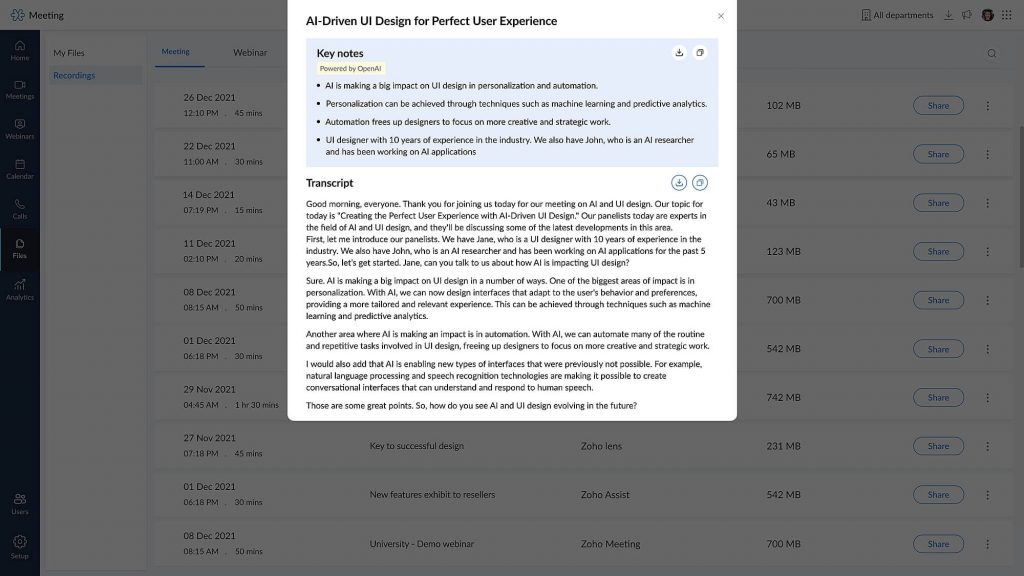
This site is registered on wpml.org as a development site. Switch to a production site key to remove this banner.