Author: user

  • How to Integrate Zoho CRM and WhatsApp Business

    The WhatsApp messaging platform has gained huge popularity among businesses because of its quick and hassle-free messaging services. Because it allows customers to start the conversation with the business, customers have more control of their purchase decisions.

    With that in mind, Zoho CRM has made possible an integration with WhatsApp. Below you’ll see the required steps to activate it:

    Requirements

    1. Facebook Business Manager account.

    2. A verified business.

    3. WhatsApp Business account.

    4. A registered phone number to access the WhatsApp Business API. The phone number must meet the requirements mentioned in this page.

    Instructions for the WhatsApp and Zoho CRM Integration

    NOTE: Only an administrator can initiate this integration.

    1. Go to Setup > Channels > Business Messaging.

    2. Under WhatsApp, click Details > Integrate.
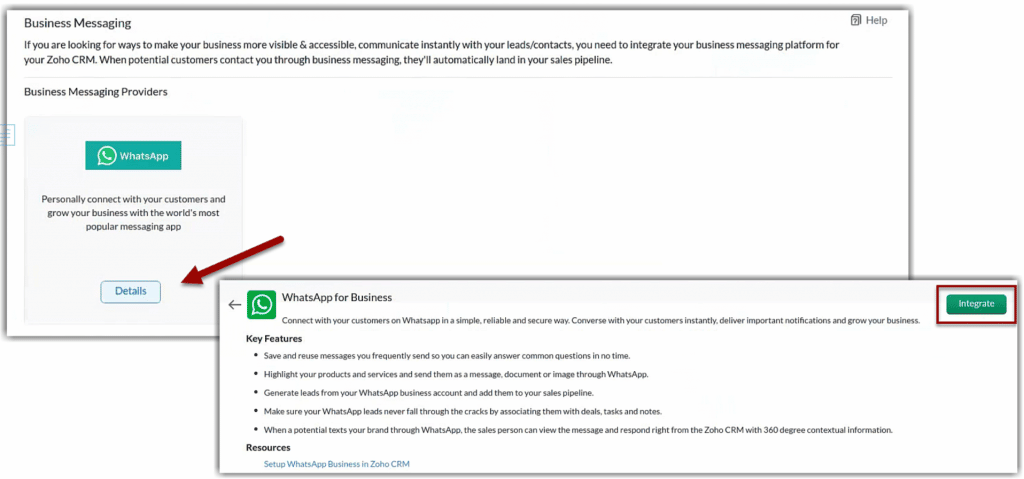
    (Image via Zoho)

    3. In the WhatsApp access request page, log in with Facebook Business Manager’s credentials.

    4. Click Get Started.
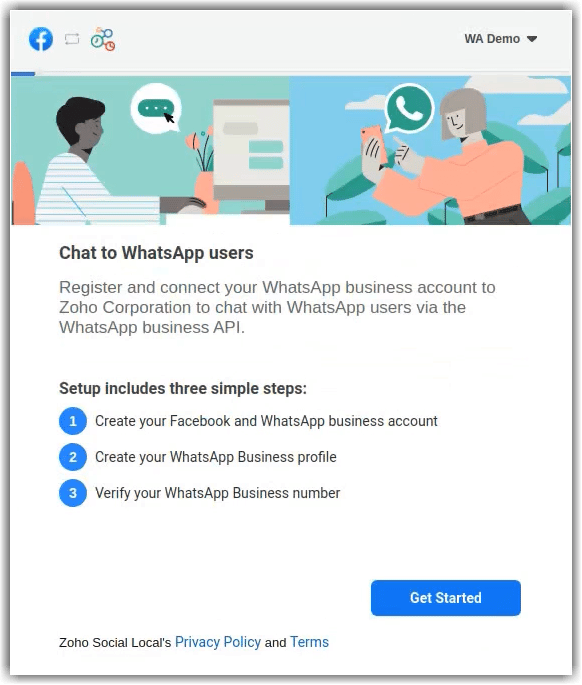
    (Image via Zoho)

    5. Click Continue to give permission.
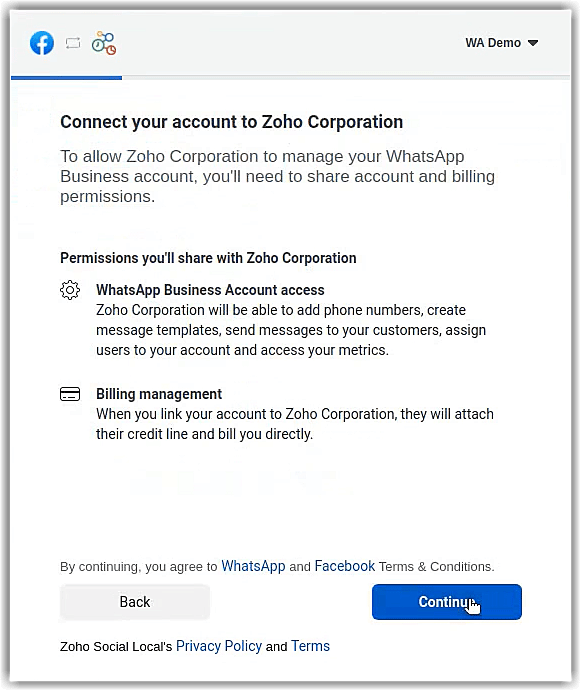
    (Image via Zoho)

    6. Create a new Facebook Business account or select existing account from the options.
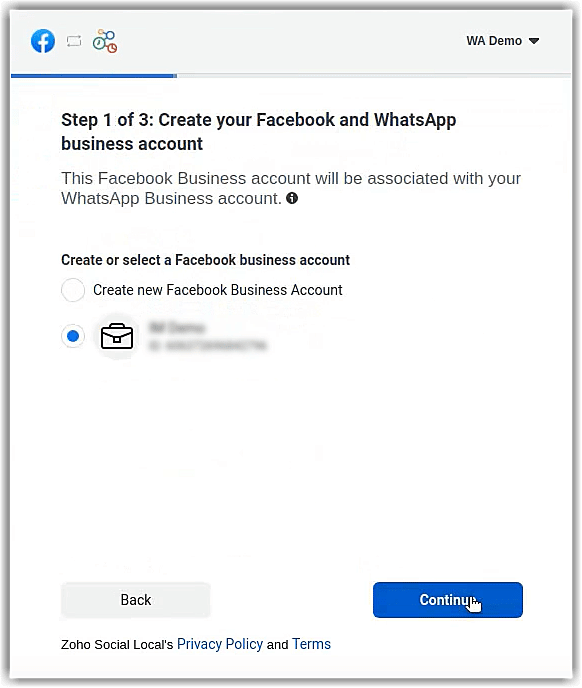
    (Image via Zoho)

    7. Create a new WhatsApp Business account or select existing accounts from the options. Then, click Continue.
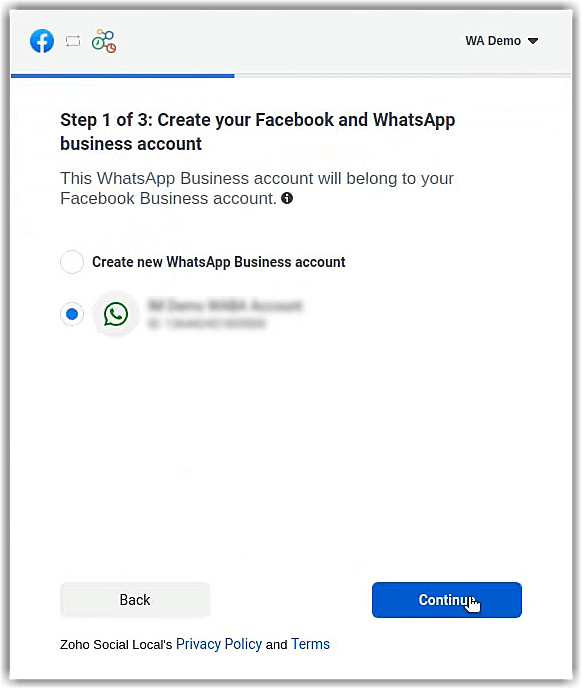
    (Image via Zoho)

    8. Create a new WhatsApp Business profile or select an existing profile from the options. Then, click Continue.
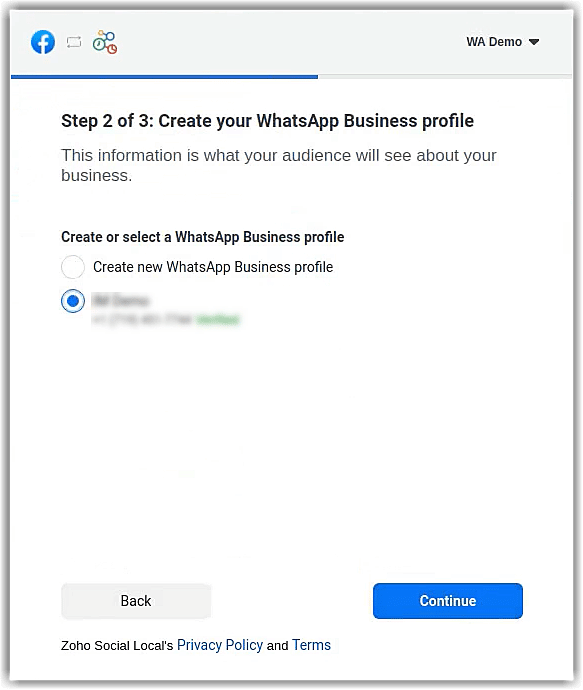
    (Image via Zoho)

    9. Verify your WhatsApp Business number.
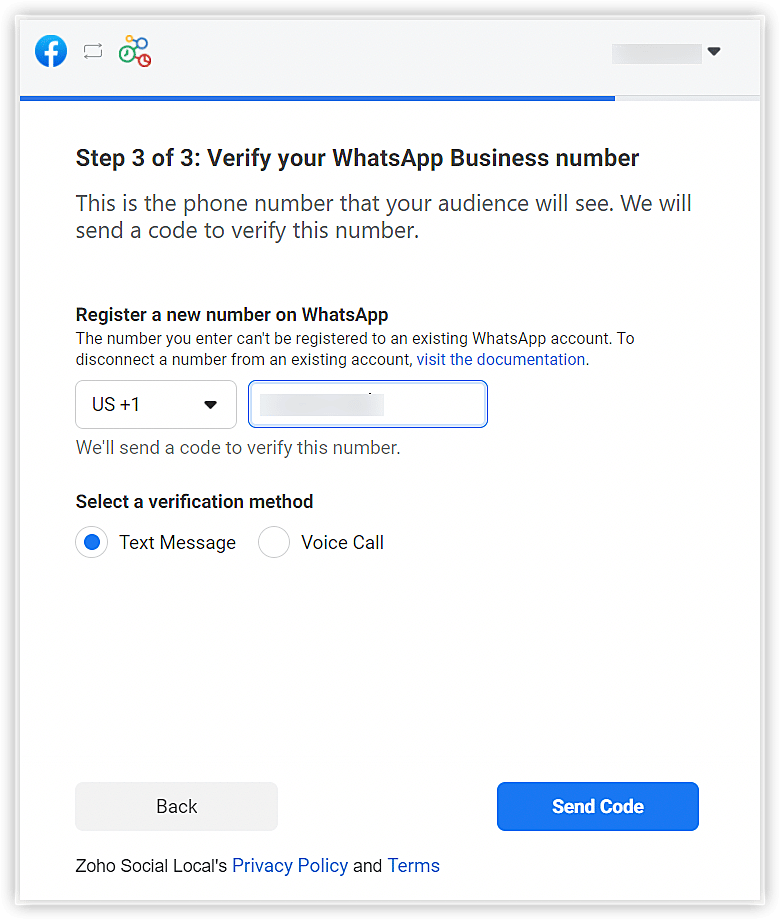
    (Image via Zoho)

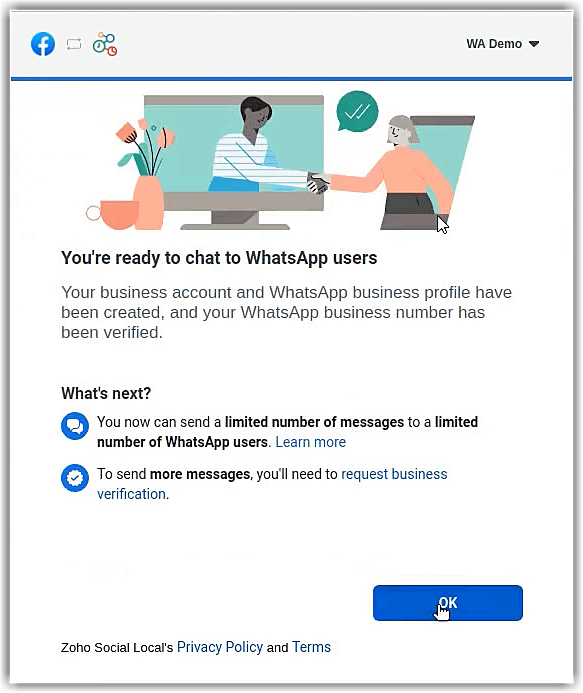
    10. Click OK on the next screen.

    (Image via Zoho)

    11. Provide a nickname for the WhatsApp business profile in CRM and click Next.

    • Provide the account preferences choosing from the dropdown options. In the Add as field, select Leads or Contacts.
    • In the Assign to field, select users, groups, or roles.
    • In the Choose Users field, select the users, groups, or roles.

    12. When finished, click Save. The WhatsApp Business messaging account will now be activated.

    NOTES:

    • Once your business is verified, it will be reviewed for compliance with the WhatsApp Terms of Service and WhatsApp Commerce Policy.
    • If you have rebranded your domain (domain-mapped accounts), you must enable third-party cookies in your browser before starting the integration.
    • You can’t use WhatsApp phone numbers being used on other products. Only unused phone numbers can be used for the integration.
    • Migration of existing phone numbers is not supported yet.

    Business Message Charges, Buying Credits, and Auto Recharge 

    Messages sent by the company are charged. You can purchase credits based on the frequency of your usage so that the charges are automatically deducted from it. After the initial purchase of credits, you can use the auto recharge option to avoid running out of balance by setting the minimum number of credits that must be maintained in your account at any time. Also, you can indicate the number of credits that must be purchased when the limit is spent.  

    To buy credits:

    1. Go to Setup > Channels > Business Messaging.

    2. Click Buy Credits. This option will be available only after the phone number is active.

    3. Enter the value. Then, click Next.

    4. Click Make a payment.

    To auto recharge:

    1. Go to Setup > Channels > Business Messaging.

    2. Click Auto Recharge.

    3. Toggle on Enable Auto Recharge.

    4. Complete the field Minimum credit balance to be maintained.

    5. Complete the field Number of credits to be added when the balance is minimum. When finished, click Save.  
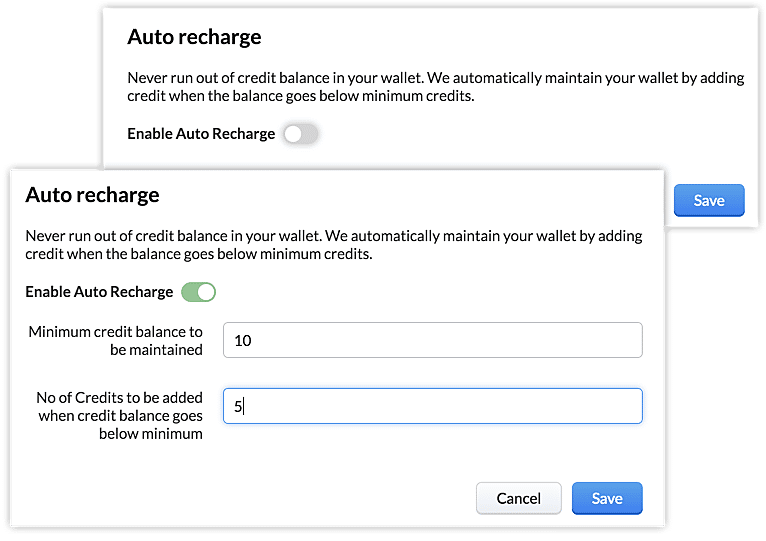
    (Image via Zoho)

    How to Manage the Messages Tab

    1. Filtering and setting view for messages

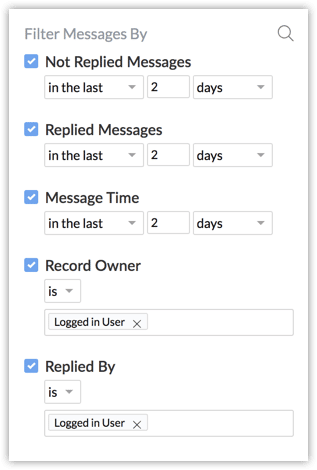
    In the Messages module, users can utilize the following filters and set criteria to find a message quickly:

    • Not replied in x days/weeks/months
    • Replied in x days/weeks/months
    • Message time in x days/weeks/months
    • Record owner is x user or logged in user
    • Replied by x user or logged in user 
    (Image via Zoho)

    Users can also set a view for the module to see the following: messages that are unreplied, all messages sent today, all unreplied messages, among other views.
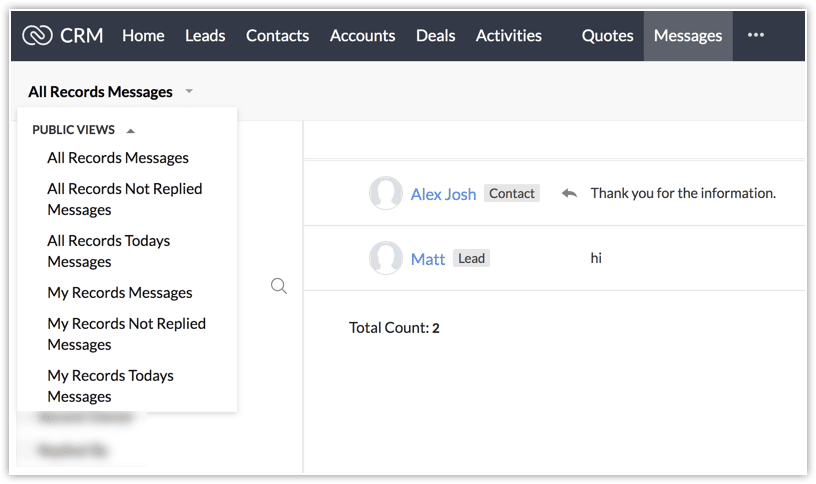
    (Image via Zoho)

    2. Receiving notifications for business messages

    When an interested customer or an existing lead/contact sends a business message to your business’ WhatsApp number, a notification is sent to the Zoho CRM user via SalesSignal and popup. The push notification will be shown to the record owner. 
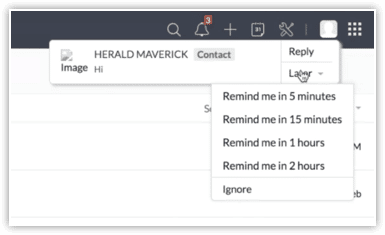
    (Image via Zoho)

    Within the push notification, the user will receive an option to be notified again after a few minutes or an hour. If the user can’t respond immediately, they can click on Remind after 15 minutes. This is not a global setting, so the user has to choose when to be reminded for each push notification they receive. Once the user clicks Ignore, the notification will close.

    When multiple messages are received, the notification will display the total count of messages.

    (Image via Zoho)

    The user can also access the message notification from SalesSignal.
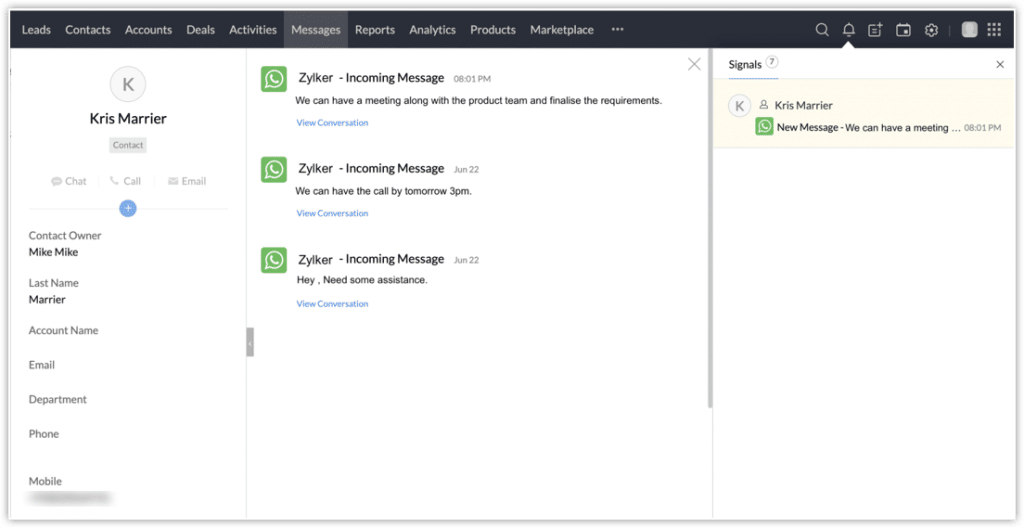
    (Image via Zoho)

    3. Replying to the business messages

    The Zoho CRM users can reply to the business messages by clicking on the notification or by clicking on a record from the Messages tab. Users can also click on the View conversation from SalesSignal notification to reply. They can respond to customers by typing a message or sending a predefined business message. Merge fields can be used to pull the related value. The user can preview the value before sending the message.

    NOTES:

    • CRM users can reply to a message within 24 hours of receiving it. After this, the WhatsApp messaging window will be closed.
    • Only the customer can start a conversation by sending a business message. A user is not allowed to send messages to leads or contacts via WhatsApp.

    How to reply to a business message

    a. Click on the notification to view the message. You can also go to the Messages tab and click on the record.

    b. Type your message or click Predefined text to select a text. When finished, click Send.

    4. Setting and managing predefined text 

    The Zoho CRM users have the option to create predefined texts that can be quickly sent to customers. For example:

    Answers to commonly asked questions: What is the cost of the service? My order is delayed, can you help me track it?

    Greetings: Hi, $[Leads.First Name]. How can I help you?

    Creation of predefined texts

    a. Go to the Messages tab and click on a message.

    b. Next to the typing bar, click New Predefined Text. You can also click Manage and + New Predefined Text.

    c. In the New Predefined Text popup, enter a name for the text (for example: Greetings).

    d. Enter the text message. You can use merge fields too. Once you’re finished, click Save.

    The predefined text messages can be edited or deleted by clicking the Manage button. All the texts are stored here. The users can filter them module-wise or search using the text name.

    NOTE: You can’t change the module while editing a predefined text. This is to avoid errors in case merge fields have been used in the predefined texts.

    To manage predefined texts:

    a. Go to the Messages tab and click Predefined Text from the text area.

    b. Click Manage from the drop-down list.

    c. In Manage Predefined Text, hover on a text and click the Edit or Delete icon

    5. Sending attachments via business messages

    Zoho CRM users can send attachments via text messages. They can attach up to 5 files through the following:

    • Upload a file from their computer.
    • Attach files from the Inventory (sales orders, quotes, purchase orders, invoices).
    • Attach files from supported cloud drives (Google drive, Sky Drive, Evernote, Dropbox).

    The user can either select a quote that is associated with the prospect, create a new quote, or send one of the available quotes depending on the business need and type.

    Each conversation view tab is divided into two tabs: Messages and Attachments where the corresponding information is stored. You can preview and download all the attachments from here or from the messages.
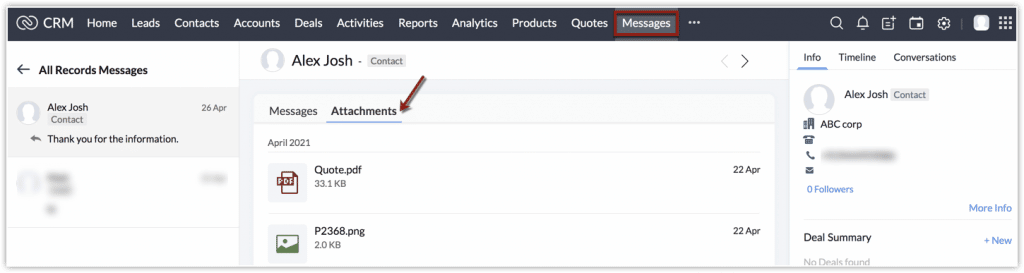
    (Image via Zoho)

    To read the full article, click here.

    Need help with your WhatsApp integration and/or any other third-party integrations for Zoho? Contact us now for a consultation.
  • Zoho Apps: Updates for iOS 16

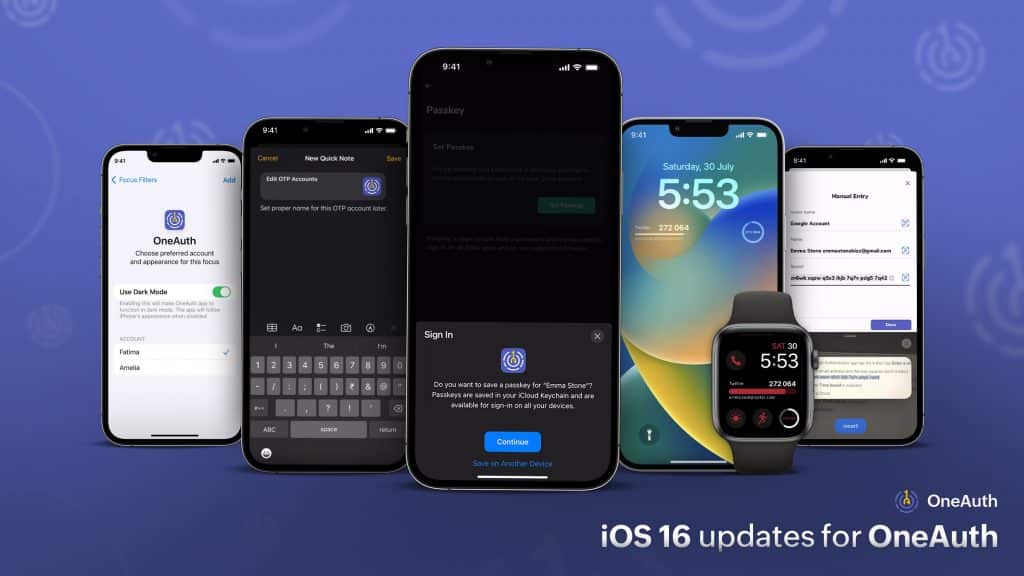
    Throughout the years, Zoho applications have tightly integrated with Apple technologies and adapted to them in iPhones and iPads to offer a great user experience. Recently, iOS 16 launched, so a group of updated Zoho apps that adopt iOS 16 and iPadOS 16 are now available in the App Store.

    Some of the new technologies that the Zoho apps support are Lock Screen widgets, SharePlay, Live Text, and Focus Filters. Below, we have summarized for you the most important Zoho for iOS updates:

    Passkeys, Focus Filters, Live Text, and more for Zoho OneAuth

    (Image via Zoho)

    Zoho OneAuth’s updates for iOS16 make simpler to manually add new OTP accounts and edit existing ones, to access your OTPs, as well to manage multiple accounts on your Apple devices. The features include:

    • Passkeys: Increases your login experience across all Zoho apps.
    • Watch Face widgets: Gets you the right OTPs directly from your Apple watch.
    • Focus Filters: Lets you associate the appropriate Zoho account for each Focus Mode.
    • Live Text: Enables you to effortlessly add 2FA accounts by reading information from web pages and documents.
    • Lock Screen widget: Gets you the OTPs quickly to help you log in to your accounts.
    • Quick Notes: Allows you to intuitively edit 2FA accounts with seamless deep linking.

    Zoho Sign with Quick Notes, Lock Screen Widgets, Document Scanner, and More 

    Users can now add pending documents that require a signature to Quick Notes and access them directly from there. The new multi-layered customization options let users personalize their Lock Screen widgets for starting the document-signing process, viewing documents that need their signature, among other functions.

    Moreover, you can customize Zoho Sign’s app behavior based on Focus Mode by providing filters for each focus with dark or light mode. Another update is that you can configure new conversational Siri shortcuts in your iOS 16 and iPadOS 16 to execute different actions.

    For users who might not have documents readily accessible on their device, Zoho has included an enhanced Document Scanner update.

    Zoho Bigin: Intelligence, Focus Filters, Room Plan, and More

    (Image via Zoho)

    New tools and features for Bigin on iOS 16 now make the iPhone more suitable for business use. Display critical information on the very first screen with Lock Screen like, for example, widgets regarding schedules and the status of deals.

    While Focus is on, you can use Filters to customize Bigin to open with your favorite theme, notification settings, and list view to start working at once.

    Also, real estate users can send a 3D room plan to potential buyers, which gives them advantage over realtors who show 2D photos and videos instead.

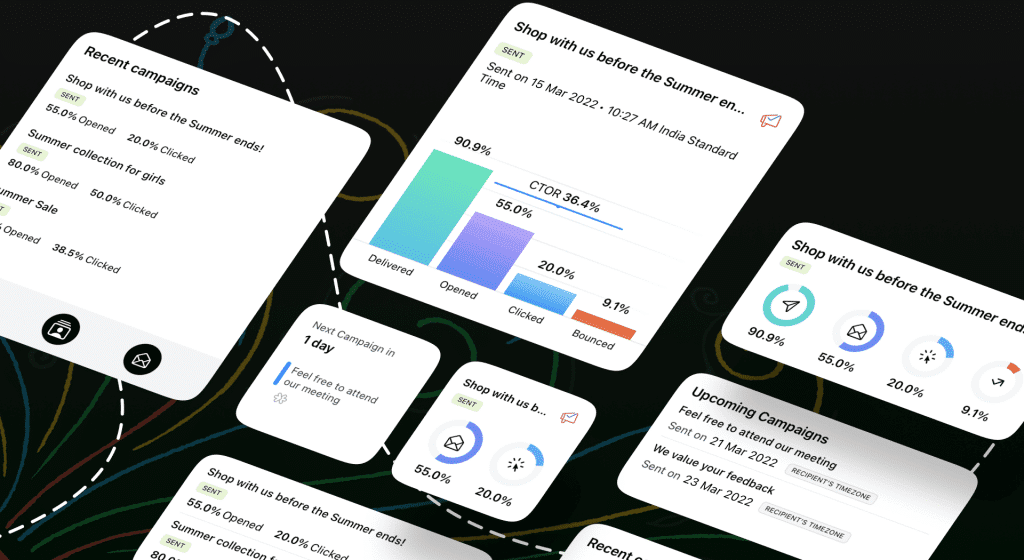
    Zoho Campaigns: Lock Screen Widgets and Live Text

    Draft email templates faster: edit email contents by copying and pasting text from your camera or your pictures/videos. Once the campaign is scheduled, keep track of the emails and view their opens, clicks, and other metrics by adding widgets to your Lock Screen.

    Zoho Books and Zoho Invoice: Lock Screen Widgets, Live Activities, Live Text, and Quick Notes

    Now you can now set up Lock Screen widgets on your iPhone to create timesheets and invoices, or record your project hours.

    Also, the new Live Activities feature will be launched by Zoho later in 2022 so you can view your project timer just by looking at your iPhone. Apple Watch complications have been introduced so you can start and stop a project timer from the Watch app. This feature also syncs the time log with your iOS app automatically. Besides that, with the App Shortcuts feature you can have Siri perform a few functions for you.

    The improved Live Text feature allows you to copy details from your uploaded receipts. You can then paste them into the expense creation forms to immediately create expense reports. Meanwhile, Quick Notes lets you write down your ideas while using the app so you can later revisit them.

    Weather Kit and Lock Screen Widgets for Zoho Expense

    Stay informed on the weather for your travel days. Track mileage directly from your Lock Screen by adding the mileage tracker widget and activating it when you need it. When creating a mileage expense, the tracked mileage will be auto-filled. Likewise, you can use the new Apple Watch complications feature to track mileage directly from your Apple Watch.

    With App Shortcuts, ask Siri to perform specific actions (for example, upload a receipt or open a new report). Another interesting update is that Quick Notes, which was only available in iPads is now available for iPhone, so you can take notes while using the app.

    Zoho One: Lock Screen Widgets, Live Text Feature, New Focus Filters, and Quick Notes

    The new and improved Zoho One mobile app is loaded with the capability to manage multiple users and profiles right from your mobile screen. It keeps you updated with key data on your iPhone, boosting its viability for better business use. With the new Lock Screen widgets, users won’t have to navigate through the app to get key business insights. You’ll now be able to choose from a group of circular and rectangular Lock Screen widgets that display key information about your business. You just have to tap, drag, and drop the widgets to your Lock Screen.

    Another update iOS 16 is the Live Text feature within the Zoho One app. You won’t have to manually enter all the details to add a new user to your organization. You can now save time by capturing details directly from documents or web pages by pointing your camera at it.

    The Focus Filter is the perfect update for those who love personalization. If you have multiple organization profiles associated with your Zoho One account, use the Focus Filter feature to switch between different organizations effortlessly, depending on your focus mode.

    In Quick Notes, navigate through your app for key user data and performance metrics, and add a quick note along with the app link which will lead you right to the specified data.

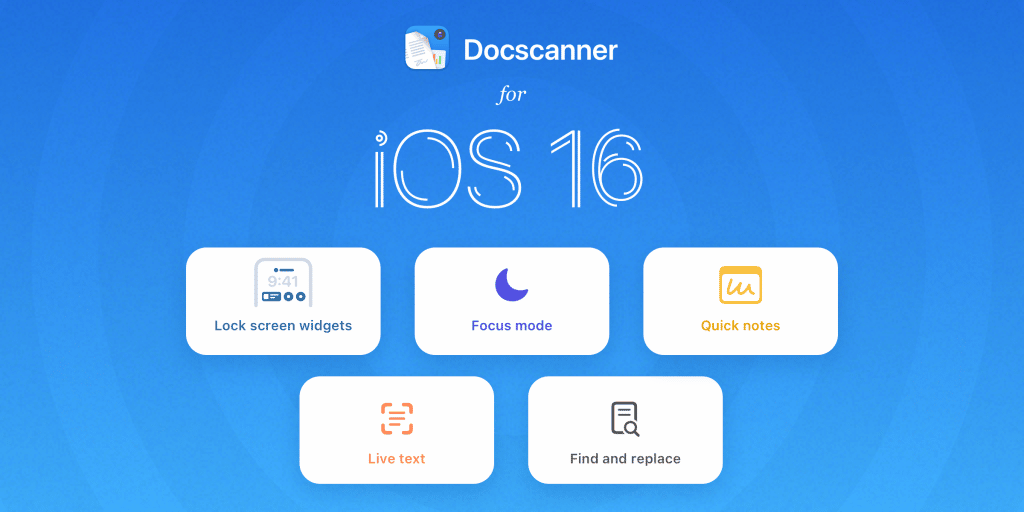
    Doc Scanner in iOS 16

    (Image via Zoho)

    Easily access your documents from your Lock Screen with circular, rectangular, and inline widgets. Apply Focus Filters to manage your app’s behavior by setting themes like light/dark mode and default color in Focus Mode.

    Extract live text from any image that you add to your documents, and find and replace text in your documents from your iPhone’s keypad in no time. Instantly attach a document to your note with Quick Notes in the Doc Scanner app and smoothly link your documents to your notes to make it a single view.

    Zoho People for iOS 16

    Now you can complete key HR functions right from your iPhone’s Lock Screen by adding the desired widgets.

    Take a look at your upcoming holidays, apply for leave, and more without having to navigate to your Home Screen. App Intents have been incorporated so that you can quickly fetch information from multiple places on your iPhone (open tasks, time logs, and pending jobs). Ask Siri to find the desired actions under the Shortcuts App, or search for them in Spotlight.

    The Live Text feature is also part of Zoho’s learning management system. It lets learners to scan and grab text from videos, presentations, and images, and add them to the Notes tab under each course.

    Zoho Mail’s Email Admins

    All email admins will have useful widgets like user count and storage on their Lock Screen. Additionally, Zoho has included comprehensive reports to the iOS app, which can be pinned as widgets for a quick look.

    Zoho WorkDrive: Easier Work and File Sharing

    With Live Text you can now copy text from PDFs, screenshots, and images, and use them on the go. Save notes, access websites, send emails, and make calls, by extracting information from images and other files from your iPhone.

    Improve your file-sharing experience with the App Clip for Zoho WorkDrive. Let your clients and stakeholders preview files immediately and enjoy the rich user experience like a native mobile app.

    To read the full article, click here.

    Need help with the implementation or optimization of any of your Zoho apps? Then you’re in the right place! Learn more about our Zoho Consulting Services and ask us for a free consultation.

  • Zoho News Catch-Up: Zoho Campaigns’ 10th Anniversary, Zoho Writer’s Document Workflows, Zoho SalesIQ’s Smart Suggestions, and New Integrations for Zoho Social

    Welcome to our catch-up, where you’ll be in the know of all the latest Zoho updates in one place!

    • Zoho Campaigns delivers new updates for SMS, eCommerce, and more to celebrate their 10th anniversary
    • Zoho Writer includes document workflow feature to optimize review and approval processes
    • Zoho SalesIQ introduces Smart Suggestions to autogenerate reply recommendations based on resources section
    • Zoho Meeting included in Constellation ShortList Virtual Events: Webcasts and Meetings

    Zoho Campaigns Celebrates 10 Years in the Market with New Features

    Since its inception in 2012, Zoho Campaigns has become one of the most coveted email marketing software platforms. It has been offering the latest in advanced email automation, analytics, personalization, and template designs.

    To keep the platform and the celebration going, Zoho Campaigns announced a series of product updates:

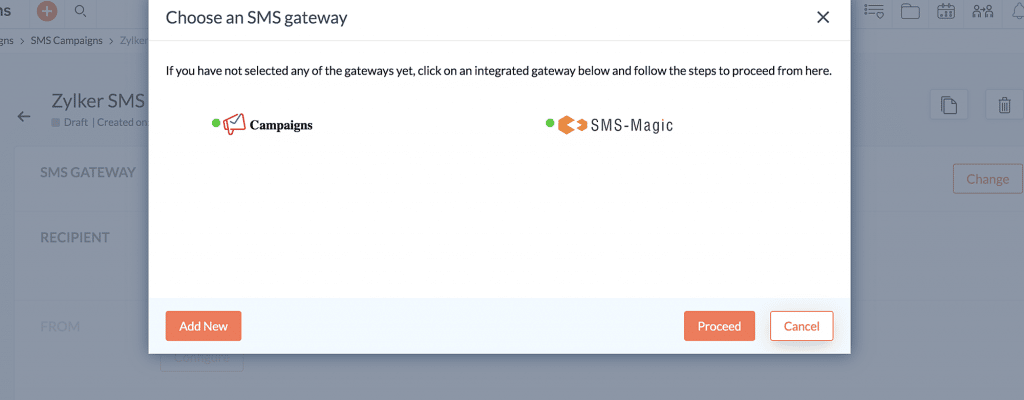
    Zoho Campaigns’ SMS Gateway

    Customers in the United States and Canada can now send SMS campaigns without difficulty. This simplifies the SMS creation process and the identification of duplicate phone numbers. Also, data processing time will be reduced and ensure organized data storage.

    (Image by Zoho)

    Optimization of AI for eCommerce

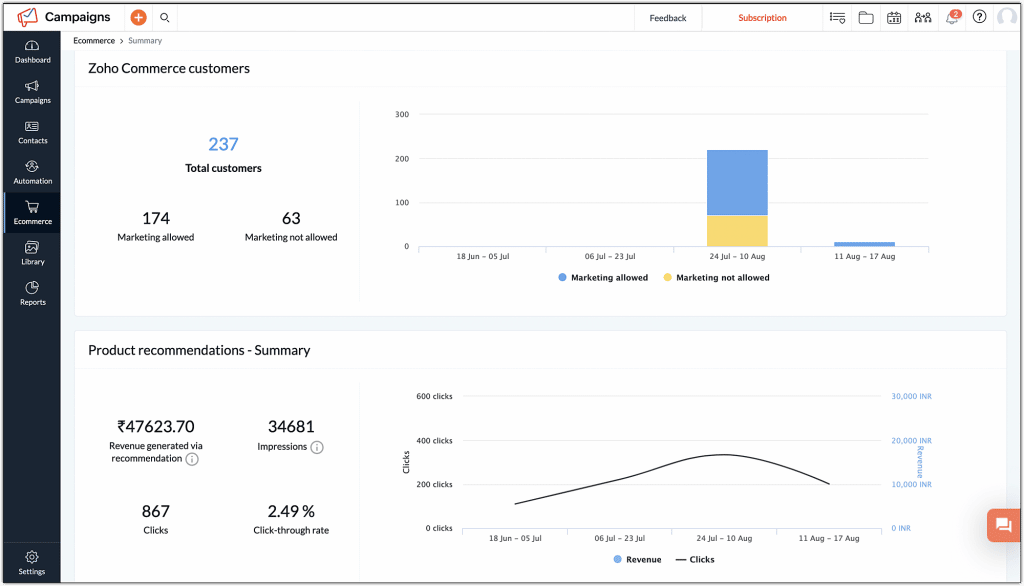
    Zoho Campaigns now has an automated product recommendation system, which is powered by data collated after analyzing shoppers’ buying habits. These recommendations will be basic and advanced. Basic Recommendations include Top Selling and Recently Added options, while Advanced Recommendations include the following options: Similar Products, Frequently Bought, and People Who Also Bought This.

    (Image by Zoho)

    But it doesn’t end there: you’ll get recommendation reports to track and compare the revenue generated from Zoho Campaigns (both via regular and automated emails) with the store’s overall revenue. You’ll see an additional section as well that helps you understand the conversions via the recommendations.

    (Image by Zoho)

    Custom Return Paths

    Excessive bounce rates can have an adverse effect on a domain’s reputation. However,  a return path helps the sender determine the reasons behind email bounces. Zoho Campaigns now enables email marketers to create a custom return path address for themselves. Users can customize their return path and align it with their domain name. This will help to easily pass the SPF alignment in DMARC validation and ensure that the emails that are sent are received in the desired inbox.

    Edit Workflows with Ease

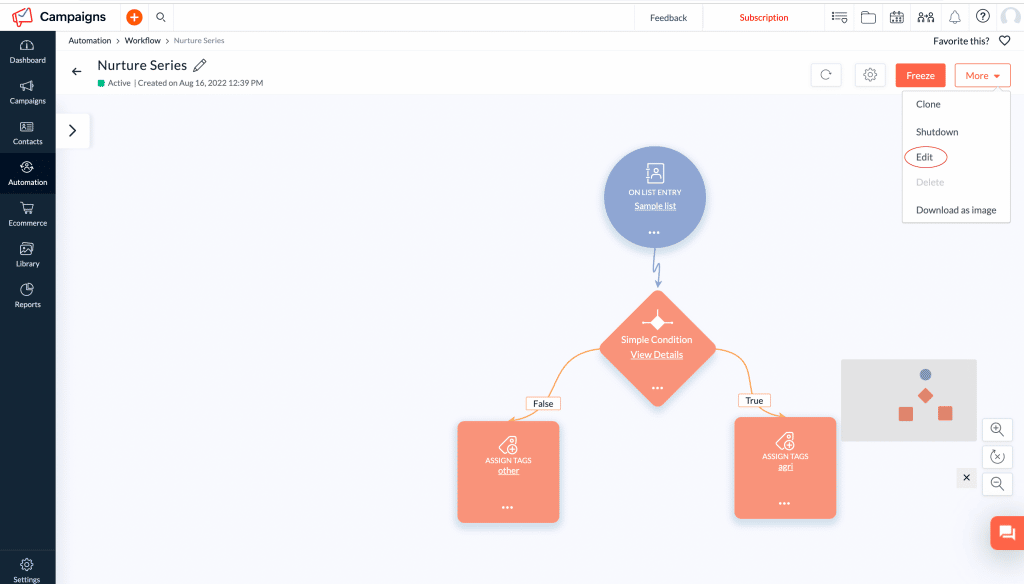
    Users can edit their live workflows without any changes in the flow. Back in the day, if a user edited an active workflow, a new version of the same workflow was created. This has been fixed, so no additional versions of the workflow will be created after a user makes any changes to a live workflow.

    (Image by Zoho)

    Zoho Writer Introduces Workflows to Streamline Document Processes

    (Image by Zoho)

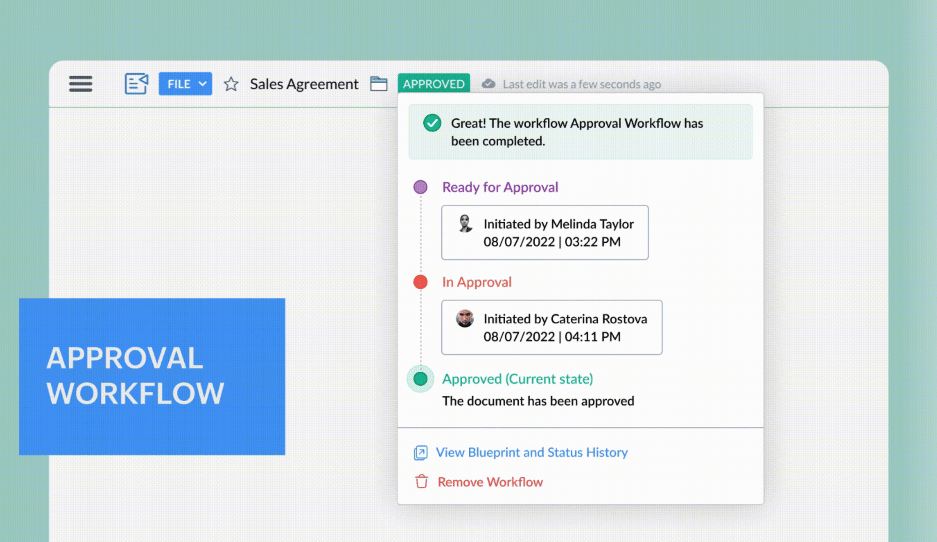
    This new function was created for an easier and quicker way to share and collaborate on documents for review with multi-stage document workflows. You can streamline and standardize business processes and the processes of creating, reviewing, and approving documents across an organization.

    Zoho Writer’s document workflows include the following features:

    • Purpose-Built Workflows: These include four workflows that are ready to use with the option to specify a due date. You can use one or more of these for your document: Review Workflow, Approval Workflow, Editorial Review Workflow, and Review and Approval Workflow.
    • Custom Workflow Triggers and Post-Workflow Actions
    • Controlled Collaboration
    • Real-Time Document Status and Email Notifications
    • Visual Workflow Status Tracker
    • Detailed Workflow History and Audit Trails
    • Document Review Dashboard  

    To go more into depth of these features, and to learn how to assign workflows to your documents and start workflows, take a look at our blog post.

    Zoho SalesIQ’s Smart Suggestions

    Smart Suggestions are reply recommendations that are automatically generated by using the resource section. It helps the chat operators by suggesting appropriate responses while chatting with the visitors. The suggestions are mostly from articles, FAQs, and the small talks package of choice. The objective of this feature is to decrease the amount of time that the resource search might require. It will instantly generate relevant answers to respond the visitor’s queries in a more prompt and efficient manner.    

    How to Enable Smart Suggestions to Your Portal

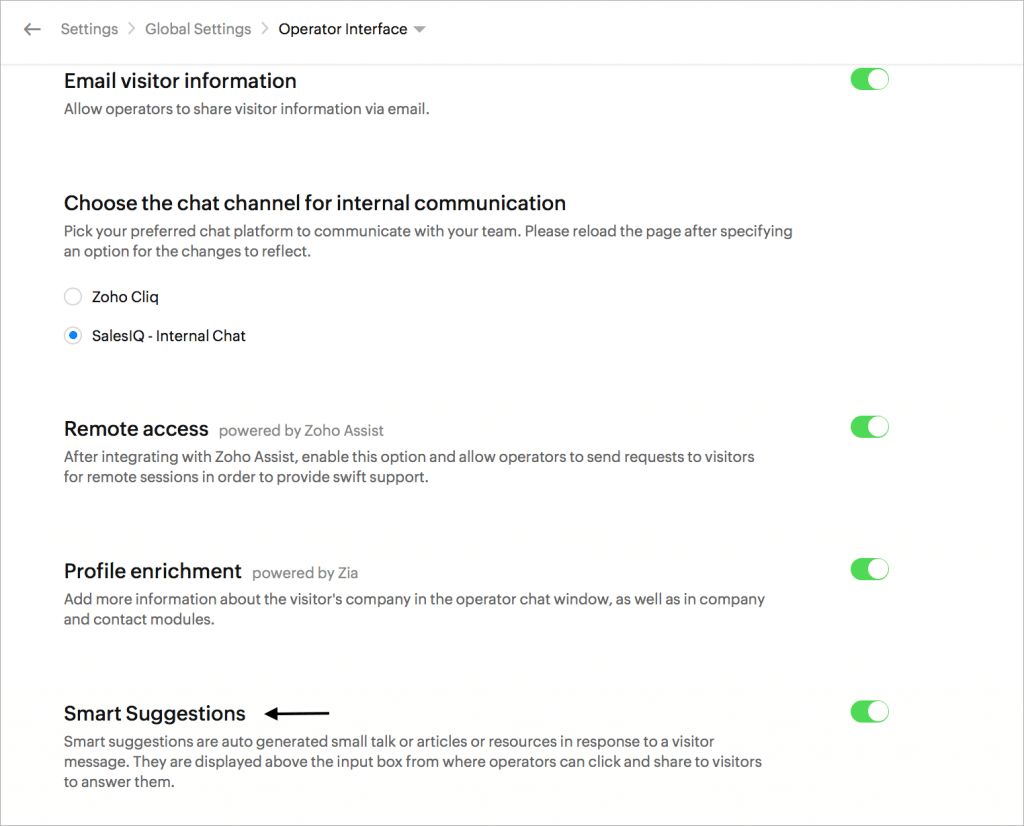
    Go to Settings > Global settings > Operator Interface > Smart Suggestions and toggle the Enable button.

    (Image by Zoho)

    Configuring Smart Suggestions as an Operator

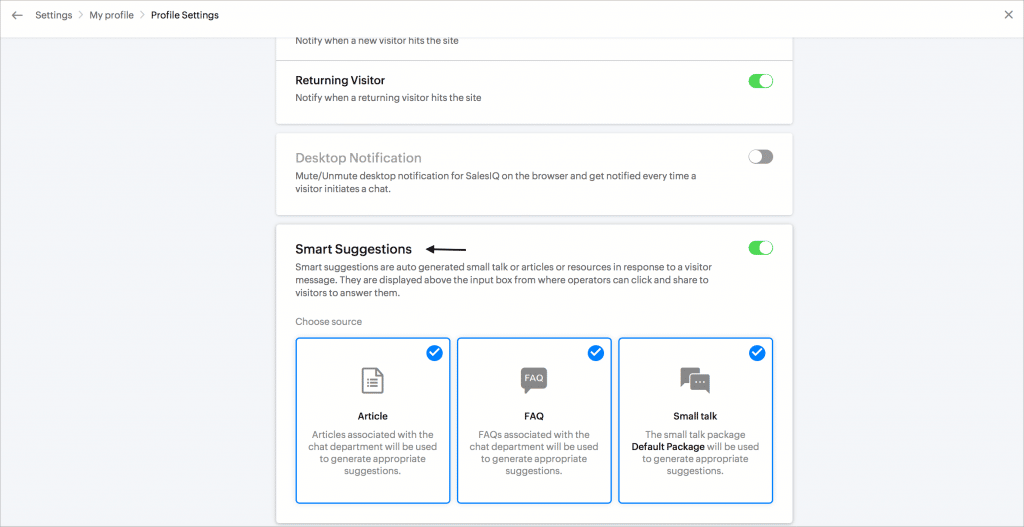
    Go to Settings > My Profile > Smart Suggestions. Here, they can enable/disable the resources they’d like to be included in the suggestions.

    (Image by Zoho)

    Smart Suggestions in the Operator Chat Window

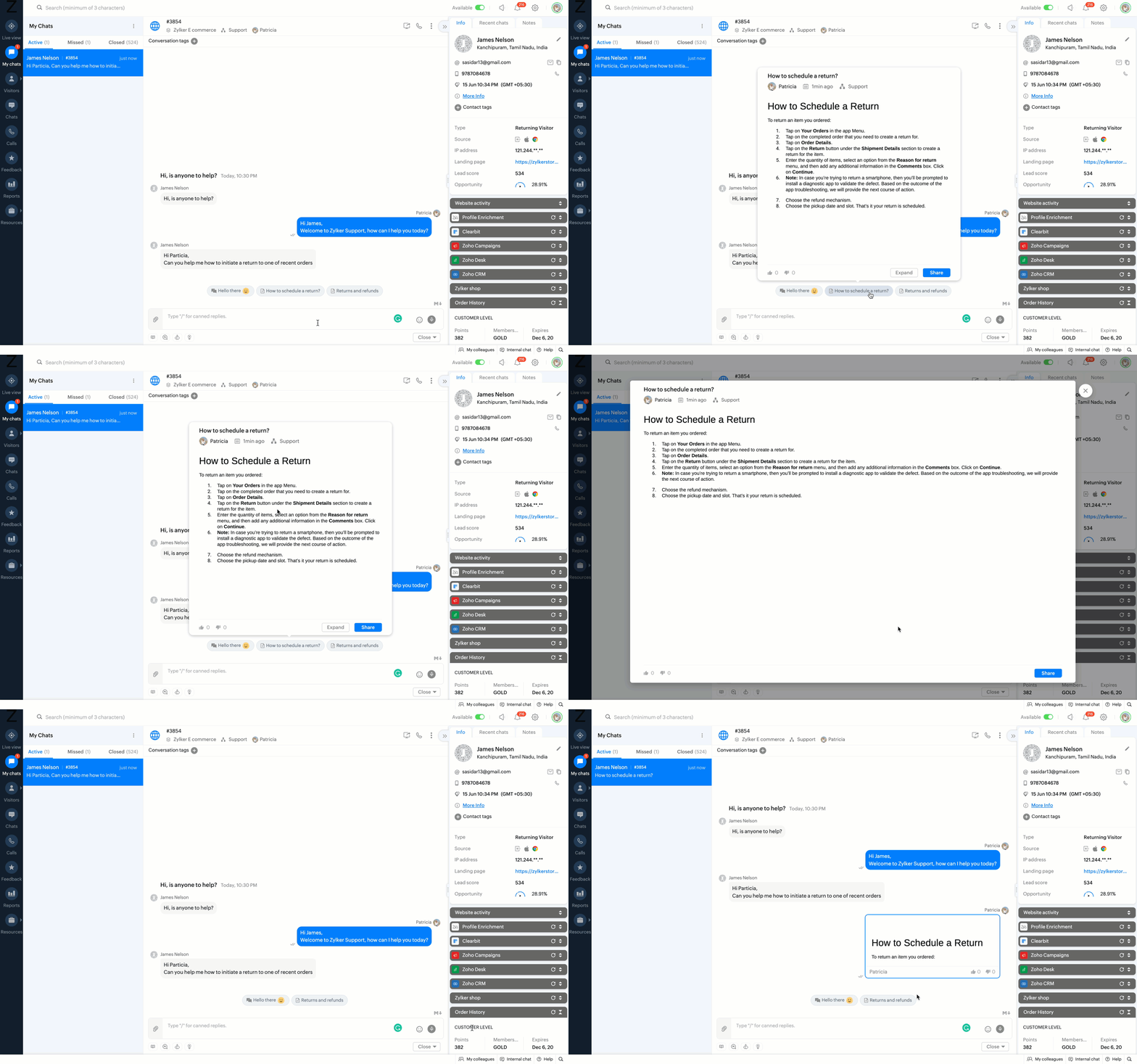
    The operators will get suggestions based on the questions they get from the visitor. Operators can click on the suggestion to preview the answers. Then, they can click on Share to send the article/FAQ to your visitor and Expand to view them on full screen.

    The Smart Suggestions will only work if there is a match to the visitor’s questions in your resources section.

    (Video by Zoho)

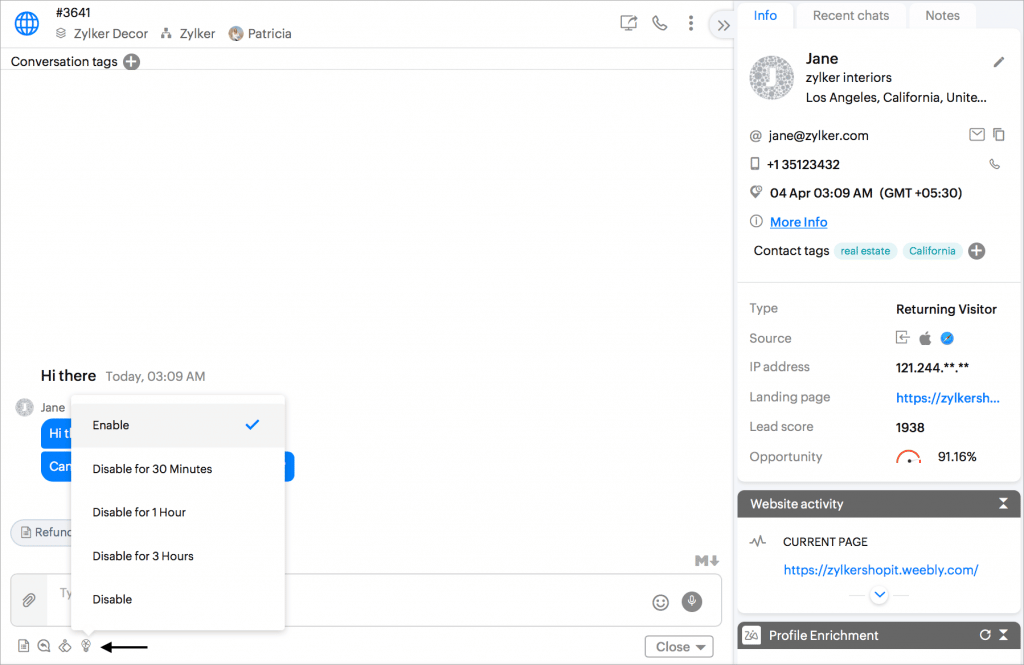
    You can temporarily enable or disable the suggestions from the operator chat window by clicking on the Smart Suggestions bulb icon under the compose box area.

    (Video by Zoho)

    Currently, Smart Suggestions are only supported in English and in the enterprise plan of Zoho SalesIQ.

    Zoho Meeting and Zoho Flow Integration Now Automates Meeting Workflows

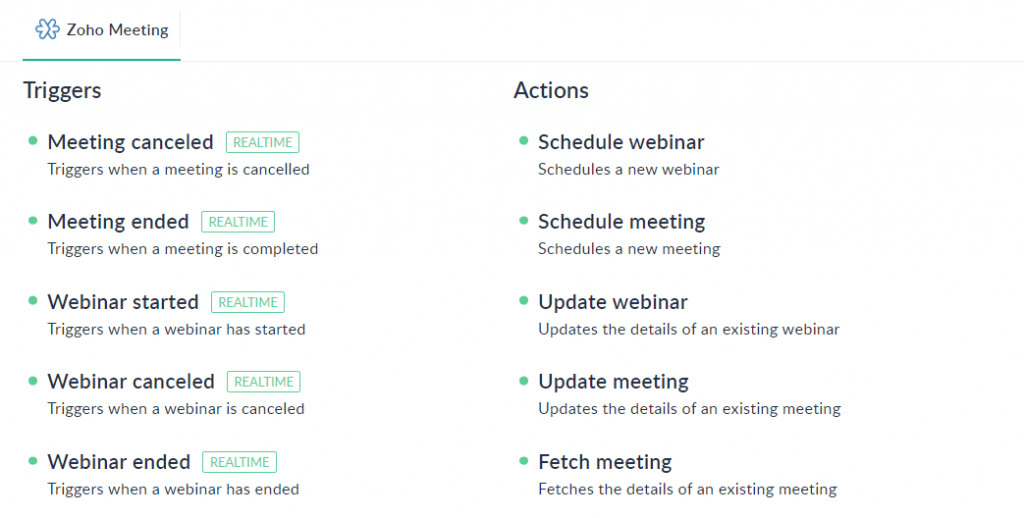
    Zoho Meeting comes with a total of 13 triggers and 6 actions that can be used to automate your business workflows on Zoho Flow.

    Here are some of the uses of this integration:

    • Zoho Meeting and Zoho Cliq: Scheduling an online meeting or webinar in Zoho Meeting instantly sends out meeting invitations with the joining link in a specific Zoho Cliq channel.
    • Zoho Meeting and Google Calendar: When scheduling new meetings or webinars, the events can be automatically added to Google Calendar.
    Zoho Meeting has 13 triggers and 6 actions that can be used to automate your business workflows on Zoho Flow. (Image via Zoho)

    How to Enable the Zoho Meeting and Zoho Flow integration

    1. Create your meeting workflow by entering its name.

    2. Choose the app-based trigger to create the workflow.

    3. Select Zoho Meeting from the list of apps and choose a Zoho Meeting trigger.

    4. Create a new connection or select an existing one to be used for workflows in your account.

    5. Choose an app and drag a specific action to the builder that gets triggered when an event happens in Zoho Meeting.

    6. Turn on the workflow to complete the automation.

    Zoho Flow’s builder shows a clear workflow arranged between applications without the need for coding. Furthermore, you can monitor the history of your workflow and check for any issues, if necessary.

    TikTok, Instagram Reels and Stories, and YouTube Shorts on Zoho Social

    TikTok

    You can now plan, post, and collaborate on videos for TikTok from Zoho Social. Plan a post for later with a custom schedule feature or post it right away from the publish window. Publishing trending videos on Zoho Social’s desktop platform and via their mobile app can help you engage with your community and attract new followers. You can also add a catchy description for your video and include emojis from the emoji tray. In addition, you can group and add trending and relevant hashtags to include them in your post in one go.

    Zoho Social’s content calendar for Tik Tok. (Image by Zoho)

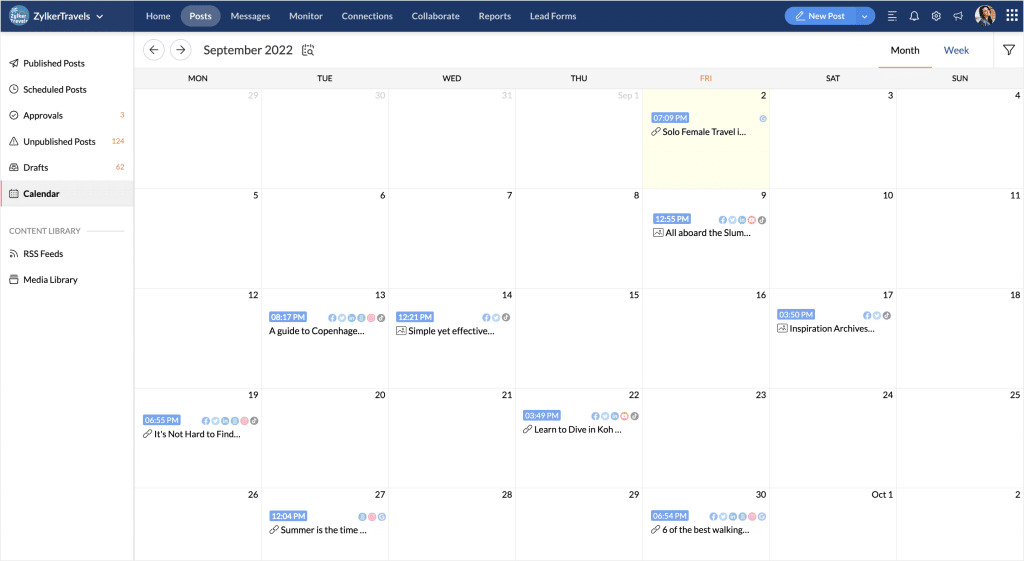
    Zoho Social’s centralized content calendar helps you organize all your videos in a single view and determine your planned TikTok content strategy and marketing, while keeping track of content plans across platforms. View the weekly and monthly posts from each of your connected channels at once.

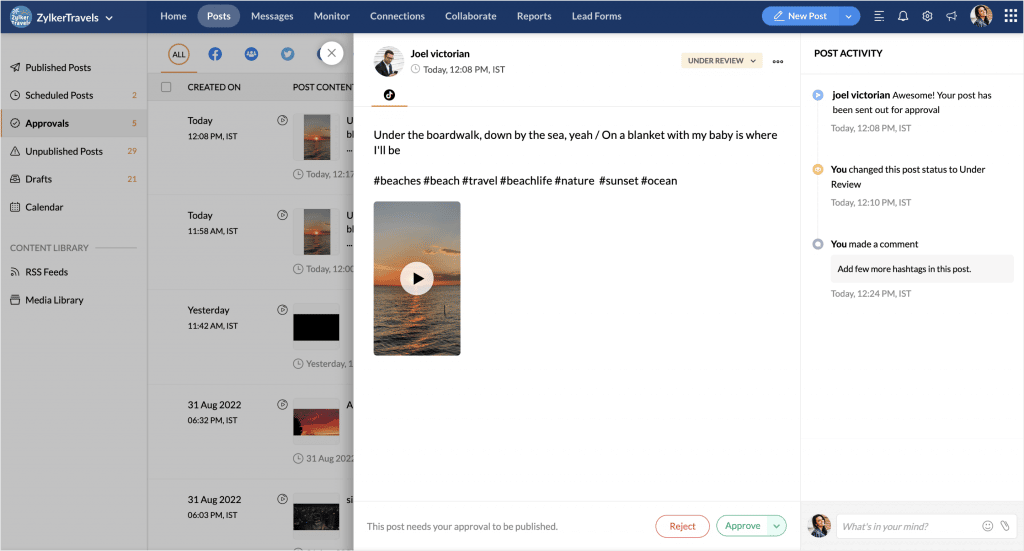
    Easily move material around a structured pipeline thanks to the Workflow and Content Approvals features. Create your own approval system and streamline your publication process for social media. With the approvals dashboard, you can designate specific team members as approvers who will review and publish drafts, as well as contributors or publishers who will be able to generate and submit drafts for review. Now teams can have more editorial control over the distributed content.

    (Image by Zoho)

    Instagram Reels

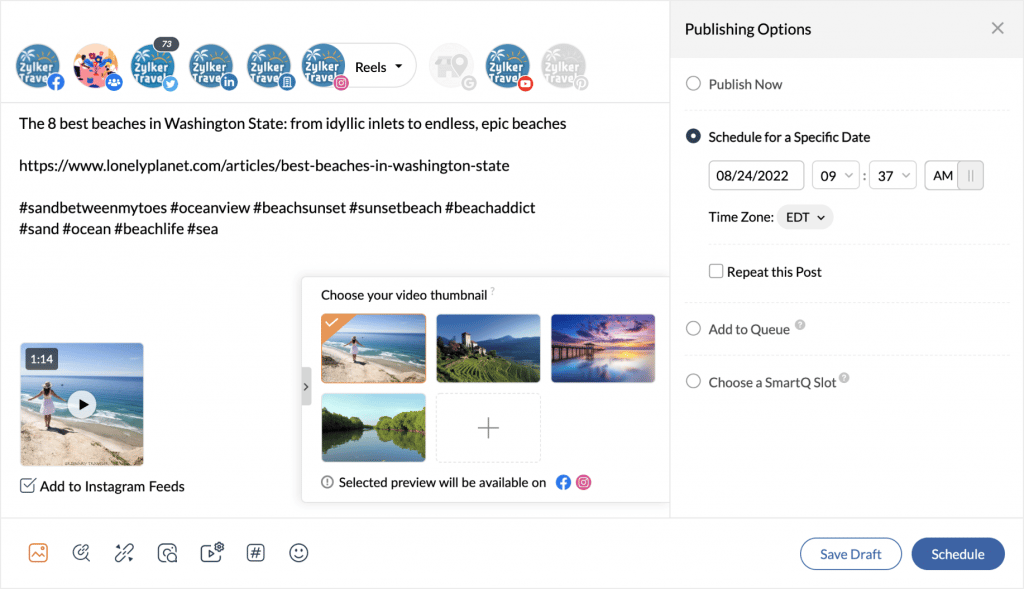
    Plan and publish Instagram Reels; view and reply to incoming mentions and comments; and see the number of likes, views, and plays your reel has received. Choose to auto publish your Instagram Reels, schedule them for a specific date, or choose to publish on the best day/time using Smart Q.

    Also, you can select the thumbnail you want to use as a cover image for your reel from the suggested options, or choose your own frame from the video and have the option to post it both on your grid and the Reels tab.

    (Image by Zoho)

    Instagram Stories

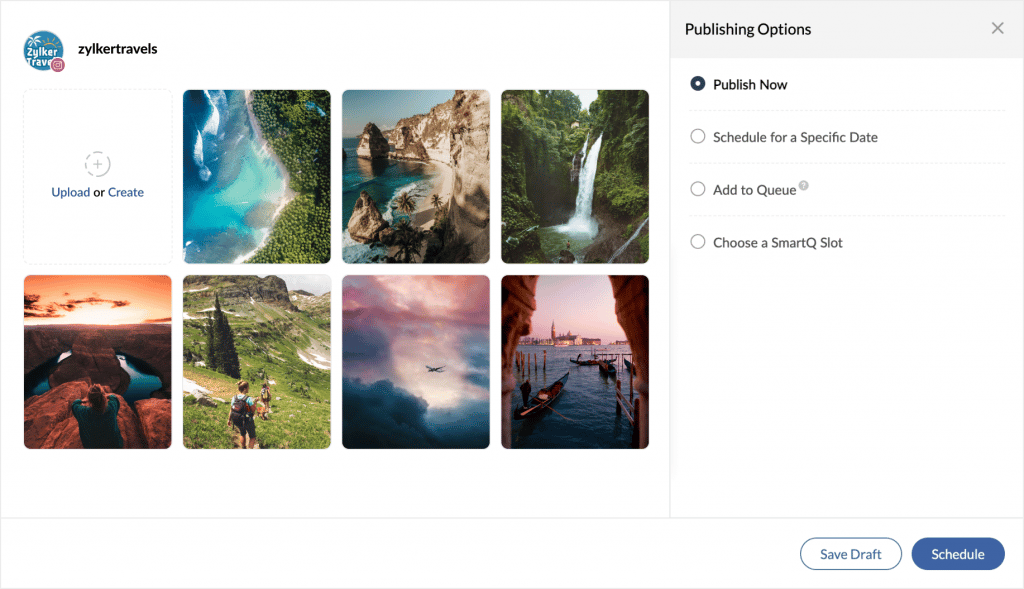
    Plan and create your Instagram Stories in advance. Publish immediately or schedule for later, preview to see how the story will appear on your profile, and add captions to each story.

    Access a variety of unique custom stickers in Zoho Social, and apply filters to customize the look of your story and build it from scratch. The Zoho Social mobile app allows users to manually post the stories you’ve created using the web app. You’ll receive a Publishing Notification at the selected time and date based on the publishing option you chose. Also view story stats for each story: number of impressions, reach, replies, exits, and taps forward and backward.

    Moreover, you can identify top stories, analyze how your story has performed based on engagements received over a period of time, assess the completion rate of your story, and much more from the Reports tab.

    YouTube Shorts

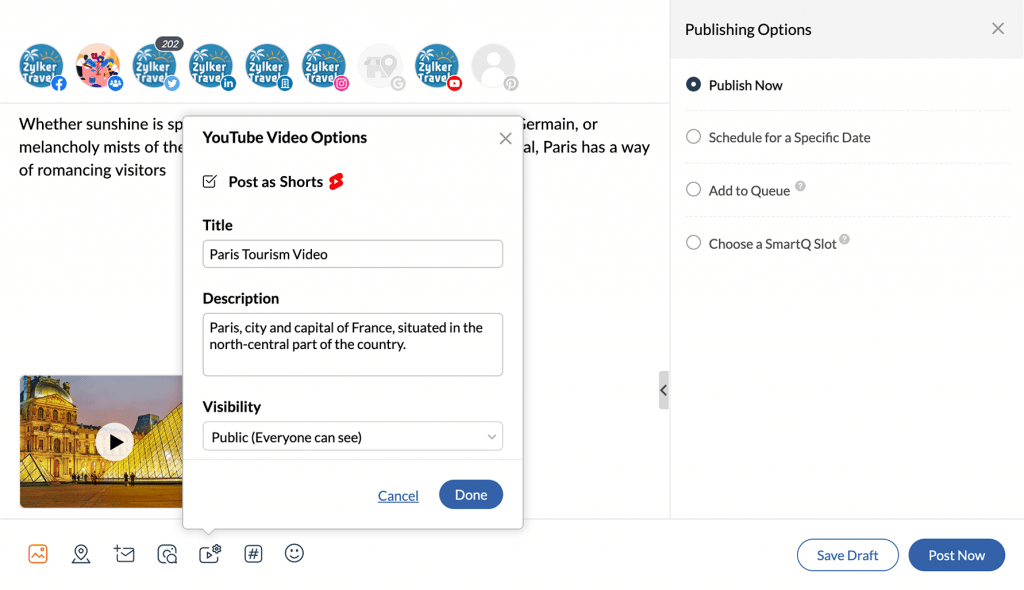
    Create a quick teaser for a longer video and upload it as a Short from Zoho Social’s publishing window. Additionally, you can use interesting captions, modify the thumbnail, add relevant hashtags, and control visibility.

    (Image by Zoho)

    New Zoho Tutorials

    Migrate from Dropbox to WorkDrive

    https://youtu.be/NXBEaTSxnGs

    Zoho Notebook and Microsoft Teams Integration

    Zoho Meeting Included in Constellation ShortList Virtual Events: Webcasts and Meetings

    (Image via Constellation ShortList.)

    The Constellation Shortlist evaluates more than 30 categorized webcast and meeting solutions. This Constellation ShortList is determined by client inquiries, partner conversations, customer references, vendor selection projects, market share, and internal research.

    The criteria that made Zoho Meeting a recipient of this recognition are:

    • Capacity to host live audio (audio and slide/content), play video and prerecorded sessions
    • Registration with flexible form fields for lead capture, including organizing an event series
    • Customized branding and console configuration
    • Quick, stable, reliable connectivity with toll-free, international calling and access
    • Multihost, scalable speaker and producer interface
    • Pre- and post-event communications, alerts, calendar invitations and reminders
    • Multibrowser responsive user experience, installed app for Mac and Windows, native mobile apps
    • Live audience engagement tools, polls, voting, chat, comments, screen mark-up, Q&A
    • Integration into key engagement systems including social, mobile messaging and marketing automation
    • Integration into customer and employee data repositories including CDP, CRM, and HCM tools
    • Recording and rapid on-demand availability, commerce-ready gateways and monetization
    • Integration with digital asset management solutions for rapid video aggregation and editing capabilities
    • Security, role-based access and authorization; customer viewer controls
    • Analytics and robust reporting, viewers (live versus on-demand), attention, downloads
    • Support, training, and community for customers
    • Accessibility features, including real-time voice transcription and translation

    That’s all for now, IC readers! See you soon for more Zoho updates from InterConnecta!

    Need help with the implementation or optimization of any of your Zoho apps? Then you’re in the right place! Learn more about our Zoho Consulting Services and ask us for a free consultation.

  • Zoho Writer Introduces Workflows to Streamline Document Processes

    Zoho Writer has introduced an easier and quicker way to share and collaborate documents for review: the multi-stage document workflows. This new function lets you streamline and standardize business processes, as well as the processes of creating, reviewing, and approving documents across an organization.

    To make it happen, just start the workflow to notify all designated actors (reviewers, assigners, and approvers) who can either suggest changes or approve the document.

    Zoho Writer’s approval workflows were created with many useful capabilities to streamline your organization’s document lifecycle management and approval processes. Let’s take a look at each workflow:

    Purpose-Built Workflows 

    (image via Zoho)

    Zoho Writer includes four workflows that are ready to use with the option to indicate a due date. Once in place, reviewers or approvers will receive email reminders to act on the documents before the deadline is up. This gets rid of the trouble of sending multiple reminders and follow-ups to have your documents reviewed or approved. Please note that you can use one or more of these four workflows for your document management needs.

    • Review Workflow: Get your team members, co-authors, peers, or subject experts to review your document and recommend suggestions. This will help achieve writer-expert synergy for white papers, case studies, and more.
    • Approval Workflow: Receive formal document approval from your manager or process owners. This workflow enables timely approvals for any document type.
    • Editorial Review Workflow: Send documents to the editorial team for review. Include a due date so they can prioritize and delegate it to the right editors, and complete the approval process on time.
    • Review and Approval Workflow: This one allows articles to be reviewed by your group of experts or collaborators, and then approved by your manager or assigned DRIs in a sequence.

    Custom Workflow Triggers and Post-Workflow Actions 

    (Image via Zoho)

    Workflows can be triggered automatically or manually, as required. For example, you can set the workflow to automatically begin when the document owner marks it as “Ready.”

    When the workflow is completed, you can use the prebuilt actions library to add a watermark to the final document, move it to a specific folder, rename it, publish it on a platform, among other options. Also, you can configure your own post-workflow action.

    Controlled Collaboration  

    (Image via Zoho)

    Control who can do what action and when. At every stage of the workflow, only authorized collaborators can work on the document. This means that, for example, once a document is submitted for review, only the reviewers are allowed to make changes, while others can only add comments.

    Real-Time Document Status and Email Notifications

    (Image via Zoho)

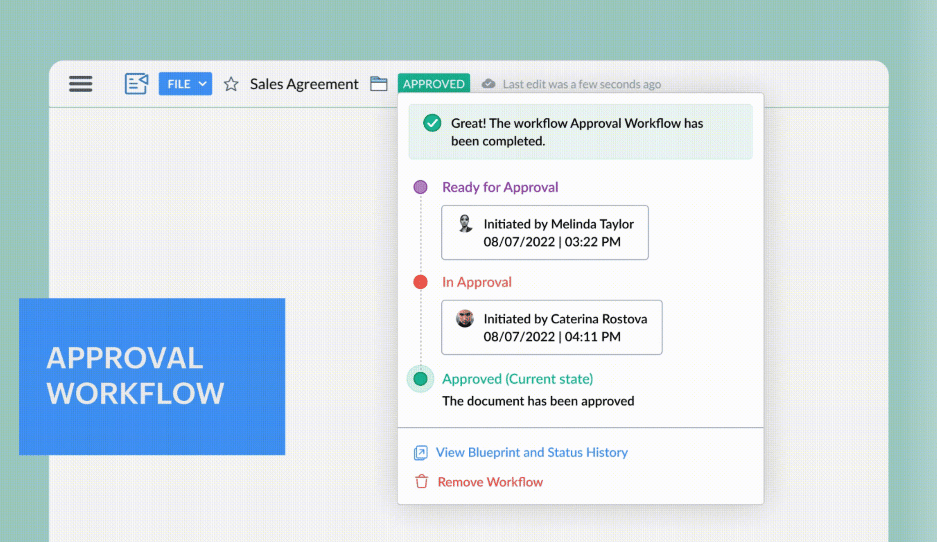
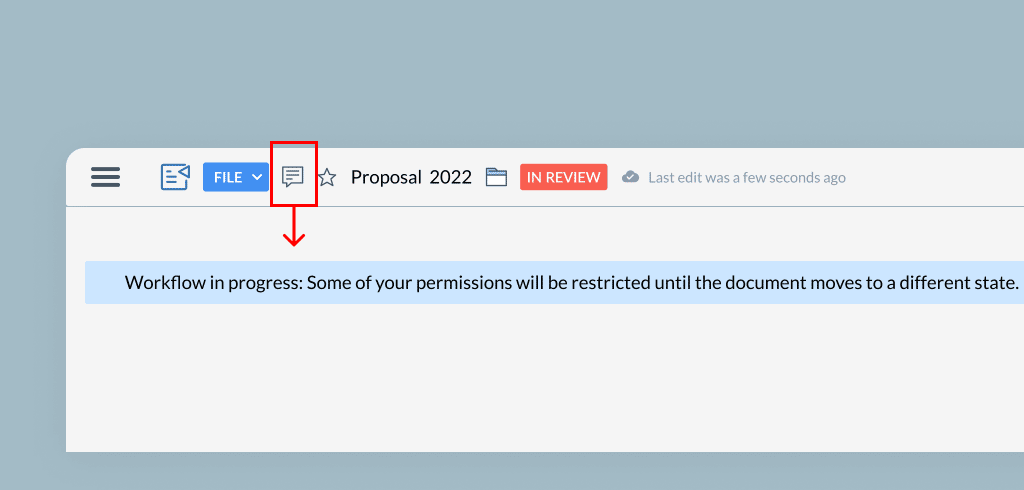
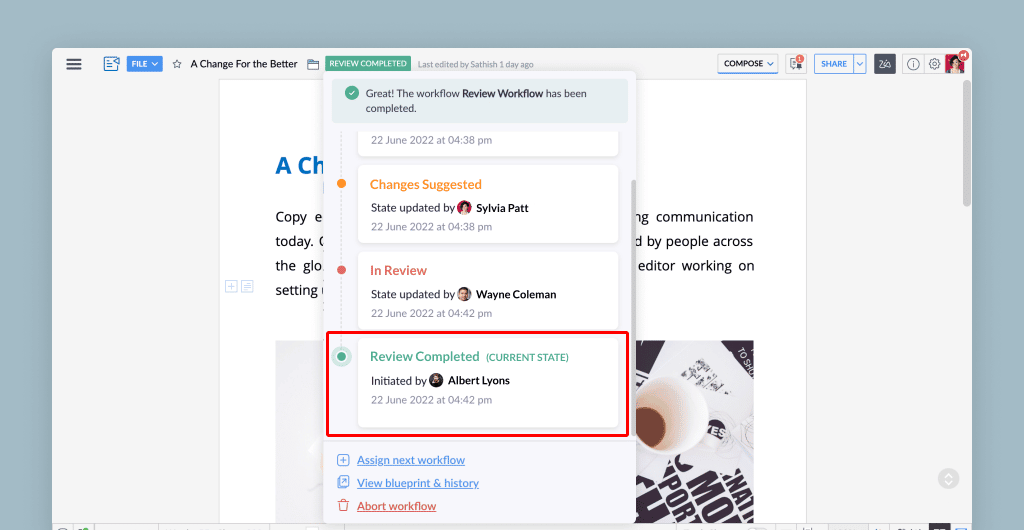
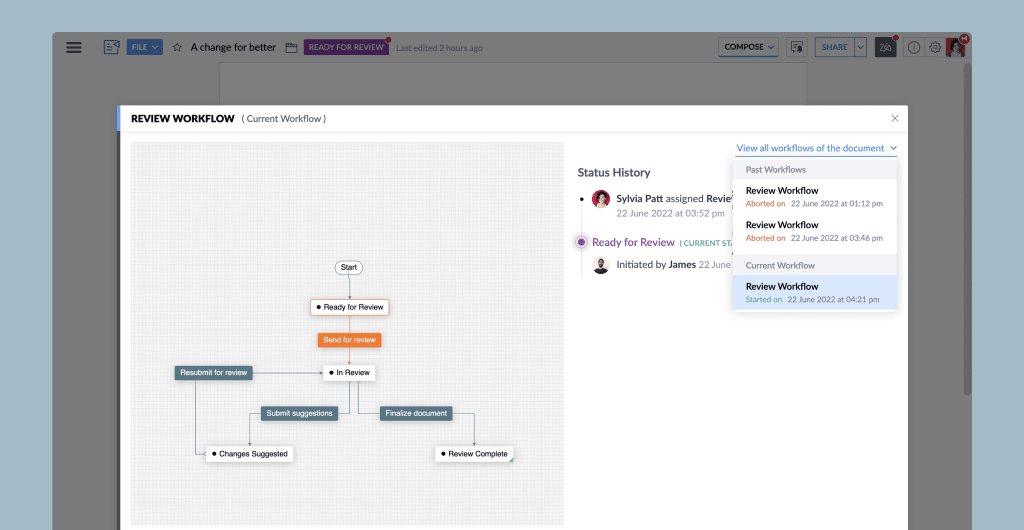
    The status and notifications allow you to easily identify your document’s stage in the process with the in-product status notifier. As your document progresses through the workflow, you can see its stage at the top of the document. The status are: Ready for Review, In Review, Changes Suggested, In Approval, and Approved. Zoho Writer also informs all stakeholders about the document’s status with real-time email notifications.

    Visual Workflow Status Tracker 

    (Image via Zoho)

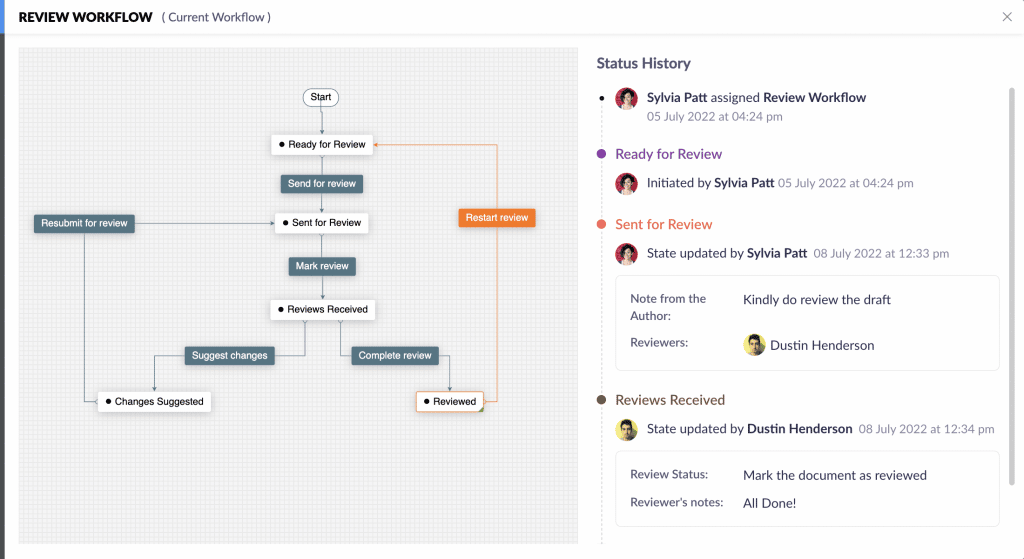
    See your document’s journey through the workflow to view its status and act accordingly.

    Document Review Dashboard  

    (Image via Zoho)

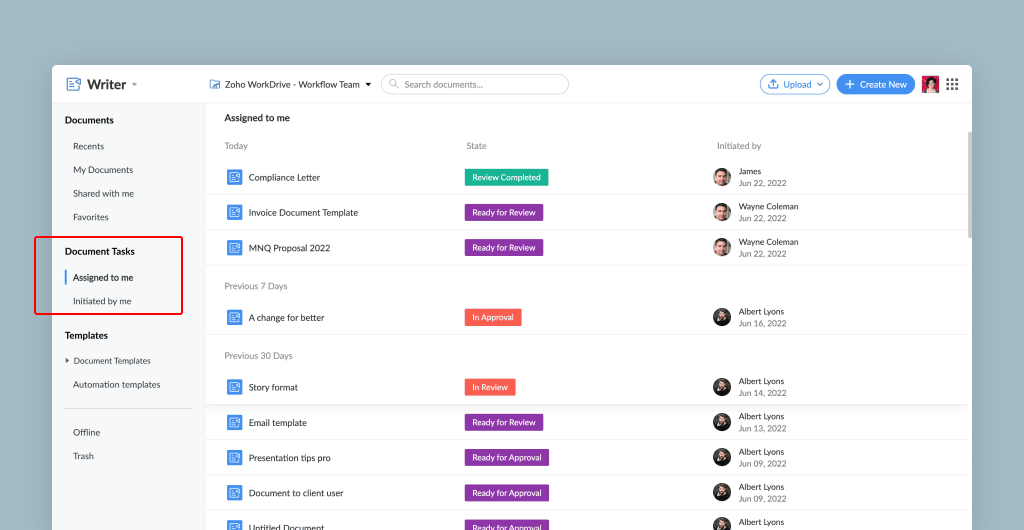
    Quickly view in Zoho Writer’s dashboard the status of all documents that you’ve submitted for review, as well as the ones that are pending your action. Therefore, you won’t have to navigate through different documents or pages to check any status.

    Detailed Workflow History and Audit Trails

    (Image via Zoho)

    View a thorough history and audit trail for all workflows to fulfill compliance regulations with answers to these three important Ws: who performed what action and when. Click the Time link in the workflow history to see versions of the document at each stage.

    In addition, workflow history helps you learn which stage of the workflow is consuming the most time, so you can detect ways to improve your workflow or processes.

    How to Activate Document Workflows for Your Organization

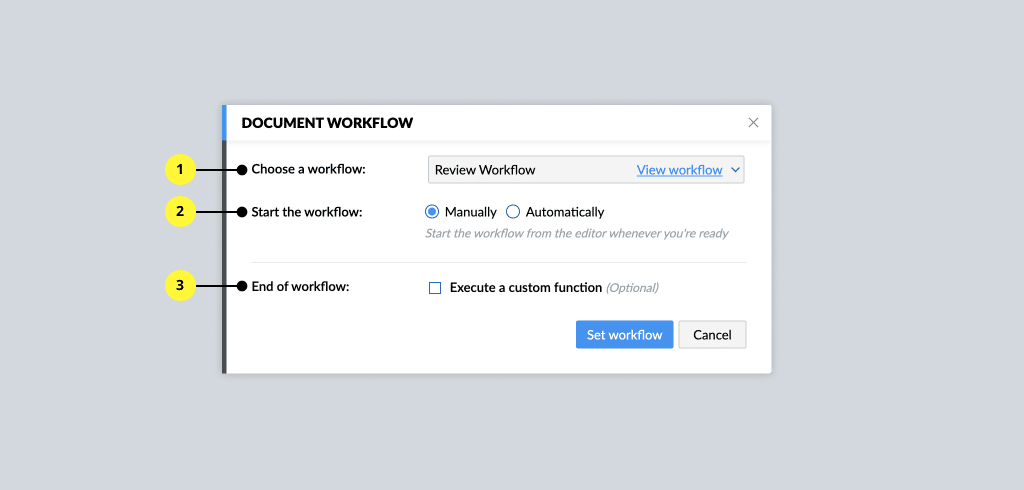
    1. On the right-hand side, go to your Profile > Admin Panel > Configuration > Workflow Settings.

    2. Check if you have sufficient permission to access the workflow feature. If not, contact your super admin to enable this feature for your organization or team.

    How to Assign Workflows to Your Documents

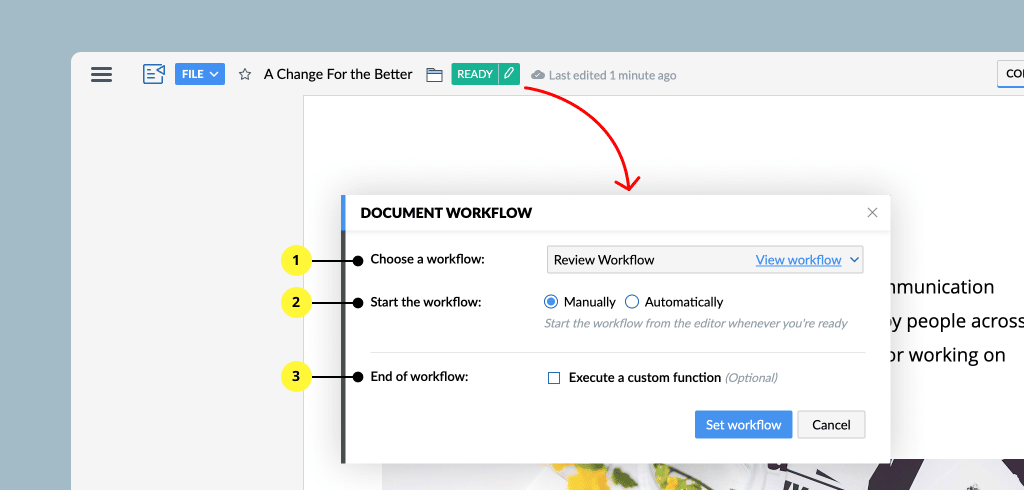
    Assigning workflows can only be done to Zoho WorkDrive documents. To assign a workflow, follow these steps:

    1. Go to WorkDrive > Team or Organization’s Folder > Document.

    2. Click File > Assign Workflow.

    3. Choose a workflow.

    4. Select when to start the Workflow (manually or automatically).

    5. Optionally, configure what action to perform after Workflow.

    (Image via Zoho)

    How to Start a Workflow?

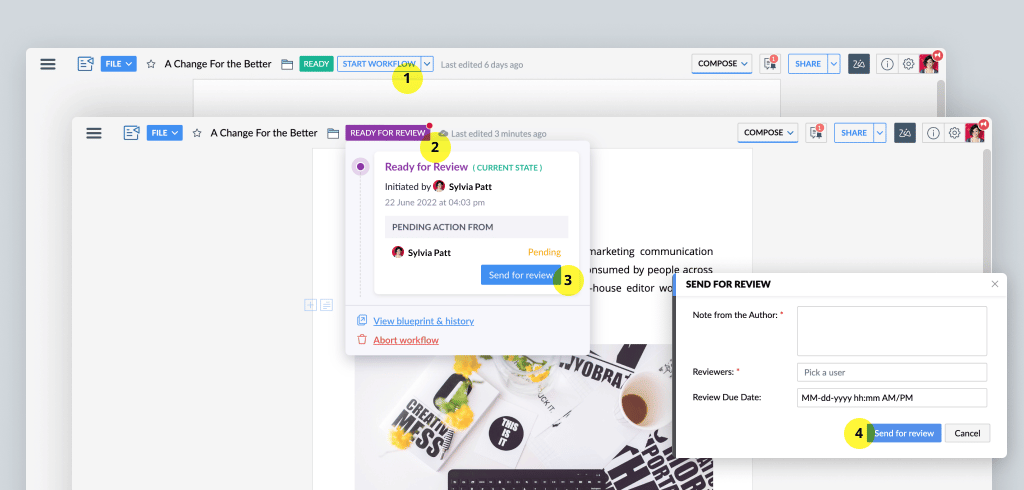
    1. Assign a workflow with the help of the mentioned steps above.

    2. When the document is ready, click Start Workflow.

    3. Based on the workflow you have chosen, pick an assigner or a reviewer/approver to start the workflow.

    (Image via Zoho)

    To read the full article, click here.

    Need help with the implementation or optimization of Zoho Writer, or your other Zoho apps? Then you’re in the right place! Learn more about our Zoho Consulting Services and ask us for a free consultation.

  • Zoho News Catch-Up: Zoho CRM Updates, Zoho SalesIQ and Telegram Integration, Zoho Sign SMS Delivery

    Welcome to our catch-up, where you’ll be in the know of all the latest Zoho updates in one place!

    • Send documents for signature via SMS with Zoho Sign
    • Zoho Social now includes hashtag groups and carousel posts for Instagram
    • Zoho hits 80 million global users mark, 38% in growth

    Zoho CRM Updates

    Zia Next Best Experience

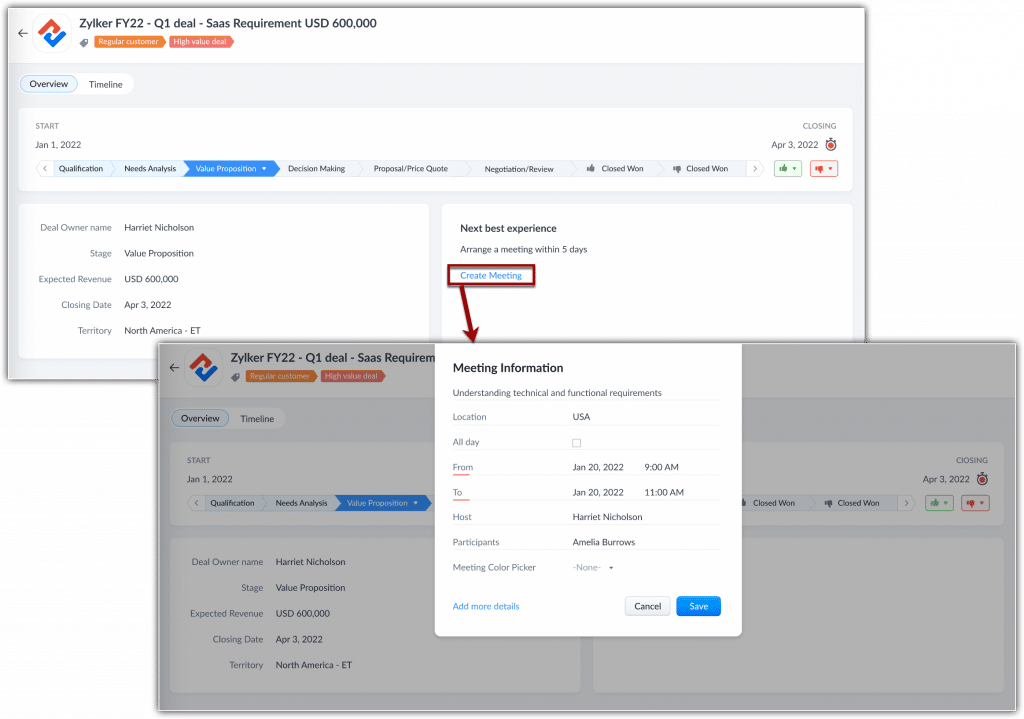
    When this feature is enabled, Zia monitors all currently open and active deals in your organization. It will analyze the deal stage and identify the next best experience that you can provide and prompts you to take action.

    These suggestions are computed when Zia studies closed deals and analyzes how long it took for similar deals to progress from one stage to another. After gathering the required information, Zia correlates patterns and behaviors, like deal type, repeat customers, industry, and more to suggest your next steps.

    How to View and Act Upon Suggestions

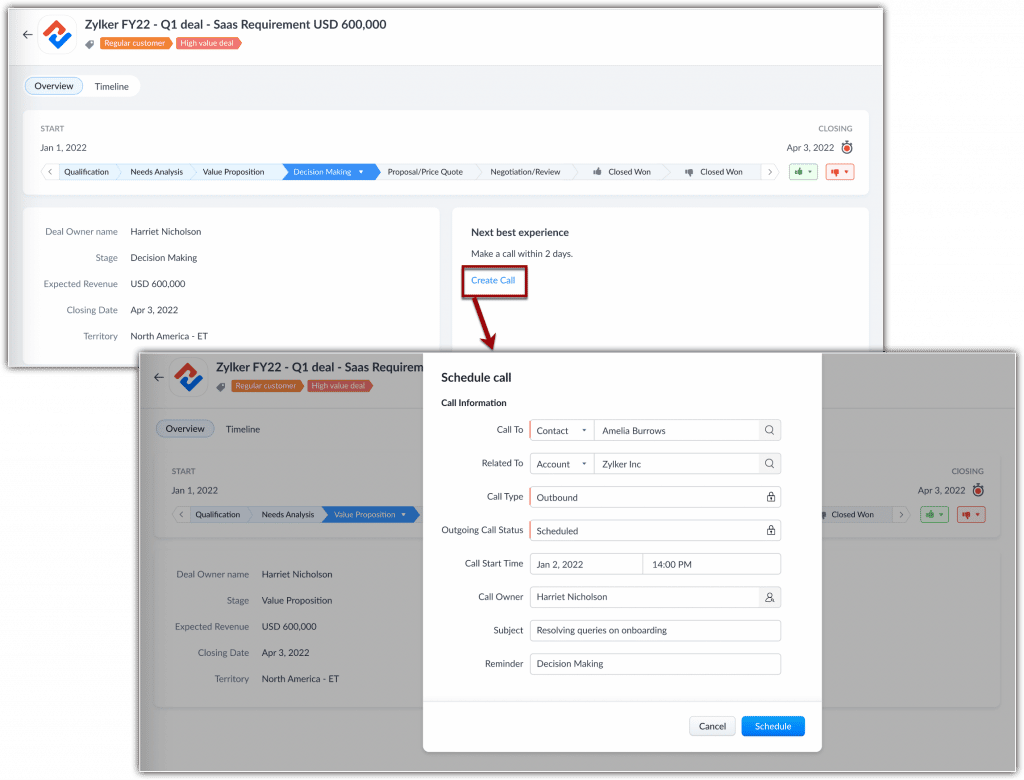
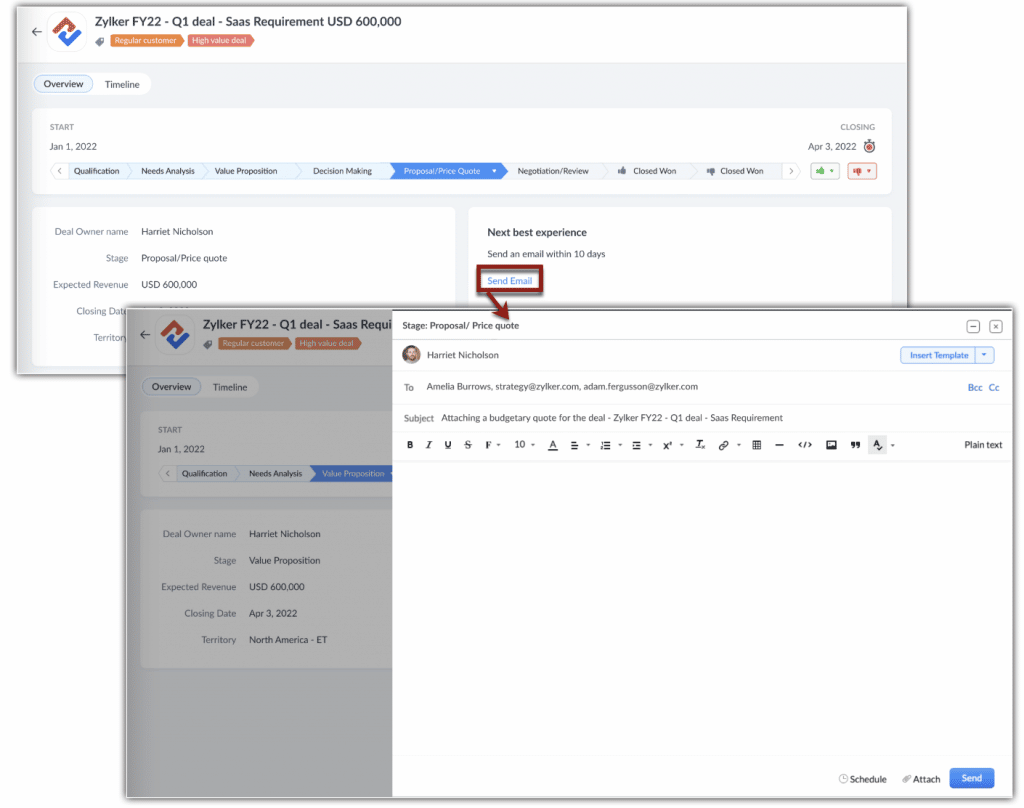
    Zia’s Next Best Experience suggestions are shown as a widget inside the deal. Depending on the deal’s stage, Zia gives you three types of calls to action:

    Arrange a meeting

    Image via Zoho.

    Schedule a call

    Image via Zoho.

    Send an email

    Image via Zoho.

    When you click on these call-to-action prompts, you can directly schedule a meeting, make a call, or compose an email.

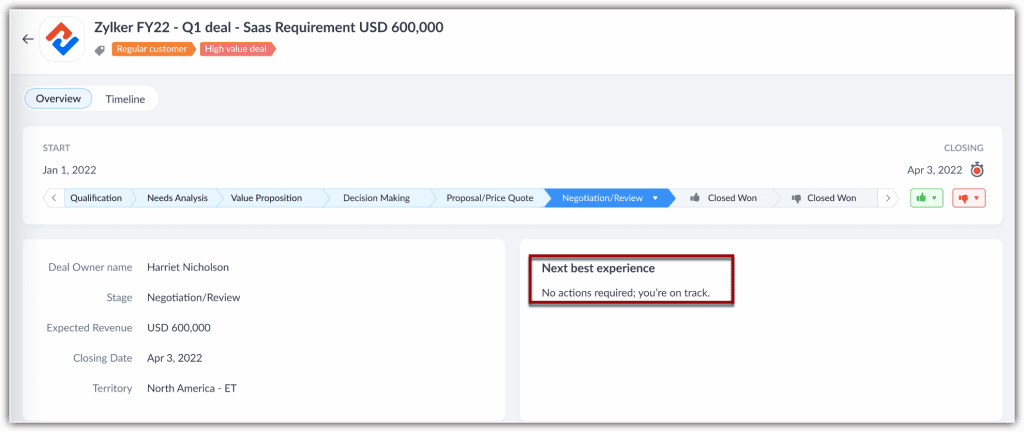
    If deal correspondences are already going at the right pace and Zia predicts no action at that moment, the widget will display the following message: No actions required; you’re on track.

    Image via Zoho.

    How to Enable Zia Next Best Experience

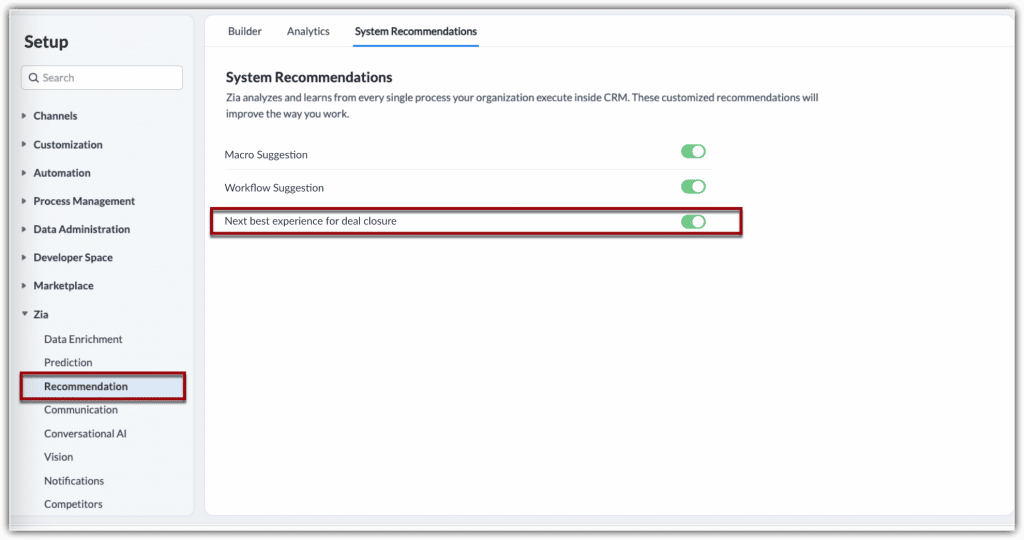
    1. In your Zoho CRM, go to Setup > Zia > Recommendation > System Recommendation.

    2. In the System Recommendations page, click on the botton alongside Next best experience for deal closure. Once it’s green, it means the function has been enabled.

    Image via Zoho.

    Availability

    All users can view this recommendation. Users with administrative privileges can enable it for the organization.

    Currently, Zia’s Next Best Experience feature is available only for:

    • Organizations with 20 or more user licenses.
    • Organizations in US, EU, IN, CN and AU DCs.

    Notes:

    • Suggestions are available only in the Deals module and they will be displayed only for the open deals that are active. Deals that remain dormant and inactive before this feature is enabled will not receive suggestions.
    • It takes 24 hours for Zia to learn and suggest the actions for your ongoing deals.
    • A minimum of 500 deals that are Closed Won, each with activities (calls, emails, meetings or tasks) are required for Zia to learn and show suggestions.
    • Zia suggests the actions you should take and the timeline within which you should take them based on historical data, which you can’t modify.
    • If you miss the timeline suggested by Zia, or if you receive an incoming correspondence from the prospects before you take an action, Zia recalibrates its findings and provides a new suggestion.
    • To make calls, your CRM organization must have a telephony service integrated.
    • To send an email from your CRM organization, you must have the new email configuration integrated.

    Campaign Monitor Extension for Zoho CRM

    Campaign Monitor is an email marketing software that has automation tools to build emails and run campaigns. The Campaign Monitor extension for Zoho CRM lets you synchronize all your campaigns from your Campaign Monitor account to Zoho CRM. You can access synchronized campaigns from the Campaigns module and contact details from the Contacts and Leads modules in Zoho CRM. Get the extension here.

    Zoho CRM Integration with Zoho Lens

    • Remote Assistance Sessions: Now you can assist your prospects and contacts remotely and efficiently.
    • Using Zoho Lens, you can save time by recording your remote assistance sessions and sharing them with your contacts in a few clicks. Additionally, you can conduct internal audits and analyze your support efficiency by generating comprehensive session reports. Administrators can effectively monitor technician activity through the Action Log Viewer in Zoho Lens.
    • Live Camera Streaming: View a live stream of your contact’s smartphone camera and provide remote assistance directly from your computer.
    • AR Annotations: Highlight 3D objects in real-time using Zoho Lens’s ubiquitous virtual annotation technology. Annotate and point out 3D objects, and offer helpful context.
    • Image Freeze: Instantly freeze your incoming camera stream and capture screenshots to analyze the situation more comprehensively. Document and organize your screenshots to instantly highlight specific events during the remote assistance session.
    • Customization: Personalize your augmented reality-based remote assistance sessions using Zoho Lens’ rebranding options. Add your logos, names, and favicons to your Zoho Lens portal. Also, you can customize the portal URL to each of your organization’s prospects.

    Note: This integration is available for free. Just install Zoho Lens from Zoho CRM’s Marketplace.

    Zoho SalesIQ Integration with Telegram

    This integration will allow you to grow your audience by promoting your business and chatting with your visitors via the Telegram bot. Also, engage and chat with Telegram users and allow them to contact your operators immediately, and assist your visitors with media (images, videos, among others).

    How it Works

    • The Telegram channel add-on can help ease the process of navigating to your website to initiate conversations.
    • The bot feature in Telegram acts as a communication bridge that allows operators to communicate with your visitors.
    • Visitors can initiate a chat request by sending a message via bot. The operator can pick up the chat from the SalesIQ chat window and assist the visitors.
    • Users can have all the chats and media securely stored in their Telegram account without losing any of the data.

    How to Enable the Telegram with Zoho SalesIQ Integration

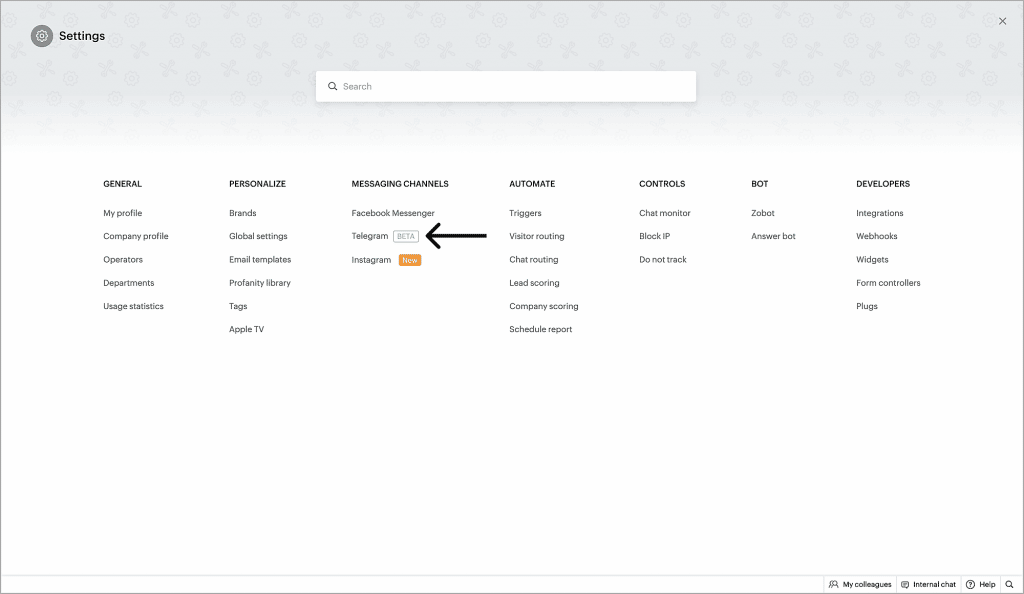
    1. Go to SalesIQ > Settings and click Telegram under Messaging Channels.

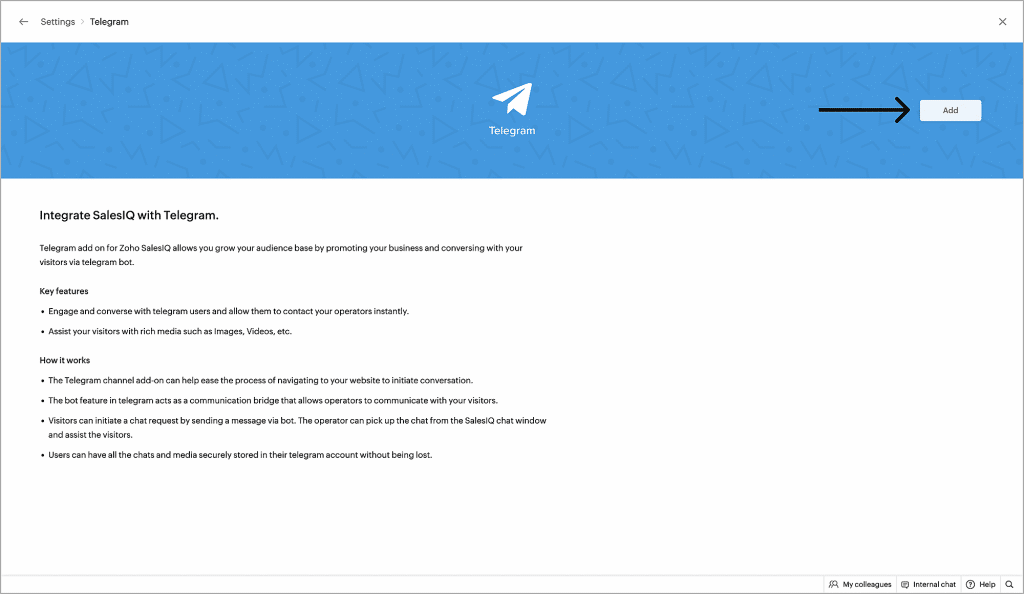
    2. Click Add on the upper right corner.

    Image via Zoho.

    Connect your Telegram account with Zoho SalesIQ

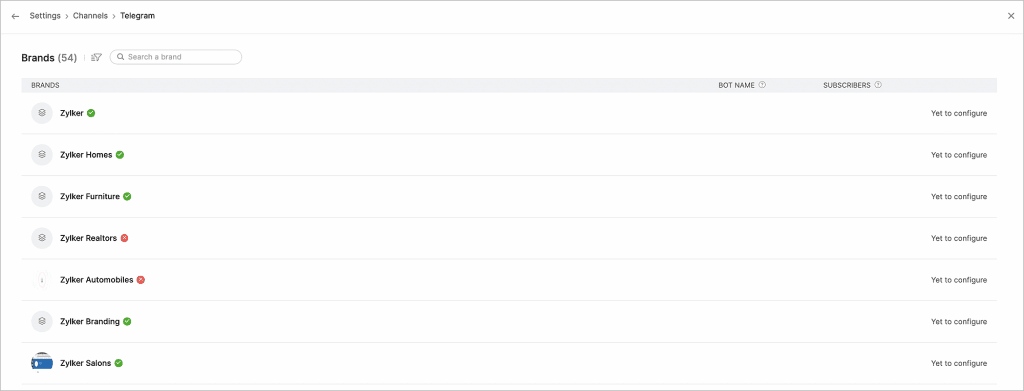
    1. Click on the brand for which you want to enable Telegram.

    Image via Zoho.

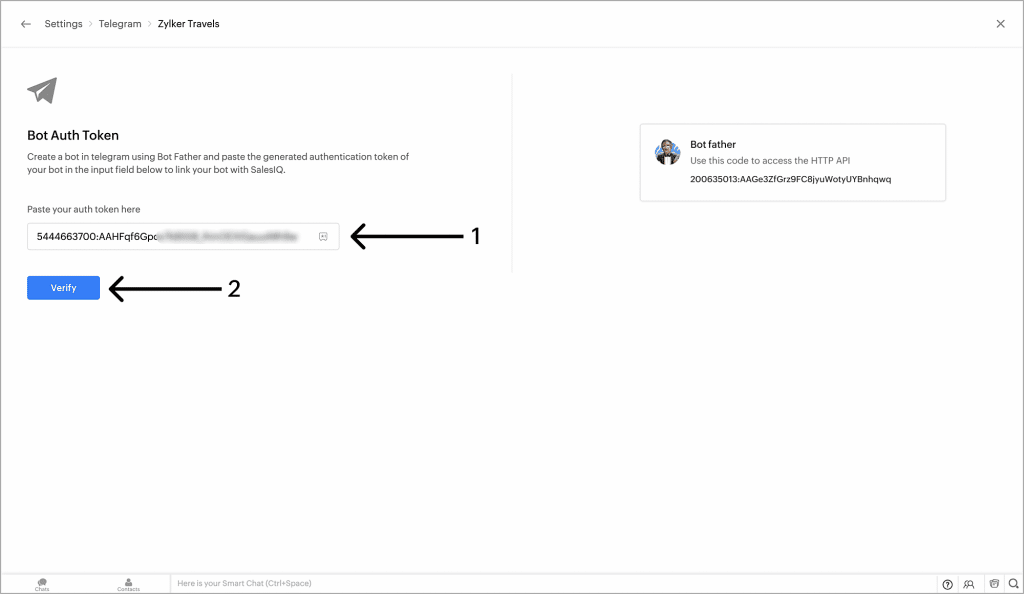
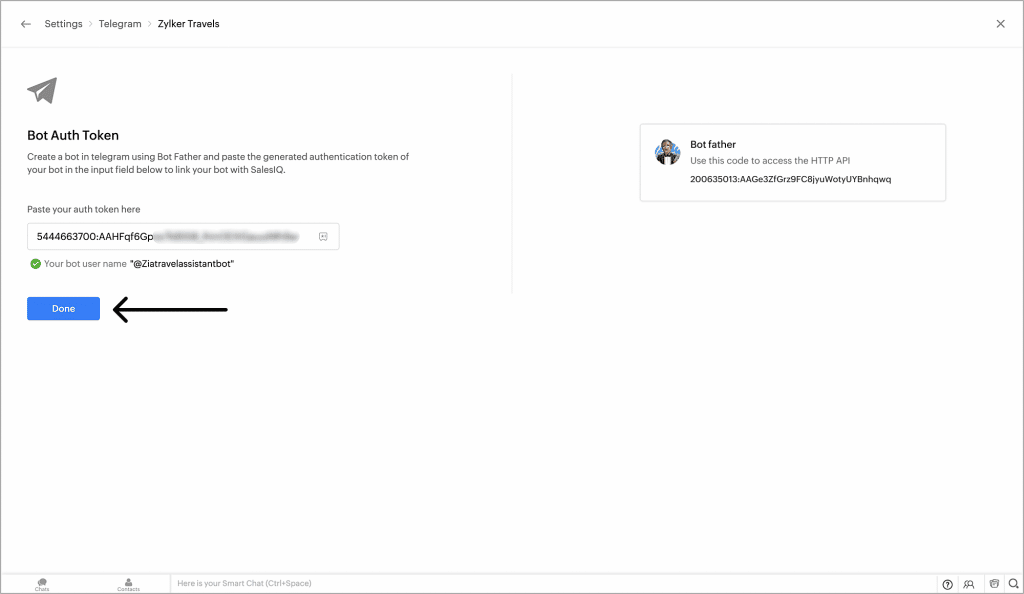
    2. Paste the API key that you have generated using Bot Father for the created bot here, and click on Verify.

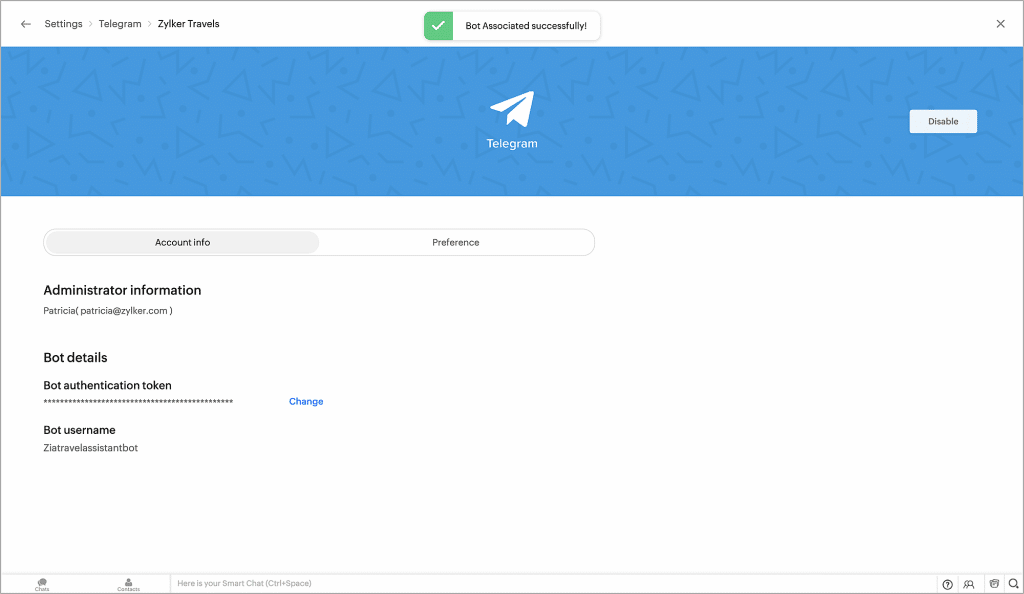
    3. Check if the bot information is correct. Then, click Done to proceed. A new screen will confirm that you’ve successfully linked your Zoho SalesIQ brand with your Telegram.

    Images via Zoho.

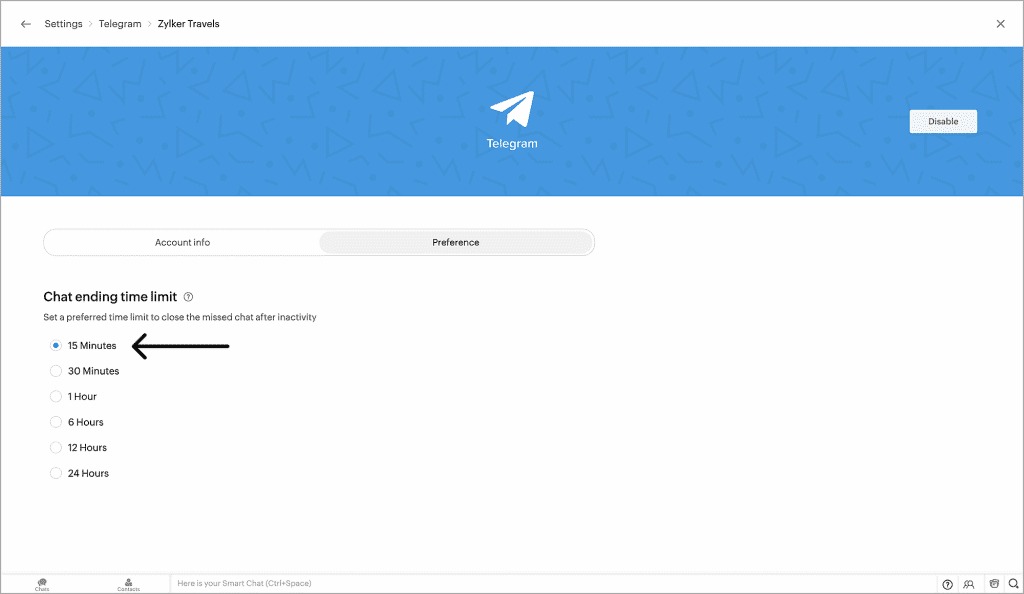
    Set the Chat Ending Time Limit

    Under Preference, you can set the Chat ending time limit (the time after which a missed chat will be closed after inactivity).

    Image via Zoho.

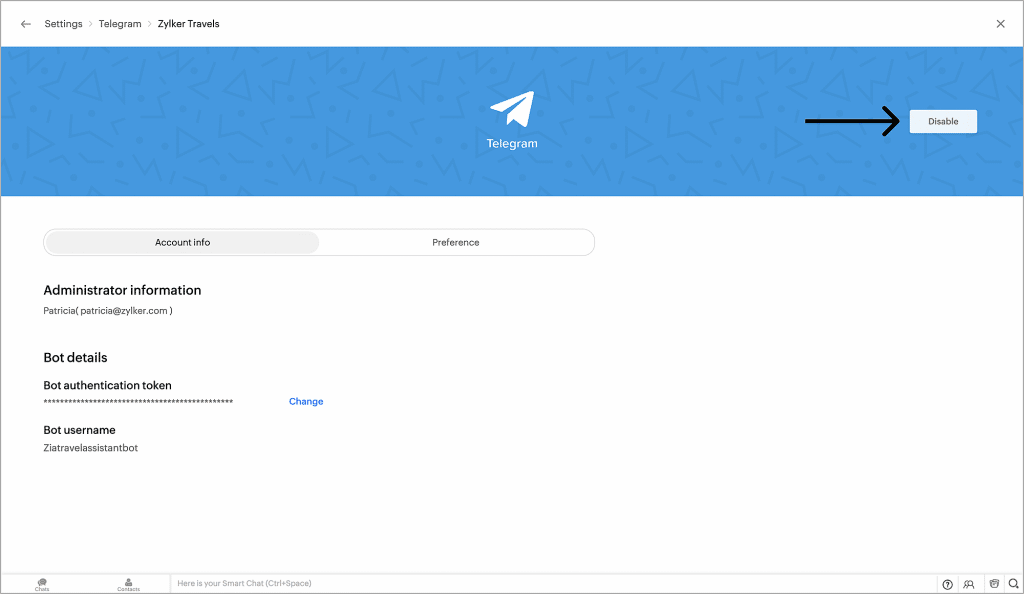
    Enable/Disable the Telegram Channel

    To disable the integration, click the Disable button on the upper right corner of the dashboard.

    Image via Zoho.

    Zoho Sign: Send Documents for Signature Via SMS

    Zoho Sign now offers delivery via SMS to reach signers faster, besides the option for standard email delivery. Some key benefits of this feature are reaching signers who prefer SMS over email, faster document turnaround time, and high success rates.

    The pre-requisites are a paid Zoho Sign account and adequate Zoho Sign credits (0.5/SMS).

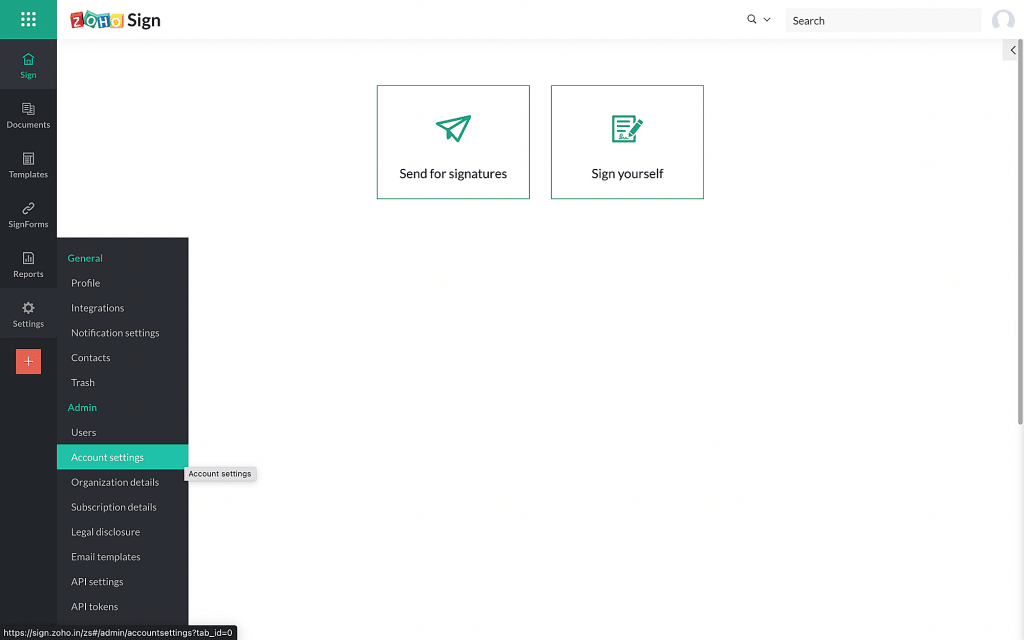
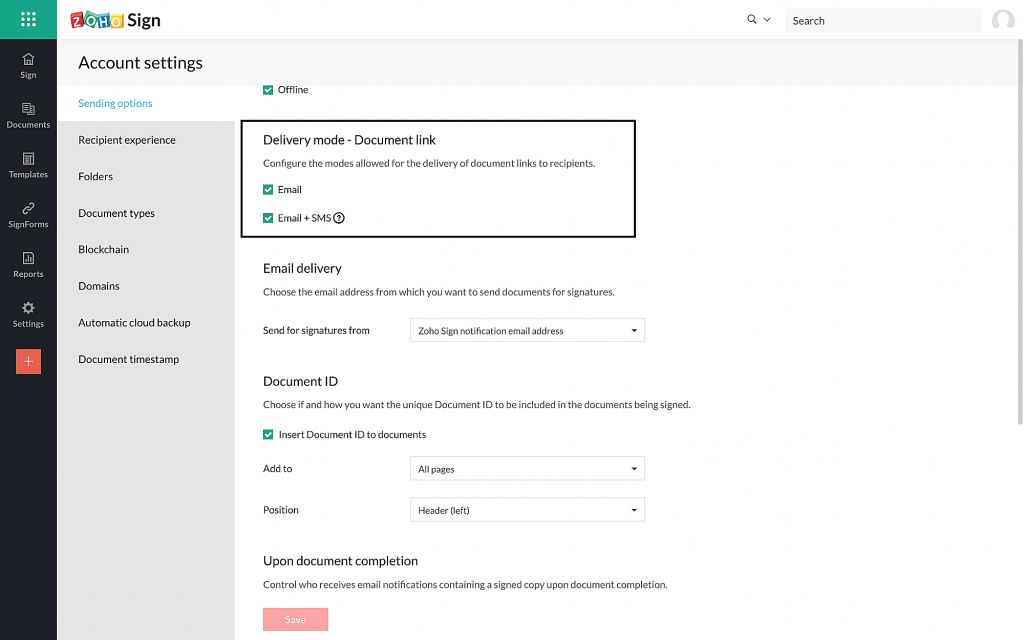
    By default, both modes (Email and Email+SMS) will be enabled, but you can also follow these steps to change the delivery modes:

    1. From the left navigation pane, click Settings > Account Settings.

    Image via Zoho.

    2. To configure the document’s link delivery mode, check the desired modes allowed for the delivery of document links to recipients. Then, click Save.

    Image by Zoho.

    How to Choose SMS Delivery for a Recipient

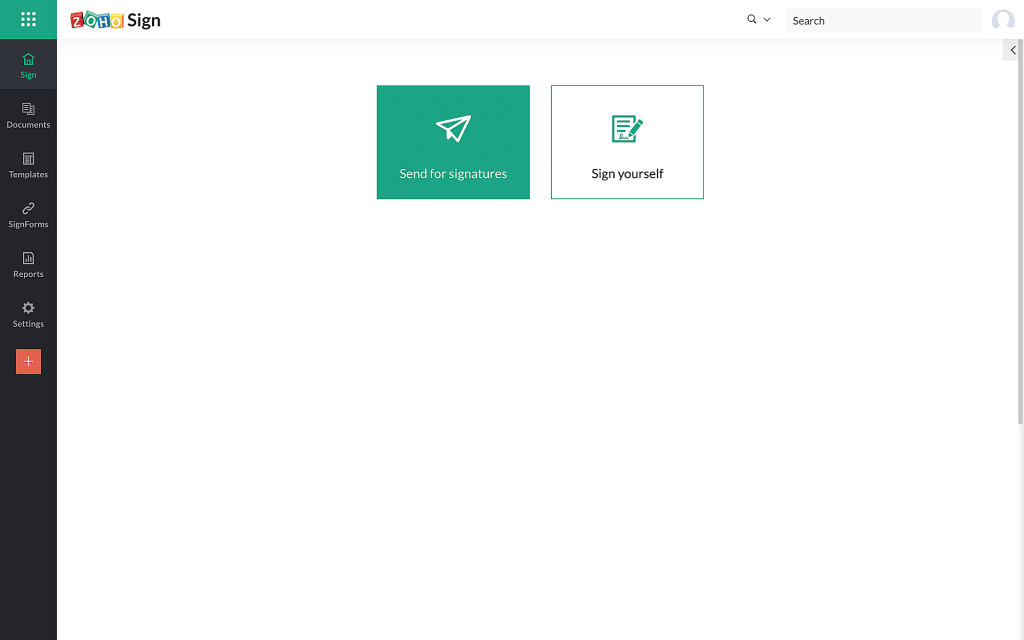
    1. Click the Send for signatures button on your dashboard to upload the document.

    Image via Zoho.

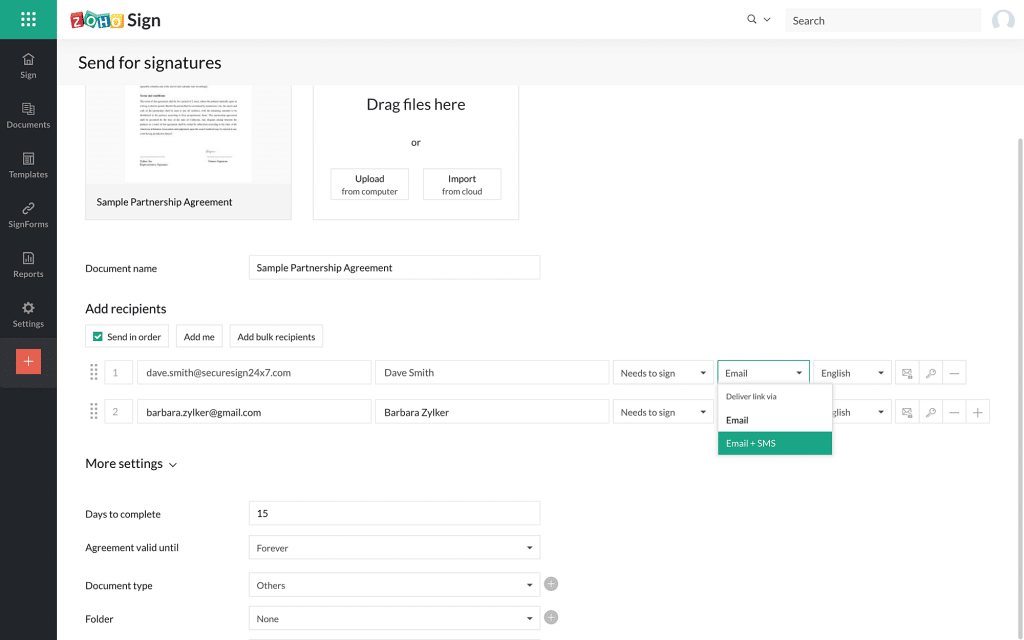
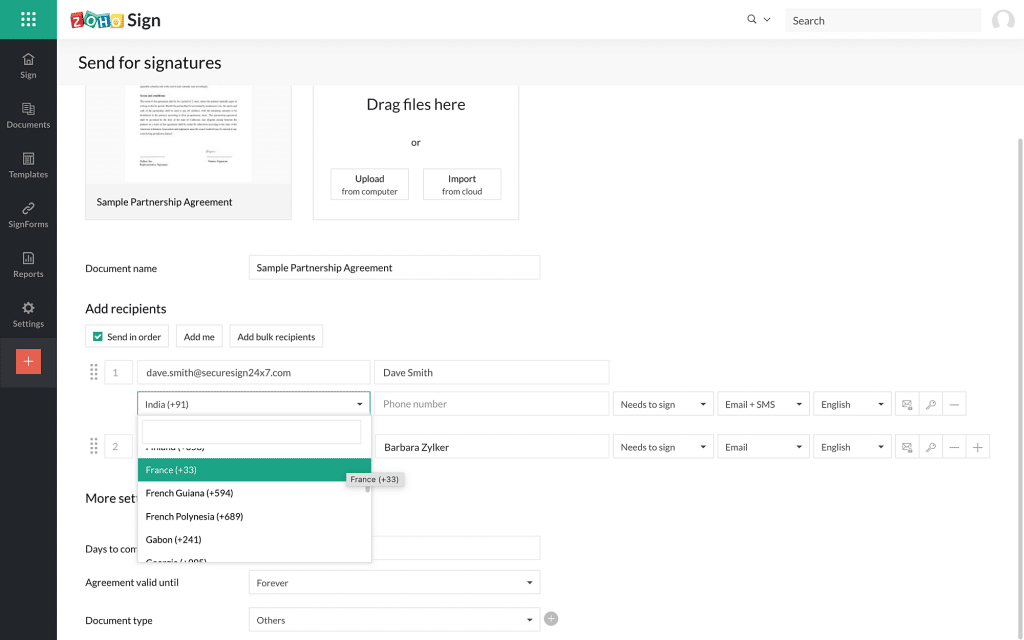
    2. After all the recipient details have been entered, select the delivery mode from the dropdown menu.

    Image via Zoho.

    3. If the sender selects the option Email+SMS, the sender has to enter the recipient’s phone number.

    Note: If the recipient is not in your Zoho Sign contacts or if the recipient phone number is not present in their contact details, you will have to select the appropriate country code and enter their number in the field provided.

    4. Fill in all the necessary fields and send the document out for signature.

    Image via Zoho.

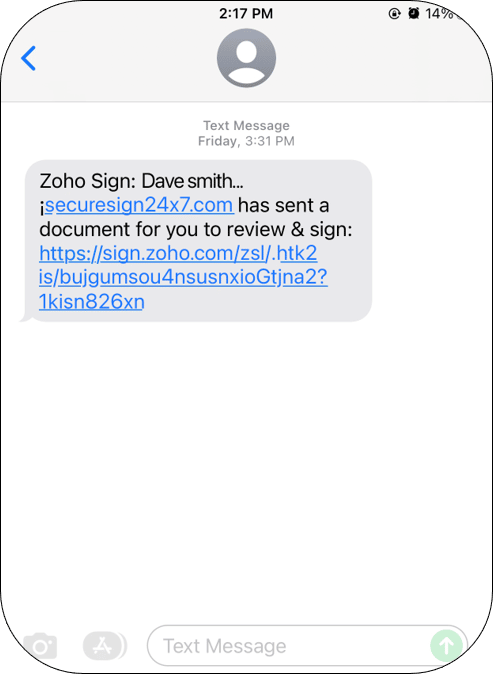
    5. Your recipient(s) will receive an SMS similar to the one below.

    Image via Zoho.

    Moreover, you can check the delivery mode details used, as well as other details like the date and time when the SMS/Email was delivered from the signed document’s completion certificate. To do so:

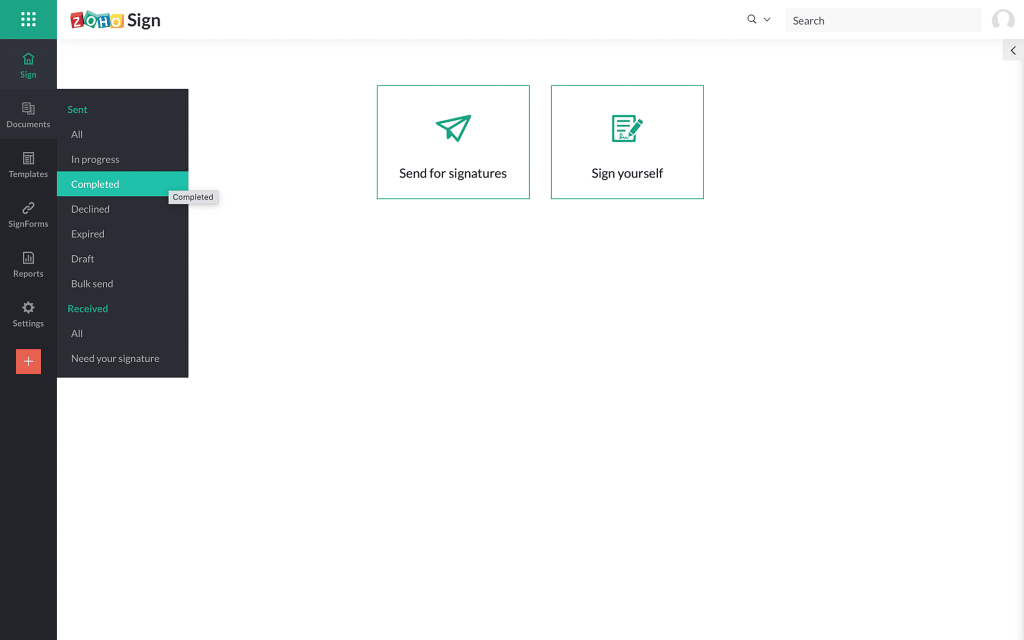
    6. From the left navigation panel, click Document > Completed.

    Image via Zoho.

    7. Select the document and click Completion Certificate to download.

    Image via Zoho.

    8. In the downloaded certificate, you can find similar details as the ones shown below:

    Image via Zoho.

    Notes:

    • SMS delivery is available in Send for Signature, Templates, and SignForms.
    • This feature is unavailable for bulk send and in-person signing.
    • You cannot disable Email delivery mode.
    • In lack of credits, the document link will be delivered only via email and the sender will be notified about the reason via email.
    • Currently, regardless of the recipient’s language, the SMS can only be sent in English due to carrier restrictions.

    Improvements in Zoho Commerce

    • Savings badge on checkout page: The checkout page on your Zoho Commerce store will now show the money your customers have saved each time they buy a product at a low selling price.
    • Mark up or discount shipping rates: Zoho Commerce users can change the shipping rates to mark up or discount the shipping cost displayed on the checkout page. You can adjust the price by a certain percentage based on the weight of the package or the value of the shopping cart.

    Zoho Social: Hashtag Groups and Supporting Carousel Posts for Instagram

    Hashtag Groups

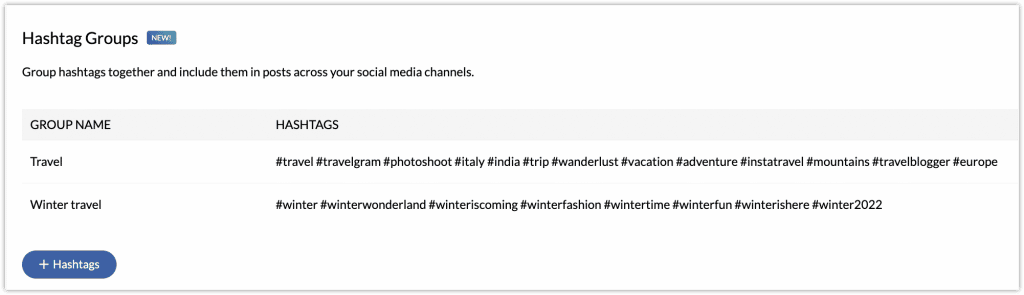
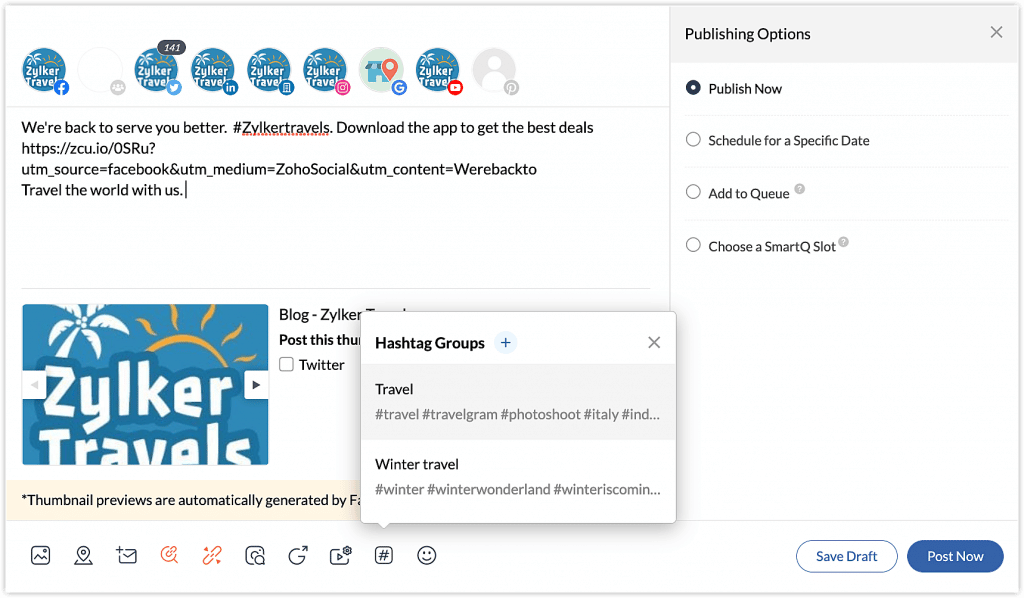
    These let you group all the hashtags and include them in your post in one go. You can create the groups in Settings > Publishing > Hashtag Groups and add up to 30 hashtags to a group.

    Image via Zoho.

    You can add hashtag groups while creating a new post in Zoho Social. You can select multiple hashtag groups for a post.

    Image via Zoho.

    Carousel Posts on Instagram

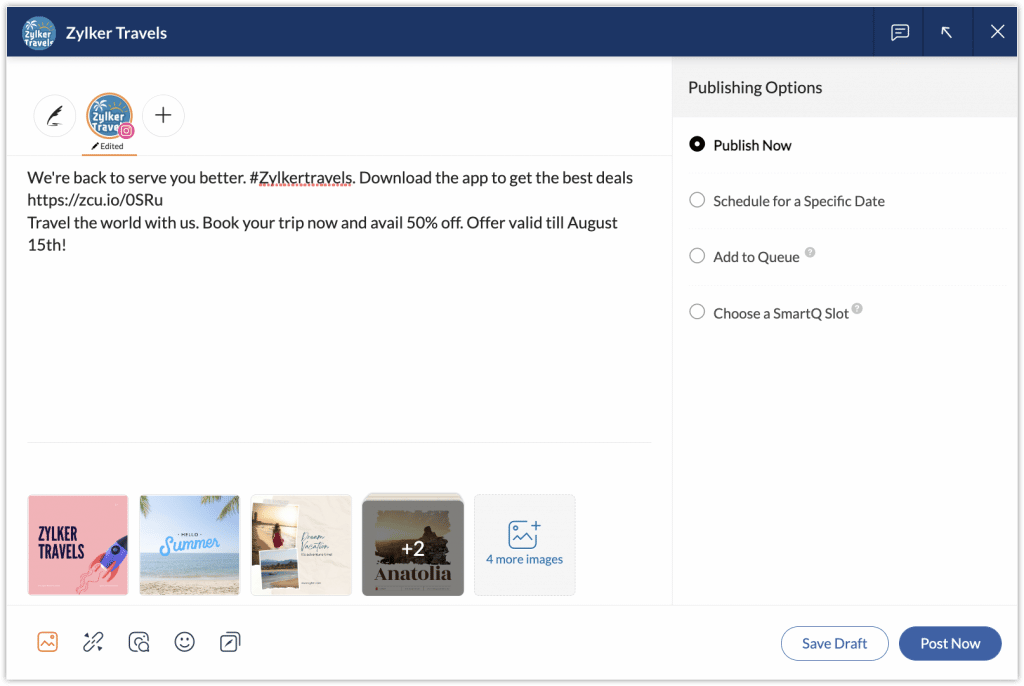
    A carousel post can be created by uploading multiple images. You can add up to four images from the compose window or add 10 images using the Customize Content option. 

    Image via Zoho.

    Zoho Projects Offers Live Webinars

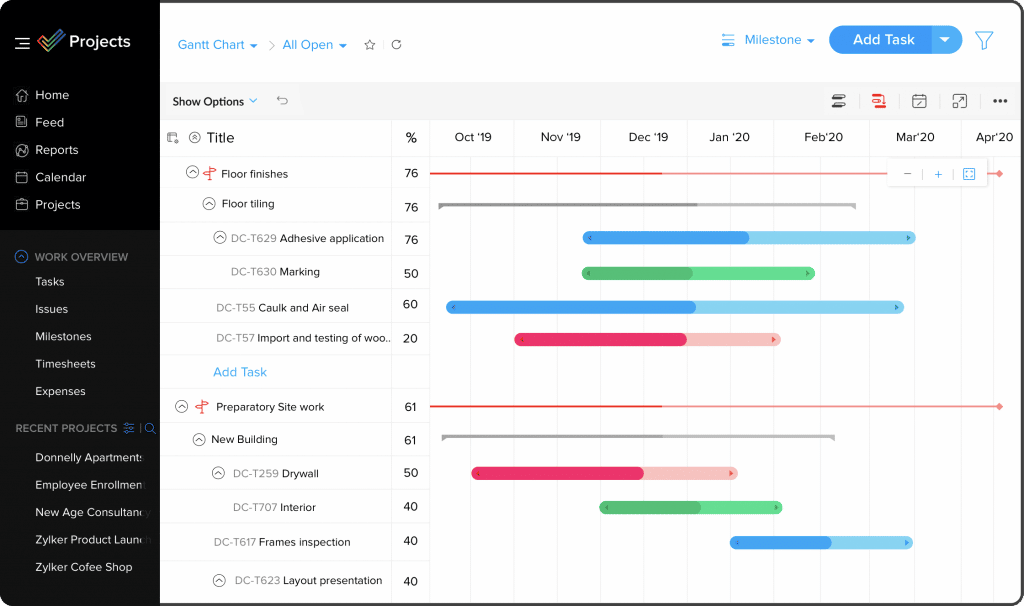
    Image via Zoho.

    Zoho experts on the project management app will conduct a series of live webinars with flexible schedules. Register and pick the date that is the most convenient for you by clicking here. The webinars are the following:

    • Getting Started with Zoho Projects
    • Task Automation & Workflow Rules
    • Setting up Your Project Budget
    • Exploring the Potential of Web Tabs

    Zoho Reaches 80 Million Global Users Mark and 38% in Growth

    During their recent annual analyst summit, Zoho Corporation announced their two latest achievements: a rate of 38% year-over-year growth and exceeding the 80 million users mark. Besides their continuing global expansion, Zoho keeps increasing their product portfolio, as well as making investments in other technologies like automotive, robotics, and health care. Learn more details in our blog article.

    Forbes Names Zoho Bookings as One of the Best Scheduling Apps in 2022

    Image via Forbes.

    Rated with 4.4 out of 5 stars, Forbes chose Zoho Bookings because of the following benefits and features:

    • Three scheduling plans: Free Forever (for one user), Basic, and Premium.
    • Competitively-priced and feature-rich premium plans.
    • Hands-off bookings.
    • Appointment qualification.
    • Two-way calendar synchronization with Zoho, Google, Microsoft 365, and Outlook.
    • It allows users to access online meetings in Zoom or Zoho Meeting directly.

    That’s all for now, IC readers! See you soon for more Zoho updates from InterConnecta!

    Need help with the implementation or optimization of any of your Zoho apps? Then you’re in the right place! Learn more about our Zoho Consulting Services and ask us for a free consultation.

  • Zoho Reaches 80 Million Global Users Mark and 38% in Growth

    Zoho Corporation recently announced during their annual analyst summit their two latest achievements: a rate of 38% year-over-year growth and exceeding the 80 million users mark. Besides their continuing global expansion, Zoho keeps increasing their product portfolio, as well as making investments in other technologies like automotive, robotics, and health care.

    Image by Samueljjohn via Wikimedia Commons.

    These milestones affirm the company’s commitment to the development of robust solutions that support all businesses, many of which have been negatively impacted by recent economic disruption. As part of their growth, Zoho also celebrated the opening of 59 new global hub-and-spoke offices in rural areas and small cities throughout the last two years. This has the purpose of expanding into new markets and it’s also part of their continuous effort to support local communities.

    Regarding their latest milestones, Sridhar Vembu, CEO of Zoho Corporation, stated the following:

    “We’ve long felt that we have a responsibility to the communities and world around us, whether that be through providing job opportunities to those with less access or by delivering products that help business grow to their potential. Our approach from the start of Zoho —now 26 years ago— still rings true today: nurture people and businesses, and lower the barrier of entry. Cost effective, yet built-for-scale products and regionally located offices aside, Zoho has built its business by being a partner that helps people thrive. Our success is their success and vice versa.”

    Zoho’s Strategic Investments and a Consortium of Local Technology

    Meanwhile, the reasons for the strategic investments that Zoho has made in other industries are the development of advanced solutions and giving access to them by people in need. The investments were made in the following companies: Boson (a Silicon Valley-based smart electric utility vehicles and powertrains manufacturer); a partnership between the electric motorcycle company Ultraviolette Automotive with TVS Motor Company; and a $5 million investment in Voxelgrids (an Indian startup that builds MRI scanners).

    Zoho also has formed a consortium of local technology companies based in the Kongu region of India. In it, Zoho will make a capital investment to set up centers in the region that focus on the research and development of critical technologies for capital goods manufacturing (industrial automation software, machine tools, and production process know-how).

    In addition, Genrobotics —an Indian startup building robotics and AI-powered solutions for social issues like hazardous working conditions— has obtained a $2.5 million investment from Zoho. This will help Genrobotics in their mission to eradicate manual scavenging in India, while delivering safety and dignity to workers in the sanitation, oil, and gas industries.

    The Aggressive Global Expansion Continues

    In regard to Zoho’s global expansion through their Transnational Localism effort (which started in early 2020 to create self-reliant local communities and economies), they have opened 59 new global offices with local employees. Also, Zoho started partnerships with local organizations and government bodies to decrease the technology adoption barrier for businesses through different educational initiatives.

    In addition to their aggressive expansion into new territories and markets like Canada, Latin America, the Middle East, Africa, and Southeast Asia, Zoho has revealed plans to open 100 new small-scale offices in rural districts across India in the next few years.

    To read the full article, click here.

    Need help with the implementation or optimization of any of your Zoho apps? Then you’re in the right place! Learn more about our Zoho Consulting Services and ask us for a free consultation.

  • Zoho News Catch-Up: Zoho Analytics is HIPAA Compliant; Product Updates from Zoho Inventory, Bookings, Social; New Zoho Webinars

    Welcome to our catch-up, where you’ll be in the know of all the latest Zoho updates in one place!

    • Zoho Inventory updates: Shipments module, usage stats, autoscan expenses, custom fields in picklists, mobile apps
    • Zoho Bookings unveils new features for service availability and booking page themes
    • Zoho Social: Advanced statistics for all posts in Facebook, Twitter, Instagram, LinkedIn, and YouTube
    • Zoho Sign gets Leader recognition in Software Reviews’ Electronic Signature Data Quadrant       

    Zoho Analytics Becomes HIPAA Compliant

    Although Zoho does not collect, use, store or maintain health information protected by HIPAA for its own purposes, Zoho Analytics provides the following features to help customers use Zoho Analytics in a HIPAA compliant manner:

    Handling Electronic Protected Health Information (ePHI) with Care

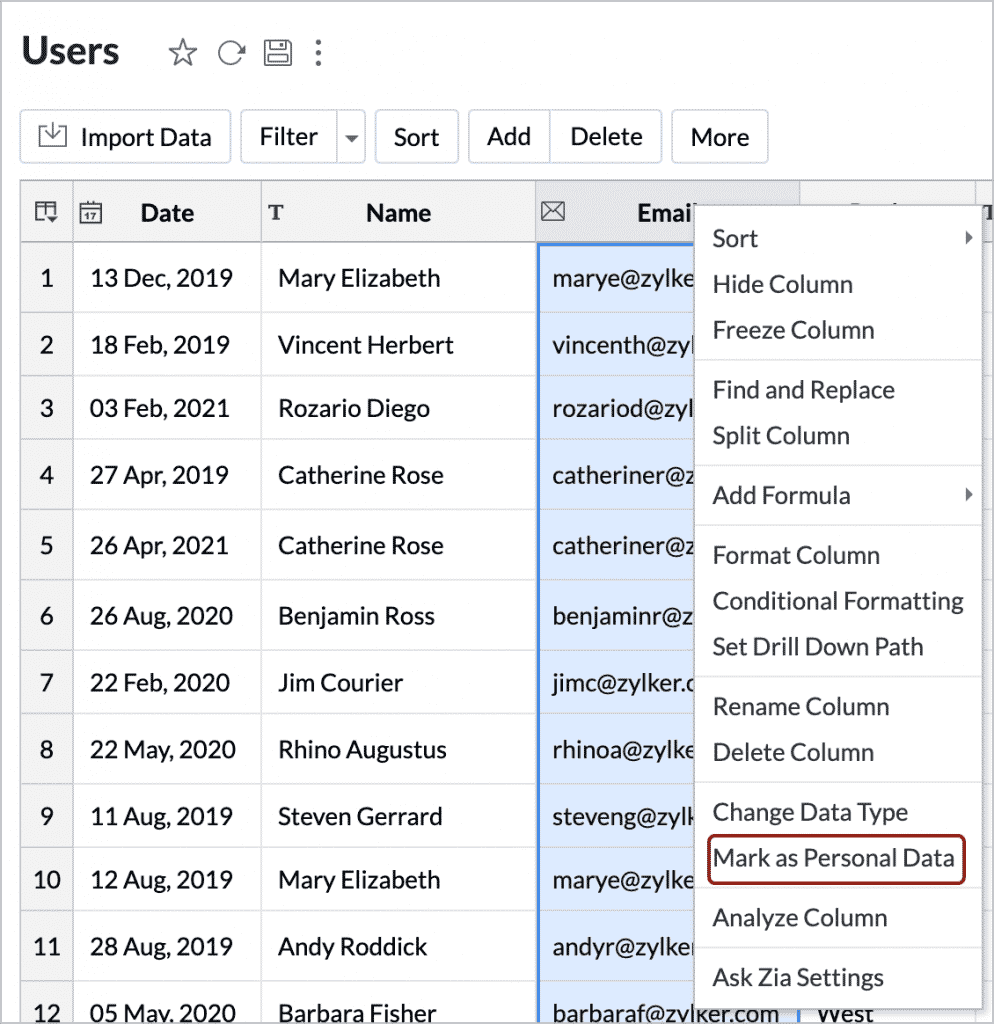
    To secure the ePHI column, right click the column and select Mark as Personal Data. The data will be encrypted and saved in Zoho Analytics’ servers. While exporting views containing these data, the columns marked as personal data will not be included by default to prevent accidental sharing.

    (Image via Zoho)

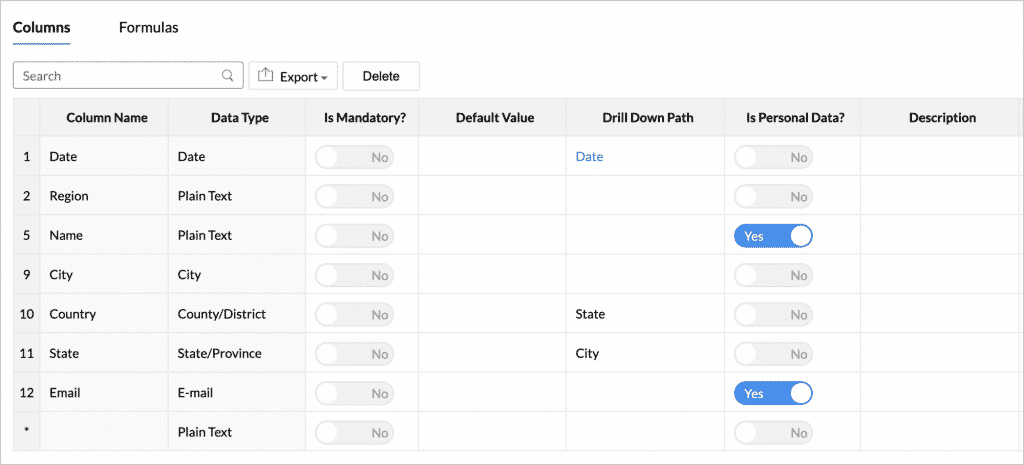
    Also, you can also click the Edit Design button in the toolbar and change the value of Is Personal Data? to Yes for the ePHI column.

    (Image via Zoho)

    Protecting Data with Data Encryption  

    Zoho Analytics encrypts all personal information in their servers for increased security. Zoho has handled data encryption at various levels.Any field marked as Personal Data will be encrypted and stored in Zoho’s servers.

    • Any field marked as Personal Data will be encrypted and stored in Zoho’s servers.
    • Any private information provided for authenticating third-party applications will automatically be identified with due diligence and stored in Zoho’s databases in an encrypted form.

    Offering Data Privacy and Security  

    Zoho Analytics has taken extra measures to secure data and keep it private.

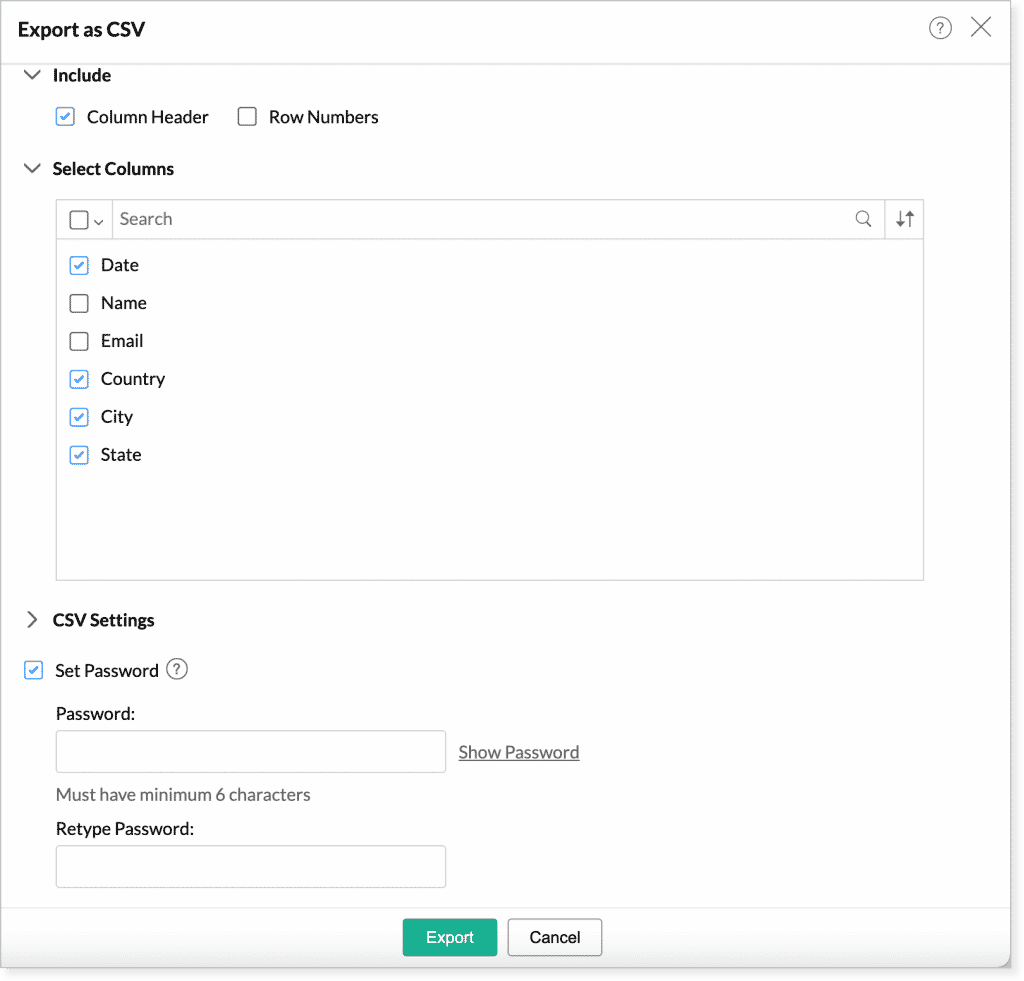
    • Password protection for exported files: You can choose to protect them using a password, so you will be able to restrict unauthorized access.
    (Image via Zoho)
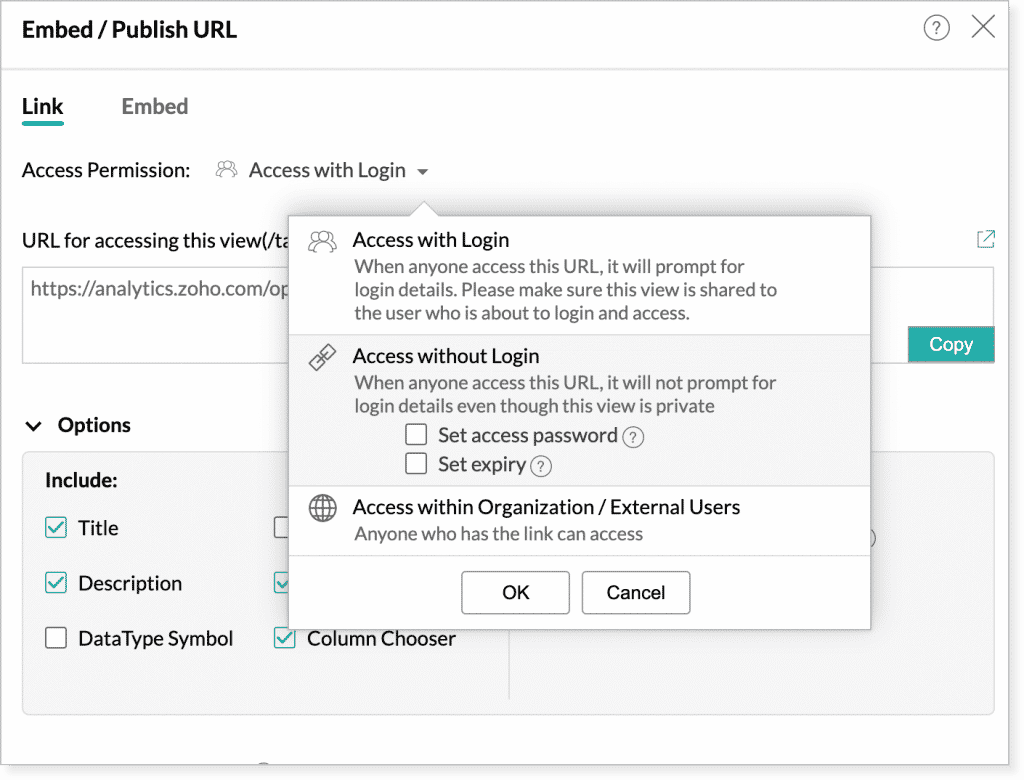
    • Password protection for embed and permalink: When granting Access without Login permission for your embedded views or permalinks, you can set the password protection for the views.
    • Expiry date for embed and permalink: You can also set an expiry date for published views with Access without Login permission, so that the published view will not be accessible after a specific period of time.
    (Image via Zoho)

    Port Data Enabling

    Zoho Analytics provides different options to transfer ePHI data anytime. Zoho Analytics allows you to obtain your data at 3 levels:

    • Data backup: Workspace Backup option will back up the data from tables and SQL queries from query tables, and make it available for download. The backed up data can be downloaded at any moment as CSV files.
    • Exporting data: Exporting views allows to export data anytime in common file formats likes CSV, Excel, HTML, PDF, or image files. You can password-protect your exported document as well.

    Granting Secured Account Access

    Zoho Analytics provides a set of security options that lets you control and manage access to your account, like IP restriction and controlling the options for sharing and collaboration. These ensure that only trusted users have access to your data.

    • IP restriction: Restrict access to the views in your organization account from a set of select IP ranges alone.
    • Restriction to share within trusted domains: Restrict sharing of data or views in Zoho Analytics only to users from trusted domains.
    • Restriction to create Private or Public Links: Specify whether Embed Snippet or Permalink can be created for views with either private or public access. 
    • Restriction to publish within trusted domains: Restrict that your published views (private or public) can be accessed only to users from the trusted domains.
    • Restriction for exporting and emailing views: Specify whether views can be exported or emailed. Additionally, you can also restrict emailing of views only to users from trusted domains.

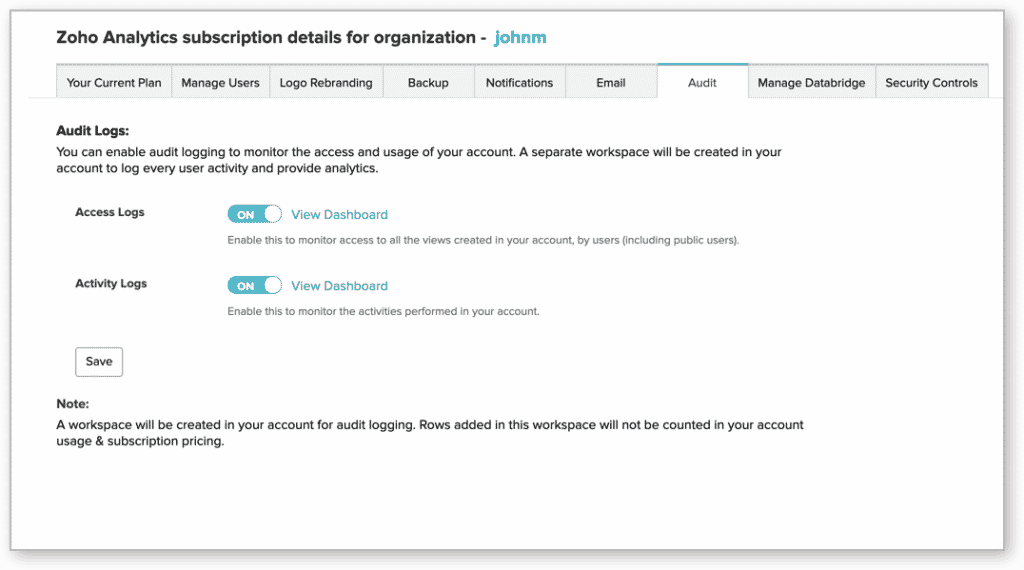
    Auditing All Activities 

    Keep track of the user accesses and activities performed in Zoho Analytics. This lets you monitor who has accessed the data, and if it has been modified, shared, or exported.

    • Access Logs: This option enables administrators to monitor the application access information.
    • Activity Logs: It enables the administrators to monitor all the activities performed by Zoho Analytics users.
    (Image via Zoho)

    The activity logs data will be saved in a workspace for a year. You can export the older data for your use.

    Zoho Inventory Updates

    Shipments Module

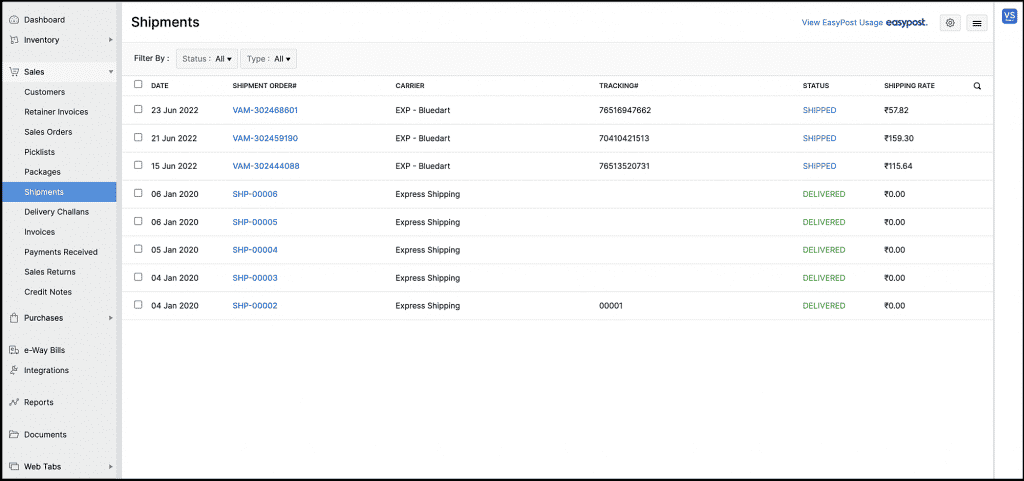
    All shipments that were in the Packages module will now be listed in the new Shipments module on the left sidebar. Deleting and printing can be done using this module.

    Image via Zoho

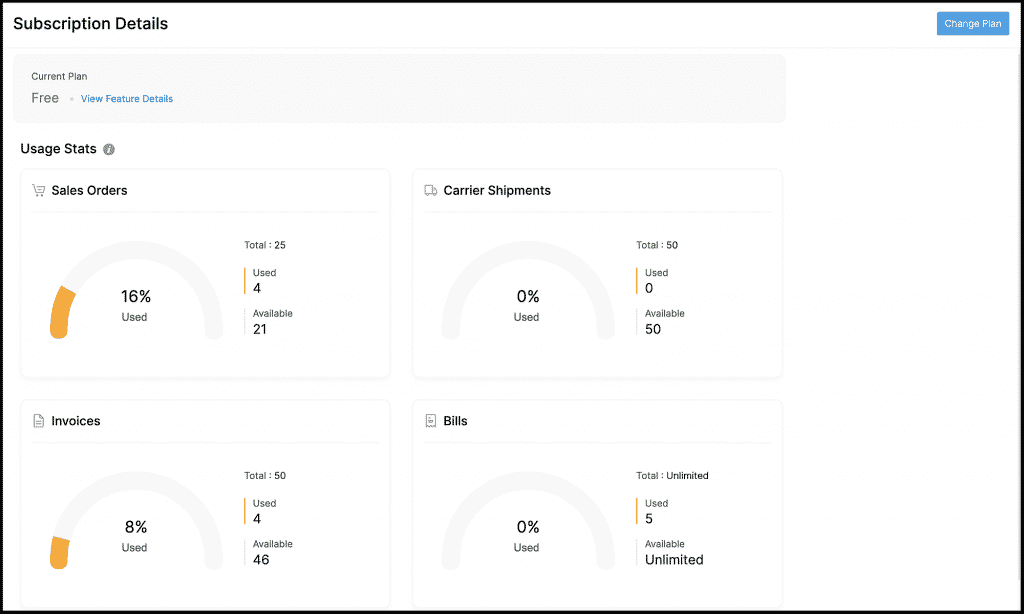
    Usage Stats

    This section in Zoho Inventory will help you keep track of your plan’s transaction usage limits. It shows the number of transactions that you’ve created and the number you have left in these modules:

    • Sales Orders
    • Carrier Shipments
    • Invoices
    • Bills
    (Image via Zoho)

    To verify your plan’s usage limits, go to Settings > Subscriptions.

    Autoscan Expenses

    Zoho Inventory now lets you create an expense using the information extracted from a physical receipt. The receipts you upload in the Documents tab will be automatically scanned, while information like the amount and vendor name will be extracted. The extracted data can be utilized to auto-populate the relevant fields when you create an expense.

    (Image via Zoho)

    To use it, go to the Documents module and upload a receipt.

    Custom Fields in Picklists

    Add additional information like the status and location of an item in picklists by adding them as custom fields.

    Create a custom field for a picklist by going to Settings > Preferences > Picklists.

    Updates in Zoho Inventory’s Mobile Apps

    Android

    • Download your contact’s statement from a contact’s details page.
    • Interact with other users in your organization by adding comments to transactions.
    • Print transactions right from the app.
    • Clone existing transactions to create similar transactions quickly.
    • Customize your invoices by changing their template.

    iOS

    AR Quick Look has been added, which is a new feature that lets you visualize your items in the real world using augmented reality.

    Zoho Bookings: New Features for Service Availability and Booking Page Themes

    (Note: Service availability is possible with one-on-one services only. All references to “services” —in this article— will be on similar lines.)

    Better Scheduling

    Now you can decide the availability of appointments based on your staff or your services with the following features:

    • Staff availability across services: For example, set up service availability for the first service between 9 a.m. and 12 p.m., then set it up for the second one between 1 p.m. and 5 p.m. The staff assigned to these services will be exclusively available during the assigned time groups.
    • Service date range: Define a date range to be available and accept appointments only during that period.
    • Time-off: If you need to make the service unavailable for a time, set a time-off and the service won’t receive appointments during the specified period.

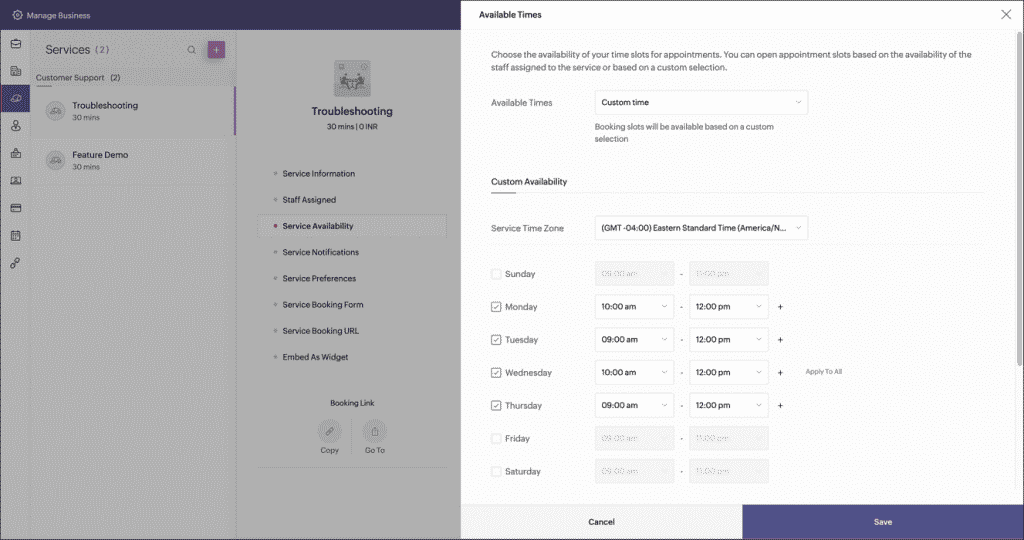
    How to Configure Service Availability:

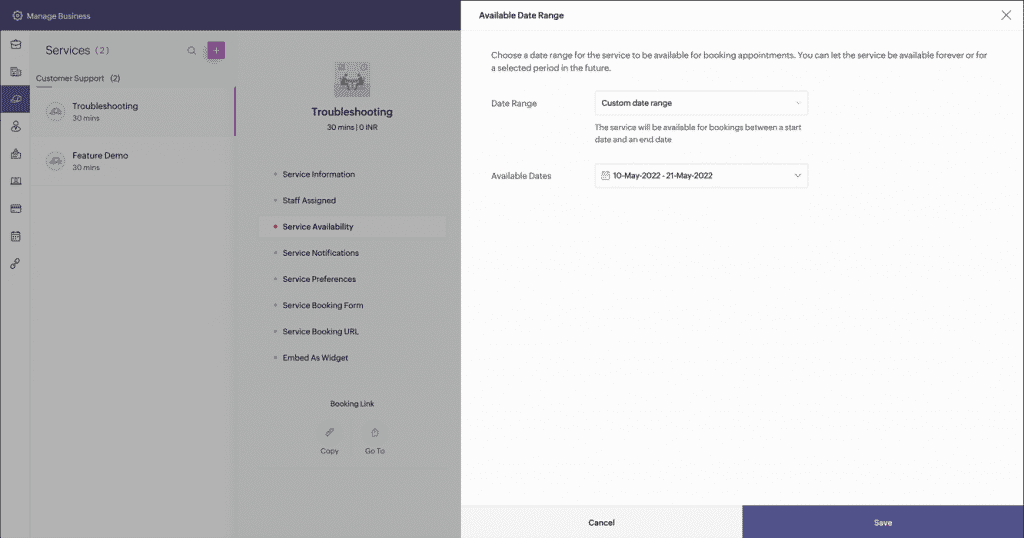
    1. Click Manage Business > Services and select the required one-on-one service.

    2. Click Service Availability and customize availability.

    3. One-on-one services can now be available indefinitely or for a certain period.

    (Images via Zoho)

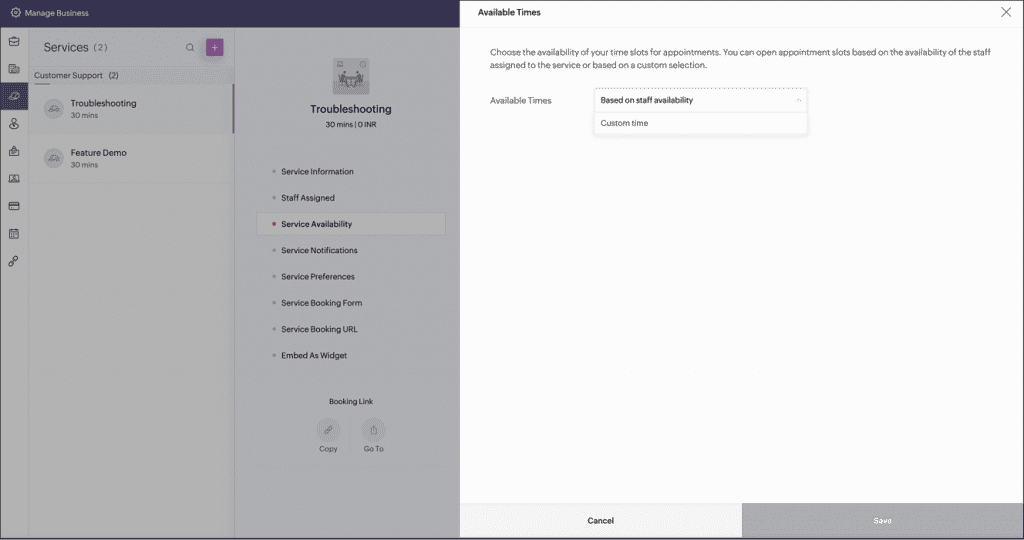
    4. Availability during the day can be based on the staff availability or the custom time selected for the service.

    (Images via Zoho)

    New Themes for Booking Page

    Get a more professional touch to appeal to your clients with two new themes: Sleek and Basic.

    • Sleek Theme: The new theme displays staff details on the booking page’s side, with ten colors to choose from.
    • Basic Theme: The default theme got an upgrade with the staff card appearing on top, plus nine additional colors to choose from.

    Moreover, Zoho Bookings has given a heads-up about future updates, like improvements to calendar integrations and making their integration with Zoho CRM deeper and more robust, as well as other features. Stay tuned to our blog to learn about them as soon as they’re launched!

    Zoho Bookings Webinar

    Whether you’re new to Zoho Bookings or want to learn more about how the scheduler works, Zoho will host the webinar Zoho Bookings: Master your Scheduler on Fridays at 12:00 p.m. EST.

    Zoho Social: Advanced Statistics for all Posts in Main Social Media Channels

    The latest feature in Zoho Social allows you to get thorough reports to understand performance across all social media channels. You can also view statistics for individual posts from the Post Stats tab.

    Here’s is the list of all the data that’s available for your posts:

    Facebook

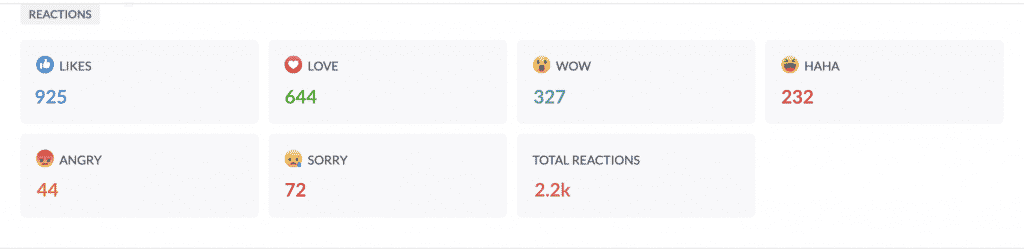
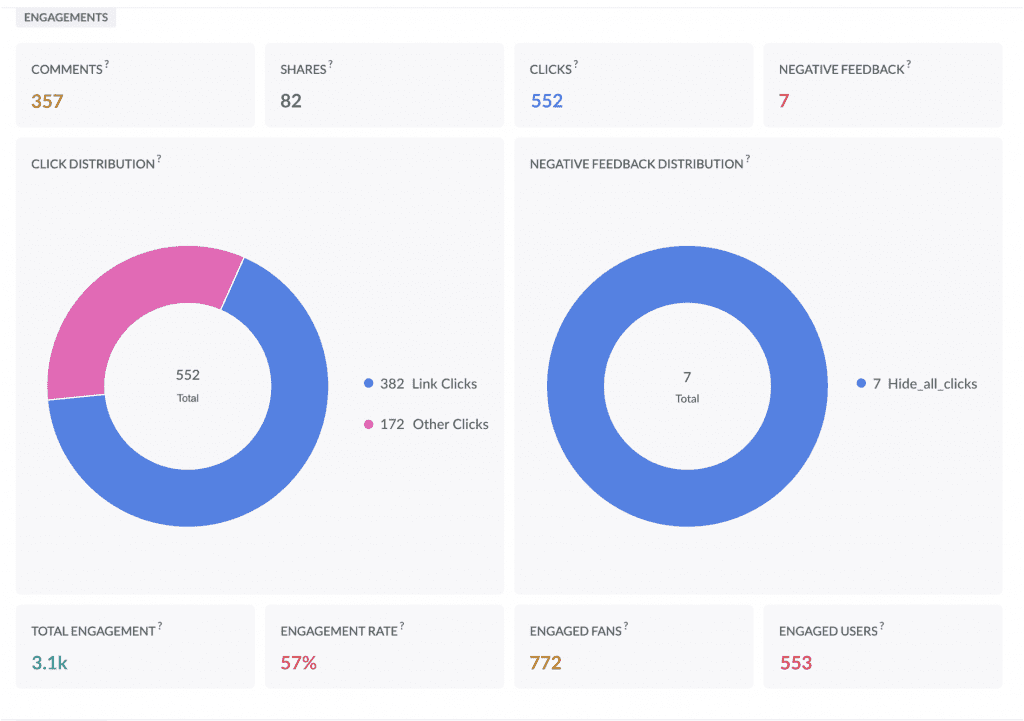
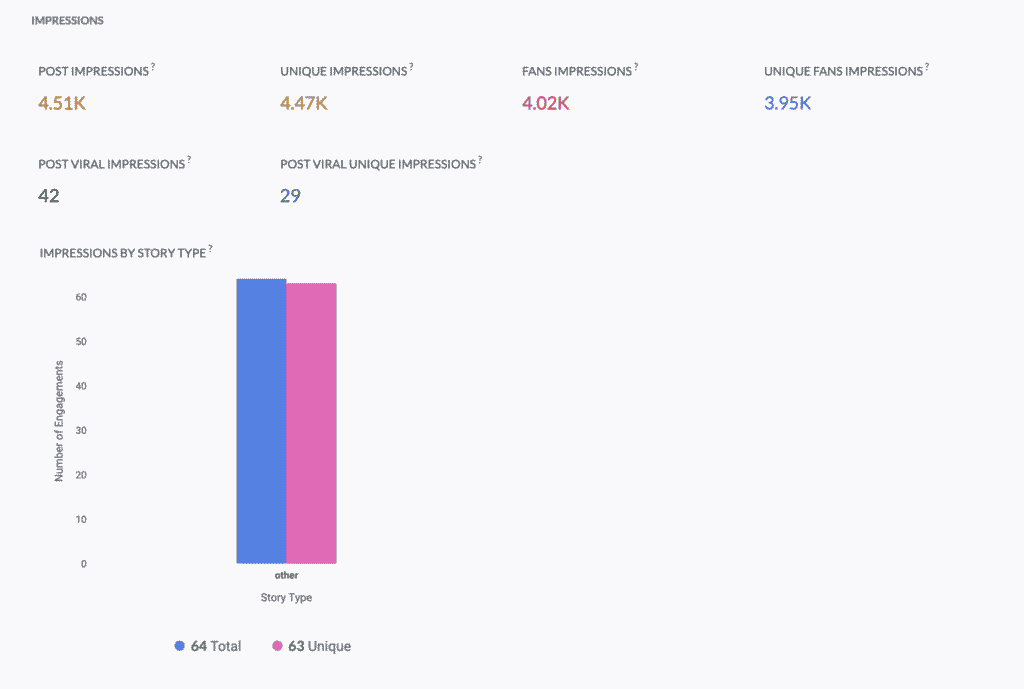
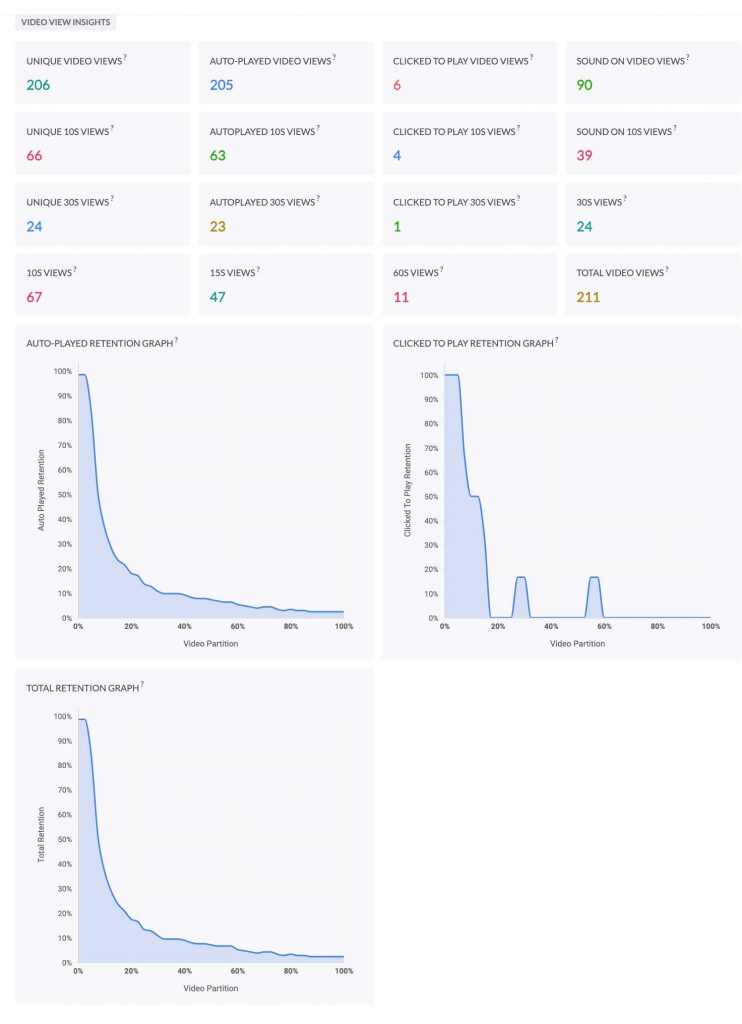
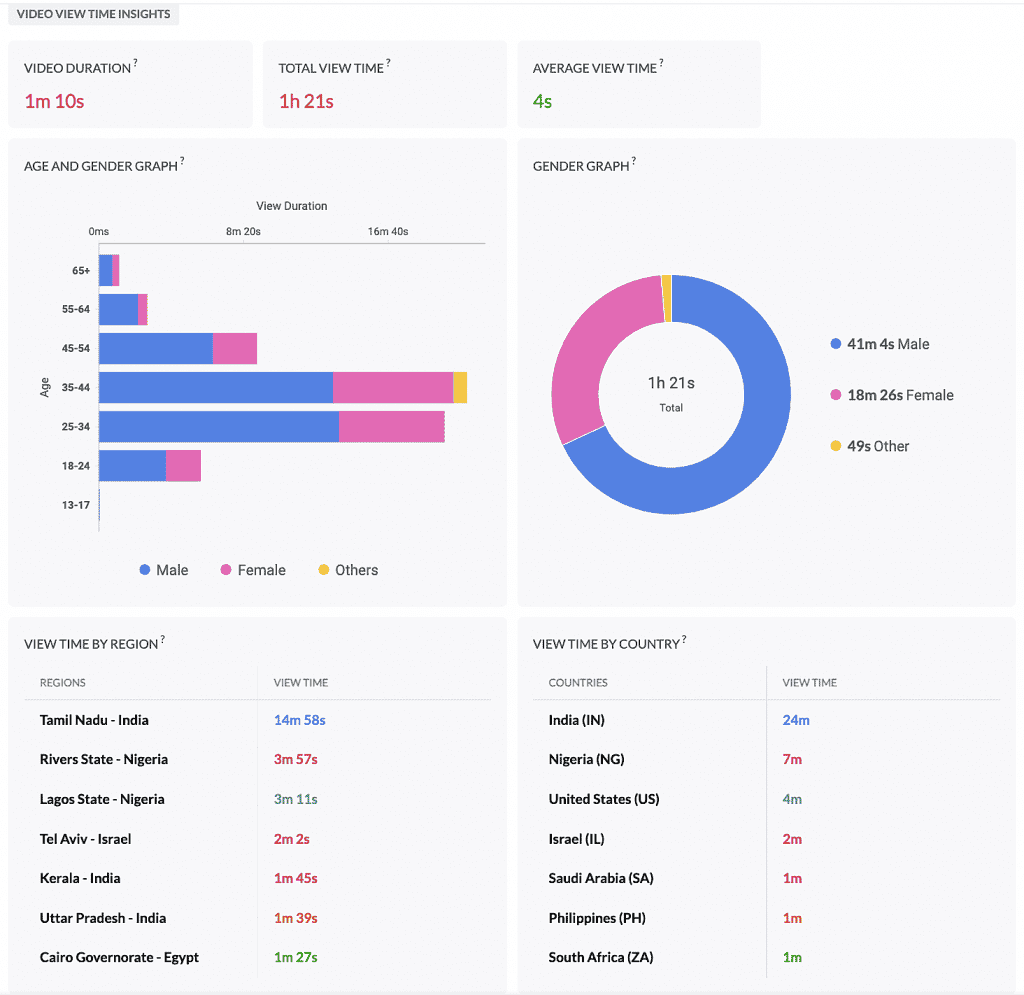
    Facebook statistics are grouped into categories like Reactions, Engagements, and Impressions. If the post includes a video, you can see the stats for Video View and Video View Time. This helps you get an idea about the audience retention, age and gender, country with maximum view time, among other details.

    Reactions

    (Image via Zoho)

    Engagements

    (Image via Zoho)

    Impressions

    (Image via Zoho)

    Video View

    (Image via Zoho)

    Video View Time

    (Image via Zoho)

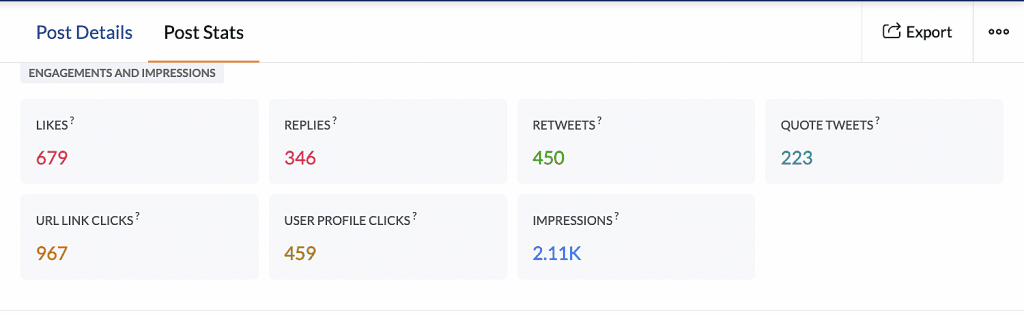
    Twitter

    All engagement and impressions for a tweet can be viewed from the Post Stats tab. View the total number of likes, replies, retweets, quote tweets, number of clicks on the URL, impressions, and the total number of clicks on the user’s profile name or the image.

    (Image via Zoho)

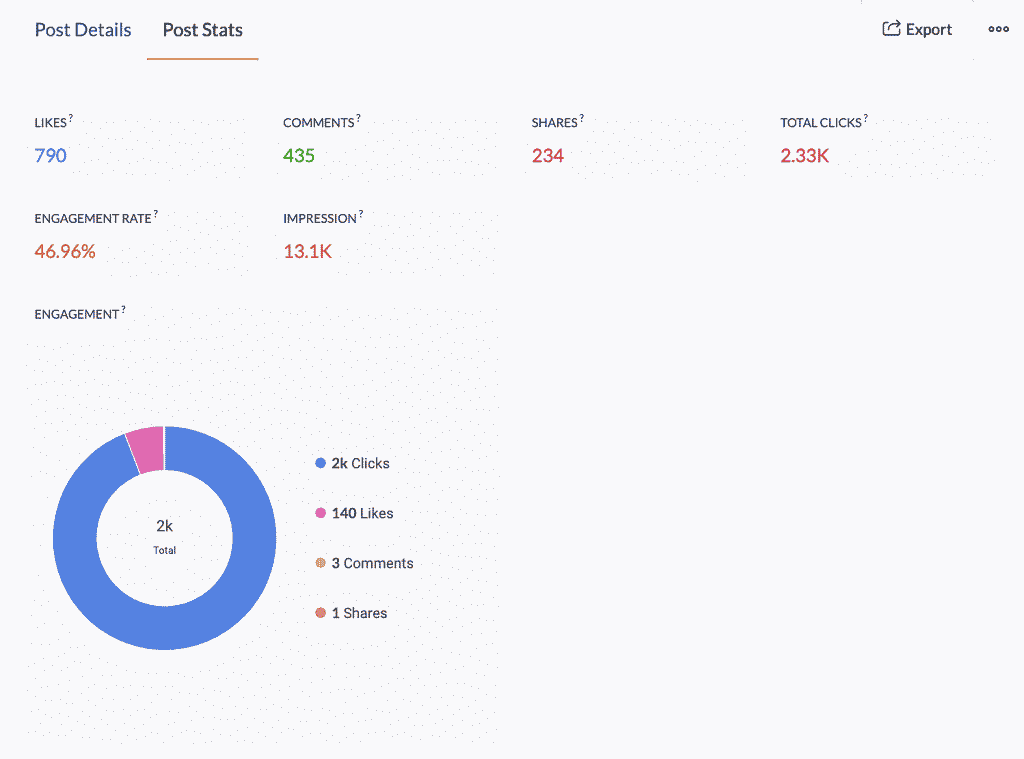
    LinkedIn

    The total number of likes, comments, and shares are displayed on each post. You can also view the total number of clicks on the post, company name, or logo, analyze different types of engagement, the engagement rate, and impressions.

    (Image via Zoho)

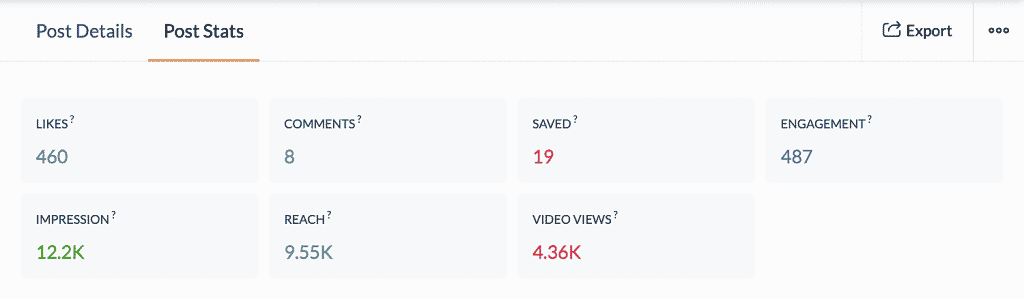
    Instagram

    View the total number of likes, comments, engagement, impressions, and the number of times the post has been saved. You can also identify how the post has reached the audience. If the post is a video, you can also view the number of times the video has been played.

    (Image via Zoho)

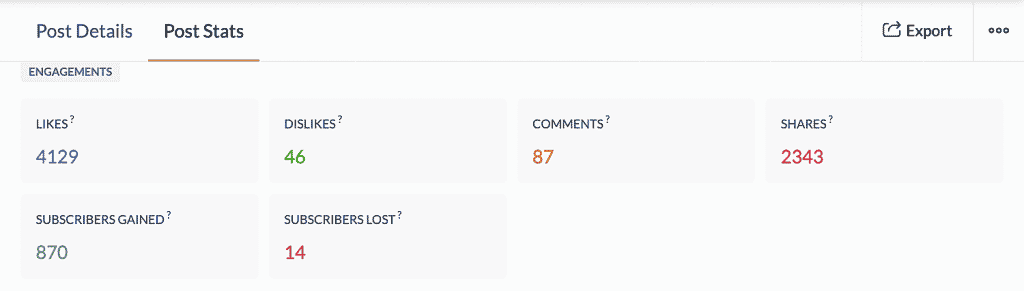
    YouTube

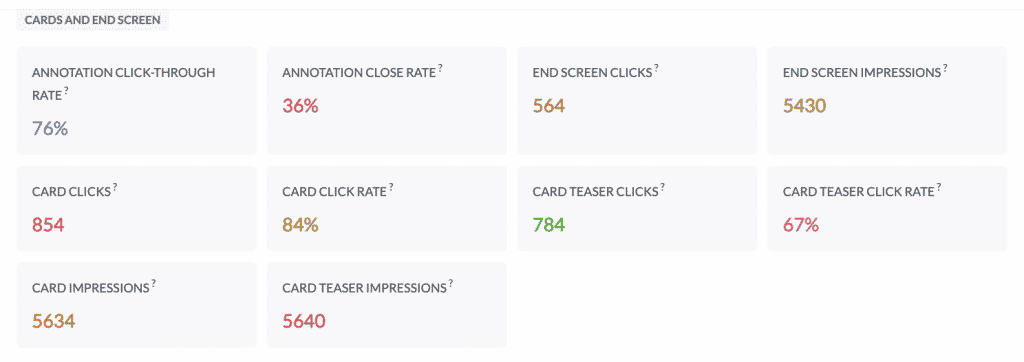
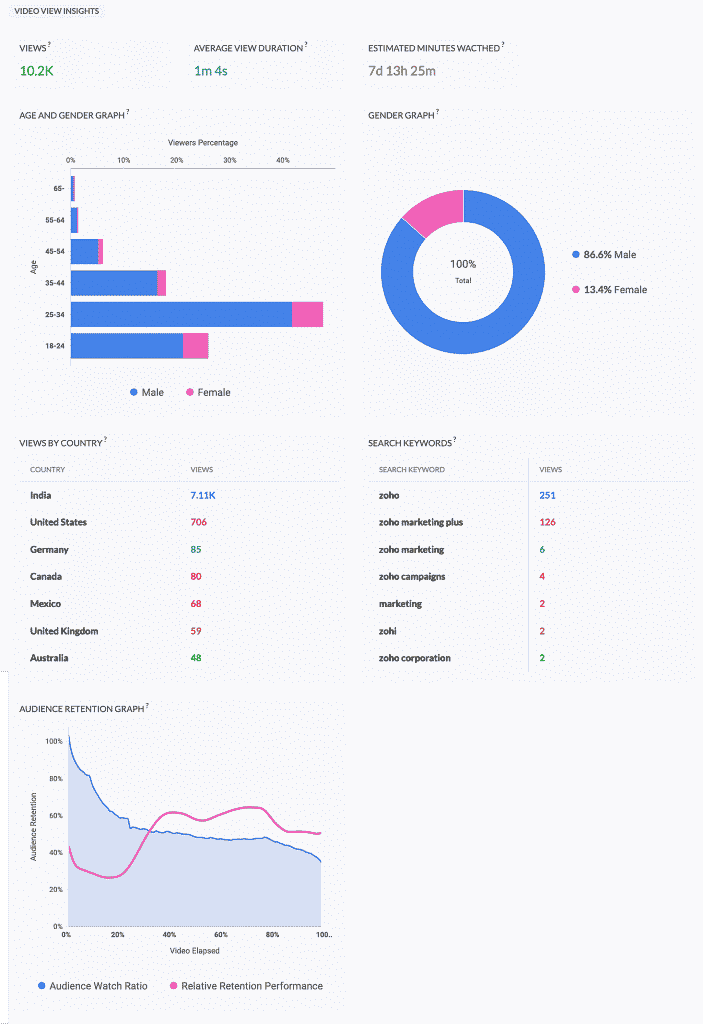
    YouTube statistics are grouped into categories like Engagements, Cards and End Screen, and Video View Insights. These sections help monitor in-depth metrics: audience retention, subscribers gained, card clicks, end screen clicks, annotation click-through rate, and total number of views sorted by country.

    Engagements

    (Image via Zoho)

    Cards and End Screen

    (Image via Zoho)

    Video View Insights

    (Image via Zoho)

    New Webinars from Zoho: Zoho CRM and Zoho Analytics

    Understanding and Working with Reports 2.0 in Zoho CRM (you can also learn more about the updates in our Zoho CRM Reports article)

    Integrating Zoho Analytics with Zoho CRM

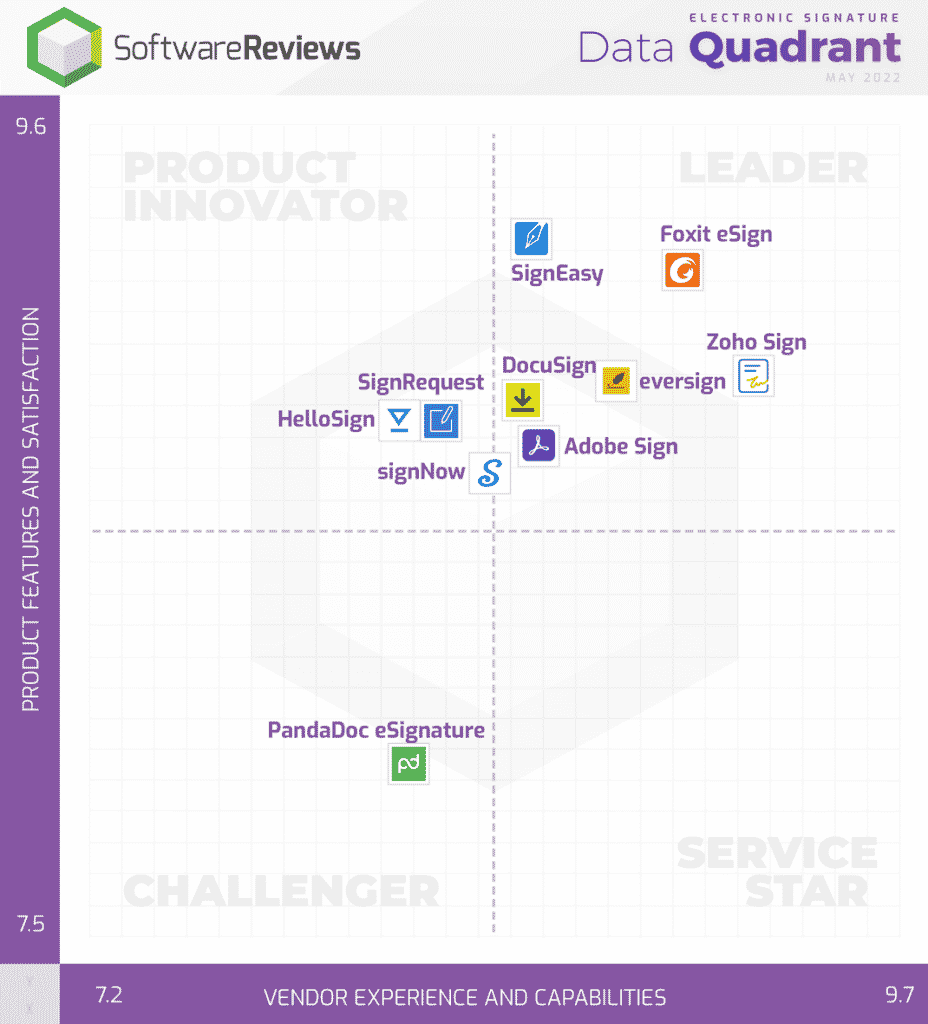
    Zoho Sign Recognized as Leader in Software Reviews’ Electronic Signature Data Quadrant

    (Image via Software Reviews)

    According to Software Reviews, their Data Quadrant evaluates and ranks products based in IT and business professionals’ feedback. Because Zoho Sign was featured as a top product in most categories and it has a composite score of 9.1/10, it was named as a Leader in the Electronic Signature Data Quadrant. The categories are:

    • Vendor Capability Satisfaction (Business Value Created; Breadth of Features; Quality of Features; Product Strategy and Rate of Improvement; Usability and Intuitiveness; Vendor Support; Ease of Data Integration; Ease of Administration; Ease of Customization; Ease of Implementation)
    • Product Feature Satisfaction (Audit Trail, E-Signatures, Mobility, Security, Third-Party Integration, User-Friendly, Workflow, Cloud/On-Prem/Hybrid Deployment, Customizable Branding, Digital Signature, Notifications, Regulatory Compliance, Templates)

    That’s all for now, IC readers! See you soon for more Zoho updates from InterConnecta!

    Need help with the implementation or optimization of any of your Zoho apps? Then you’re in the right place! Learn more about our Zoho Consulting Services and ask us for a free consultation.

  • Zoho News Catch-Up: Enhancements to Zoho CRM and Zoho Analytics, Plus New Zoho WorkDrive 3.0 and Zoho Campaigns Agency Edition

    Welcome to our catch-up, where you’ll be in the know of all the latest Zoho updates in one place!

    • Zoho CRM updates: Improved forecast capabilities, email templates are now automatically responsive in mobile devices, meetings can now be cancelled on Zoho CRM Android app.
    • Zoho Analytics has added enhancements for Business Application Connectors and integrations.
    • Zoho Campaigns launches Zoho Campaigns Agency Edition for marketing agencies.

    Zoho CRM Revamps Forecasting

    Image via Zoho

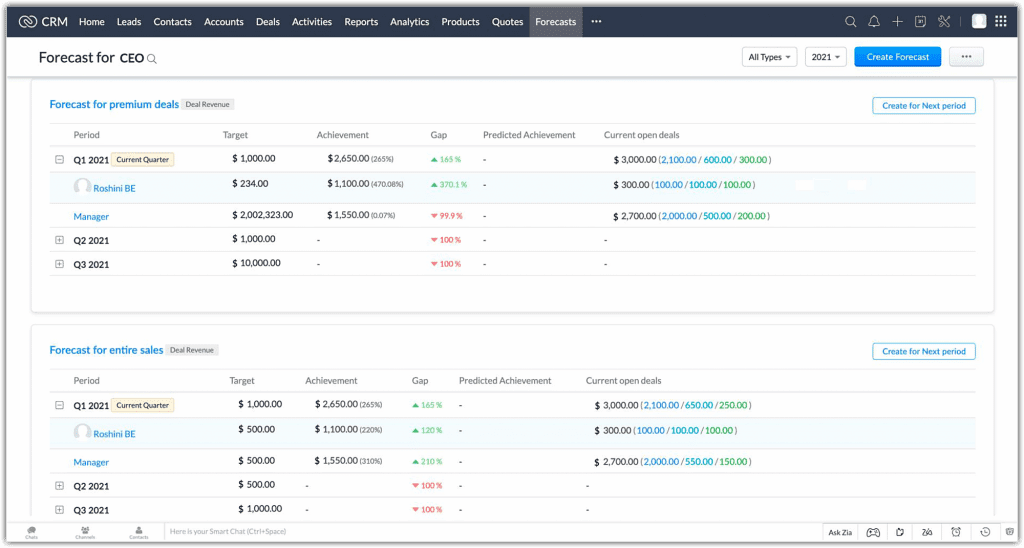
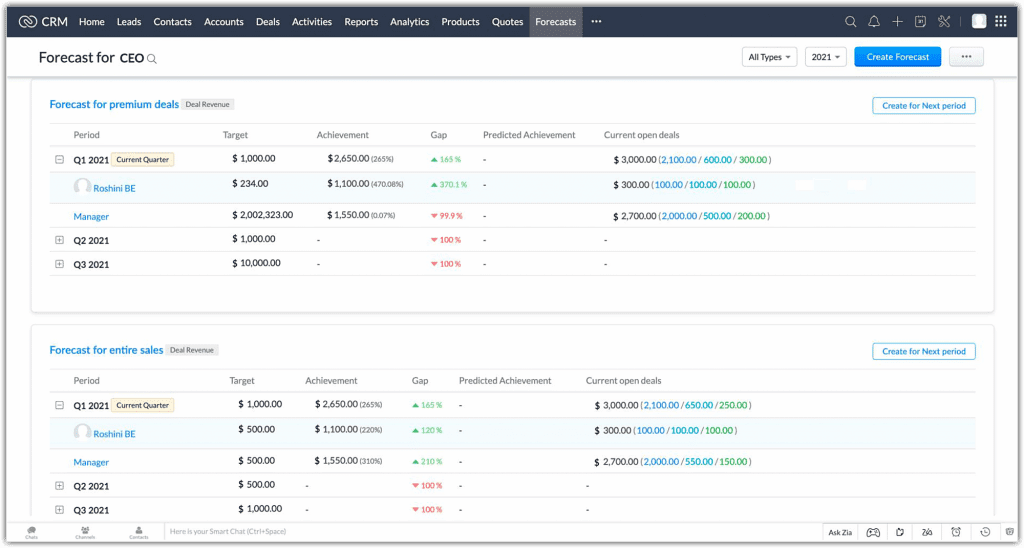
    Forecasting capabilities have been enhanced to help businesses understand their pipeline better, make accurate forecasts, set realistic targets, and help sales teams achieve them. These enhancements include:

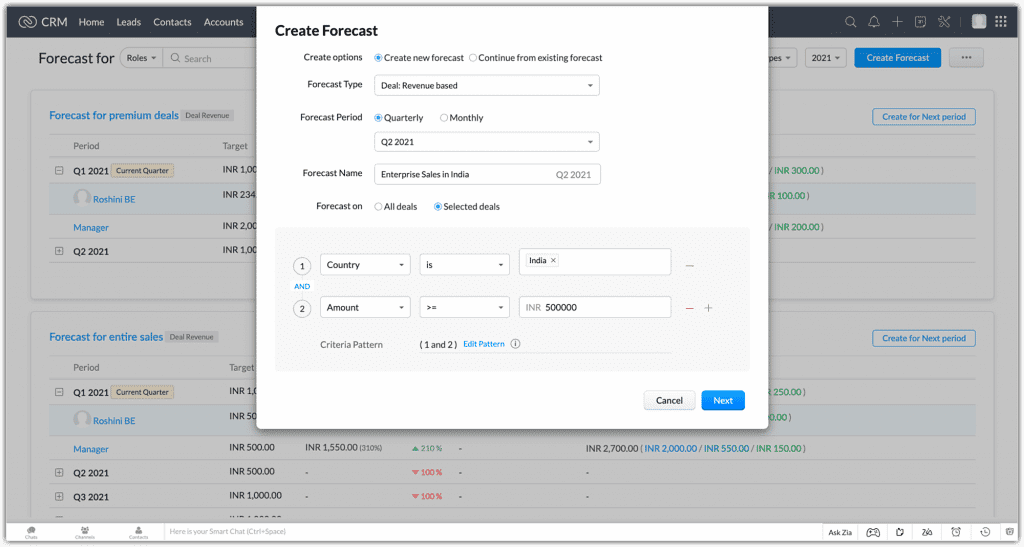
    • Condition-based and multiple forecasts across different periods
    • Forecast types based on deal revenue and deal quantity
    • Best Case and Committed Deals options under Forecast Category
    • Clear split of deals in pipeline for ideal targets
    • Zia proposes Target Suggestions and Target Achievement predictions
    • Comparison of your performance throughout different forecast periods
    • Archived forecasts

    For a complete walkthrough, check our blog post Zoho CRM Revamps Forecasting Feature.

    Email Templates in Zoho CRM Are Now Responsive on Desktop and Mobile Devices

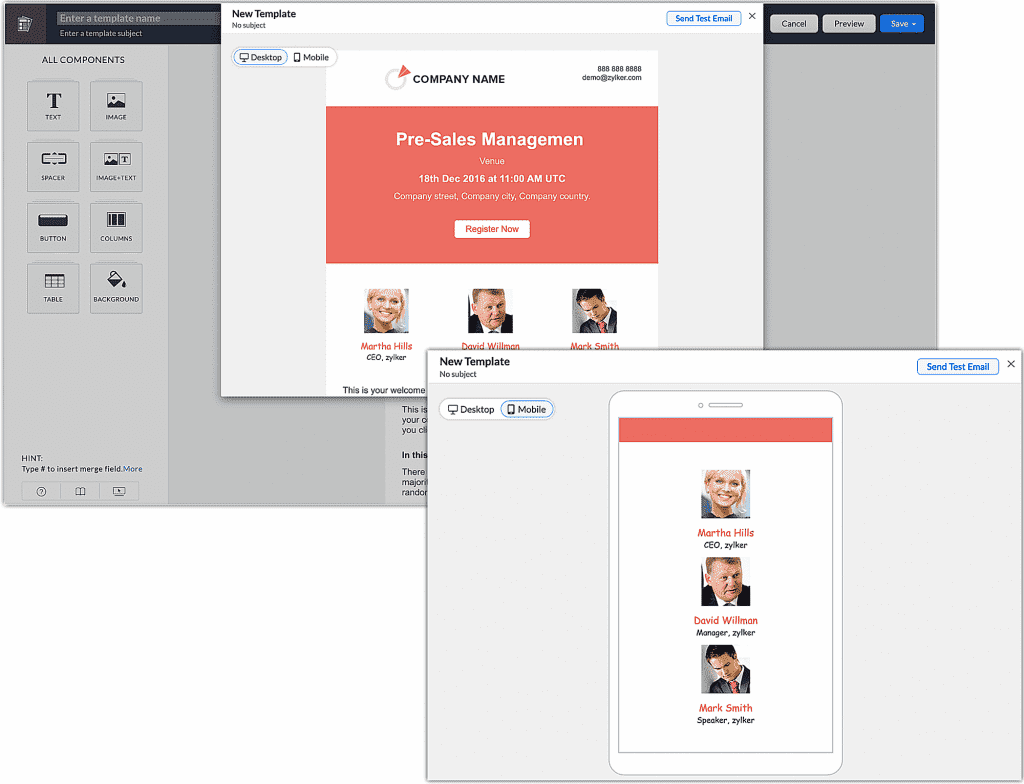
    The CRM templates you create are now automatically optimized for your customers every time they open the business emails you send them, regardless if they’re on mobile or desktop. This means that the email messages you send will be seen as intended without having to switch to desktop.

    Image via Zoho

    For existing templates, the responsive feature will be effective once you edit and save them again. In line with the responsive template, Zoho CRM has introduced two new options for template preview —Mobile and Desktop— to quickly verify the responsive functionality of your emails.

    You’ll have the option to switch between the template’s preview from mobile to desktop and vice versa in the following places:

    • The template preview on the Template Builder page.
    • The template preview page on the Template List page.
    • The template preview on the Template Selection page.

    Improvements for Test Emails

    • The Send Test Email button has been relocated to the top-right corner of the pop-up.
    • You can now add up to five of your CRM users on the Send Test Email pop-up screen.

    New Meeting Cancellation Feature on the Zoho CRM Android App

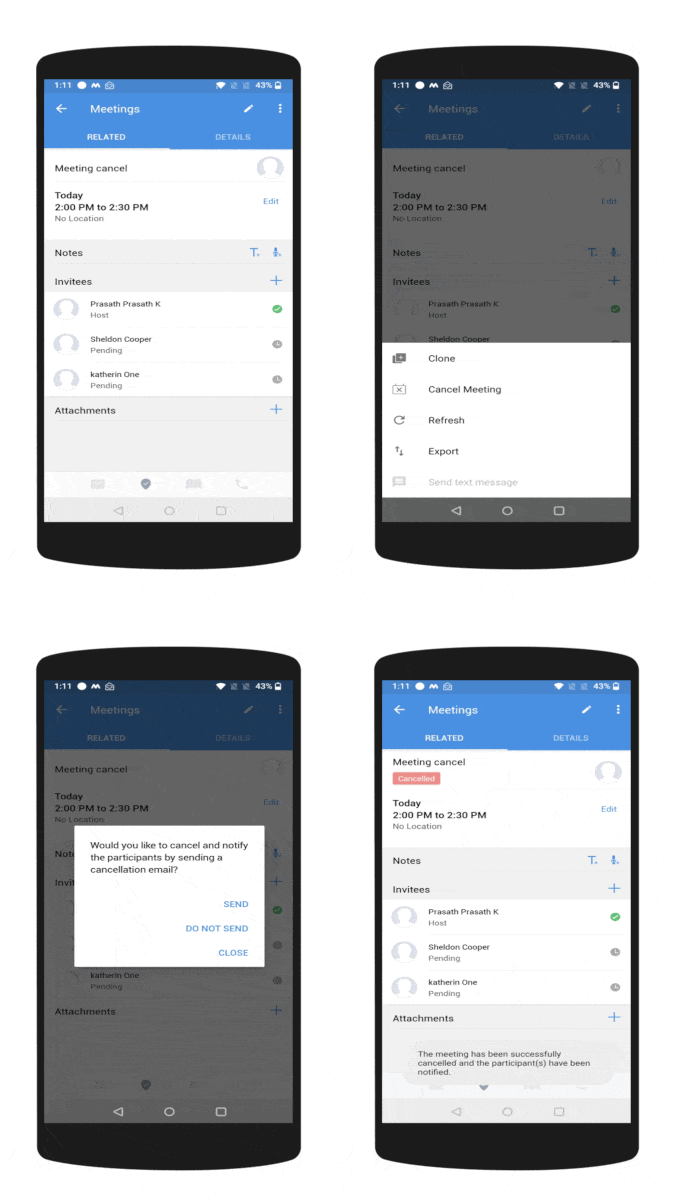
    For cancelling a meeting from within the Zoho CRM mobile app, the meeting should be an ongoing activity. Also, the meeting record should have the participants added to it. The meeting invitations should be sent out to the participants of that respective meeting. Only then the meeting will have the Cancel Meeting option.

    Video via Zoho

    Upon cancelling a meeting, the user will receive a message whether to inform the participants about it with these three options:

    • Send: Sends out email notifications to the participants about the cancellation of the meeting.
    • Do not send: The meeting will be cancelled but the participants won’t be informed about the cancellation.
    • Close: Closes the prompt message.

    The meeting cancellation feature is also available on the Zoho CRM iOS app.

    New Zoho Analytics Integrations

    Integrations with SurveyMonkey, LinkedIn Pages, and LinkedIn Ads have been added. Learn more by clicking the previous hyperlinks.

    Zoho Analytics: Improvements for Business Application Connectors

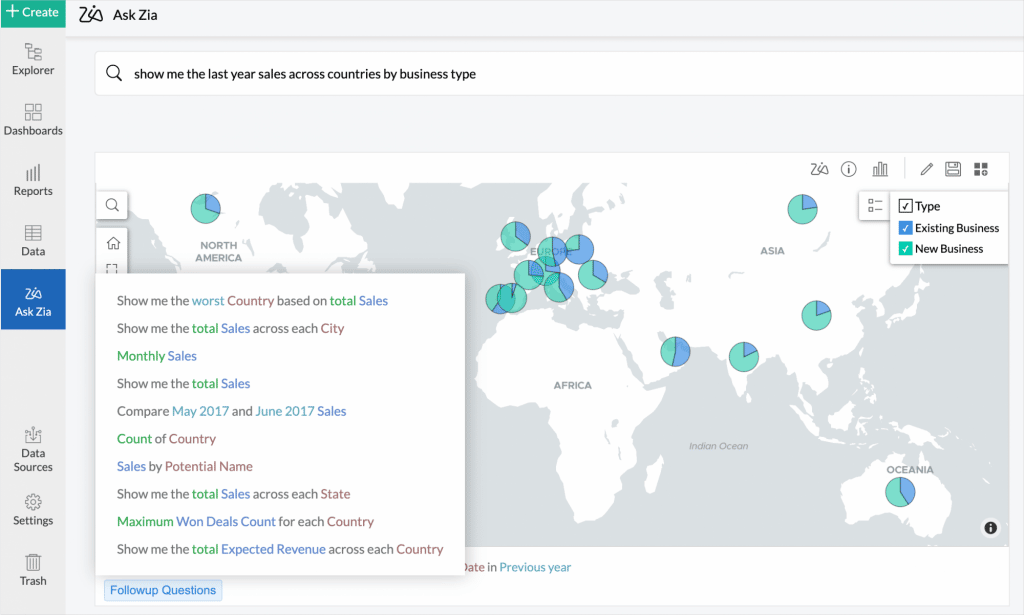
    Ask Zia now auto suggests follow-up questions based on your current question. (Image via Zoho)
    • Advanced Analytics Connector for Zoho Forms: Advanced Analytics for Zoho Forms enables you to proactively research, engage, and obtain analytical insights over the data you collect using Zoho Forms. You will be able to import the forms’ data into Zoho Analytics as a table. Each of the forms and sub forms will be imported as a table in Zoho Analytics with all sub forms tables joined using lookup columns.
    • Sync data every hour: Users in Enterprise plan will be able to sync data using their business application connectors every hour.
    • Sync history: Zoho Analytics provides an option to view the history of the data that was synced for your Business Application Connectors. Data sync history of the last 45 days will be available.
    • Notifying sync failures: Zoho has refined the procedure to notify in case of sync failures. When a data sync fails, you will be notified through in-app notification. In case the sync fails continuously for more than 24 hours, an email will be sent to you with the reason and appropriate solution for them once in every 24 hours.
    • Direct organization URL: Previously, when having multiple organizations, you needed to select the organization to view workspaces on a specific organization. Now you and your users can access the organization easily using the direct link.
    • Follow-up questions in Ask Zia enhancement: Ask Zia now auto suggests follow-up questions based on your current question. This is supported in the normal and conversation modes. This lets you to easily build questions to instantly get reports over your data.
    • Undo and redo in Reports
    • View Share Details from Settings

    Zoho Campaigns Launches Exclusive Edition for Marketing Agencies

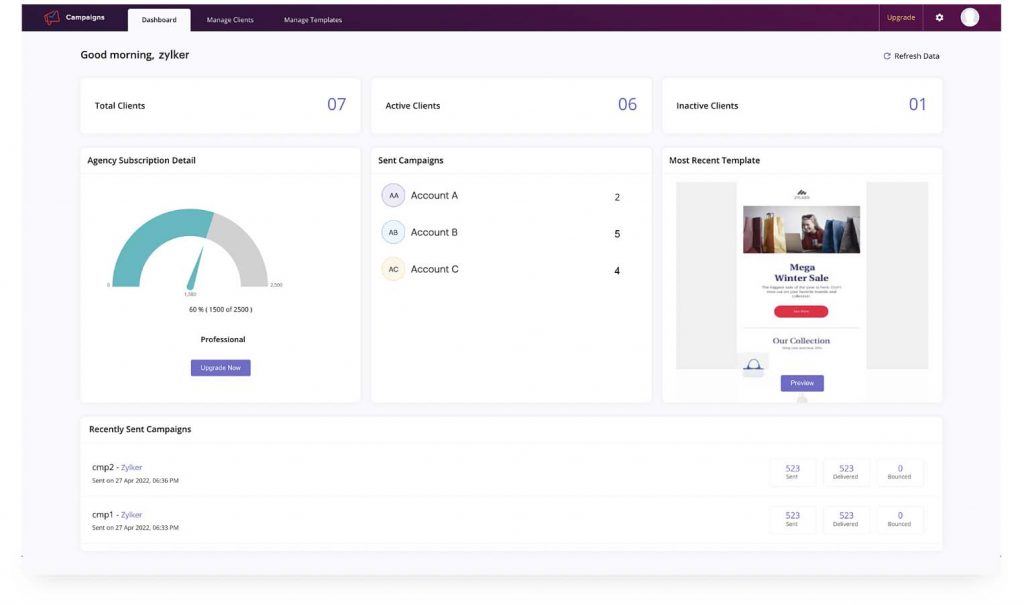
    The Zoho Campaigns Agency Edition allows you to use one parent account to manage all your different clients from the Agency console. (Image via Zoho)

    The Zoho Campaigns Agency Edition has been specially designed to save digital marketing agencies effort, time, and money with the following features:

    • Use one parent account to manage all your different clients from the Agency console. From there, you can add, remove, manage, and send campaigns on behalf of clients. See each client’s details, including their subscriptions, active/inactive contacts, number of campaigns, and more.
    • Zoho Campaigns Agency Edition enables digital marketing agencies to purchase licenses in bulk and then distribute them among clients, based on their needs.
    • Push a template style to multiple clients. Design a template in your parent account and save it in your Templates Library. Using the Push button, send the template to your desired clients.
    • Share the content you have created directly with your clients so they can give the final approval. You can also add a user from the client’s team to this portal, so they can be updated about all developments.

    Zoho WorkDrive: 3.0 Version is Released with New Features

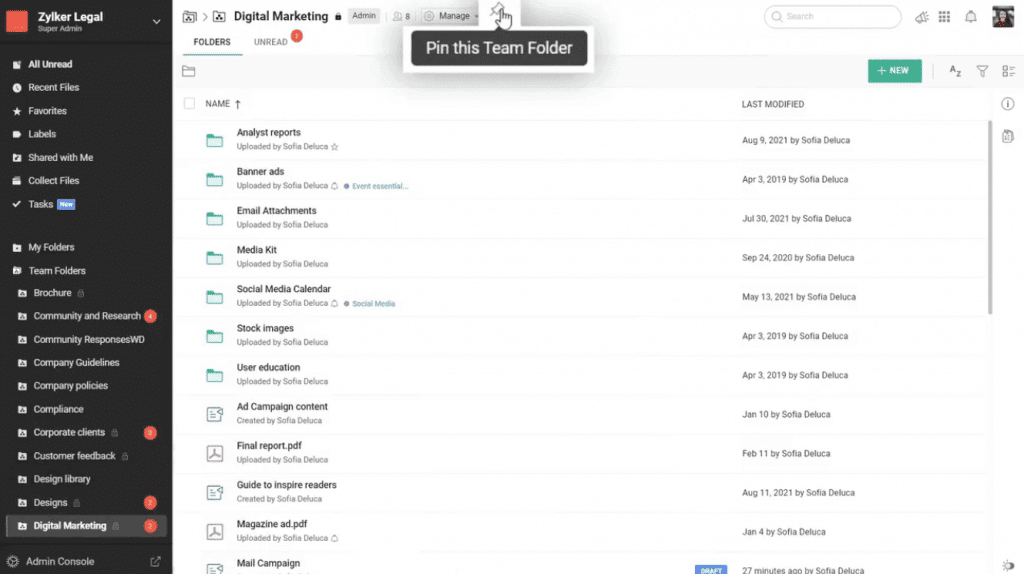
    In Zoho Workdrive 3.0 you can pin important folders with the Pin feature. (Image via Zoho)

    Here’s a summary of what’s new:

    • You can now integrate WorkDrive with your Zoho and third-party business applications, and streamline data flow across your company, through the WorkDrive API platform.
    • Pin important folders with the Pin feature. Now you can locate important Team Folders faster by pinning them to the top of your Team Folder’s list.
    • An improved interface with a detailed view of Team Folders to help you find the right data at the right time. You can also determine which Team Folders should be displayed on the left panel. You can choose to display all Team Folders, only pinned Team Folders, or none.
    • Duplicate Team Folders by copying them to share and collaborate with a different set of members.
    • Use the compact view to see more items in a folder for amplified visibility.
    • Access folders offline by manually enabling them.
    • Use Zoho WorkDrive’s intuitive widgets to upload photos and search WorkDrive documents right from your mobile phone’s home screen.
    • Beta version for WorkDrive Genie for Mac is now in place. Now both Windows and Mac users can edit any file stored in WorkDrive with the compatible native application from their desktop.
    • In Templates, create files with consistent document settings (such as style, design, and formatting). Also, you can now categorize your templates within your gallery. A built-in search bar has been added to search for specific templates: search by name, author, or a keyword in the content.
    • Preview improvements: Preview PDFs and images in a variety of sizes (in percentage), zoom in or out on images, reset zoom to fit the window’s size, and quickly jump to any page.

    To learn more details about Zoho WorkDrive 3.0, click here.

    Zoho SalesIQ Integrates with Instagram

    Manage your Instagram DMs directly from SalesIQ. This integration can help you reduce the friction of sharing your account credentials and logging into your Instagram account for all your operators.

    Industry Awards and Recognitions for Zoho

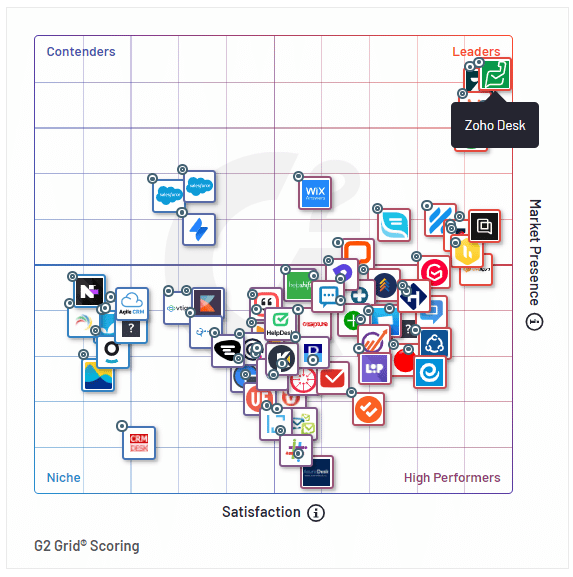
    G2 Grid Scoring from G2’s Spring 2022 Report. (Image via Zoho)
    • Zoho wins the 2022 CRM Watchlist award with the highest overall score. Zoho CRM emerged with the highest overall score among strong competitors like Salesforce, Oracle, SAP, and others.
    • Zoho Desk named as Leader in G2’s Spring 2022 Reports. Zoho Desk has received a total of 55 badges across four categories of the report, based on 3,700+ user reviews. Among these, Zoho Desk have been ranked as a #1 Leader for a whopping 14 times.
    • Zoho Analytics rated as overall Leader for both Customer Experience and Vendor Credibility by Dresner Advisory Services. Howard Dresner, Founder and Chief Research Officer at Dresner Advisory Services, said the following about the BI and advanced analytics platform: “For 2022, Zoho’s scores are generally above the overall sample, with key improvements in overall value, product, and technical support. It is an overall leader in both Customer Experience and Vendor Credibility Models and has a perfect recommend score.”

    That’s all for now, IC readers! See you soon for more Zoho updates from InterConnecta!

    Need help with the implementation or optimization of any of your Zoho apps? Then you’re in the right place! Learn more about our Zoho Consulting Services and ask for a free consultation.

  • Zoho CRM Revamps Forecasting Feature

    Recently, forecasting in Zoho CRM —which is one of its main features— has been significantly updated. Its capabilities have been enhanced to help organizations understand their pipeline better, make accurate forecasts, and set realistic targets that can help sales teams achieve them. Here’s a walk throughout all the improvements that were made:

    Condition-Based and Multiple Forecasts Across Different Periods

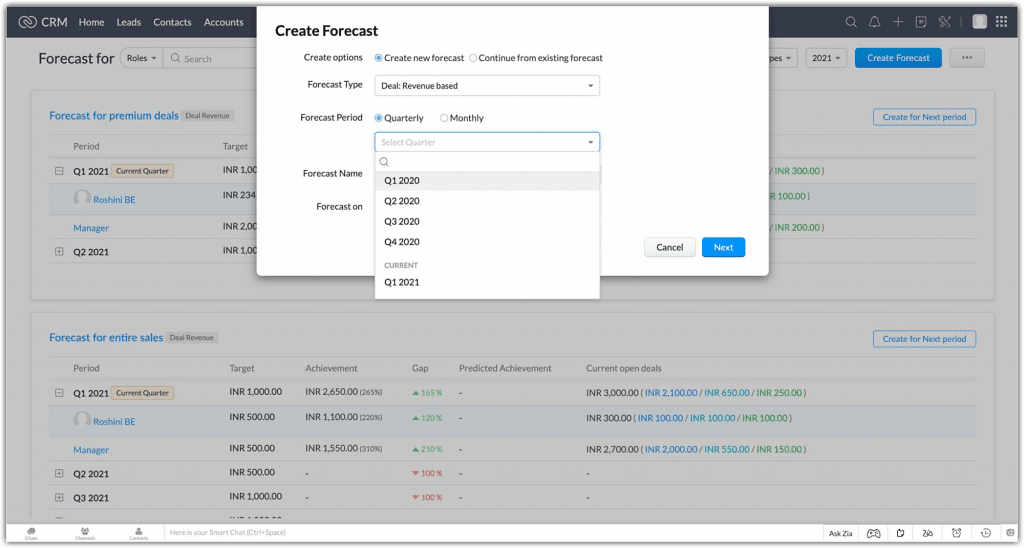
    Now you can create multiple forecasts, which can include all your deals or deals that match specified conditions, with a greater control of the forecast periods. Forecasts can be created for all the available hierarchy (Role/Reporting to and Territory). They can also be created monthly or quarterly for these forecast periods:

    • Current: 4 quarters/12 months of current fiscal year.
    • Future: 4 quarters/12 months of the next fiscal year.
    • Completed: The previous 2 fiscal years.
    Image via Zoho
    Image via Zoho
    Image via Zoho

    Forecast Types

    Two forecast types can be created based on the attribute that is used to set targets for your users:

    • Forecasts based on deal revenue: Targets are based on currency fields like Deal Amount, Expected Revenue, or other custom currency fields defined on the Deals module.
    • Forecasts based on deal quantity: Targets are based on system defined fields like Count of Deals and other custom number fields.
    Image via Zoho

    Best Case and Committed Deals Options Under Forecast Category

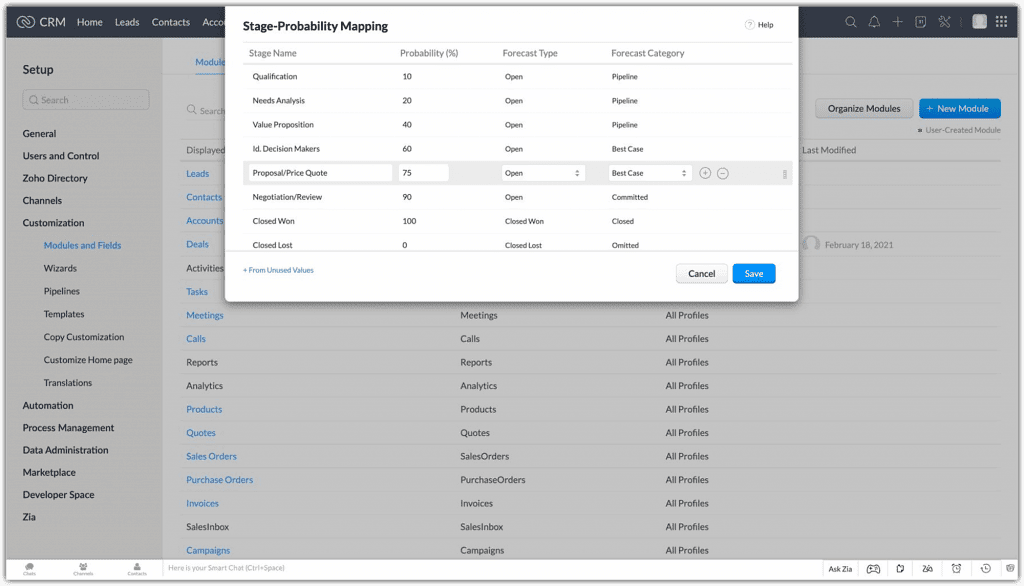
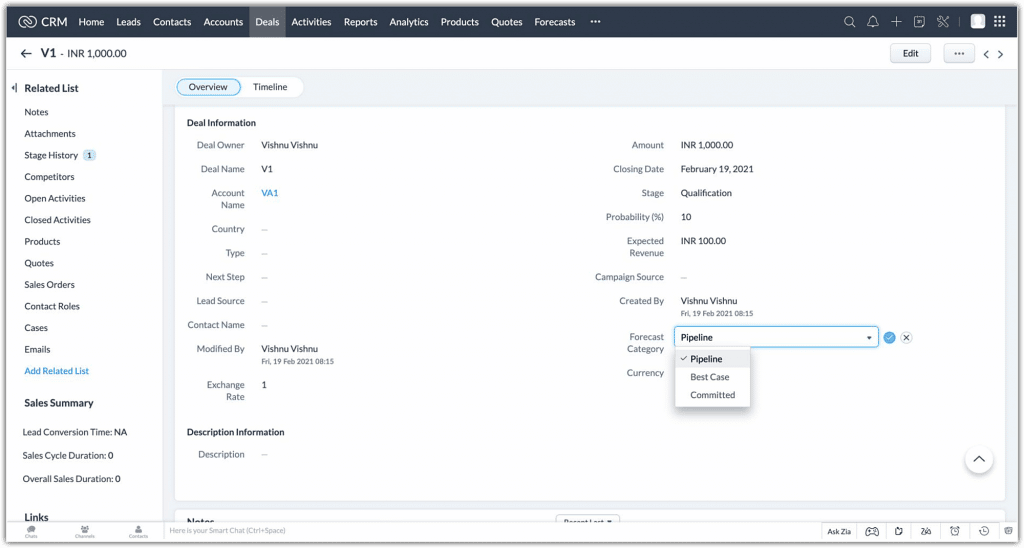
    In the past, deals only had three forecast categories that were associated with them: Closed Won (deal was marked as “Won”), Closed Lost (deal was marked “Omitted”), and Open (deal was marked as “Pipeline”). Now, open deals can be tagged with new options under the forecast category:

    • Best Case: Open deals that have a high chance of being won.
    • Committed: Open deals that sales reps commit to winning.

    Instead of generalizing all open deals as pipeline deals, this separation offers a better view as to where a particular sales rep stands in terms of the deals in their pipeline. This allows the administrator to make more informed decisions when setting targets for a particular user.

    Moreover, sales reps have the option to manually update the forecast category in a specific deal to the applicable option when needed. The deal amount will be updated in your forecast during its next sync.

    Image via Zoho
    Image via Zoho

    Transparent Split of Deals in Pipeline for Ideal Targets

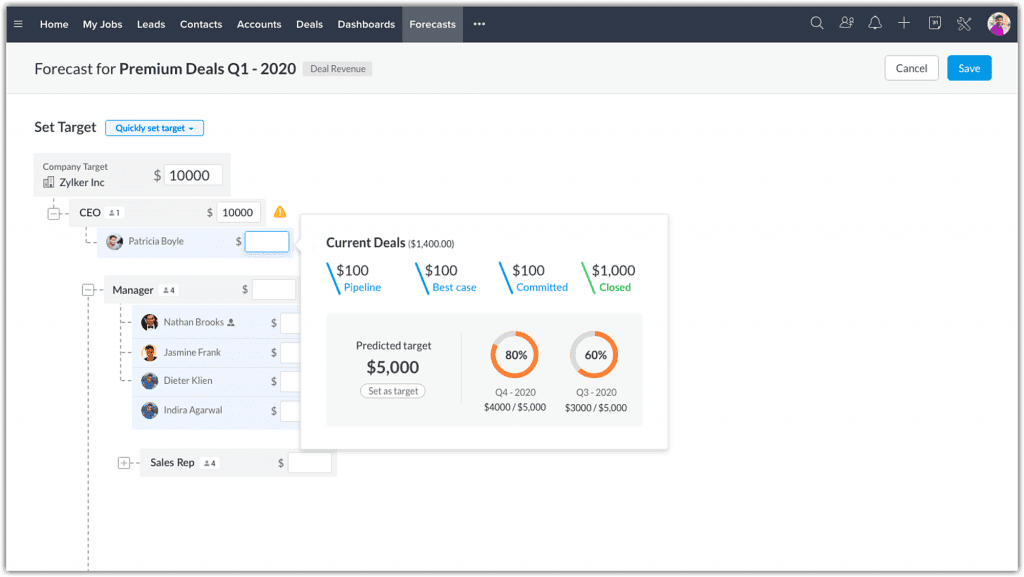
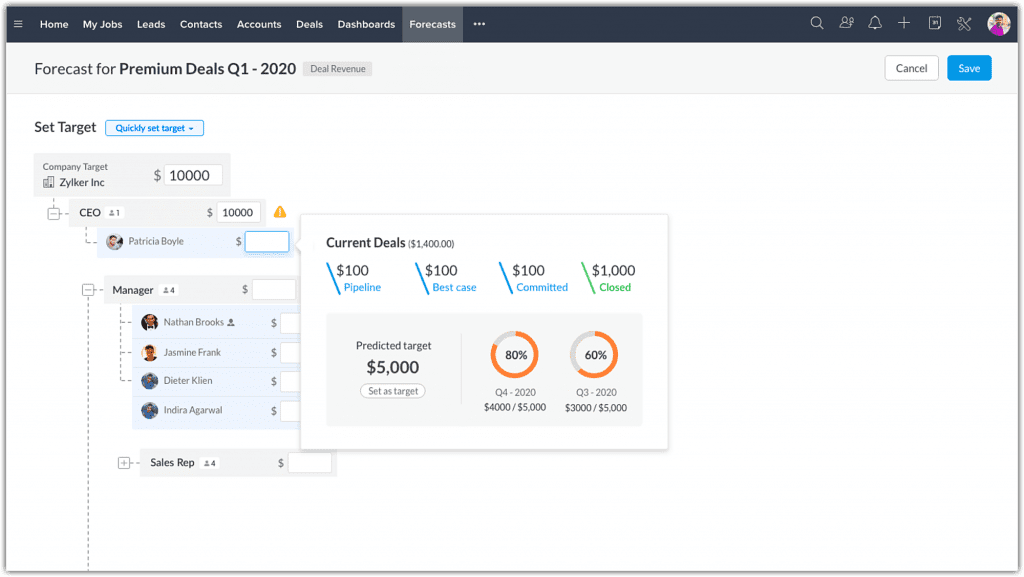
    While setting targets for your users, a popup with your pipeline data shows the split of deals to give you full visibility of where each user stands in-terms of sales numbers. The deals are divided into open and closed won deals. Open deals are being further split into Best Cases, Committed, and Pipeline deals.

    Image via Zoho

    Zia Proposes Target Suggestions and Target Achievement Predictions

    When creating a continuous forecast, Zia (Zoho CRM’s AI assistant) will calculate and suggest targets based on the historical data of your chosen forecasts. This will be available in the forecast creation page when setting targets.

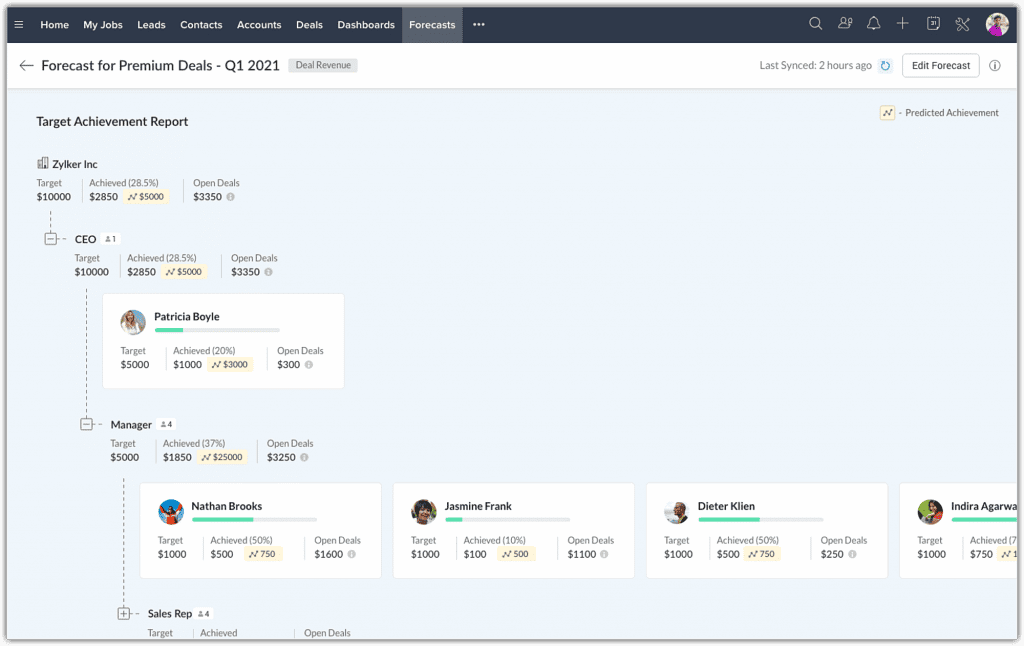
    Also, the historical and current deal closure pattern of users will be analyzed to give you the predicted target achievement for the users. Achievement predictions will be available in the Target Achievement report.

    Image via Zoho

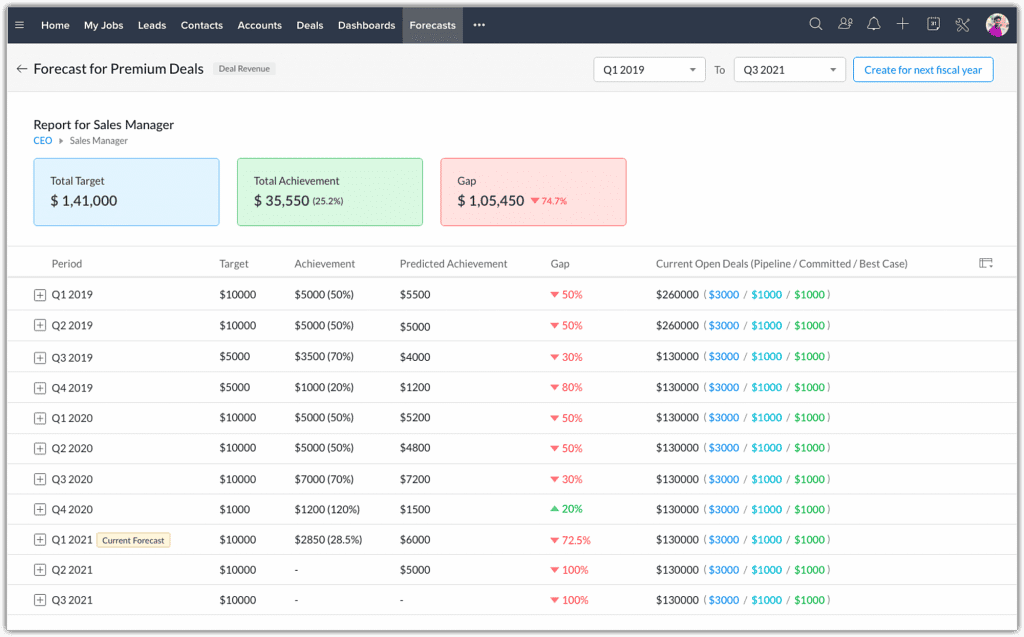
    Compare Your Performance Throughout Different Forecast Periods

    All your created forecasts will be available in a list view under the Forecast module. You can now drill down into a particular forecast and compare how your organization’s performance has progressed through the years.

    Depending on the duration selected in the filter, the following data will be consolidated and shown at the top: Total Target, Achievement, and Gap.

    Below the consolidated data, the forecast data for each quarter/month for the selected duration will be listed for an all-encompassing analysis. If necessary, you can drill down further to analyze the performance of individual users or roles.

    Image via Zoho

    Archived Forecast

    In previous versions, forecast records beyond two previous years were lost. This defeats the purpose of having past forecasts available, since that data might still be very of grand importance. That’s why Zoho CRM now has the option of archived forecasts.

    Completed forecasts over two years from the current year will now be archived. For example, if the current year is 2022, forecasts of 2021 and 2020 will be available on the forecast list view page. Meanwhile, forecasts from 2019 or older will be archived.

    Forecasts will be archived automatically upon editing forecast configuration (changing either the hierarchy or forecast type). For example, if the hierarchy is Reporting To and it’s changed to Territory or the forecast type is edited, the existing forecasts would be archived. Forecasts will be archived if the hierarchy preferences are modified in Company Details.

    In the archived forecast page, the forecasts are listed in chronological order. In addition, you can filter them based on Hierarchy, Forecast Type, and Time.

    Image via Zoho
    Image via Zoho

    Things to Keep in Mind:

    • The archived forecasts can’t be edited; they are just for viewing purposes. Users have to option to delete a forecast.
    • Up to 5 years of forecasts records will be available as archived.
    • Changing the start date of your organization’s Fiscal Year will delete all the existing forecasts, as well as the archived forecasts.

    Forecast Managers are Empowered

    In this update, forecast managers can build their own forecasts and assign targets to their role, their own target, their colleagues, sub roles, and users. Individual teams can have their own distinct forecasts and targets which can be focused on. These forecasts will be visible for the admin, CEO, and the forecast manager of a higher role who can monitor these forecasts and update them when necessary.

    If a forecast manager’s target has been changed by the CEO, admin, or a forecast manager from a higher role, the changed target is locked and can’t be modified by the forecast manager.

    Please note that all these major updates are already available in Zoho CRM.

    To read the full article, click here.

    Are you considering to implement or improve Zoho CRM Workflow Automation in your business? Then click here for more information.

  • Zoho News Catch-Up: Redesigned Zoho Campaigns Mobile App; Zoho CRM and Zoho Creator Updates; Forbes Recognizes Zoho Recruit

    Welcome to our weekly catch-up, where you’ll be in the know of all the latest Zoho updates in one place!

    • Zoho Campaigns mobile app is now fully operational: allows contact imports, sending campaigns, tracking metrics, among others.

    Zoho Campaigns Relaunches Redesigned Mobile App

    Recognizing the needs that marketers have to access and manage campaigns from anywhere, the team behind Zoho Campaigns has redesigned from A to Z their mobile app for Android and iOS. This means that the Zoho Campaigns mobile app is now fully operational and will let you do the following:

    • Creating Emails with Predesigned Email Templates: Use either simple or advanced professionally designed templates and customize them by using the rich text editor toolbar.
    • Import Contacts in Many Ways: Import your contacts straight from your mobile device to your Zoho Campaigns account. Also, if you’re an Android user, you can use the business card-scanning option to add new contacts.
    The revamped Zoho Campaigns mobile app lets you upload contacts straight from your mobile phone in XLS, XLSX, and CSV formats.
    The revamped Zoho Campaigns mobile app lets you upload contacts straight from your mobile phone in XLS, XLSX, and CSV formats. (Image via Zoho)
    • Schedule Email Campaigns: Immediately schedule a campaign after it’s reviewed or pause it while it’s still being sent.  
    • Comprehensive Dashboard: View results and key metrics (such as open, click, and bounce rates).
    • iPad and Tablet Friendly: The Zoho Campaigns mobile app is also fully functional in iPads and tablets, which lets you view two reports side by side on the flush split-screen view of your iPad. You can also carry out tasks at the same time between Campaigns and other apps without compromising the usability of either one. Moreover, the slide over feature lets you have the Campaigns app waiting in the wings while you work in another app, and drag and drop can be used to move items back and forth. Text input is now possible with the Apple Pencil. Watch how it works.
    • Email Accessibility Options: Ensure a user-friendly experience for all Zoho users with the added features of voiceover, dynamic font size, and color filters.
    • Informative Widgets: Place in them all the information you need to know about current and upcoming campaigns. Get quick and full visibility without opening the app.
    The new widgets from Zoho Campaigns mobile app. (Image via Zoho)
    • Spotlight Search and Siri Shortcuts: Create custom phrases to call up specific campaign reports using Siri. These reports are also accessible directly from the lock screen. Use Spotlight Search and In-app search to quickly find information about email campaigns or lists.
    • Easy Navigation: Comfortably use your touchscreen to perform complex marketing tasks on the app.
    • Customize Your App: Switch between light and dark modes, change the app icon’s color theme, and assign custom Quick Actions for your home screen icon.
    • Privacy Protection with Data Access Control: Secure functions like setting up a unique passcode for the Campaigns app. Plus, you can go to your App Settings and take full control of your data by enabling and disabling what details to share with others.

    Zoho CRM Reports Module Gets Updates

    • Add up to five related modules to a report. In earlier versions, only two modules could be added.
    (Image via Zoho)
    • Reports can now be extended to related lists. Any related list (Stage History, Pick List Field History) can be seen as a report from the base module, from which it is been created.
    • Matrix report: The row grouping and column grouping is supported for 2×2 columns. Earlier it was supported for 1×1.
    • Grand total can be shown for all the existing rows. This is regardless of the number of records. Sub-group total can also be shown for all sets of rows.
    • Grouping dates by sub-groups is possible. In previous versions, it was supported only in a matrix report, for a default of 3 sub-groups.
    • Export is now available in CSV & XLSl formats for a record count of 50K. This goes up from 20K records that could be exported in CSV format in past versions.
    • Refined UI/UX with a drag and drop reports editor with preview.
    (Image via Zoho)

    Zoho CRM iOS Mobile App: Attach Files from Zoho WorkDrive to a CRM Record

    To access this latest update, go to a CRM record in your iOS app, then click on Attachments > Attach from WorkDrive.

    Zoho CRM iOS mobile app: attach WorkDrive files to CRM records.
    (Screenshots from Zoho CRM iOS app.)
    Zoho CRM iOS mobile app: attach WorkDrive files to CRM records.

    Zoho Creator Limits Number of Scopes

    Zoho is now implementing a limit of 50 scopes per connection. You will encounter an error when you try to create a Zoho OAuth Connection with more than 50 scopes. If you have already configured a connection with more than 50 scopes, then you’ll find an error while updating the scope. Read more here.

    Forbes Advisor Recognizes Zoho Recruit

    The recruitment platform has been named as the Best Recruitment Software of 2022 for staffing agencies because it is “an affordable and highly customizable option capable of seamless integration with other Zoho apps.” Forbes highlighted Zoho Recruit’s features of software integrations; resume management tools; interview tools; background screening; career page; referrals and social posting; and reports and analytics. Read the news here.

    That’s all for now, IC readers! See you next week for more Zoho updates from InterConnecta!

    Need help with the implementation or optimization of your Zoho Campaigns, Zoho CRM, Zoho Creator, Zoho Recruit or any other Zoho apps? Then you’re in the right place! Contact us now for a consultation.
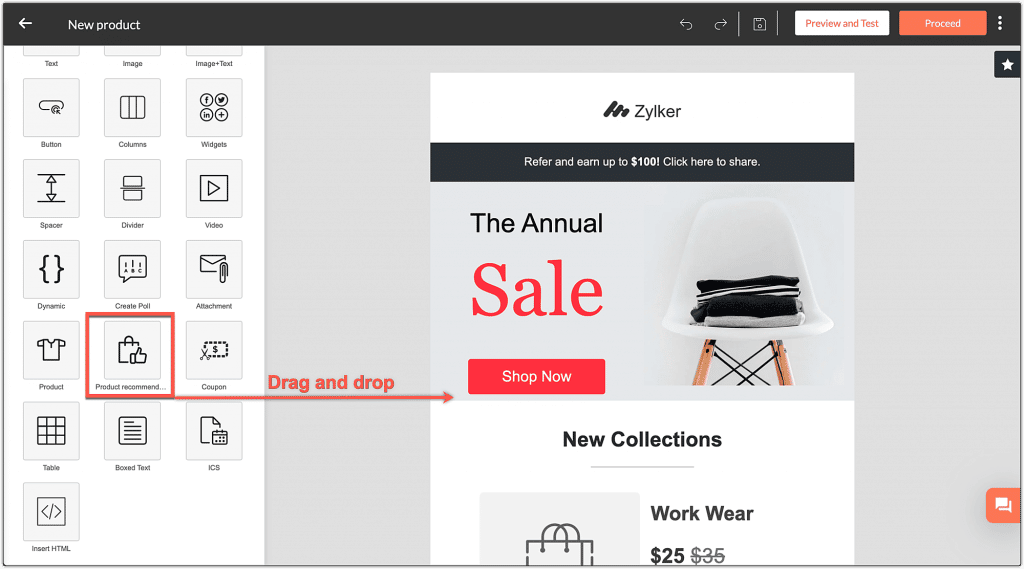
This site is registered on wpml.org as a development site. Switch to a production site key to remove this banner.